Configuring Route53 Support
| Table of Contents |
|---|
Getting Started
...
This will open the "Server Settings" page.
Server Settings
1)
...
Add Server Common Settings
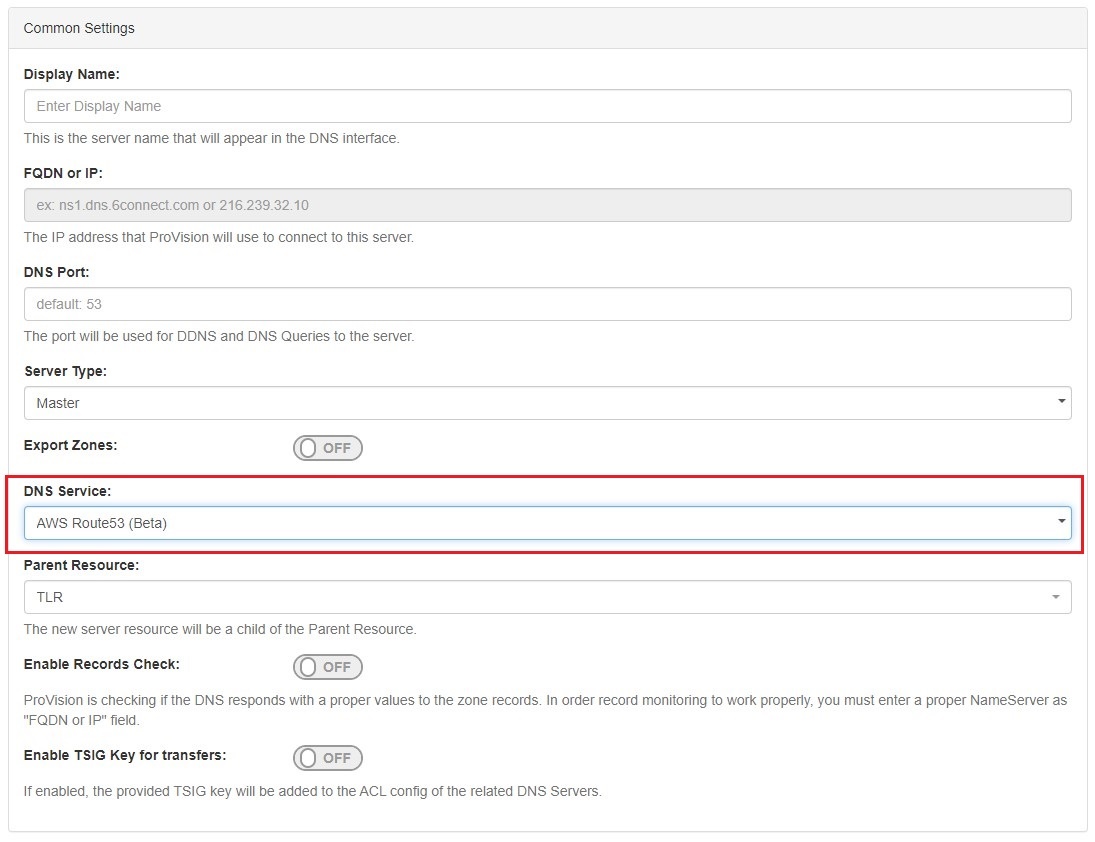
In the "Common Settings" section of Server Settings, enter a Display Name for the new Route53 server, skip FQDN / IP , and select Server Type.
...
If desired, adjust the other available settings in this section, then scroll down.
2) Set Route53 Server Specific Settings
The next section is entering server service-type specific settings. The options visible in this section will depend on the "DNS Service" type chosen under "Common Settings".
...
After entering the server-specific settings in this section, you can click the "Test Server" button at the bottom right of the page to test the server connection and authentication.
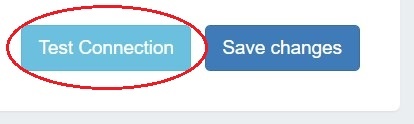
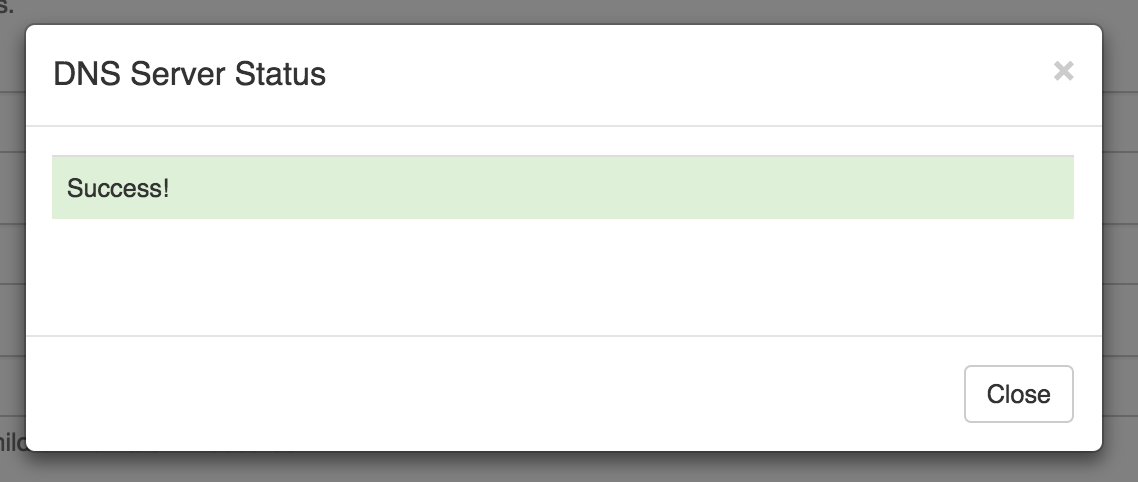
A window will pop up showing a success or failure response.
3) Set DNS Group Settings for Server
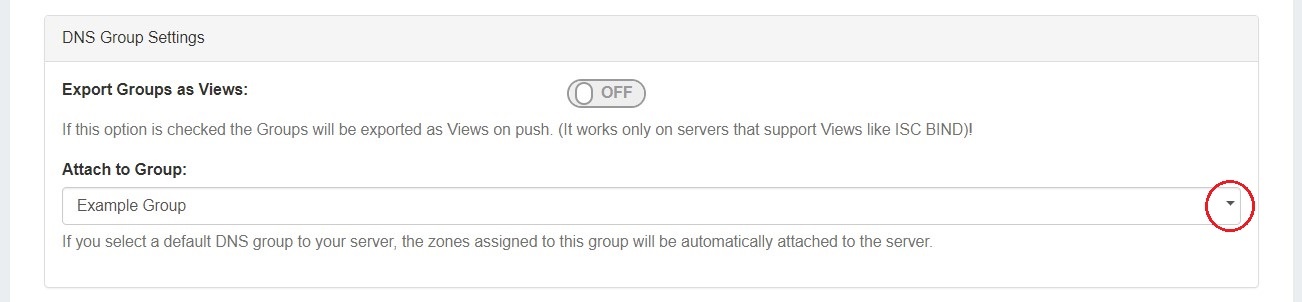
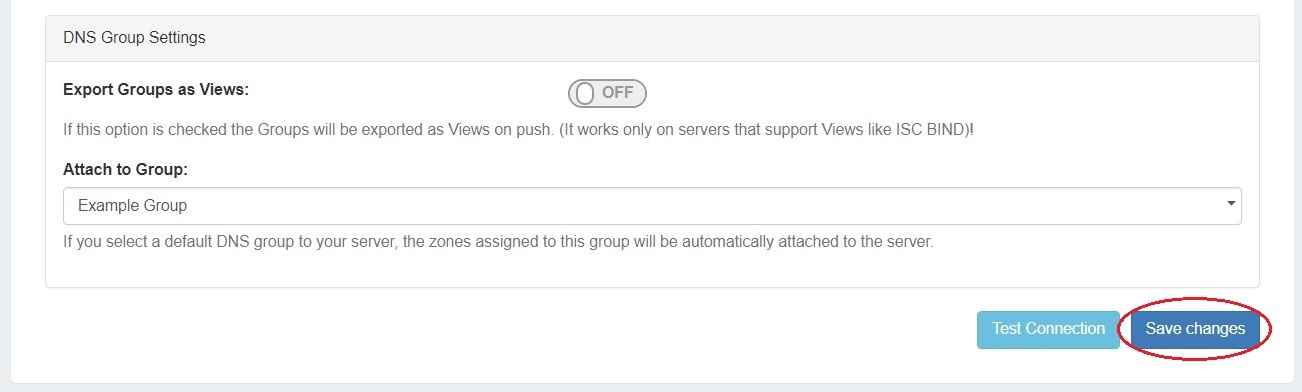
In the last section, select a default Group to be associated with the server (optional). Zones assigned to the selected Group will automatically be attached to the server.
4) Save Changes
Save your changes when done! Just click the "Save Changes" button at the bottom right of the page.
Additional Information
For additional information on working in DNS, see the following sections:
...