Configuring DNSSEC
| Table of Contents |
|---|
Enable DNSSEC for a Server (ProVision GUI)
DNSSEC may be enabled on a per-server basis in the ProVision DNS Server Settings.
Navigate to the DNS Tab, and select the DNS Servers section.
...
In the server settings page, scroll to the bottom of the second section, containing server-specific specfic settings.
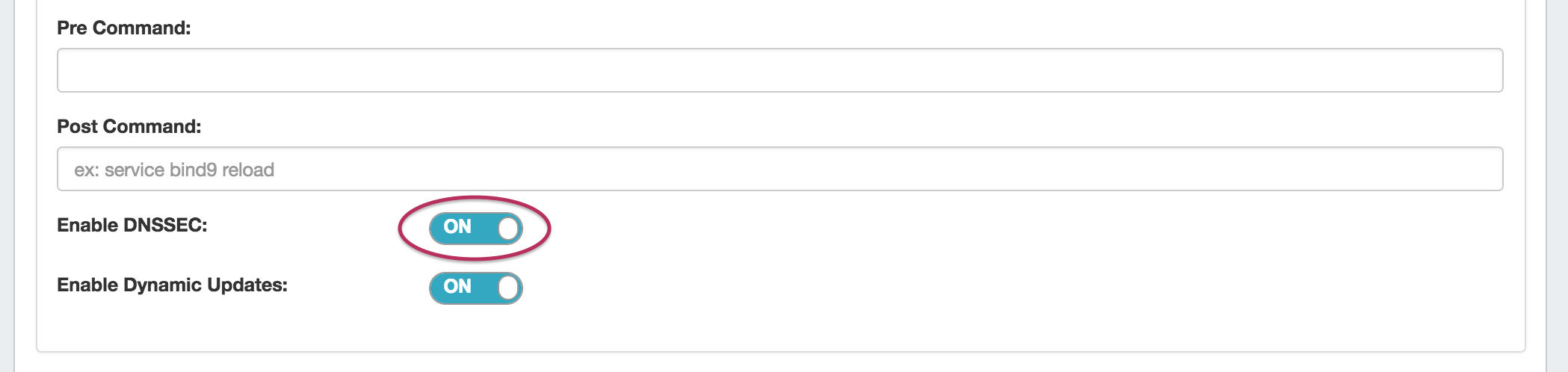
Near the bottom of the section is a toggle to "Enable DNSSEC" for the server; click the toggle to the "ON" position.
Enable DNSSEC for a Zone (ProVision GUI)
DNSSEC may be enabled on a per-zone basis in the ProVision Zone Advanced Settings.
Before you enable DNSSEC for a zone, make sure that do the following:
- Make sure DNSSEC is enabled on the DNS server(s) you will be pushing zones to (see "Enable DNSSEC for a Server", above)
- run configTest.php to make sure that your directories/permissions are correct
- Set external server for Authenticated Data verification
- Create/Edit a zone - see Working with DNS Zones - Common Tasks for additional information.
- Ensure that the zone is associated with a DNS server(s)
Enabling DNSSEC (for a single zone)
Navigate to the DNS Tab, and select the DNS Groups section.
...
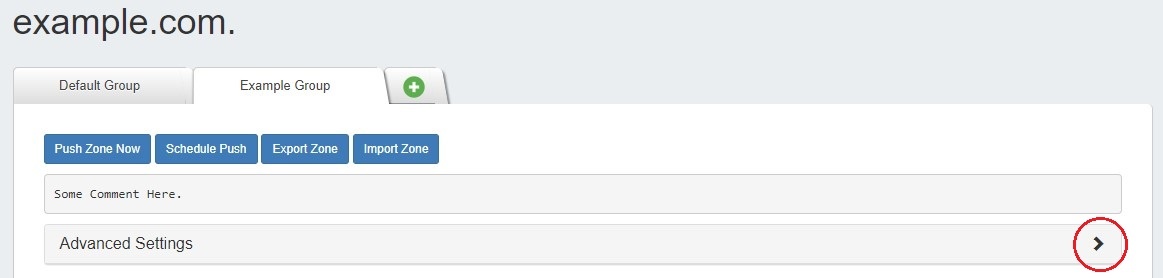
The view zone details page will open. Expand the zone details section "Advanced Settings" by clicking on the expansion arrow.

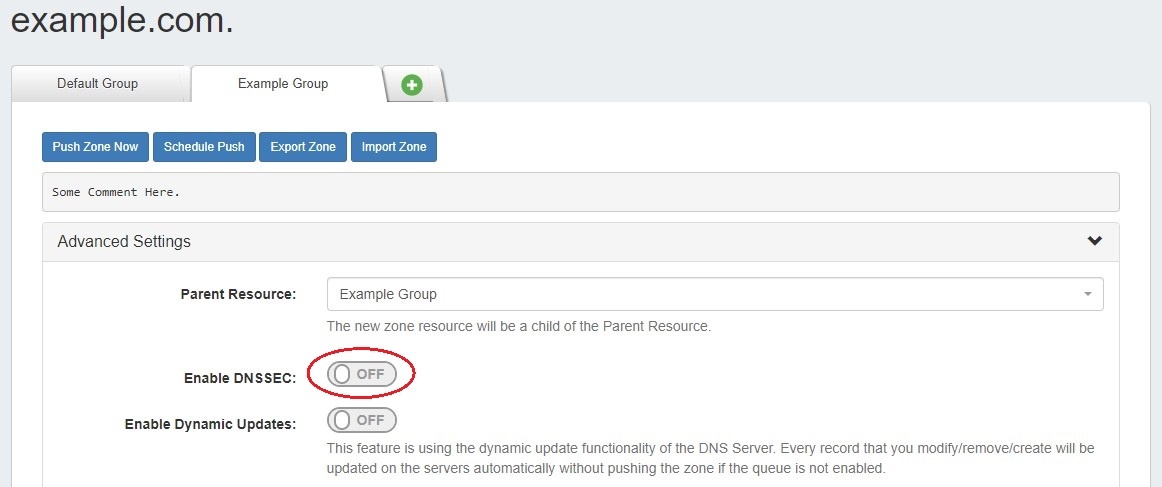
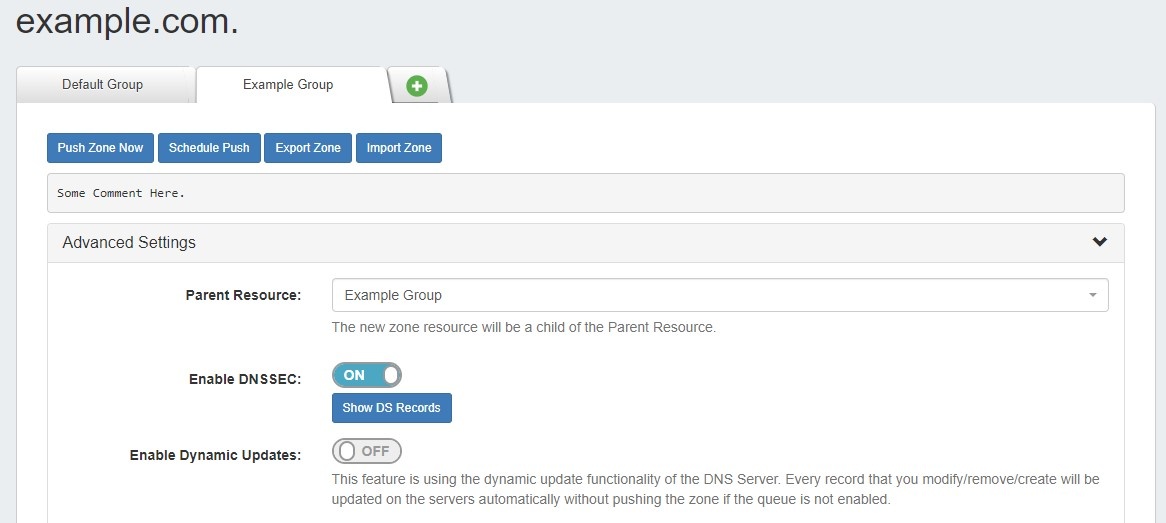
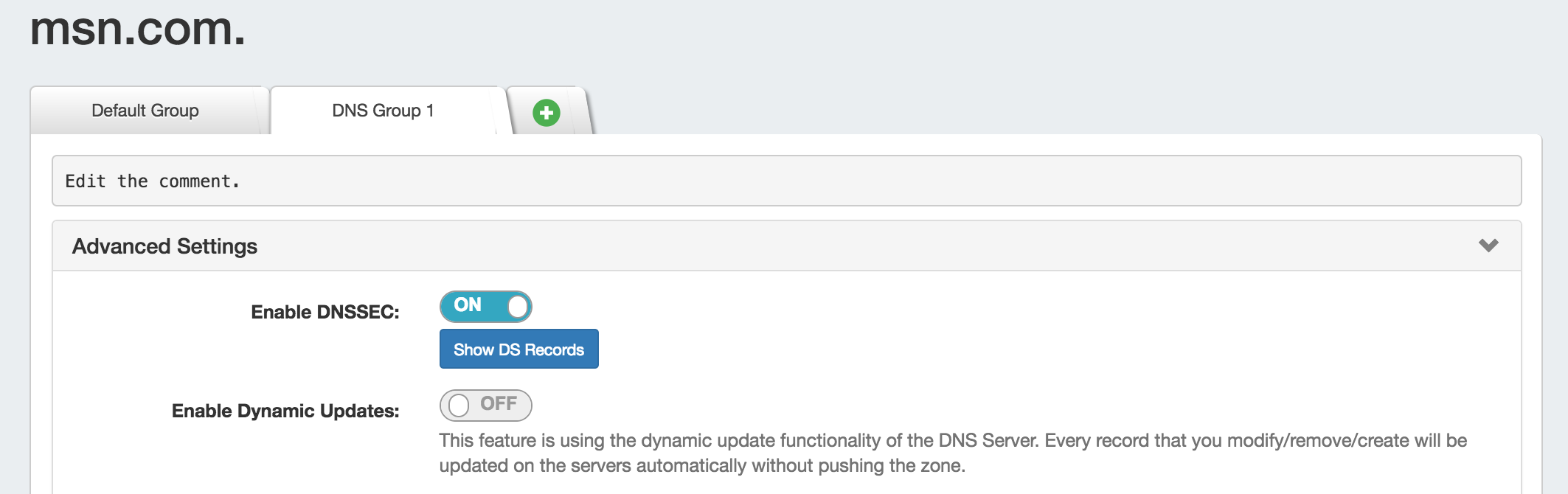
At the top of the "Advanced Settings" section will be a toggle to "Enable DNSSEC". Click the toggle to enable to the ON position.
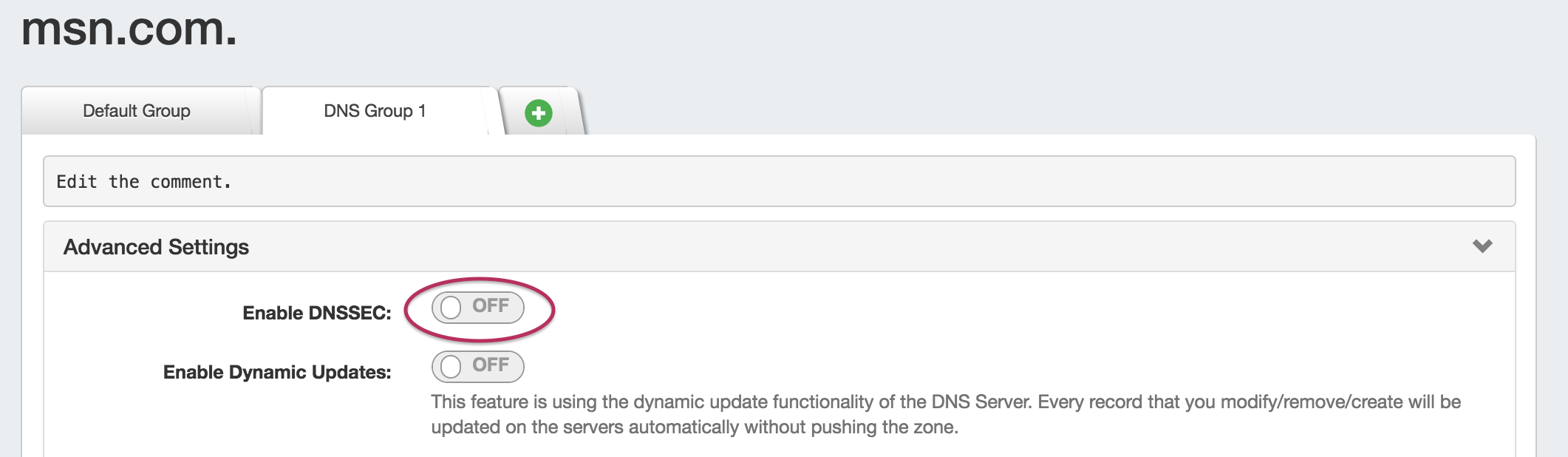
Once enabled, the toggle will show as "ON", and a "Show DS Records" button will appear. At this point, no records exists, so clicking "Show DS Records" will result in a message telling you so.
In order for DS Records to be created, the zone must be successfully pushed. Push the zone, Group, or Server containing the zone successfully and DS records will be created (see Working with DNS Zones - Common Tasks and Working with DNS Groups for details on how to schedule and push zones).
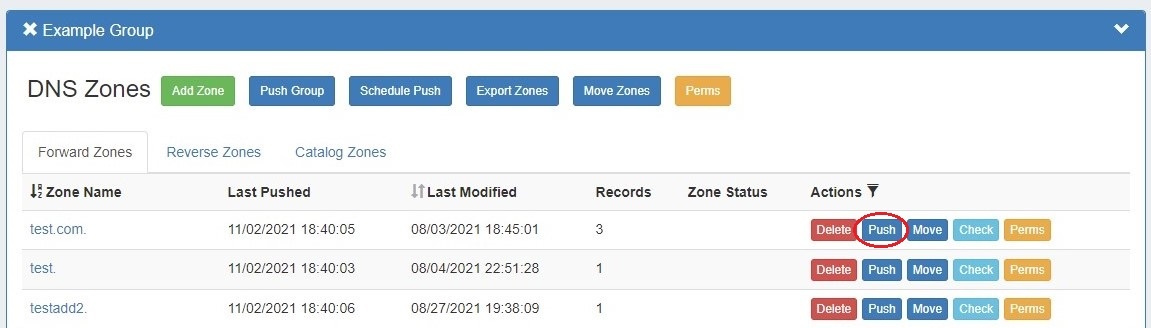
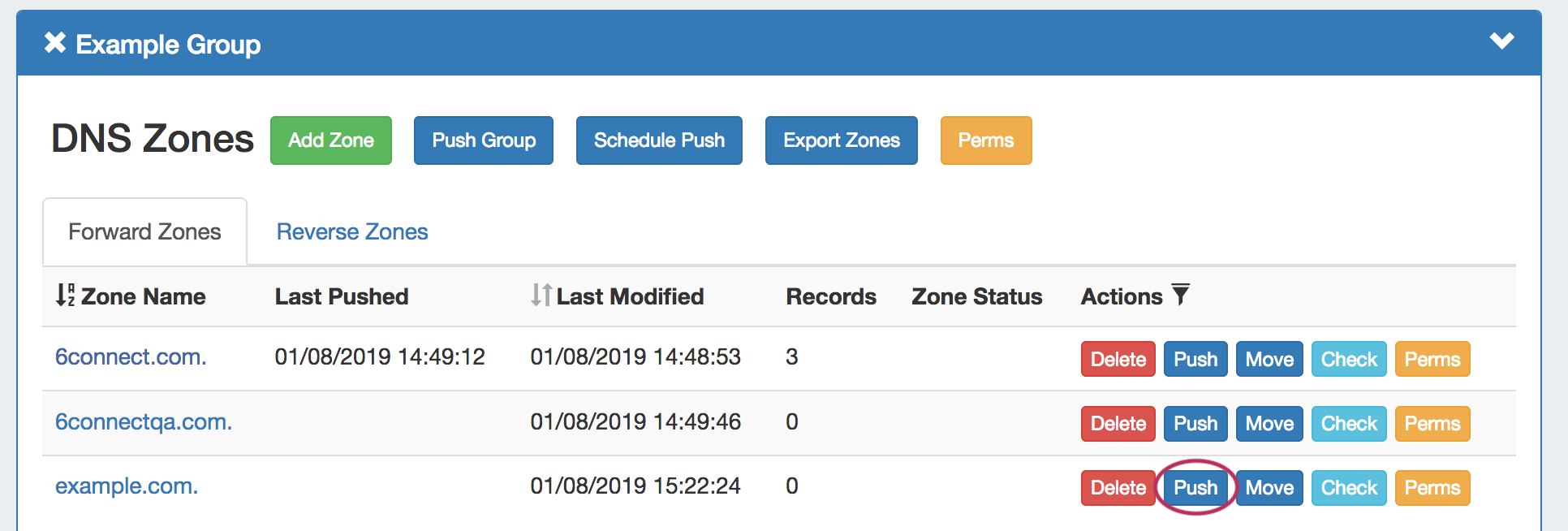
To quickly push just a single zone, go back to the DNS Groups section, and click on the "Push" button for the zone.
If successfully pushed, a green "Finished DNS Pushing Request" message will appear.
...
At this point, you will now have DS records available in the view zone details - Advanced Settings section. Open Advanced Settings for the zone and click on the "Show DS Records" button.
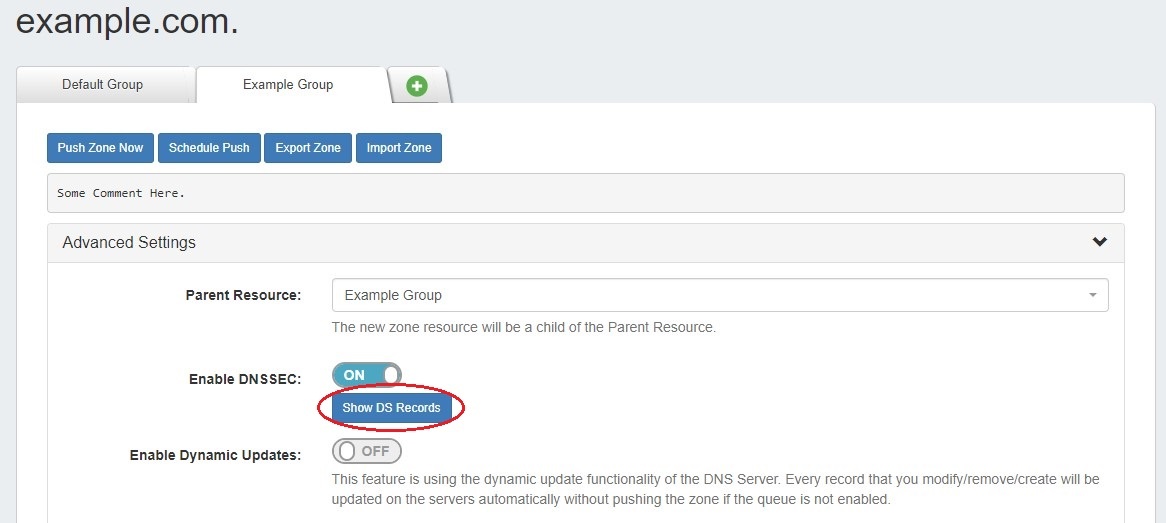
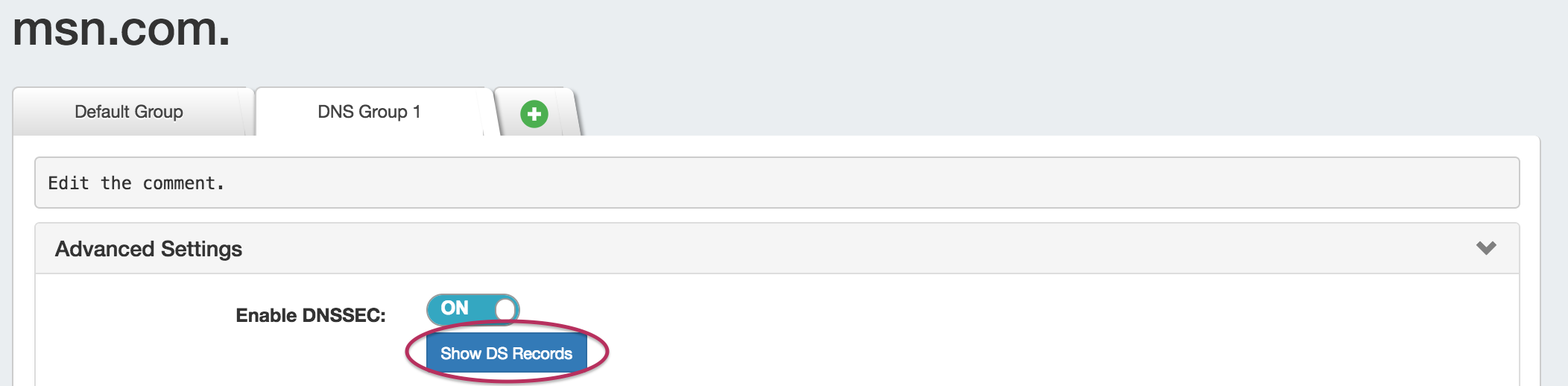
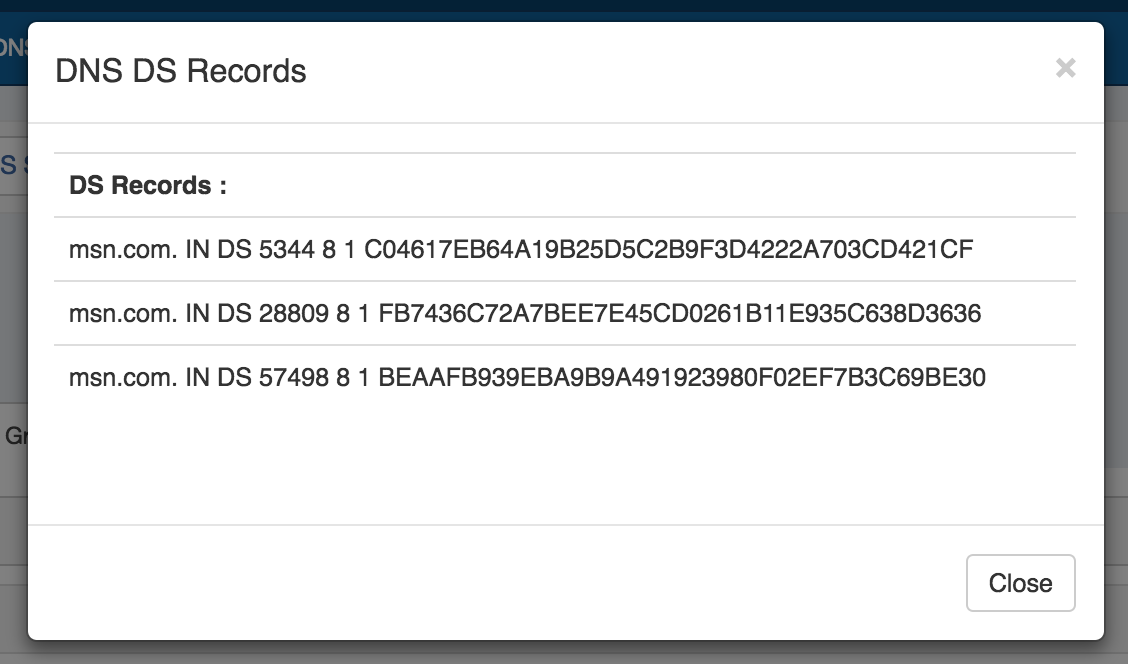
The DS records will be shown in a pop-up. Note these values for Registrar confirmation.
Update Registrar and Confirm
Once DS records have been created in ProVision, you will need to update and confirm the Zone Registrar:
...
Your DNSSEC implementation may need other options for your environment - please contact support if if you have any questions.
Please note that you will need to restart the BIND service after these changes.
...
| Info | ||
|---|---|---|
| ||
In this scenario, ProVision uses the DNSSEC signing functions of the respective environment we write the zones to. We are evaluating how to properly integrate DNSSEC functions to ProVision for these platforms. Please Please contact support if if you have feedback or specific questions. |
Additional Information
For additional information on working in DNS, see the following sections:
...