Working with DNS Records
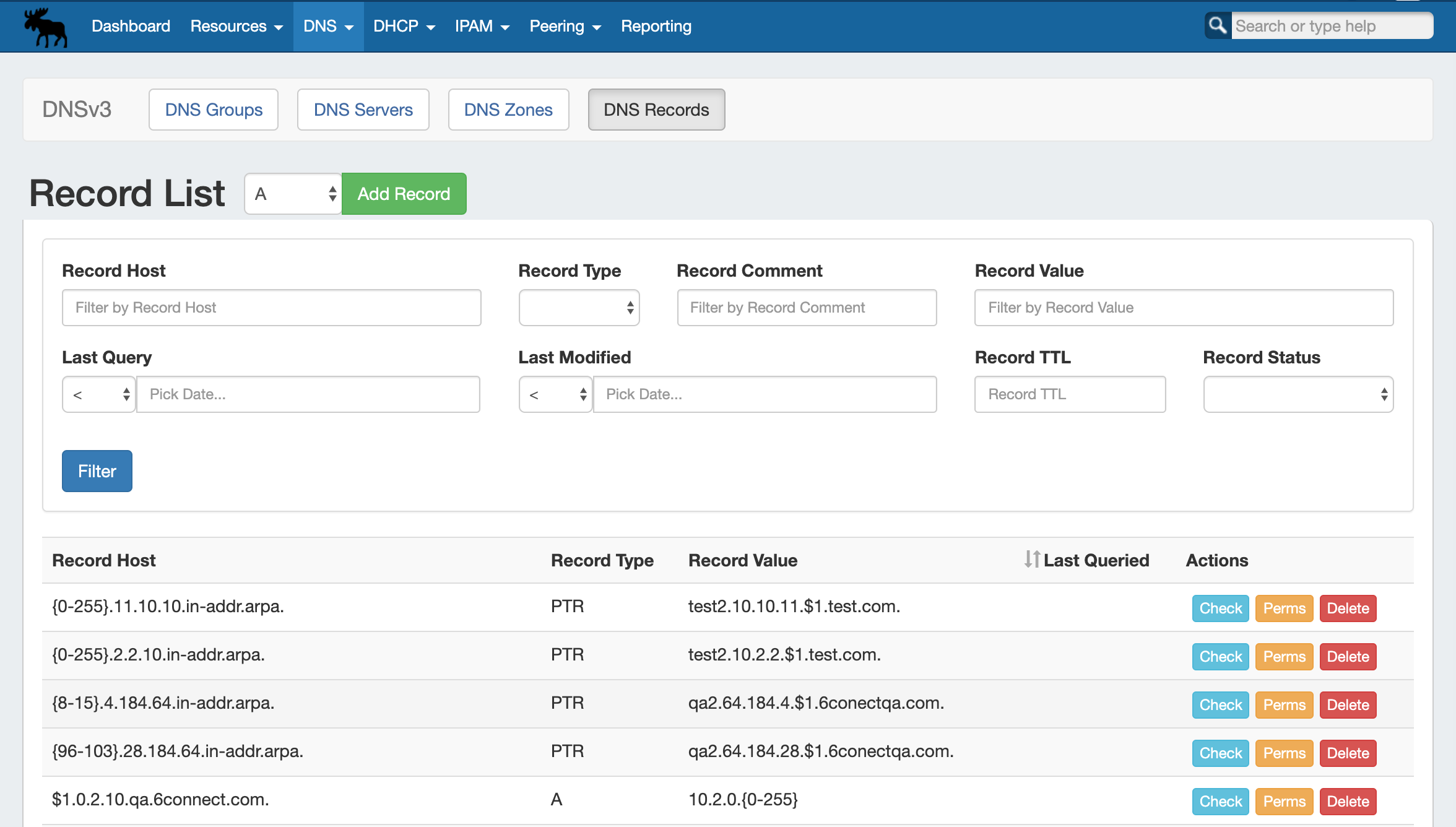
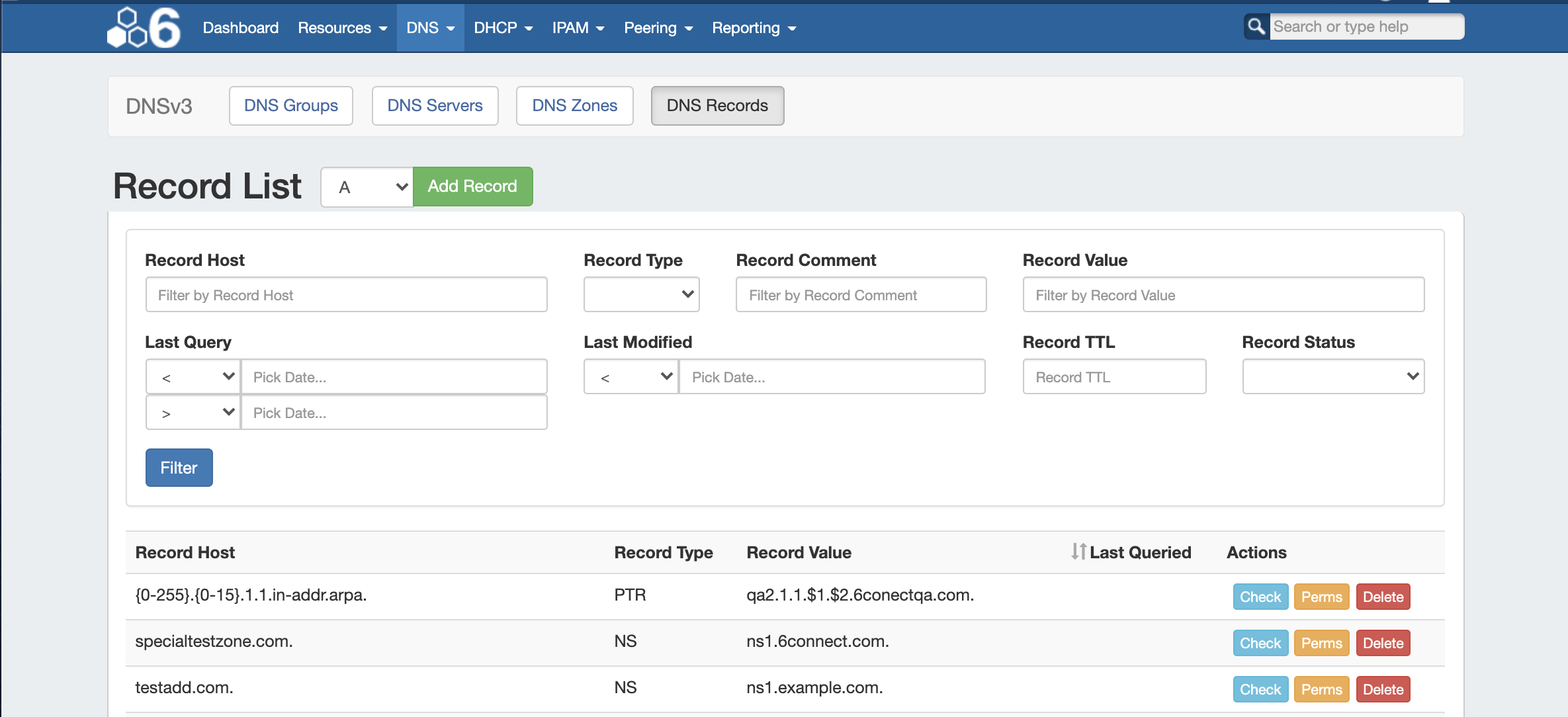
DNS Records may be managed either from the View Zone page (for the records under the respective zone) or globally through the DNS Records sub-tab.
...
Fill in the information for the new record, selecting options for adding to groups or skipping validation.
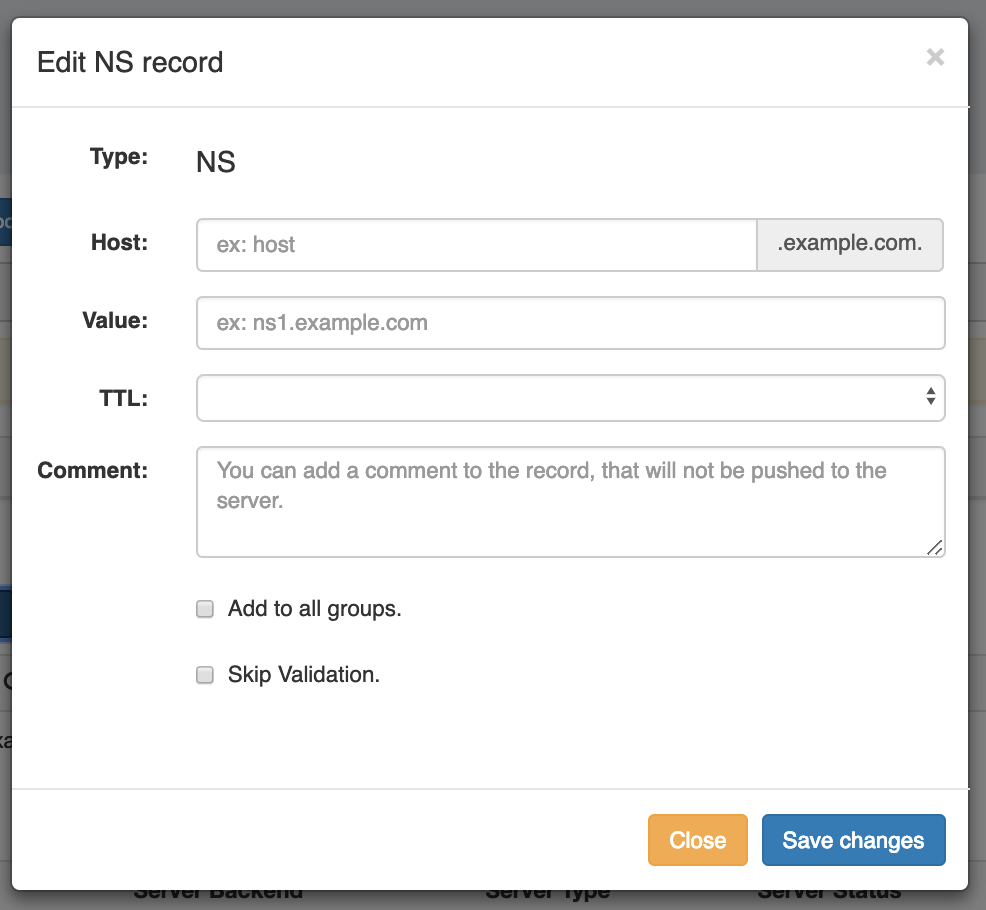
When done, click "Save Changes".
| Info | |||||
|---|---|---|---|---|---|
| |||||
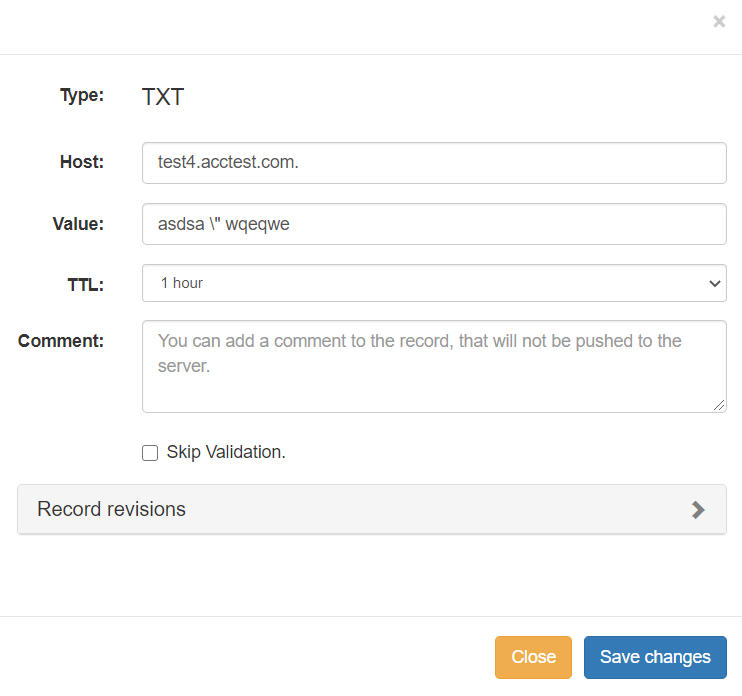
When working with records (like TXT), there is no need to add quotes around the record value - ProVision will automatically add double quotes for the TXT records on Zone Push, and will also automatically use quotes to split TXT values larger than 255 characters. If your record value contains internal quotes that you wish to keep, you may escape it by adding a backslash ( \ ) before the quote from the "Edit Record" screen. Examples:
If you have additional questions on handling of quote characters in zone records, please contact support. |

Autogenerate Forward Zone Records
From the View Zone page, under DNS Records, look for the line "Add a new ___ Record".
Select the desired record type from the dropdown list, then click "Add".

Enter the Host value for the record.
For the Record Value, enter the IP Address, using brackets for the last octet to denote the range of IPs.
Example:
Host: h69-131-159-$1.qncyfi
Value: 69.131.159.{240-255}
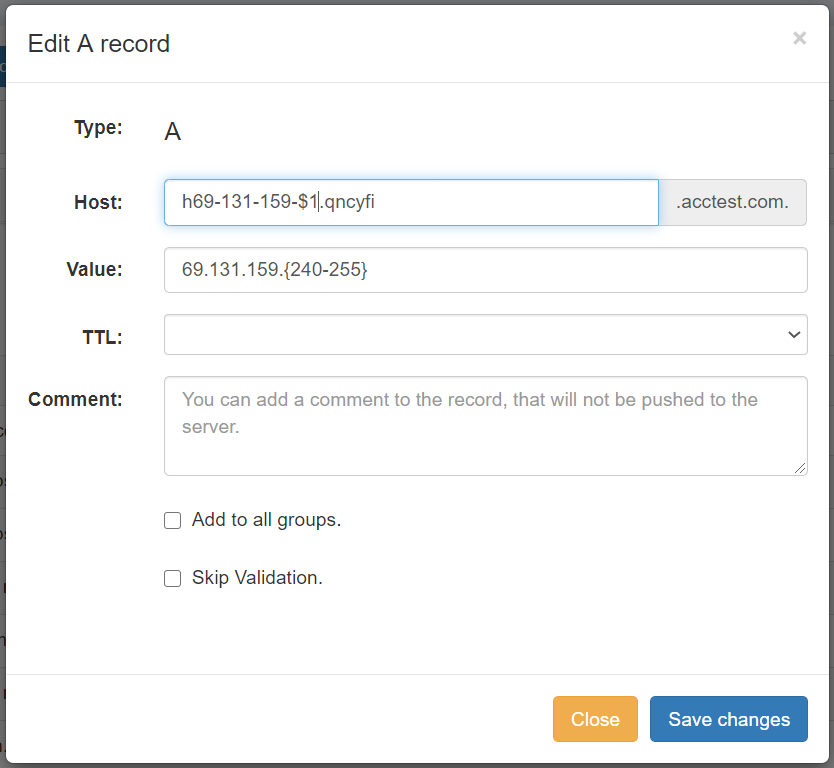
When you are done, click "Save Changes" to complete the edit.
Import Zone Records
To import a zone file to populate record data in ProVision, go to the View Zone page for the zone. The zone must already exist in ProVision, although it may be empty
| Info | ||
|---|---|---|
| ||
You may wish to enable "Save Import File" in Admin Settings → DNS Settings prior to importing zone files, so that the file is available for later download. See Working with DNS Zones - Common Tasks or Import DNS Zones. |
Click "Import Zone" on the View Zone page.

A Zone Import dialog box will open. Next to Zone File:, click "Choose File" and select your .zone file to import. Then, select an import policy to follow.
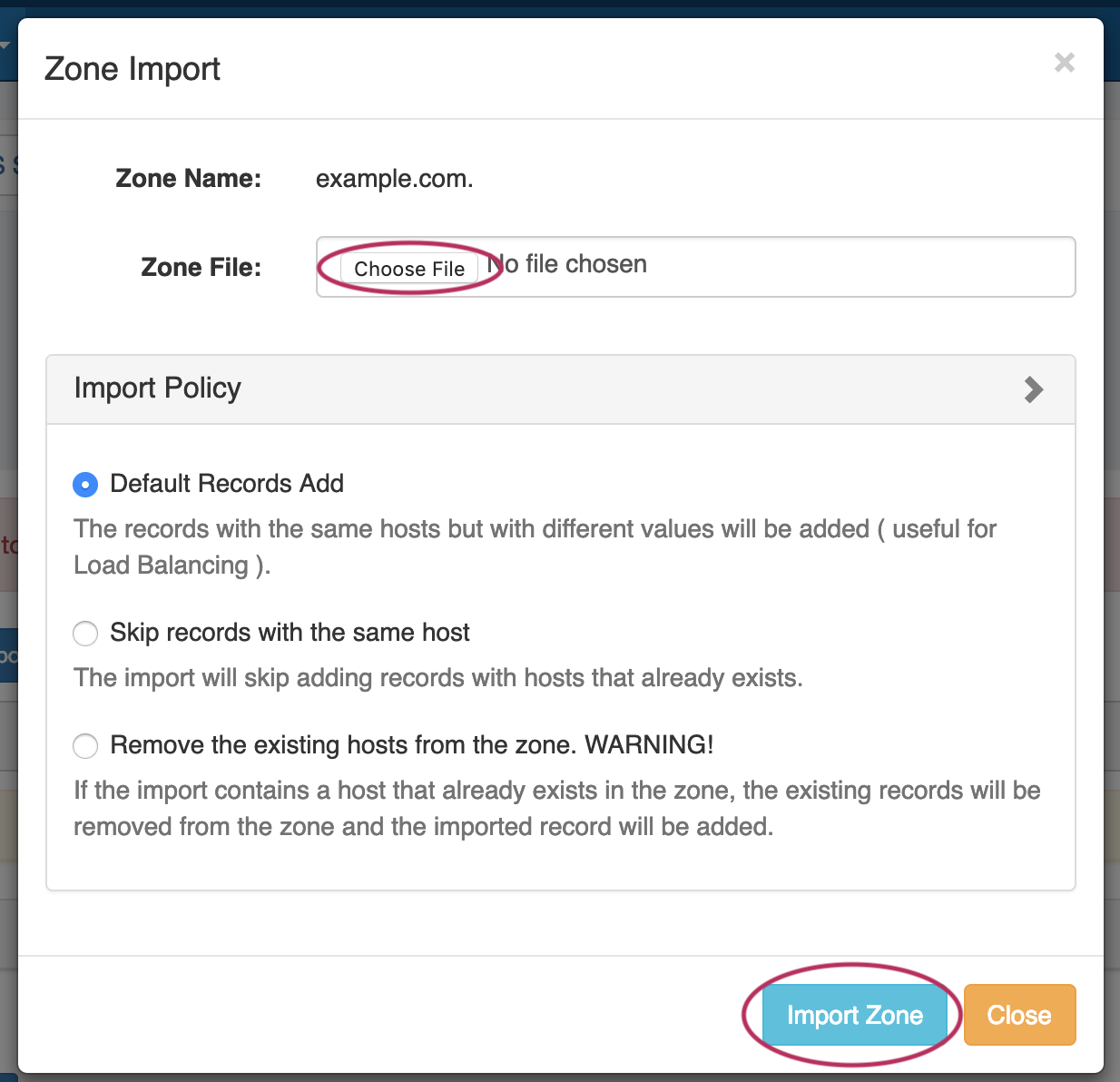
When done, Click "Import Zone".
Edit Zone Records
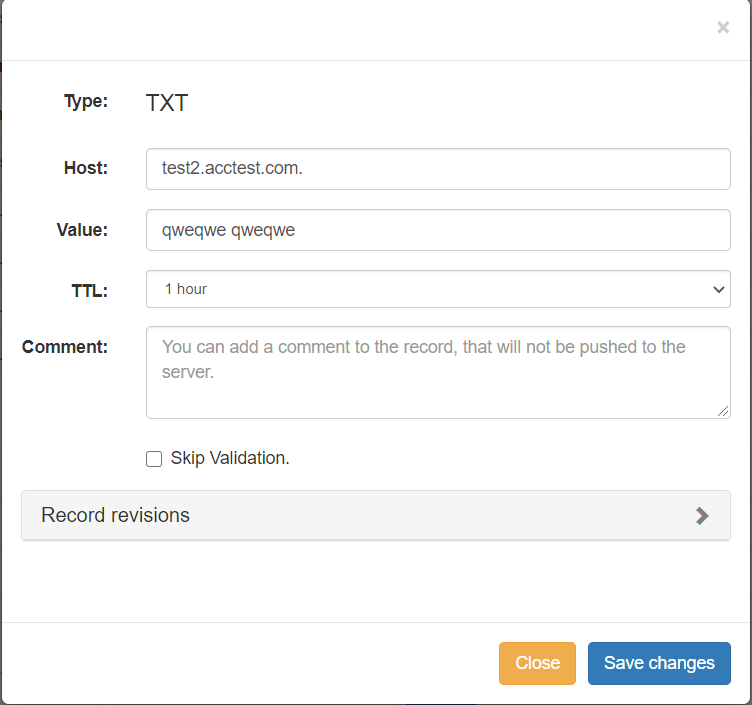
To edit an existing zone record, click on the record line in the DNS Records list.
...
The DNS Records sub-tab provides a global list records for expedited searching, filtering, adding, and editing of DNS Records.
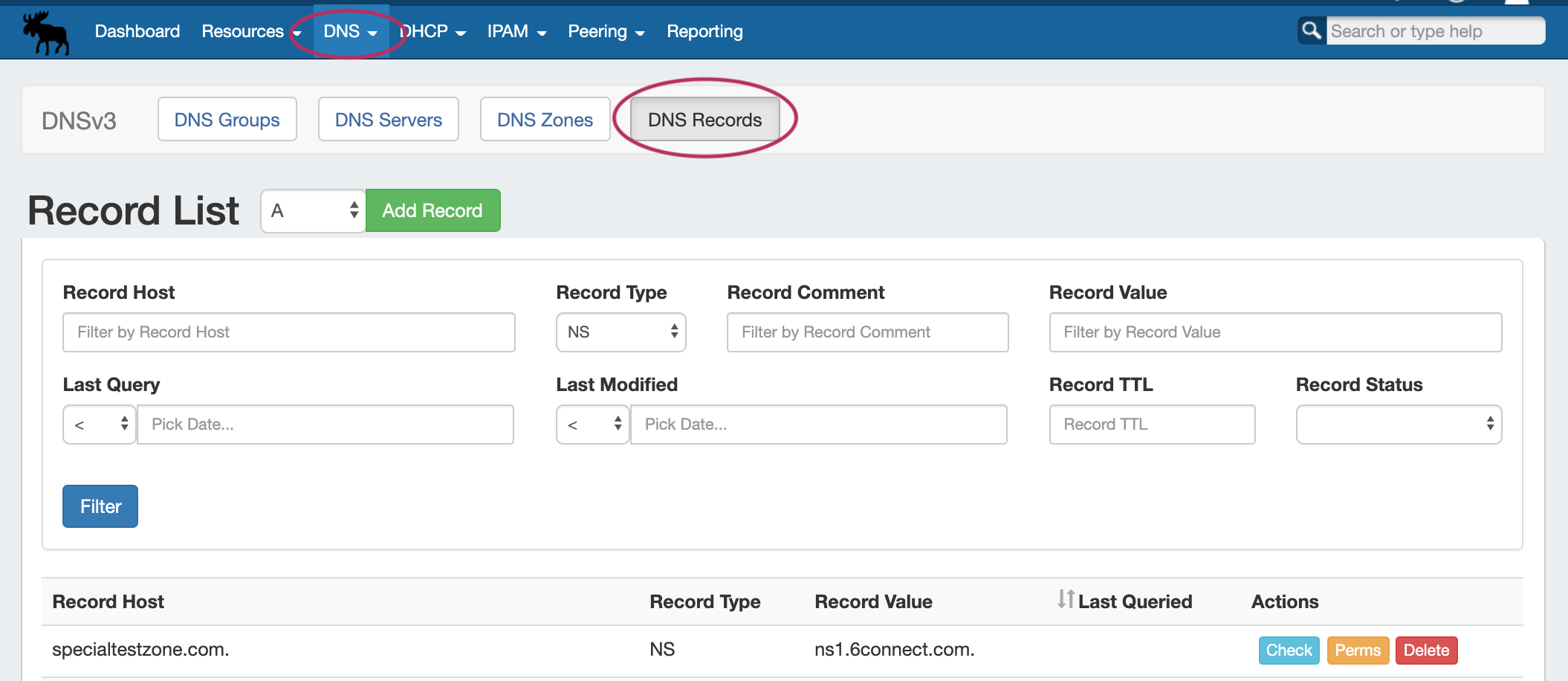
From the DNS Tab, click on the "DNS Records" sub-tab button, or select it from the DNS dropdown menu.
All DNS records available in ProVision displays in a single Record List, along with Host, Type, Value, and Last Queried information.
Filter Records
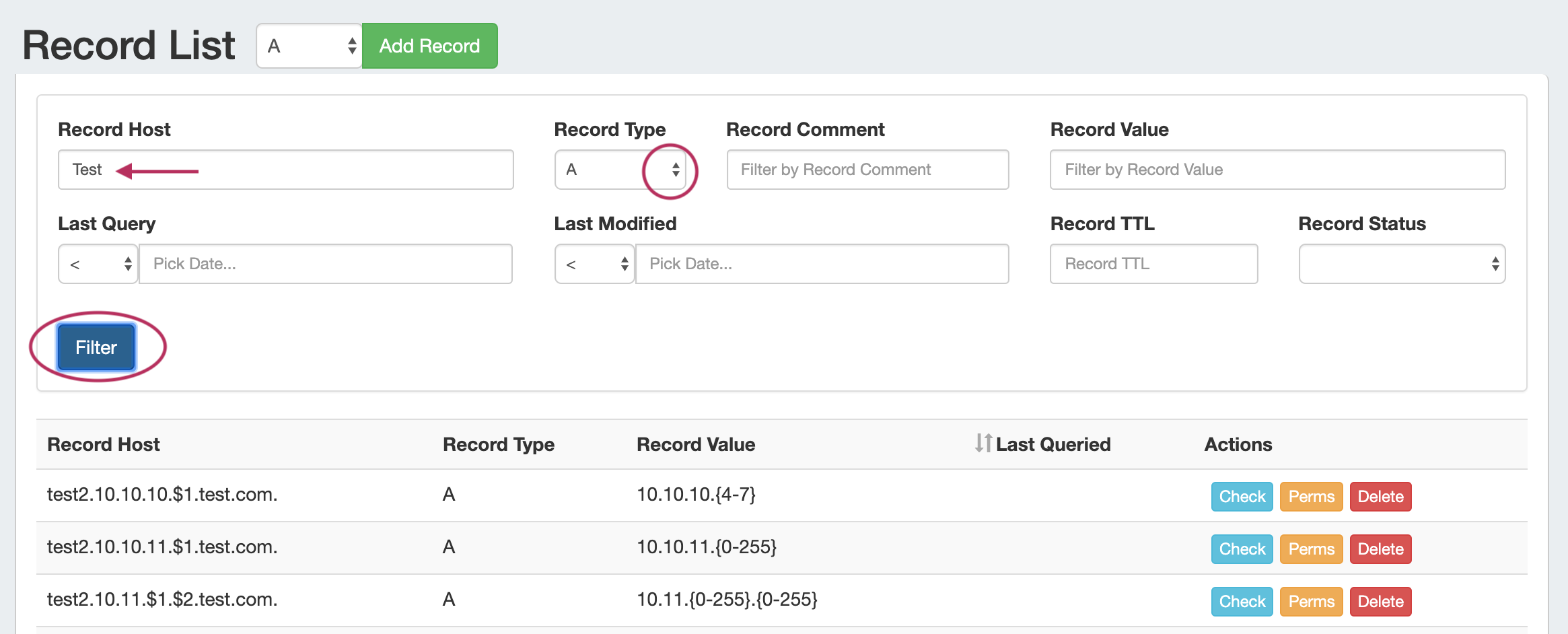
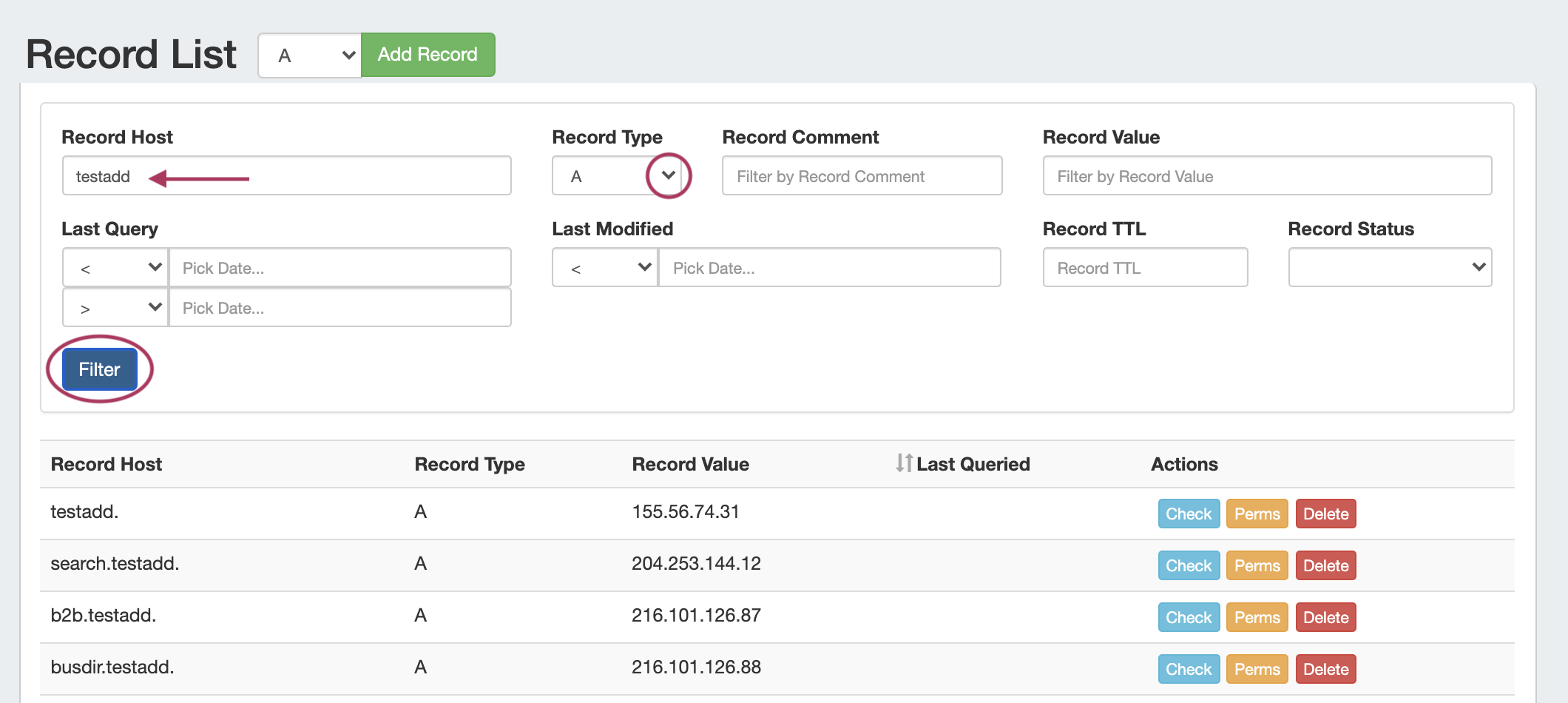
Search for specific records by filtering by Host, Type, Comment, Value, Last Query, Last Modified, Record TTL, or Status.
After entering your filter criteria, click "Filter".
Work with Records
...