Approvals
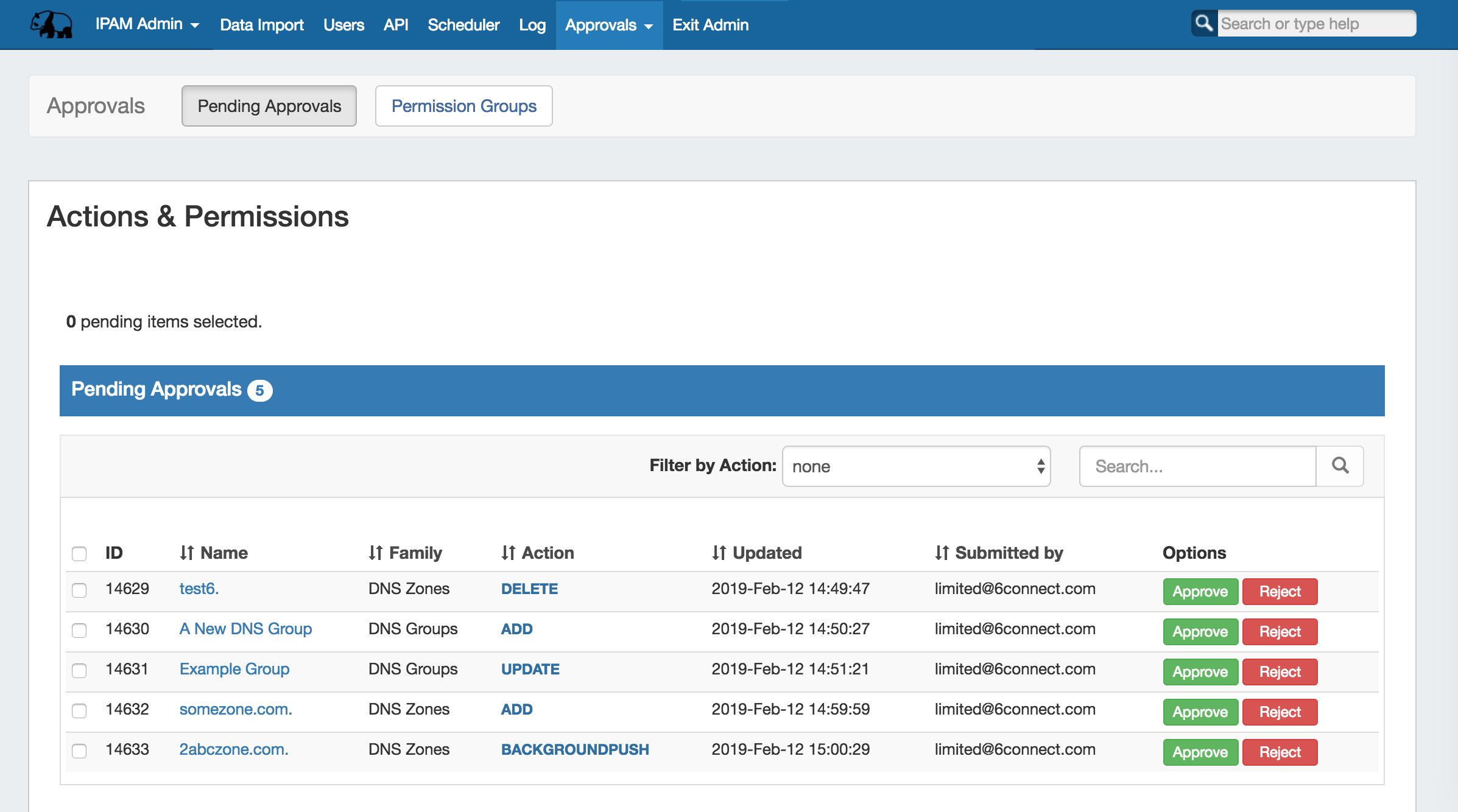
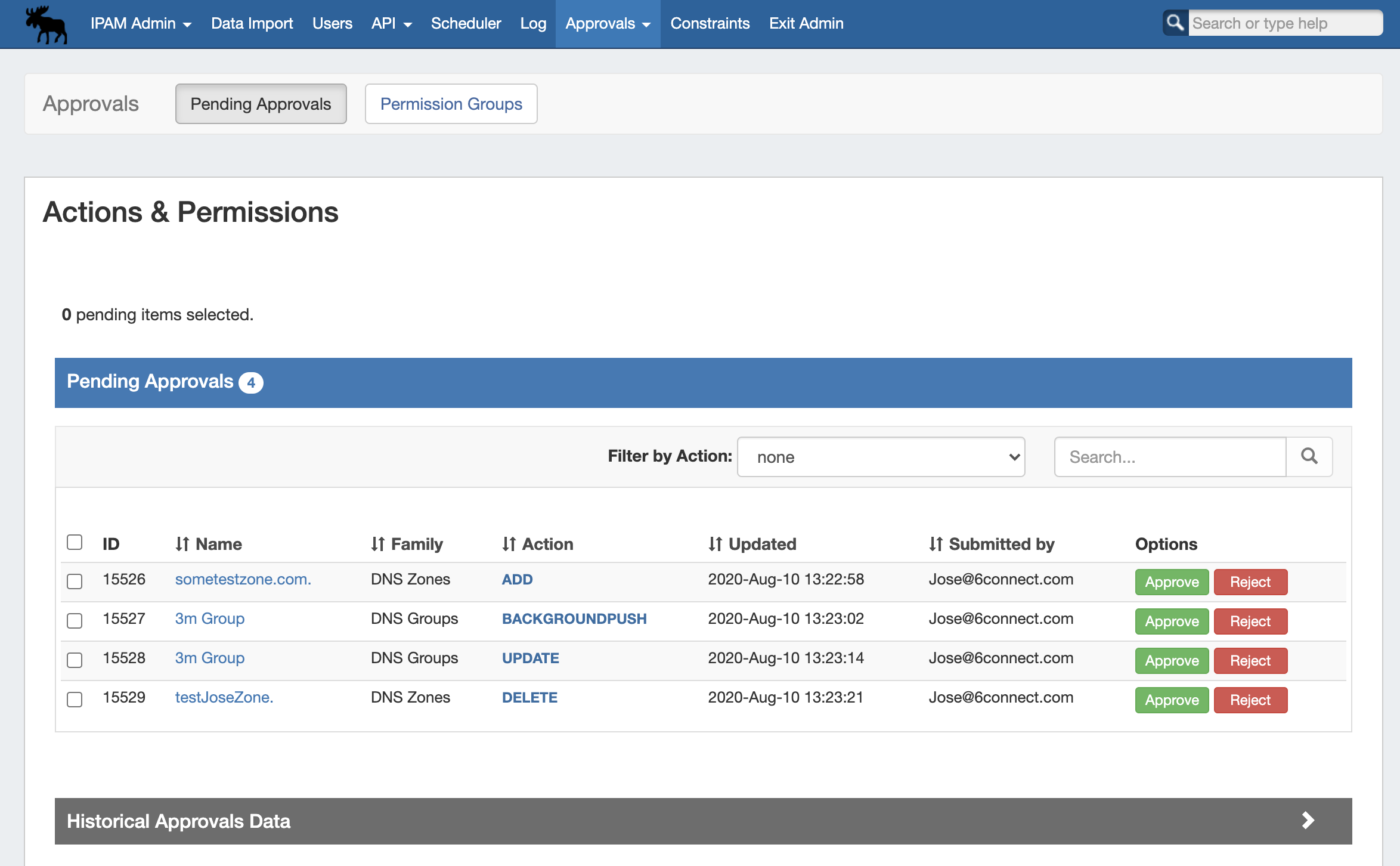
The Approvals module stores and queues DNS actions made by selected User Groups, and sends those actions to a Pending Changes list for administrative review. Later, an administrator (or combination of administrators) can approve or reject these stored actions.
...
User Groups
Approvals uses ProVision User Groups to determine which users must have a change approved, denied, or can approve others' actions. Therefore, User Groups must be set up with the appropriate users and basic permissions under each group before using Approvals. For information on setting up User Groups and how the basic permissions structure works in ProVision, see Users & Permissions, Global Permissions, and Working with Users and Groups.
Before using Approvals, a review of your user and User Groups is highly recommended to ensure the following:
...
From here, depending on the answers to the questions in step 1, you may need to do one or more of the following from the Users tab:
- Edit existing User Groups to add or remove users, in order to combine users who will need similar action types approved.
- Verify the User Groups have appropriate CRUD permissions set to perform the action(s) to be approved (e.g, you may have previously removed "Create" permissions for a group, but if the intent is now for those users to have "Add" actions approved by an Admin, the submitter will need User Group resource "Create" permissions back!)
- Create new User Groups specifically for use with Approvals (recommended)
- Associate users with different, or additional User Groups (remember - users can be associated with multiple groups!)
For more information on adding and editing ProVision User Groups, see Users & Permissions, Global Permissions, and Working with Users and Groups.
Step 3 - Assign Approval Action Settings to Groups
...
Assign Action and Policy Settings to User Groups from the Approvals Tab
...
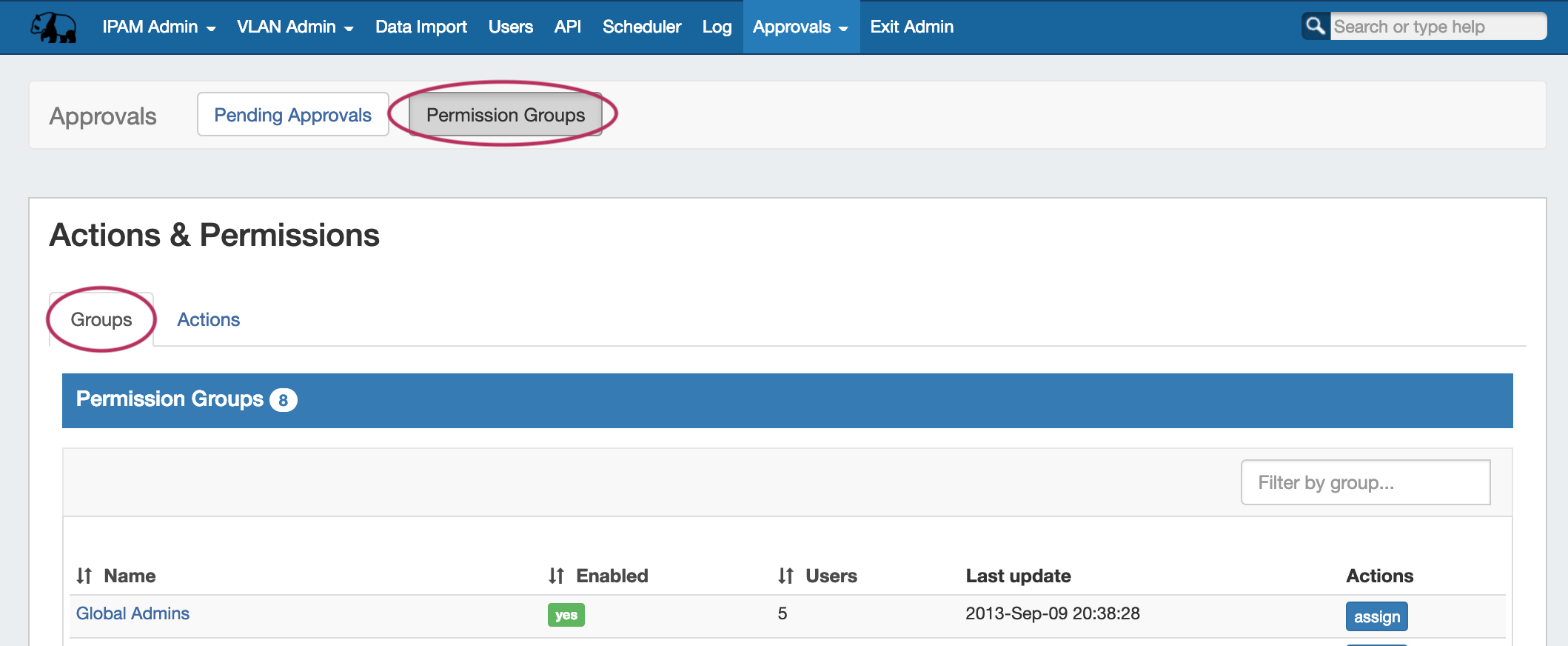
Permission Groups sub-tab:
| Expand |
|---|
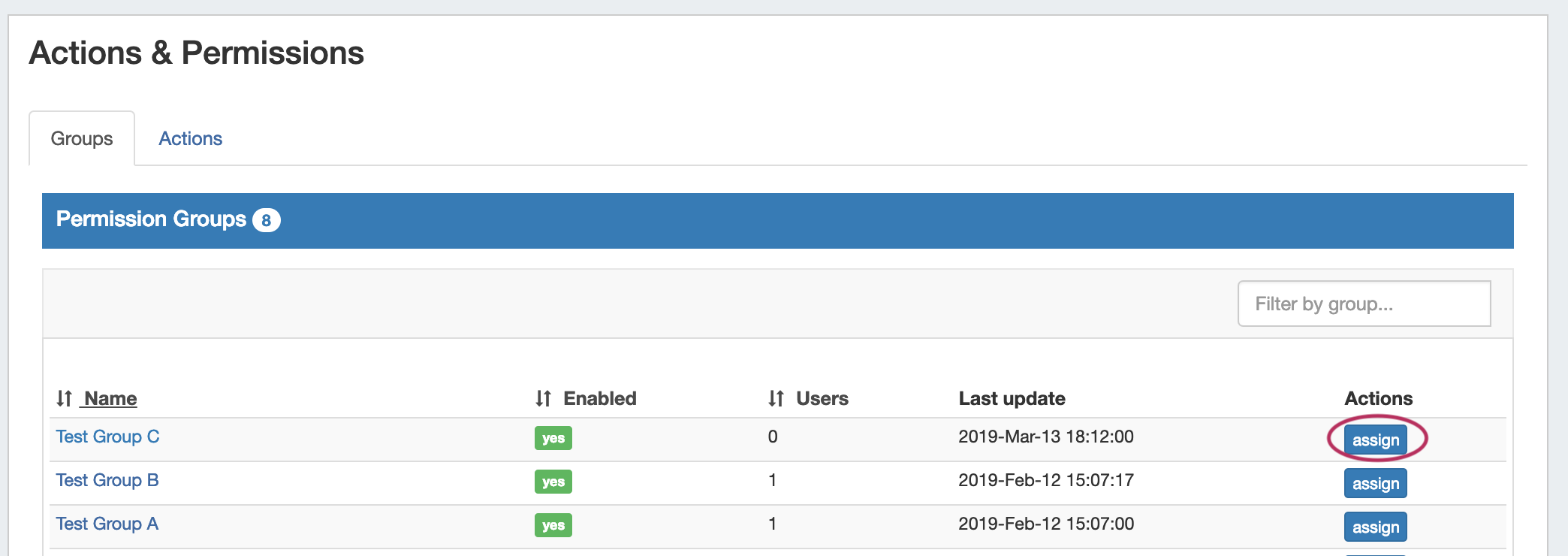
Then, under the Groups page tab, find the ProVision User Group you wish to want to assign a policy to and click "Assign".
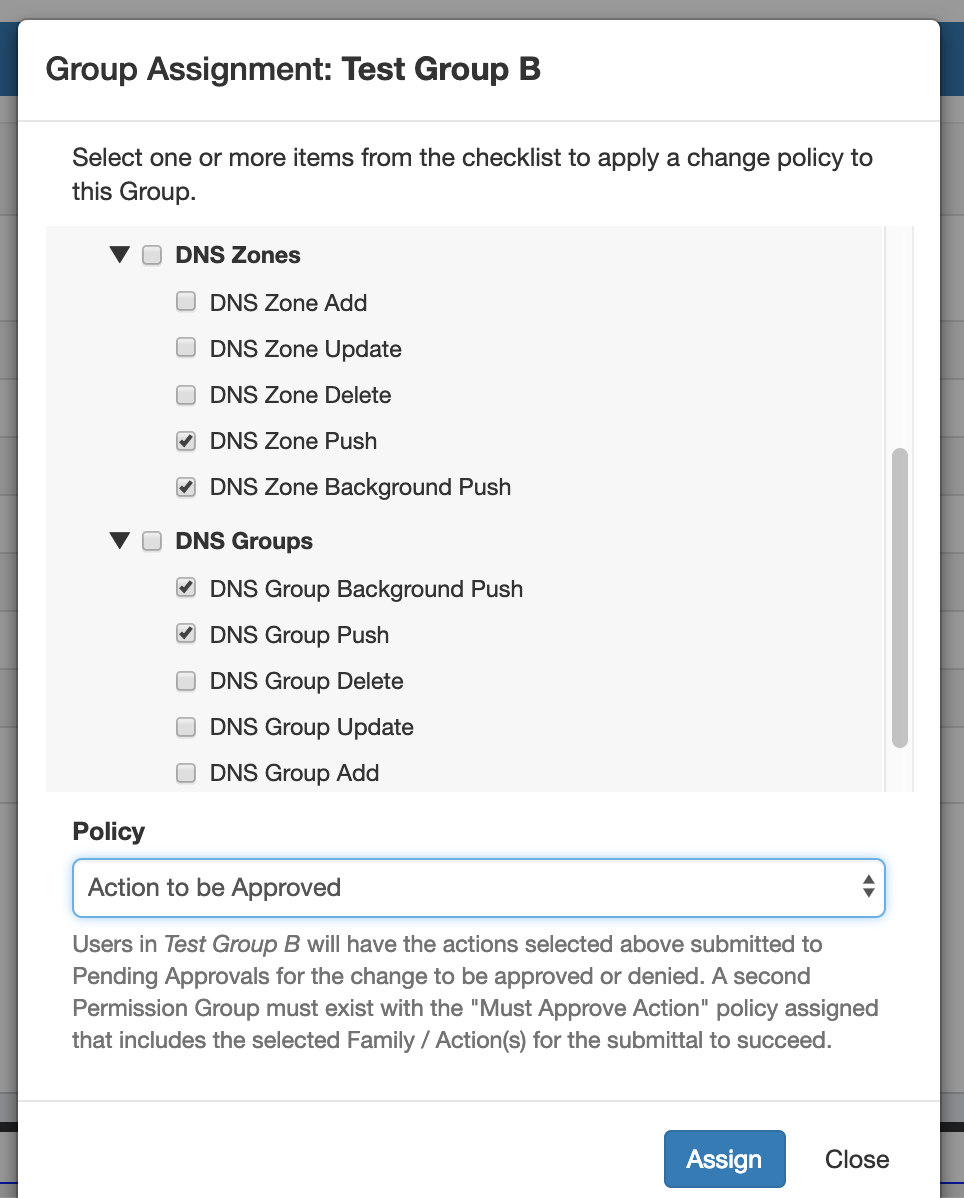
Clicking the "Assign" button for a group brings up a checklist to select what policy to apply to the group for what Family and Actions (i.e. DNS Zone 'Add' or DNS Group 'Update'). You can "quick-select" all actions for a DNS Family (Severs, Groups, Zones, Records) by clicking the checkbox next to the family name, or only select individual action types for each Family.
Once you've selected the applicable Family/Action combinations to apply a policy for, select either "Deny", "Action to be Approved", or "Must Approve Action" under Policy. When done, Click "Assign", and repeat as needed for other Policy types or User Groups. |
Step 4 - Enable Notifications (Optional)
If using Approvals notifications, enable notifications for the appropriate Permissions Group(s).
From the Approvals Tab, navigate to the Permission Groups sub-tab Groups page tab:
| Expand |
|---|
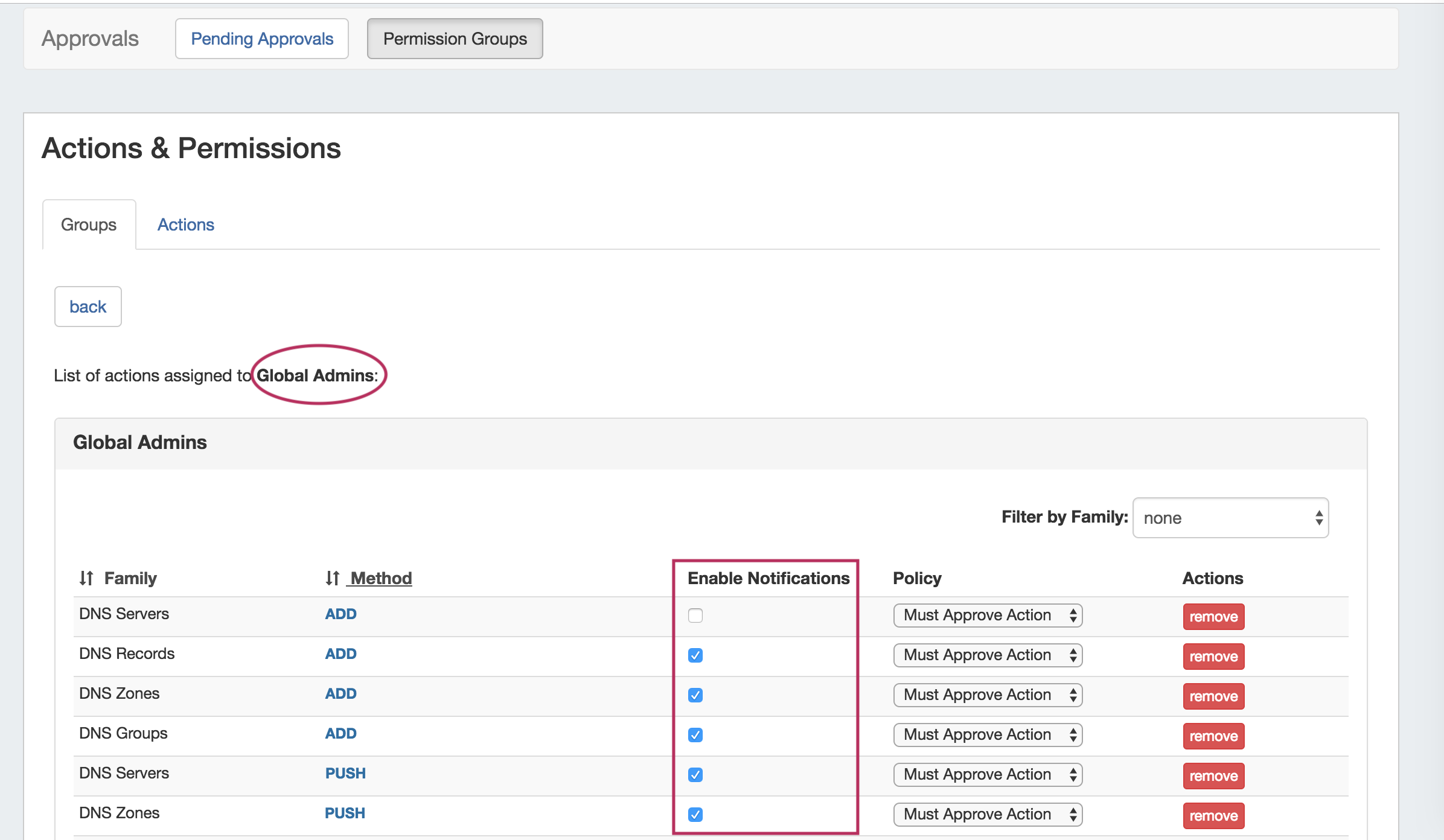
Click on the group name for which you want to set notifications - the Group Permissions Detail page will provide additional information on the group's settings.
For any Family/Action that you want to enable notifications, click the checkbox under "Enable Notifications". All users of that group will get email notifications when a change of the selected type(s) are made. |
Step 5 - Add Scheduler Task: "Approvals - Process Subscription"
If using Approvals notifications, set up a Scheduler task for "Approvals - Process Subscription".
The "Approvals - Process Subscription" task processes approval request events and handles the sending of notification emails to subscribed Approvals Groups - this task task must be created and running on a regular interval in order for Approval Notification emails to be sent.
...
Step 6 - Add Scheduler Task: "Approvals - Delete events older than 1 month"
Set up a Scheduler Task for "Approvals - Delete events older than 1 month", to occasionally clear out old and obsolete Approval request events.
It is recommended to set this task to run monthly with no end date, to clear out obsolete approvals items, reduce data storage space needs, and reduce approvals page load time.
For information on setting up Scheduler Tasks, see see Scheduler.
Daily Use
On a day-to-day basis after initial setup, an Approvals Workflow will be similar to the following (with "Submitter" as the user whose actions require approval, and "Approver" as the admin with the ability to approve/reject the change):
...