...
IP Rules can be accessed from IPAM Manage or the IPAM Gadget, in the block's Action Menu (wrench gear icon). IPAM users may view rules applied to a block, apply an existing rule to a block, or create a new rule for a block. Only one rule may be applied per block, and rules applied to a parent block affect the child blocks below it in the tree.
...
From the IPAM Manage screen or IPAM Gadget, click on the Action Menu (wrench gear icon) for the block you wish to apply a rule. Select "IP Rules".
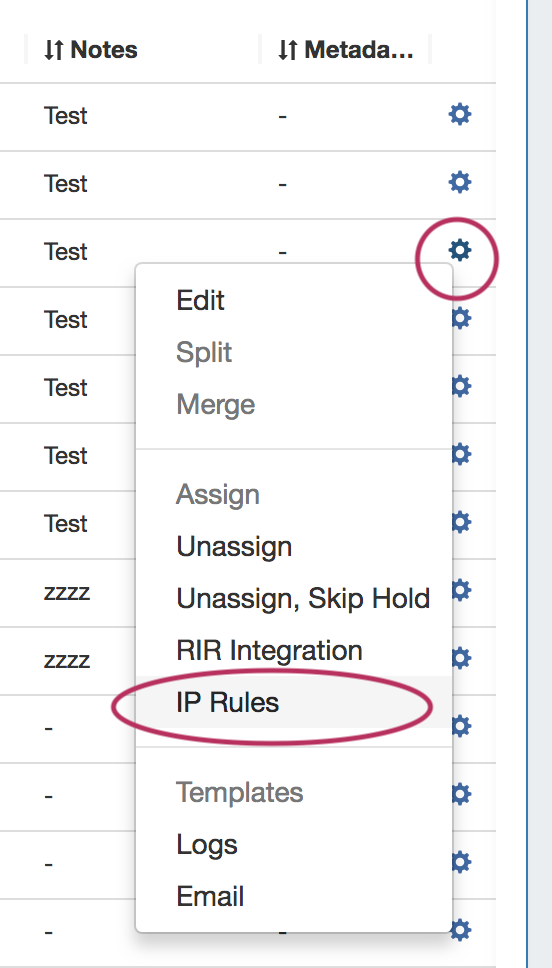
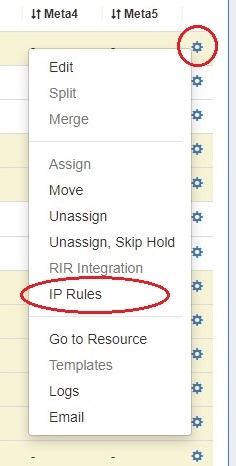
The IP Rules screen will pop up. From here, you can view existing rules applied to the block (or the parent block), search for and apply an existing rule, or create a new IP Rule.
...
From the IPAM Manage screen or IPAM Gadget, click on the Action Menu (wrench gear icon) for the block you wish to apply a rule. Select "IP Rules".
The IP Rules screen will pop up. From here, you can search for existing rules by typing a few letters of the Rule name in the search box, then selecting the desired rule.
...
From the IPAM Manage screen or IPAM Gadget, click on the Action Menu (wrench gear icon) for the desired block. Select "IP Rules".
The details for the existing rule applied to the block will be shown. To remove the rule from the block, click the "Remove" button and confirm.
...