Approvals
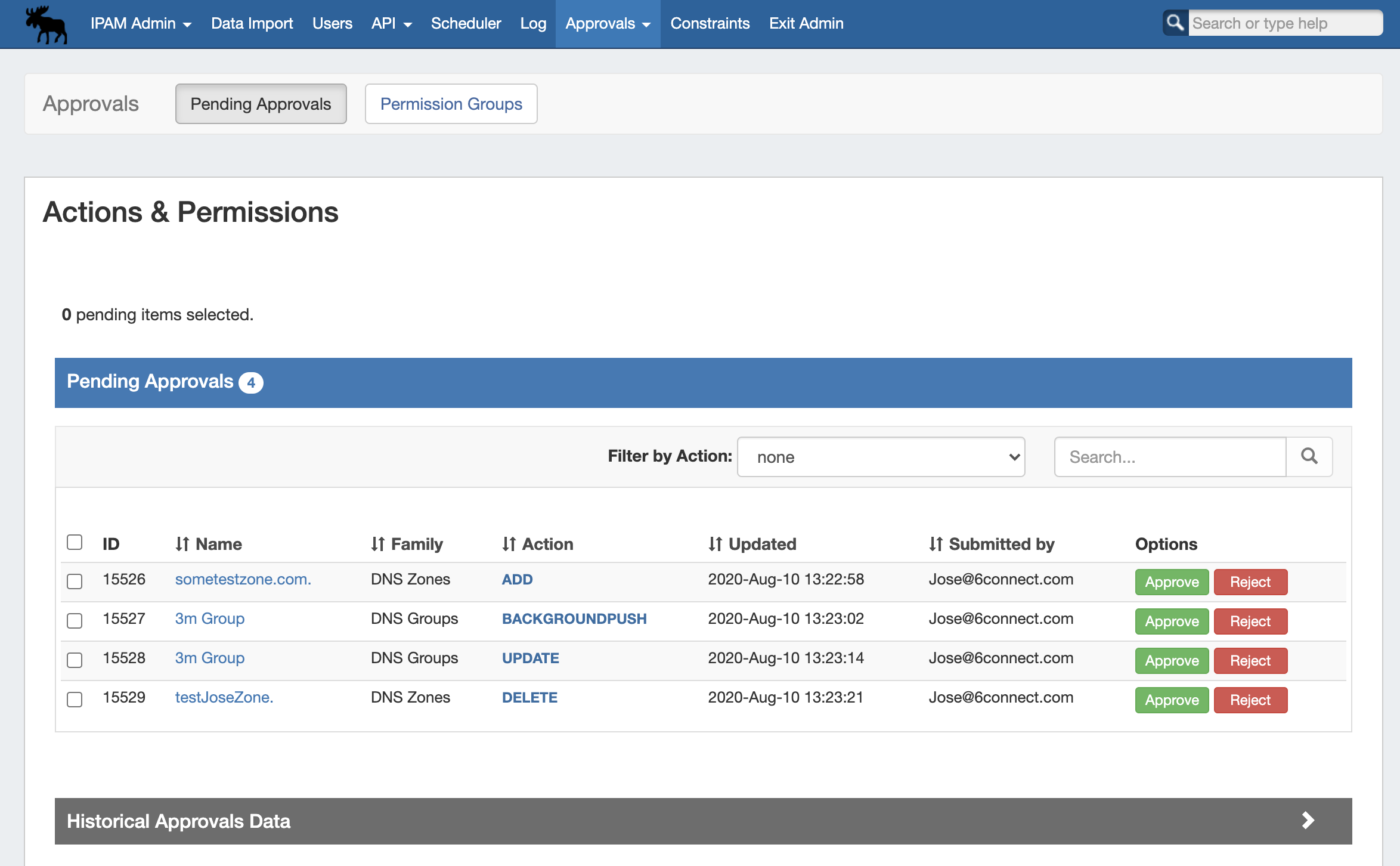
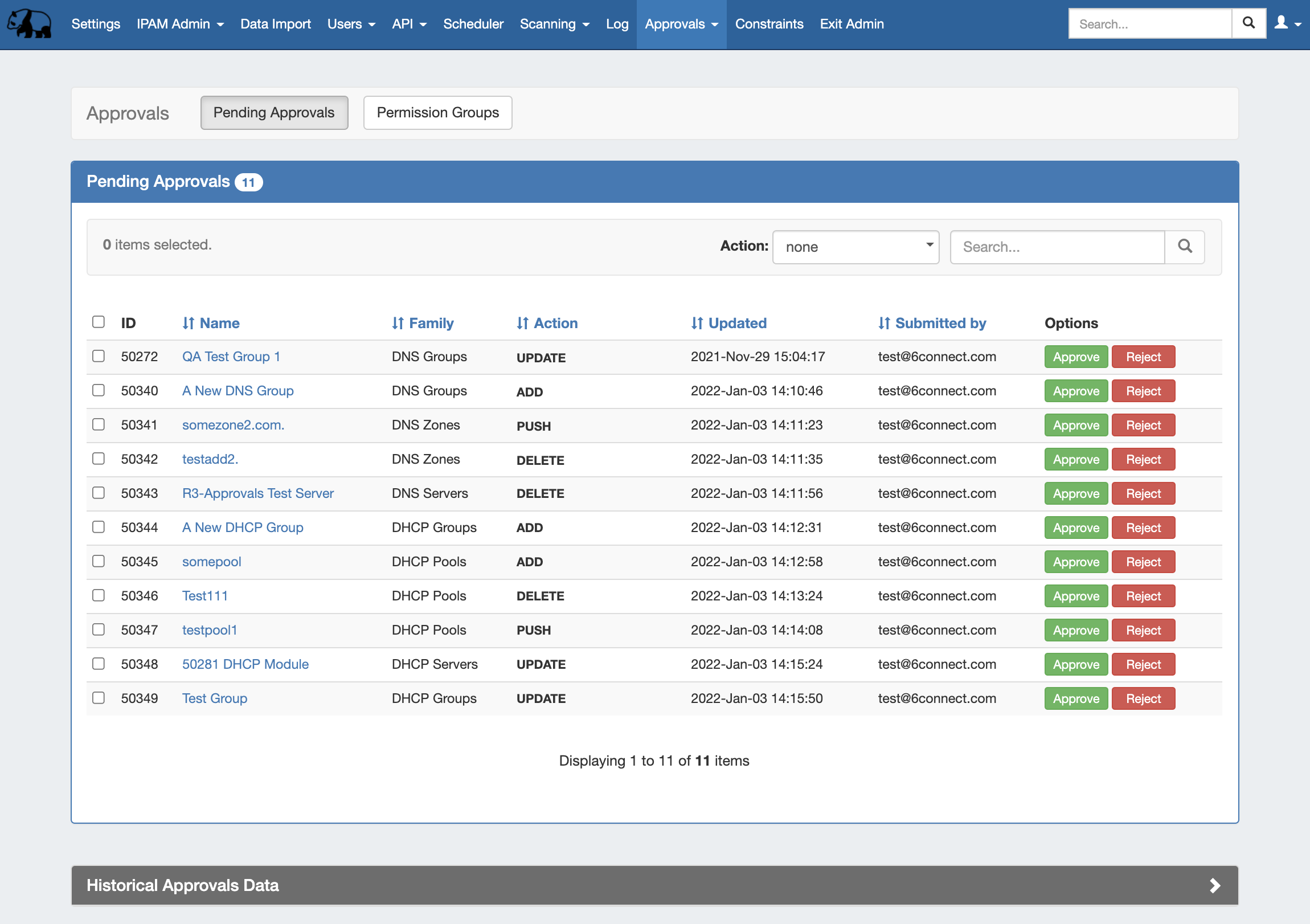
The Approvals module stores and queues DNS and DHCP actions made by selected User Groups, and sends those actions to a Pending Changes list for administrative review. Later, an administrator (or combination of administrators) can approve or reject these stored actions.
The admin Approvals Tab contains two sub-tabs: Pending Approvals and Permission Groups, which are the primary areas to manage Approvals items.
| Info |
|---|
Currently, Approvals is available only for DNS and DHCP related actions, while we gather feedback and use cases to inform possible future updates. If you are interested in providing feedback, a use case, or requests for future additions to the Approvals system, please contact feedback@6connect.com. |
...
| Table of Contents |
|---|
Approvals Tab - Overview
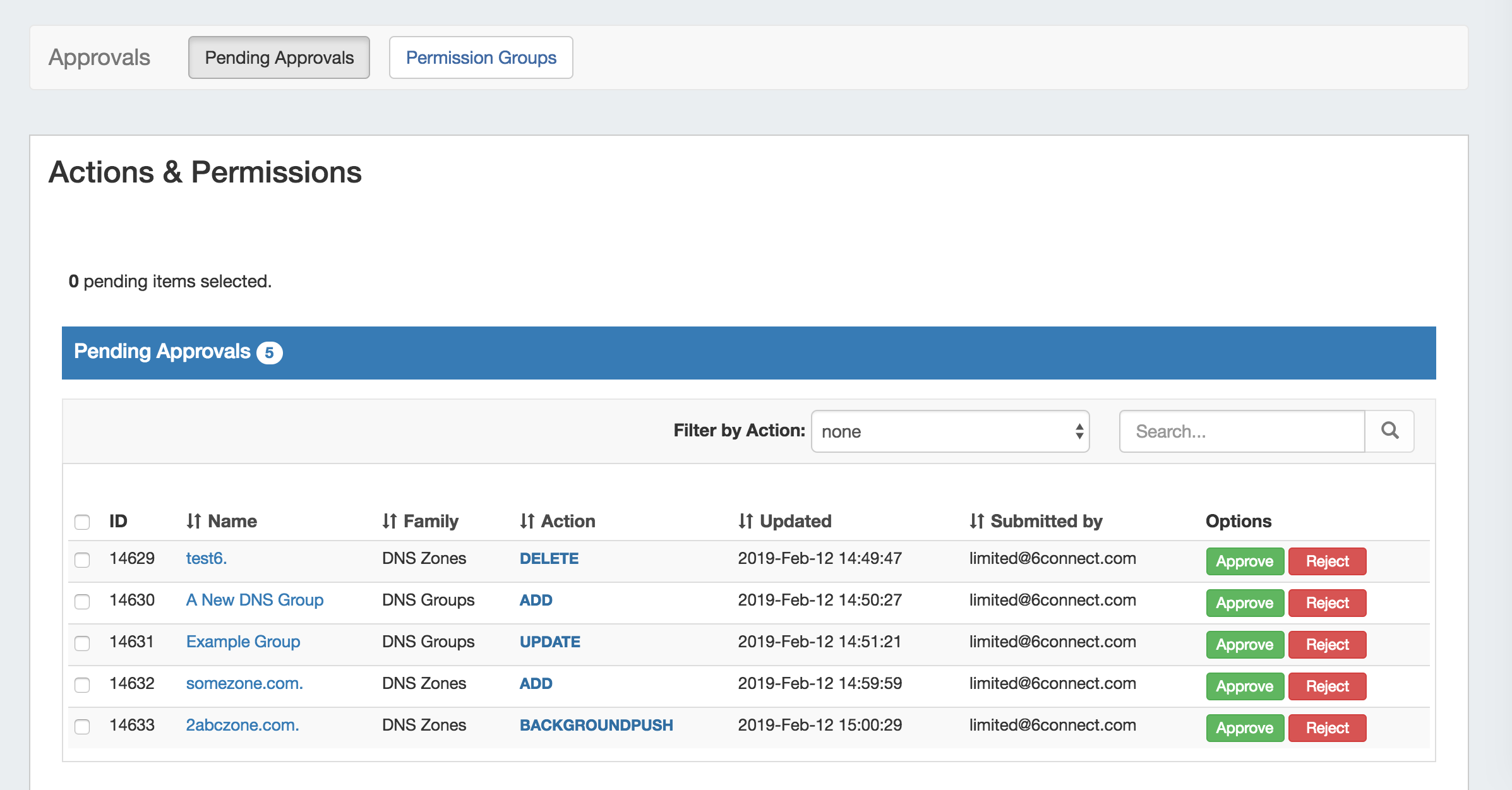
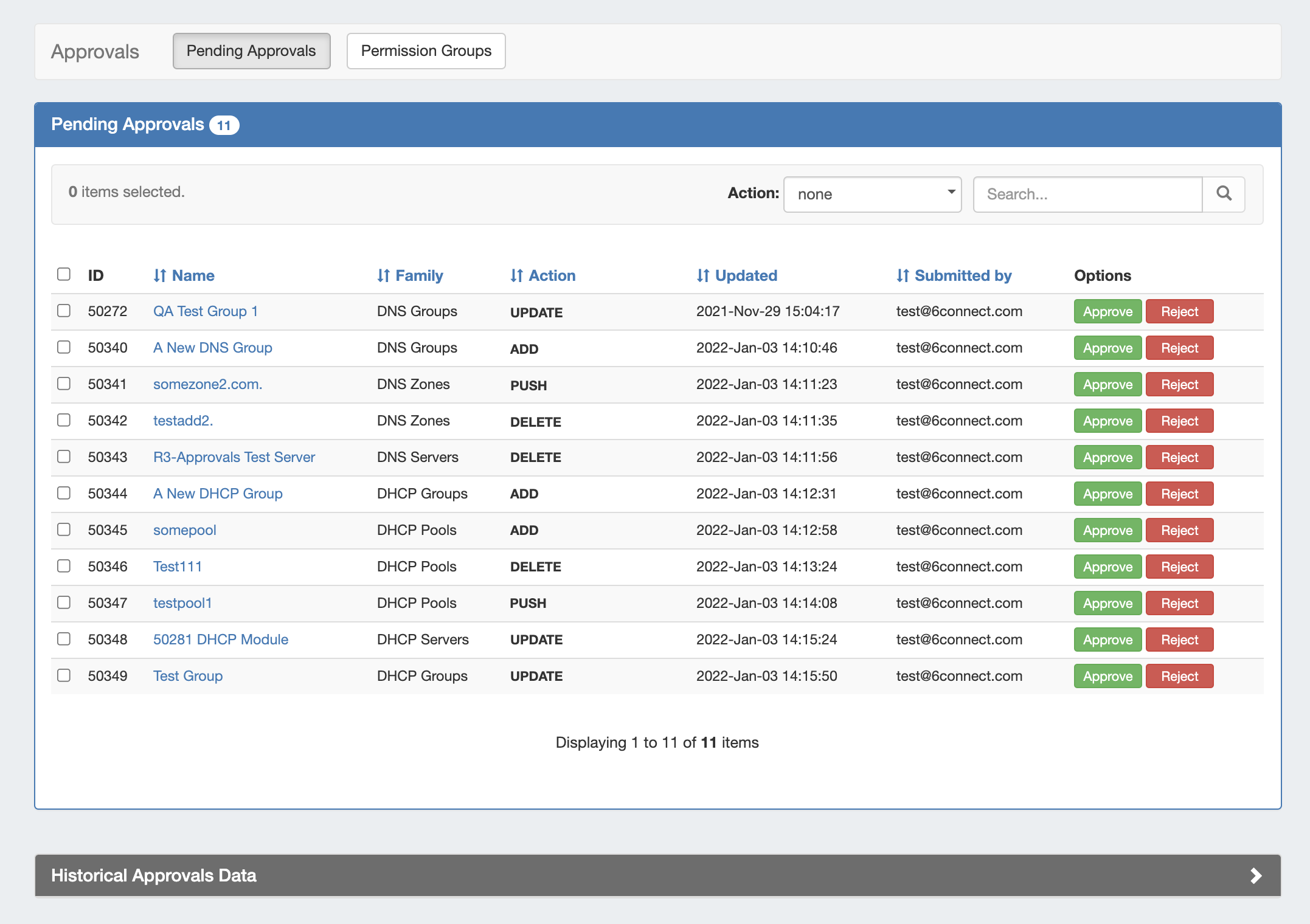
The ProVision Approvals system gives administrators an additional layer of flexibility and oversight to manage which changes are allowed to DNS or DHCP items by users.
With Approvals, administrators can set group permission rules requiring that certain types of DNS / DHCP changes made by a user are either 1) automatically denied or 2) approved by an administrator. In the latter case, one or more admin group(s) must be assigned to approve those action types.
Viewing requested changes and managing the group permission rules are both managed from the admin Approvalstab, under the Pending Approvals and Permission Groups sub tabs.
...
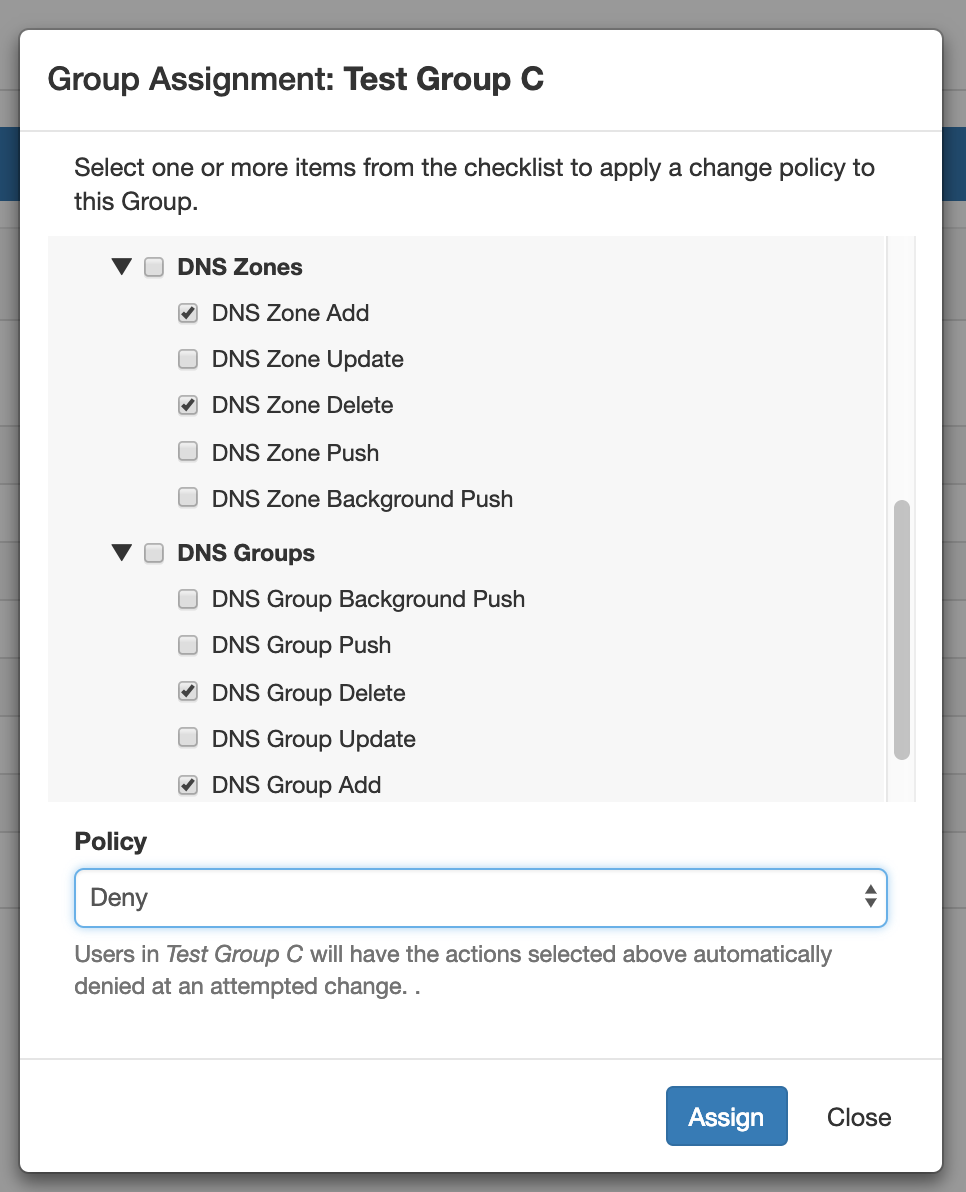
- Deny: The type of change is immediately denied when a member of the User Group attempts to perform that action.
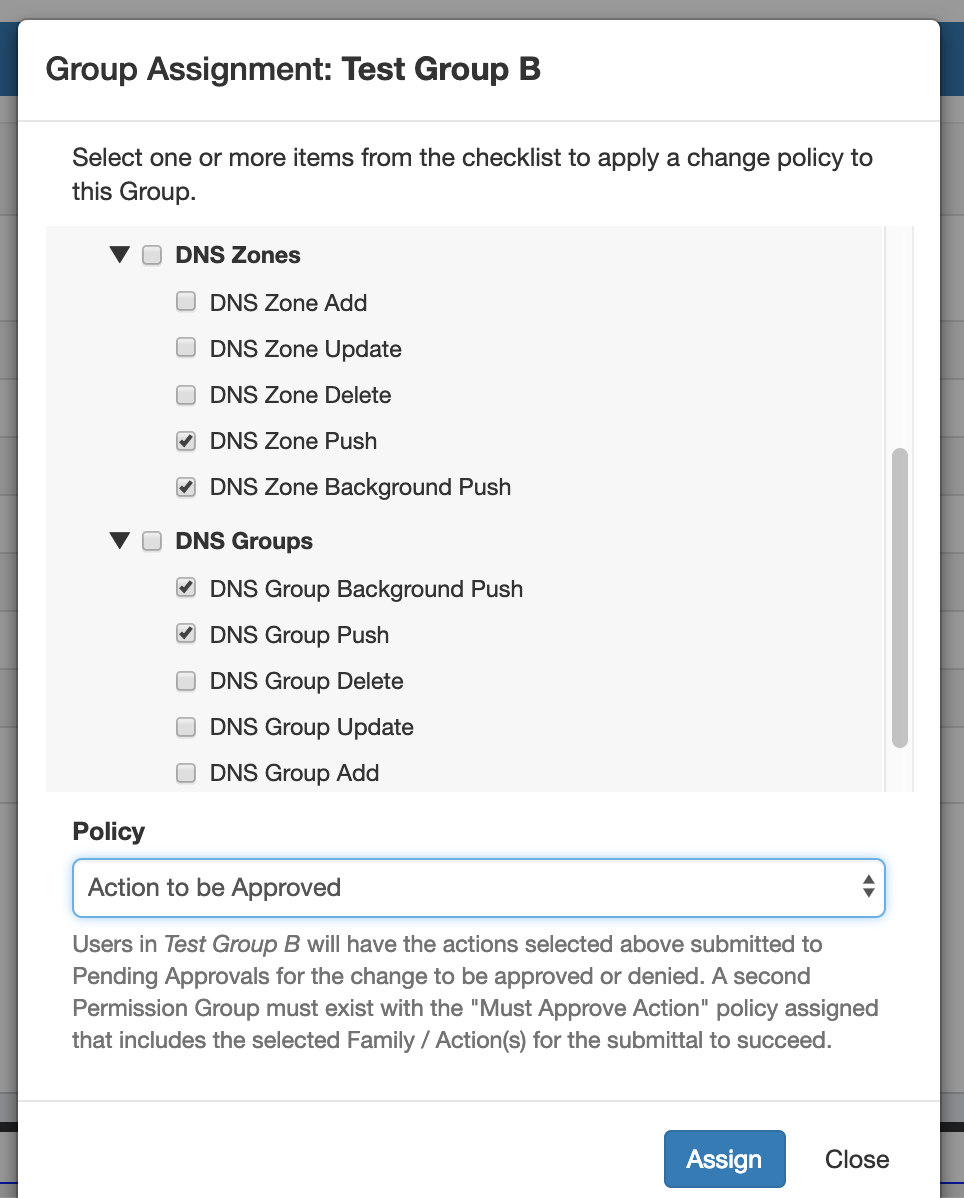
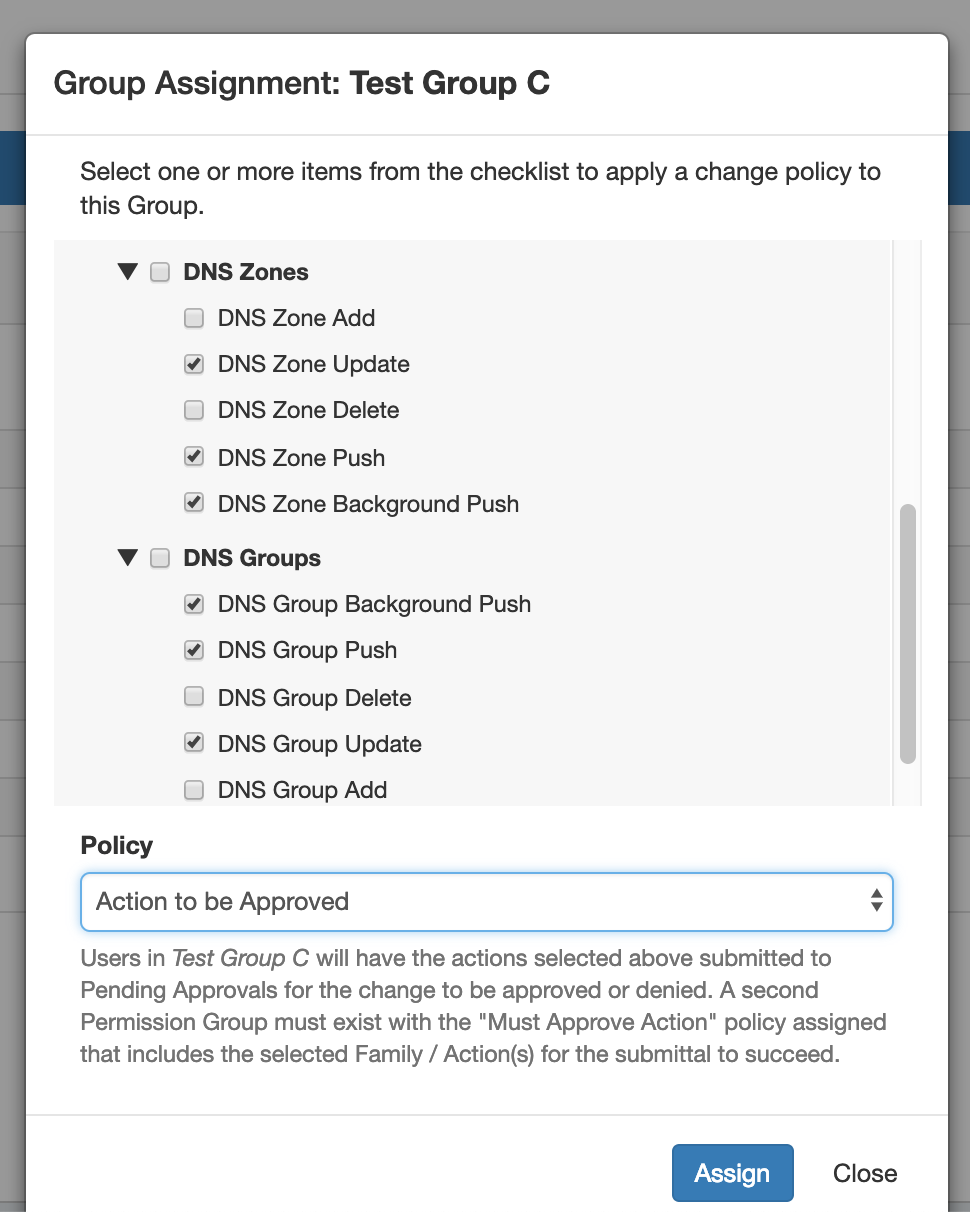
- Action to be Approved: The type of change made by any user in the associated User Group will require an administrative user to approve the change (The approver must be included under a "Must Approve" group for the same action).
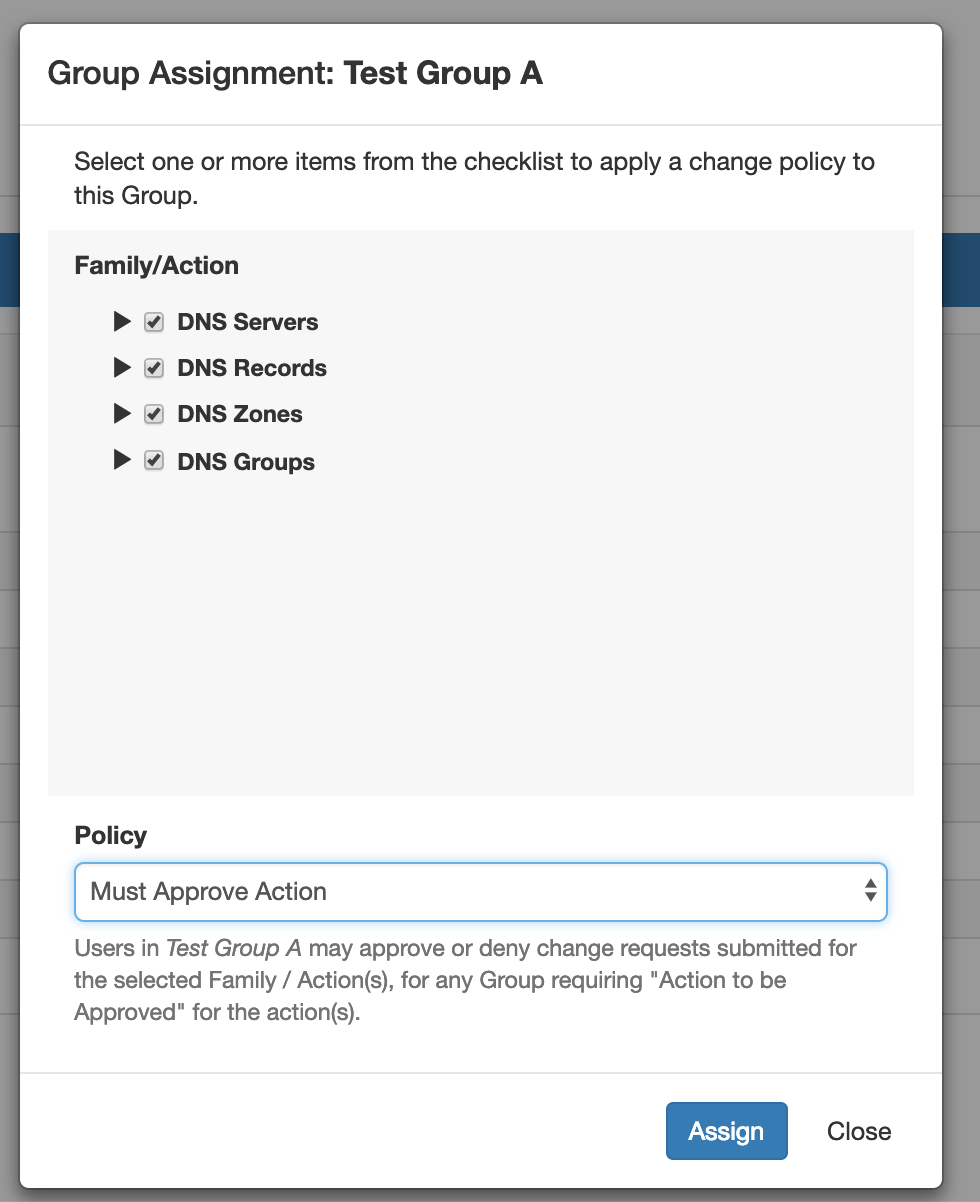
- Must Approve: A A user from the group must approve the action for it to be removed from the "Pending" list, and sucessfully successfully execute. If more than one group is assigned with the "Must Approve" policy for an action, all groups must have a user from that group approve the action for it to execute. If the change has only been partially approved, its status will be "Pending, awaiting approval from others" and no action will be executed until all groups have provided a response to the action.
...
In Approvals, the "Action" listed in the Pending Approval information or when setting Approval Permission Groups will be one of the following change types:
- Add: Creating Creating a new Group, Zone, Pool, Record, or Server
- Delete: Deleting Deleting a Group, Zone, Pool, Record, or Server
- Update: Any change to an item that isn't Add, Delete, or Push - such as a settings change, renaming, or entering a value in a field.
- Push / BackgroundPush: DNS DNS or DHCP Server Pushes - manual or scheduled
...
Further fine-tuning of the action types for permissions is done by selecting the combination of "Family" (type of DNS / DHCP item) with the Action Type. :
- DNS Families include DNS Servers,
...
- DNS Groups, DNS Zones, and DNS Records.
- DHCP Families include DHCP Servers, DHCP Groups, DHCP Pools, and DHCP Reservations
Each type DNS Zones, and DNS Records. Each type of action can be performed on each family, so when setting up Approval Permission Groups you may choose to set the policy for the entire Family (ex:"All DNS Group actions"), Action (ex:"Add actions for all DNS Families"), or just a specific combination (ex: "Only DNS group Delete").
...
| Expand | ||
|---|---|---|
| ||
These examples use the "Assign" button for the Group under the ApprovalsPermission Groups sub-tab, Groups page. Scenario 1 Group A:
Group B:
Group C, Deny Policy:
Group C, Action to be Approved Policy:
These settings may also be set by Action Type instead of Group, from the Approvals Permission Groups sub-tab, Actions page. |
...
| Expand |
|---|
Who are the users that perform DNS / DHCP tasks, and at what level? Affects which users should be included in what User Groups What ProVision User Group(s) are they in? Approvals settings are applied to the User Group, not individuals - ensure users with similar oversight needs are grouped together What actions made by a certain user group should be automatically denied, if any? Assign the "Deny" policy to that Action/User Group combination What actions made by a certain user group should require oversight (admin approval / rejection)? Assign "Action to be approved" to that Action/User Group combination Who is the admin / User Group that will make the final approval on a change? Ensure the approver(s) is in a User Group with the "Must Approve" policy assigned for the actions requiring approval Should any changes require multiple admins / User Groups to approve it in order to execute? A single user from every group assigned with "Must Approve" for the action must approve the action for it to succeed If two admins are required to both separately agree on a change, they should be under two separate User Groups assigned "Must Approve" What User Groups would need to receive email Approval Status notifications, and on what type of actions? Affects whether to enable notifications and set up the scheduler task to send the notifications, and to what User Groups. When enabled, all users of the relevant group(s) will receive the email(s) |
...
From here, depending on the answers to the questions in step 1, you may need to do one or more of the following from the Users tab:
- Edit existing User Groups to add or remove users, in order to combine users who will need similar action types approved.
- Verify the User Groups have appropriate CRUD permissions set to perform the action(s) to be approved (e.g, you may have previously removed "Create" permissions for a group, but if the intent is now for those users to have "Add" actions approved by an Admin, the submitter will need User Group resource "Create" permissions back!)
- Create new User Groups specifically for use with Approvals (recommended)
- Associate users with different, or additional User Groups (remember - users can be associated with multiple groups!)
...
Step 3 - Assign Approval Action Settings to Groups
...
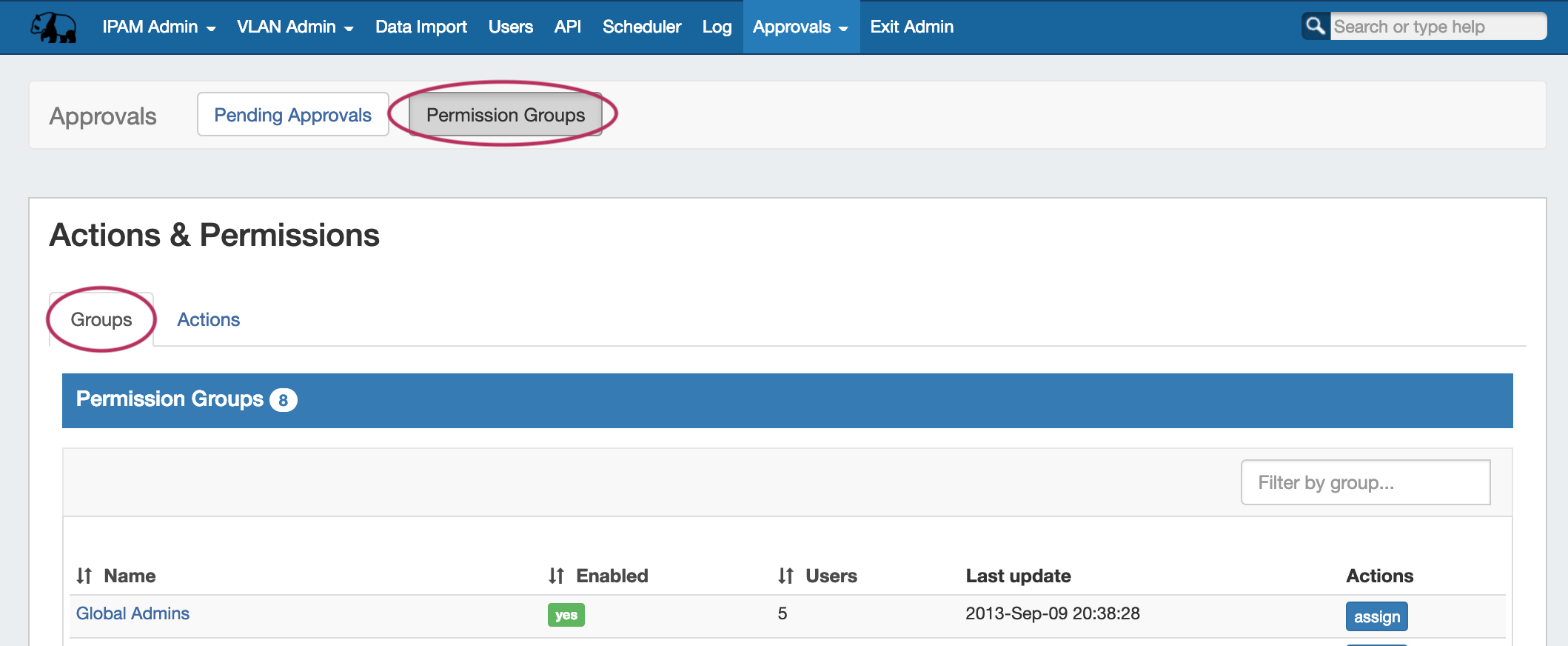
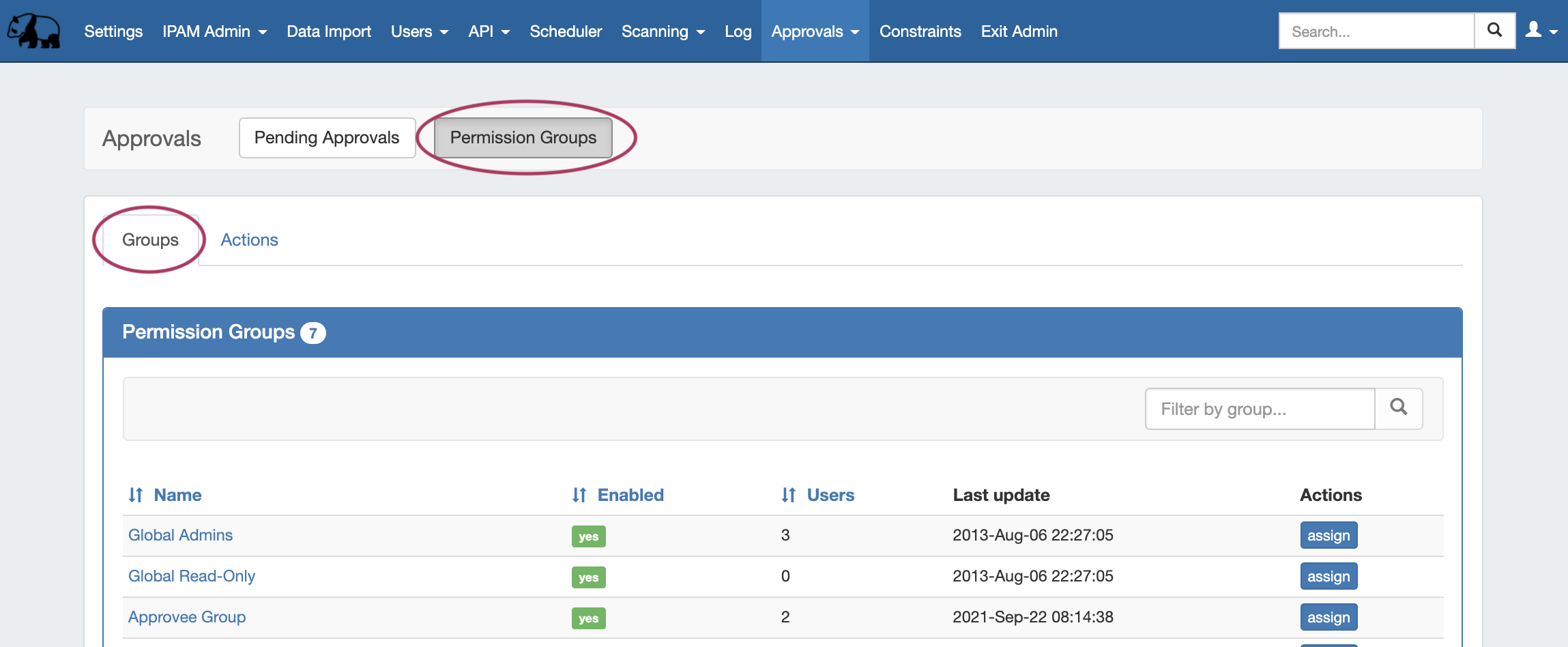
From the Approvals Tab, navigate to the Permission Groups sub-tab:
| Expand |
|---|
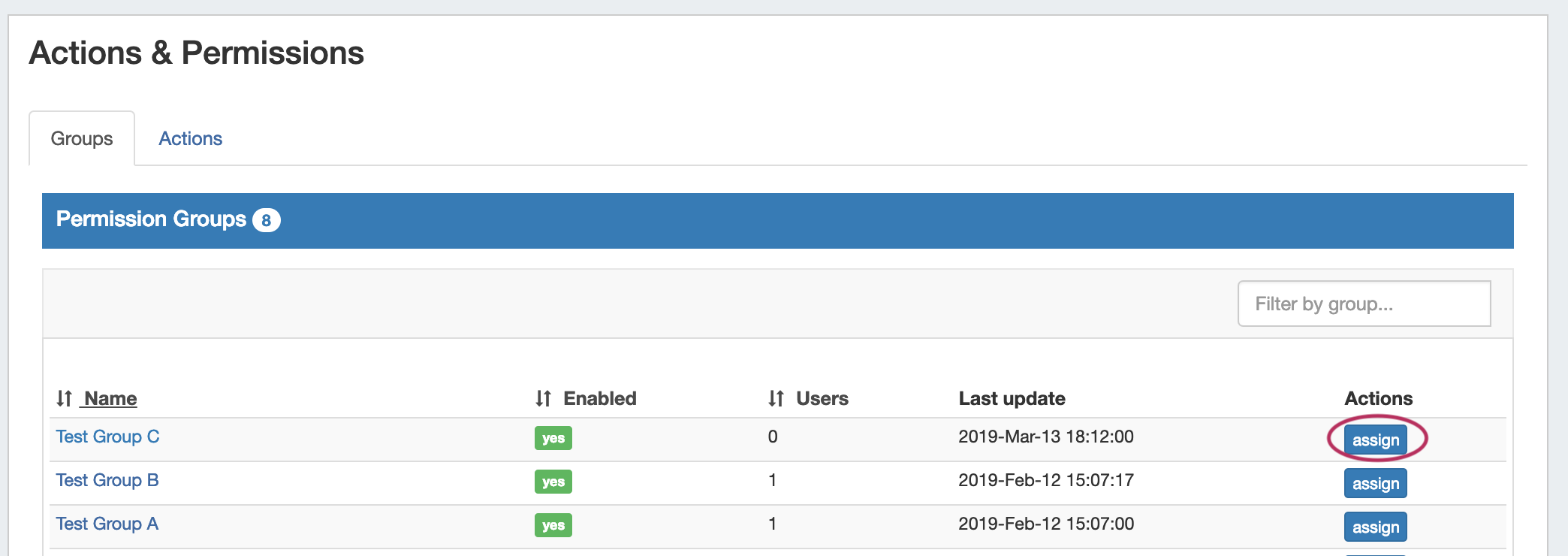
Then, under the Groups page tabpage tab, find the ProVision User Group you wish to want to assign a policy to and click "Assign".
Clicking the "Assign" button for a group brings up a checklist to select what policy to apply to the group for what Family and Actions (i.e. DNS Zone 'Add' or DNS Group 'Update'). You can "quick-select" all actions for a DNS Family (Severs, Groups, Zones, Records) by clicking the checkbox next to the family name, or only select individual action types for each Family.
Once you've selected the applicable Family/Action combinations to apply a policy for, select either "Deny", "Action to be Approved", or "Must Approve Action" under Policy. When done, Click "Assign", and repeat as needed for other Policy types or User Groups. |
Step 4 - Enable Notifications (Optional)
If using Approvals notifications, enable notifications for the appropriate Permissions Group(s).
From the the Approvals Tab, navigate to the Permission Groups sub-tab Groups page tab:
| Expand |
|---|
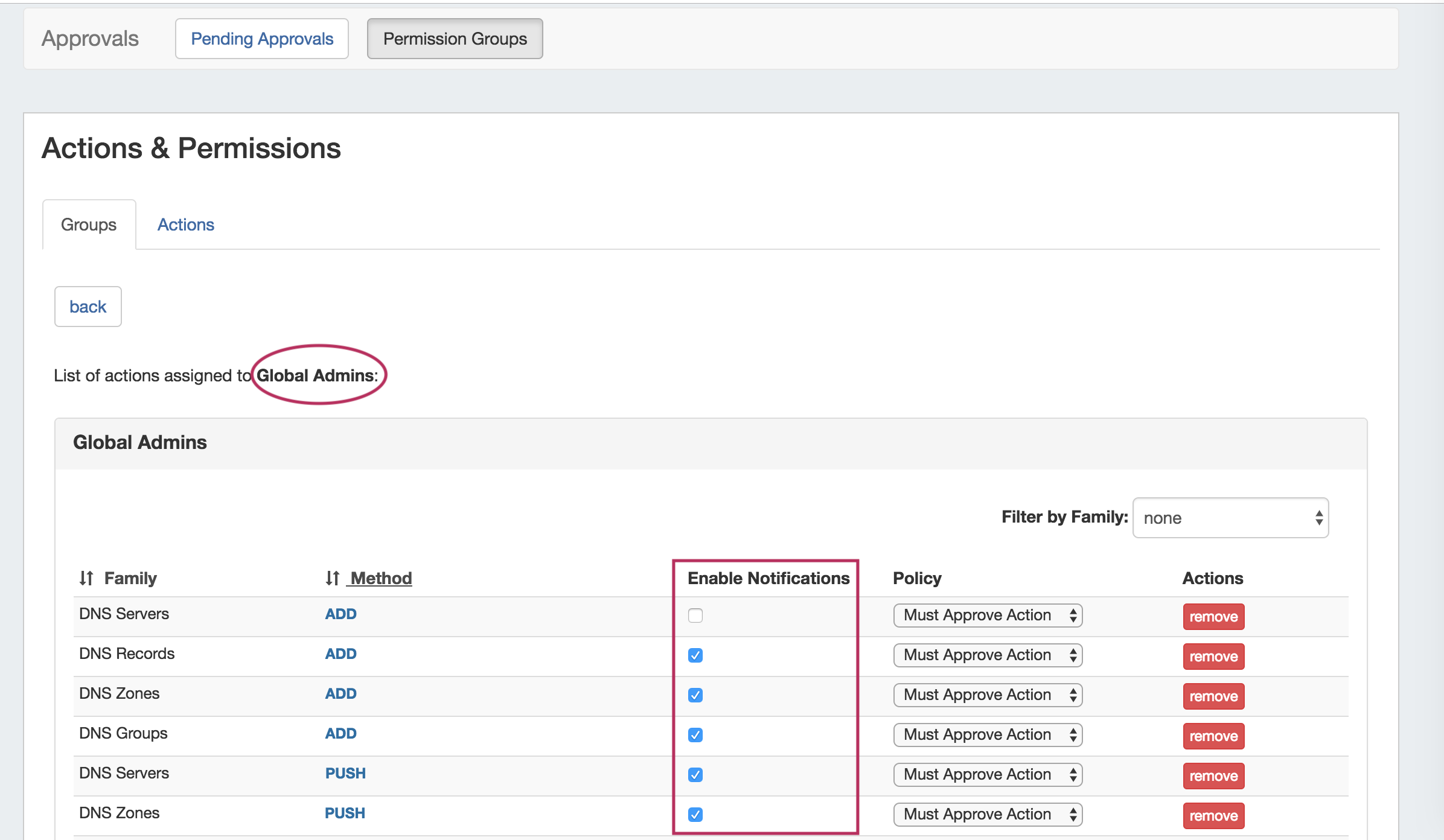
Click on the group name for which you want to set notifications - the Group Permissions Detail page will provide additional information on the group's settings.
For any Family/Action that you want to enable notifications, click the checkbox under "Enable Notifications". All users of that group will get email notifications when a change of the selected type(s) are made. |
Step 5 - Add Scheduler Task: "Approvals - Process Subscription"
If using Approvals notifications, set up a Scheduler task for "Approvals - Process Subscription"
...
The "Approvals - Process Subscription" task processes approval request events and handles the sending of notification emails to subscribed Approvals Groups - this task must be created and running on a regular interval in order for Approval Notification emails to be sent.
...
Step 6 - Add Scheduler Task: "Approvals - Delete events older than 1 month"
Set up a Scheduler Task for "Approvals - Delete events older than 1 month", to occasionally clear out old and obsolete Approval request
...
eventsThe "Approvals - Delete events older than 1 month" task deletes any Approvals history events older than 30 days.
It is It is recommended to set this task to run monthly with no end date, to clear out obsolete approvals items, reduce data storage space needs, and reduce approvals page load time.
...
- Submitter makes an action (either by action type or DNS / DHCP Family) that requires approval
- Submitter is notified that their action is pending approval
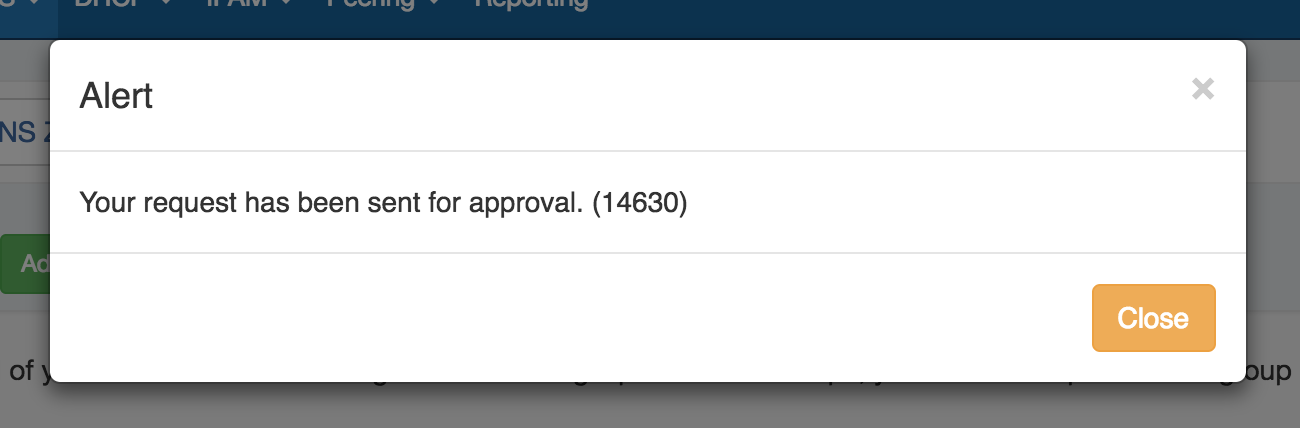
The requested change is sent to the Approvals Tab Pending Approvals list, and also to the DNS Resources Awaiting Approval module for the relevant area (the submitter may see their own submitted action under "Resources awaiting approval", but only Approvers can take approve/reject actions).
Expand title Pending Approvals List... The Pending Approvals list is under the Approvals Tab. It shows Approvals events (change requests) for which the user has the ability to Approve or Deny - it does not show approval requests for all of ProVision or those for other users.
Expand title Resource Awaiting Approval Module... A "Resources Awaiting Approval" module will display in selected DNSv3 DNS / DHCP pages to Users with Admin / Approval permissions, if a change has been submitted on that page that is pending approval by the User's Approval Group.
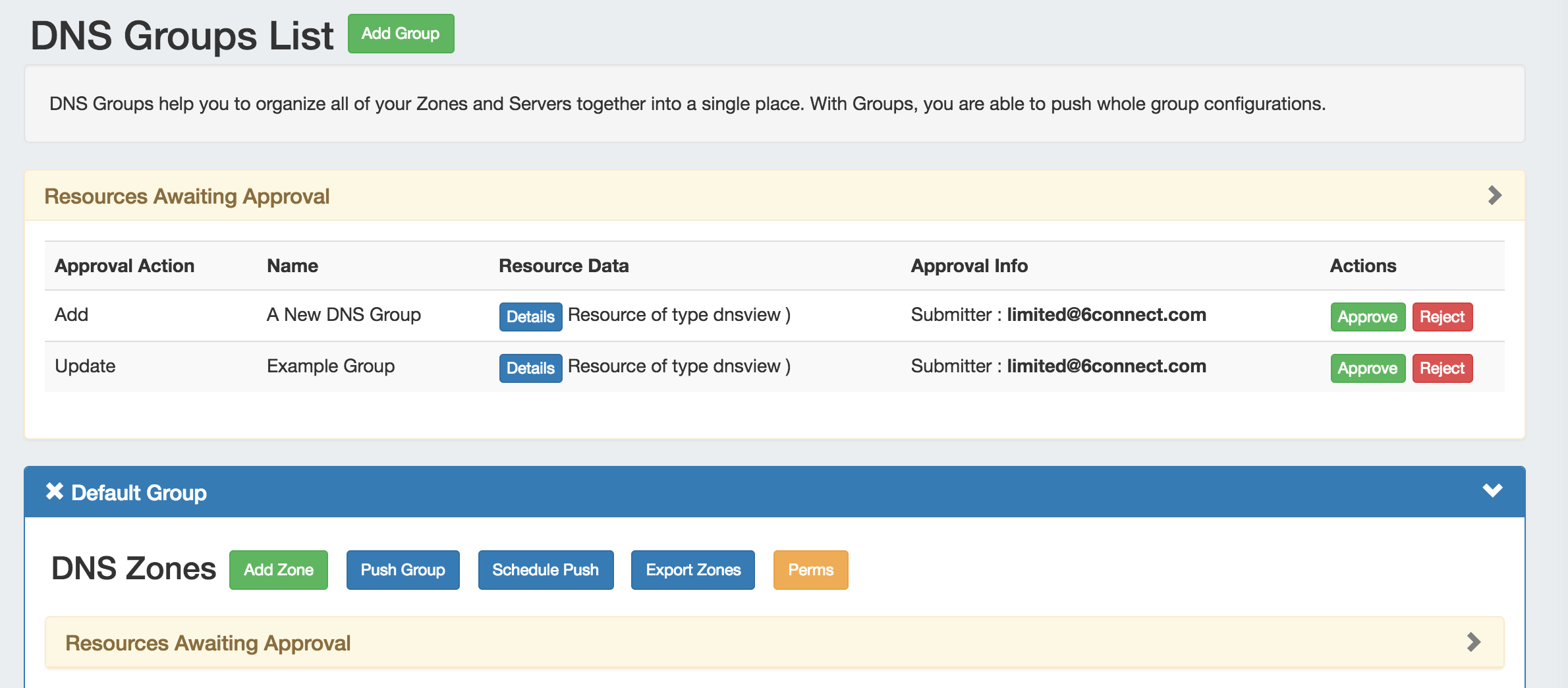
The Approver reviews the change in either their Approvals Tab Pending Approvals list, or the DNSthe Resources Awaiting Approval module module, and chooses to Approve or Reject the change:. Events may be approved / rejected individually, or multiple events may be selected for bulk approval / rejection by selecting the desired checkmarks, expanding the "Actions" menu, then selecting either "Approval All" or "Reject All" for the selected events.
Expand 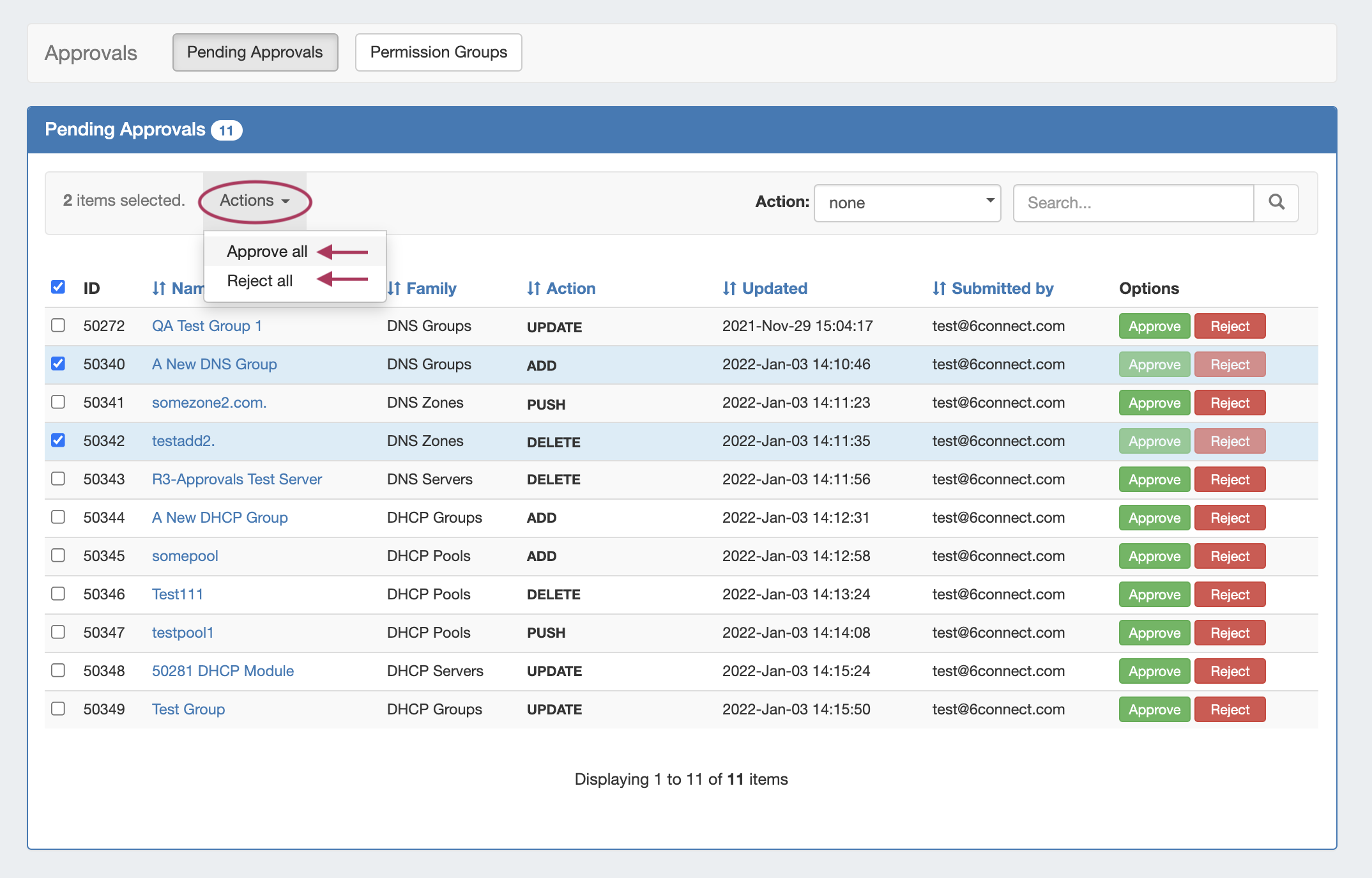
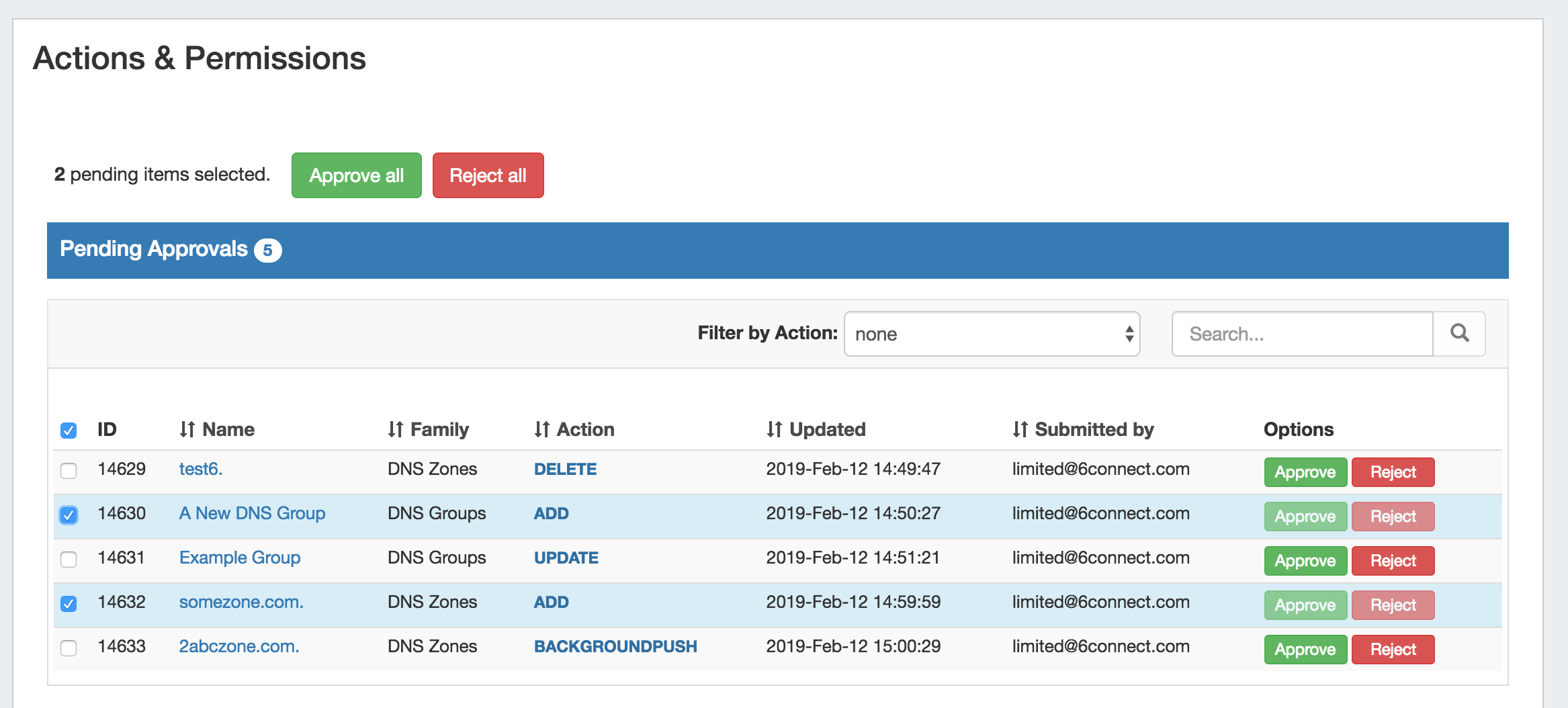
- If Approved, and no other groups need to approve it, then the change executes and is saved. A status change notification email is sent, if enabled.
- If Approved, and is waiting approval from an additional User Group, the change continues to be held as Pending, until the other group responds (Both groups must "Approve" for the change to execute). A status change notification email is sent, if enabled, stating that the change is awaiting another Group.
- If Rejected, the change is not executed. A status change notification email is sent, if enabled.
Example Notification Email: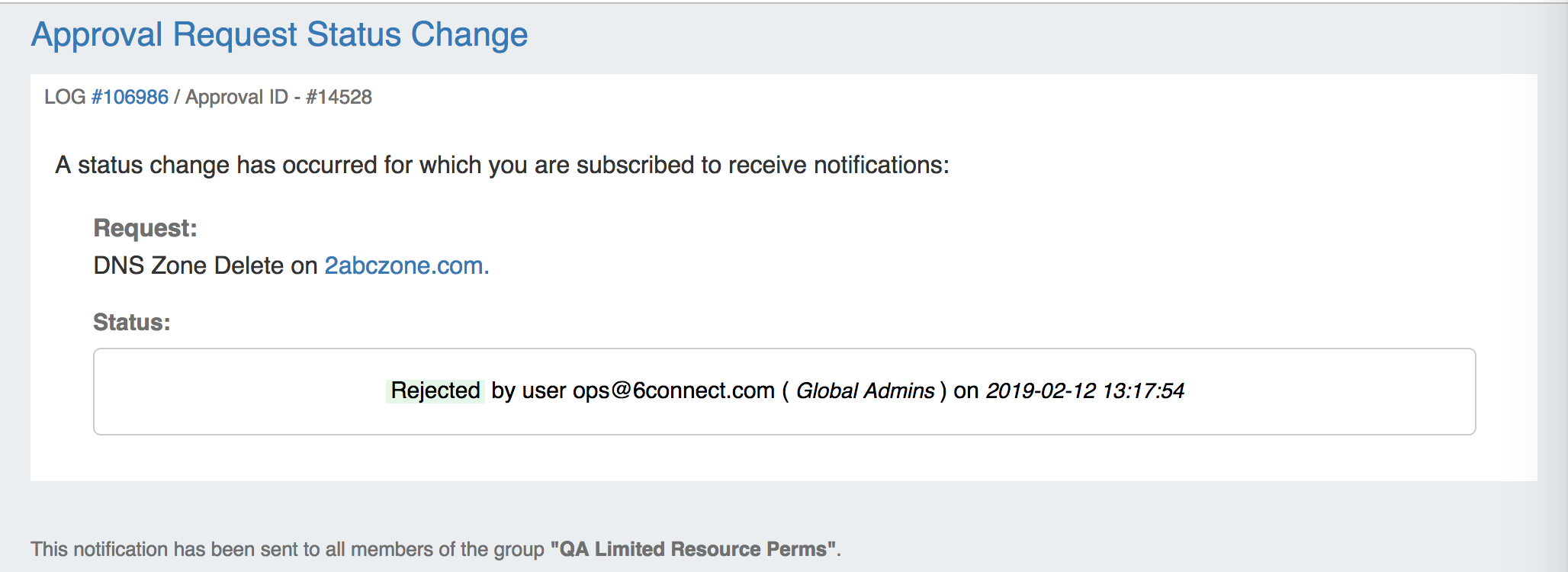
...