APIv2

| Table of Contents | ||
|---|---|---|
|
API v2 Overview
APIv2 is ProVision's currently supported RESTful API version. APIv2 improvements include:
- HTTP HTTPS Basic Authentication
- Use of HTTP Methods (GET, PUT, POST, etc.)
- Supports JSON payloads
- Additional endpoints and ProVision functionalityand functionality
APIv2 Access Options
To test or execute APIv2 queries, you may:
- Use a browser extension / desktop REST client, such as Postman
Postman is the current industry standard: Go to https://www.getpostman.com/ to install, and visit the Postman Learning Center for user documentation, training videos, and support help.
- Access ProVision's APIv2 the APIv2 Swagger documentation from your ProVision instance ( instance/dev/swagger), which provides the ability to test inputs and responses using your ProVision instance data.
- Continue to the section below: "APIv2 - Using Swagger" for more details, or see the Developer Tools page for a broader overview.
- Use CURL in the command line to authenticate and execute APIv2 endpoints. See cURL documentation at https://curl.haxx.se/.
- Continue to the section below: "APIv2 - Using cURL" for more details, examples, and tips.
...
Public APIv2 documentation is located at https://cloud.6connect.com/APIv2/.
APIv2 documentation includes:
- IPAM API API
Includes actions for LIRs, IP aggregate and block management, VLAN, IP Rules, and SWIP.
- Resource API API
Includes actions for managing
...
the Resource System.
The resource API provides CRUD endpoints for resources, resource attributes, resource attachments and resource backups.
- Resource View API
Provides CRUD endpoints for resource views.
- DNS APIProVision
The DNS API allows you to manage DNS Zones, Records, Servers, Groups and ACLS.
- Users Peering APIIncludes actions for ProVision Users, permissions and actions.
Allows you to manage routers and BGP sessions.
- Contacts API
Allows you to manage contacts.
- Users API
Includes actions for Users, permissions and actions.
- Usergroups API
Includes actions for
...
Groups, permissions and actions
- Scheduler API
The API Allows you to easily schedule tasks.
- API Composer Platform
API Composer Platform (ACP) is an additional module
...
to help automate frequently used combinations of calls.
- SSH API
Includes actions for SSH credentials and SHH Routes.
Existing customers may also access APIv2 documentation Documentation from your ProVision instance (user must have Admin permissions):
- Log into your ProVision instance.
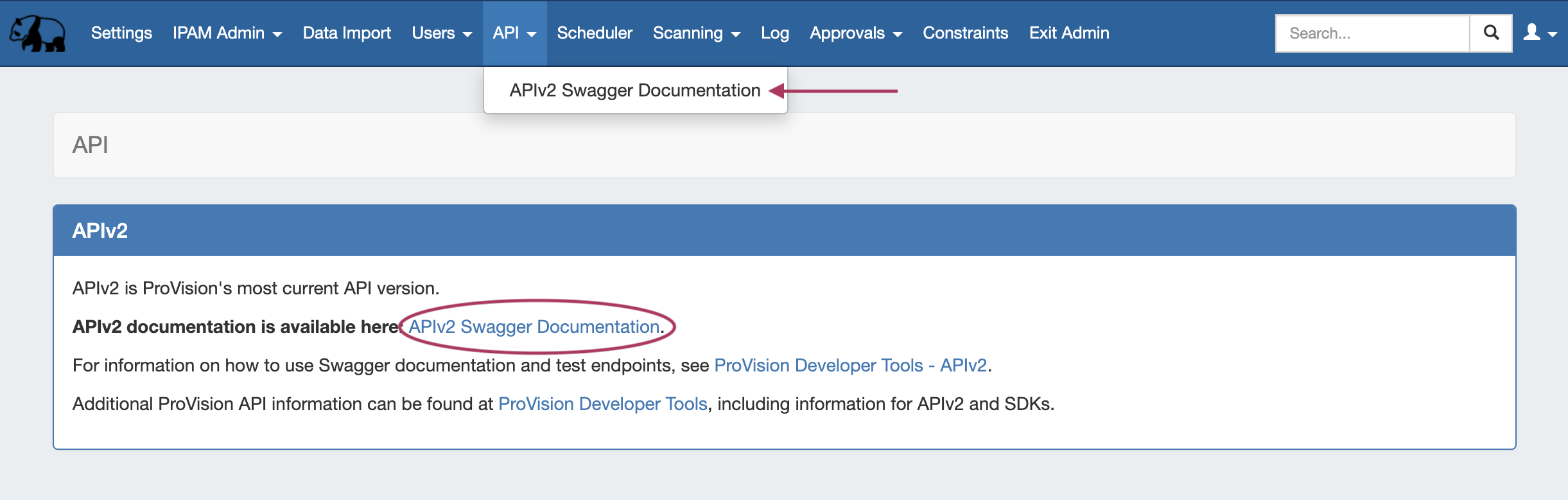
- Go to the Admin area of ProVision and click on the the API Tab Tab.
Under "OpenAPI 3.0 Specification" click the Swagger link providedthe API dropdown menu, click the Swagger link provided. You may also click on the "APIv2 Swagger Documentation" link provided under the APIv2 section of the page.
Expand 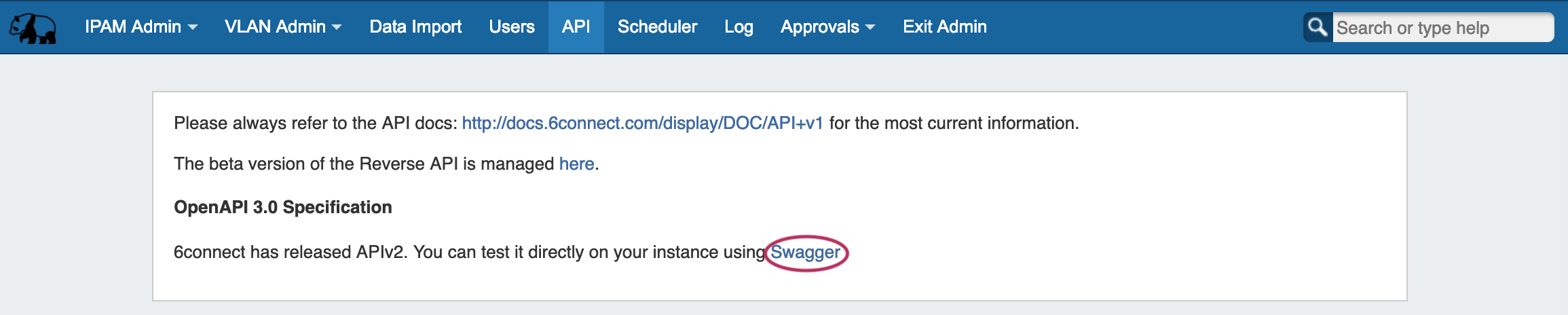
Viewing APIv2 Information
On the Provision the API Swagger home page, click on the name link for the API family that you wish to browse (IPAM, Resource, DNS, etc).
Expand 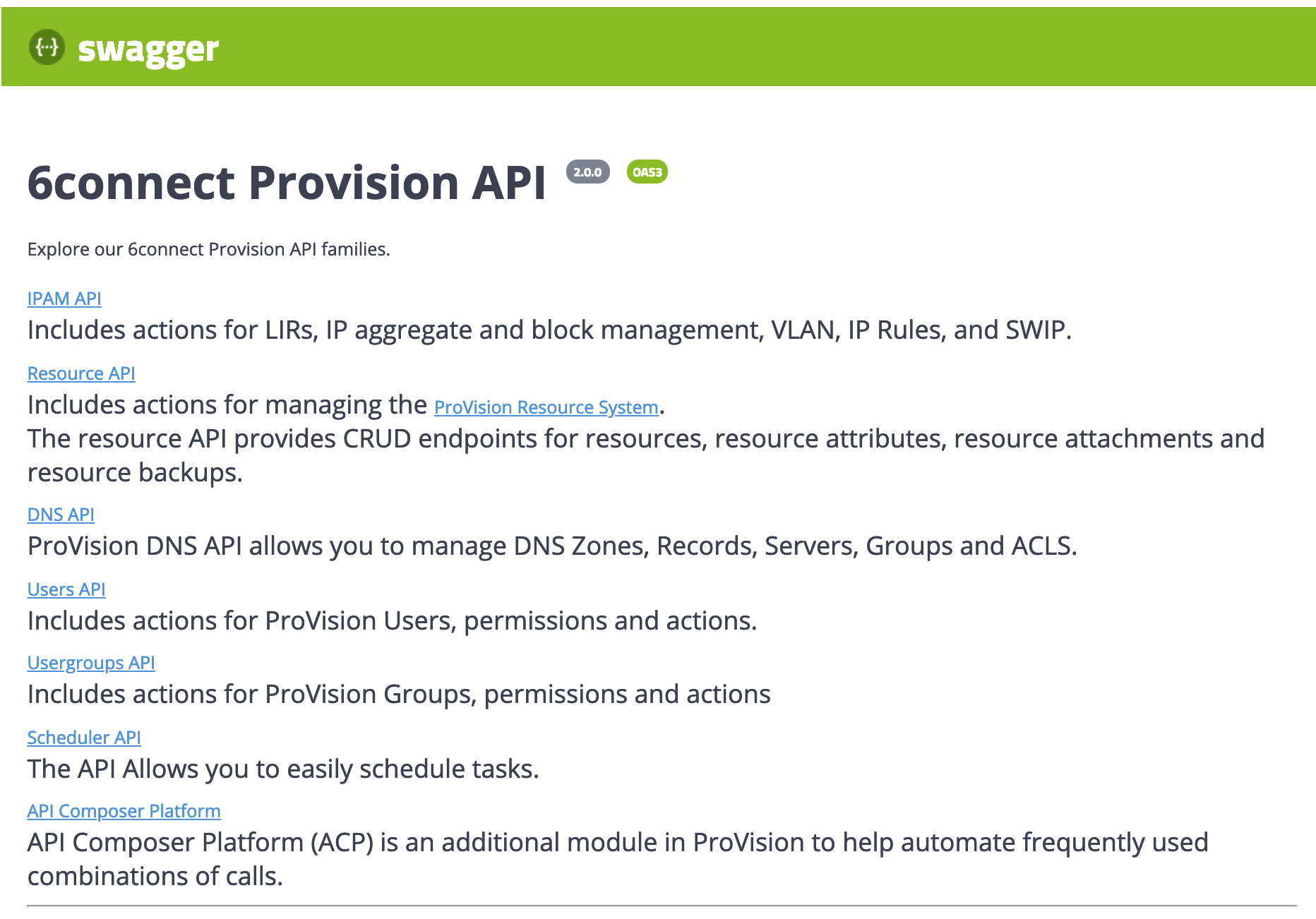
Once on an API Family page, verify that the displayed server name is correct for your instance/local server.
Expand In most situations, only one ProVision instance/server will be displayed, with authentication already provided from your ProVision login. If your ProVision session has ended, or the server changed, you may need to re-provide ProVision credentials by clicking the "Authorize" button. 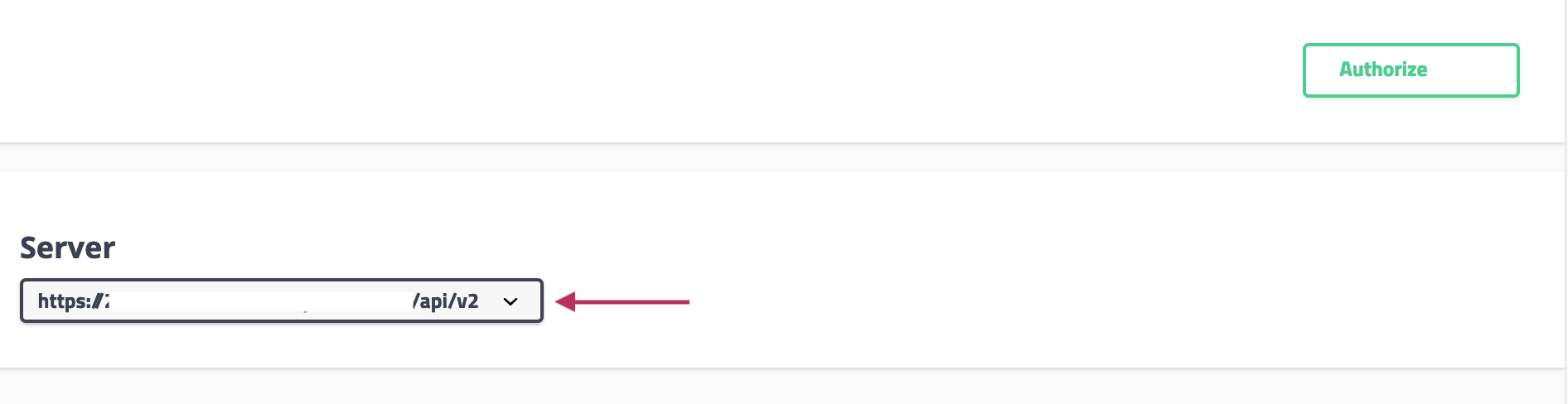
Scroll further down the page and begin reviewing available APIv2 calls and details. Clicking on any call will expand it to view parameter details - you can even test call responses (using your instance data) by clicking "Try it Out"!
Expand
The detail information includes a description, parameter list (required parameters are marked with a *), and response information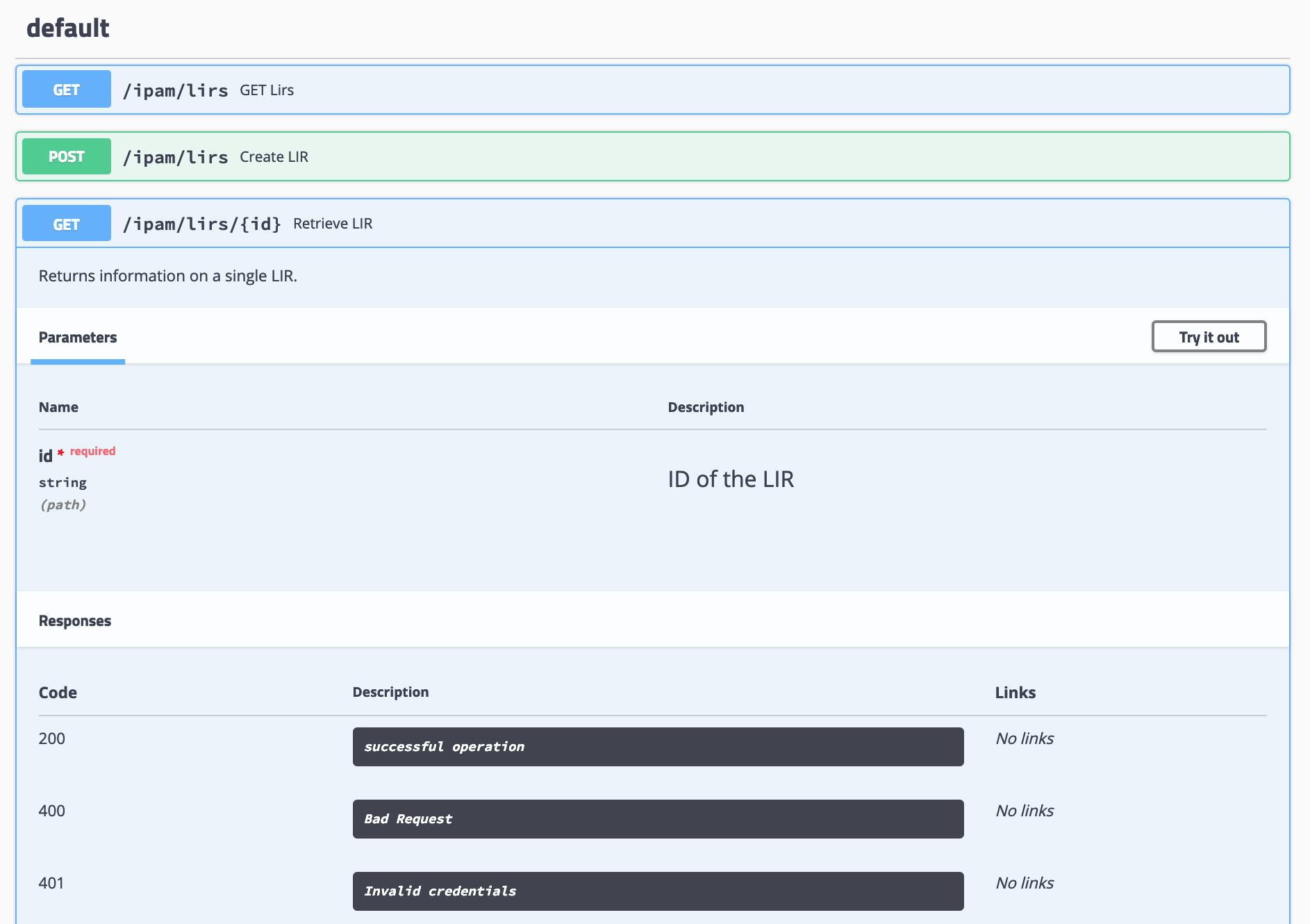
Some calls that involve a JSON request body payload (PUT, PATCH, etc) will display "Example Value" and "Model" information under a "Request Body" section - additional parameter descriptions may be displayed under "Model" Information.
Expand
Clicking on "Example Value" will show an example of a JSON request body for that call.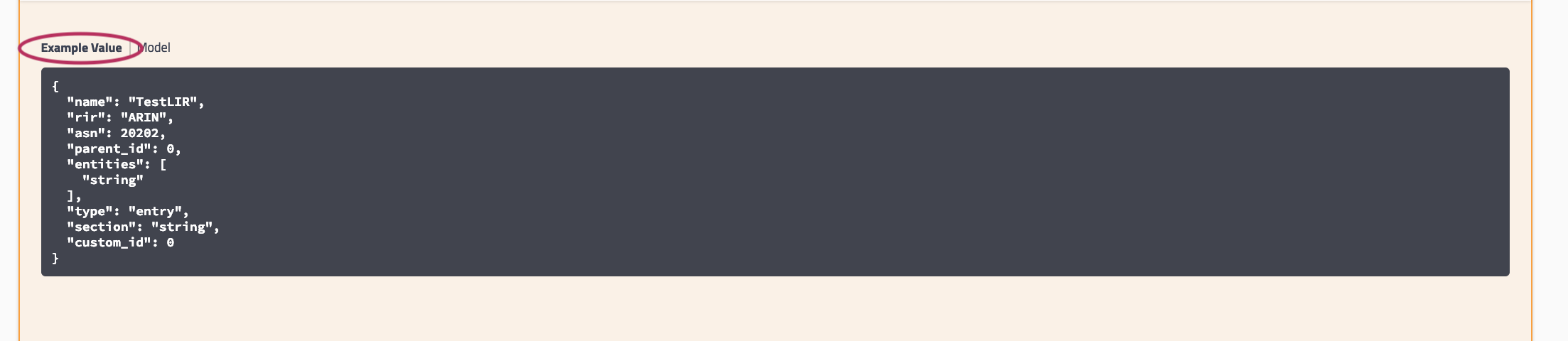
Clicking on "Model" will display details and descriptions of the request body parameters, if available.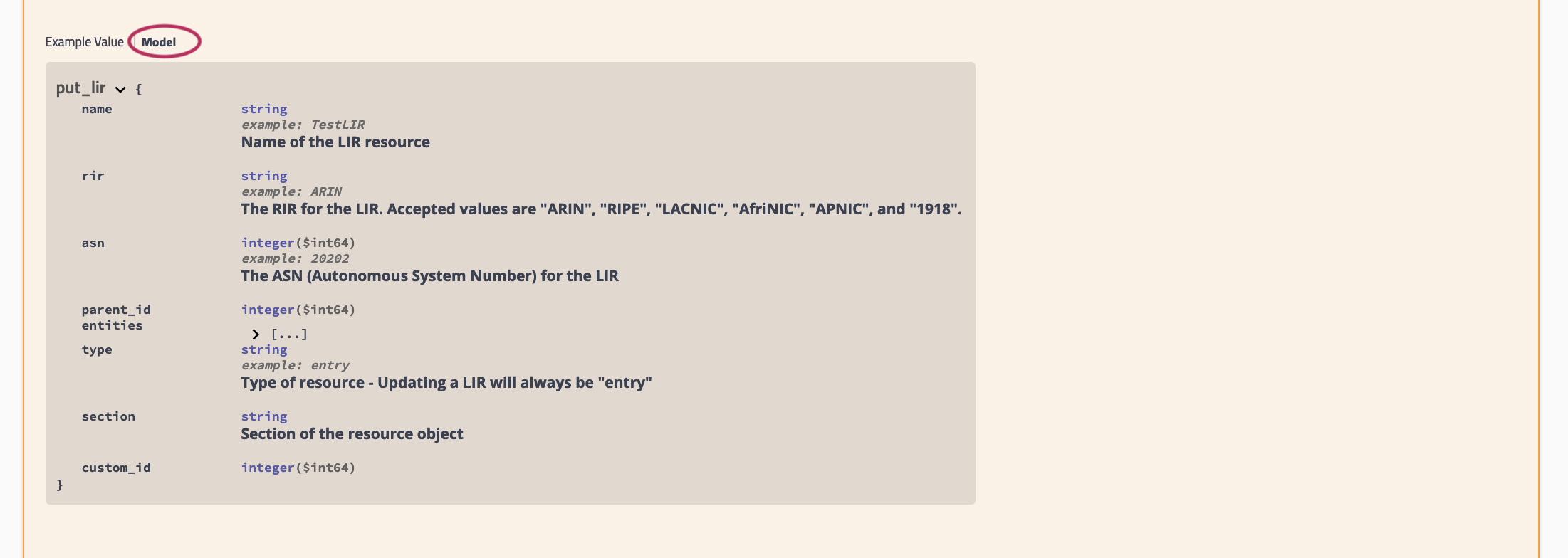
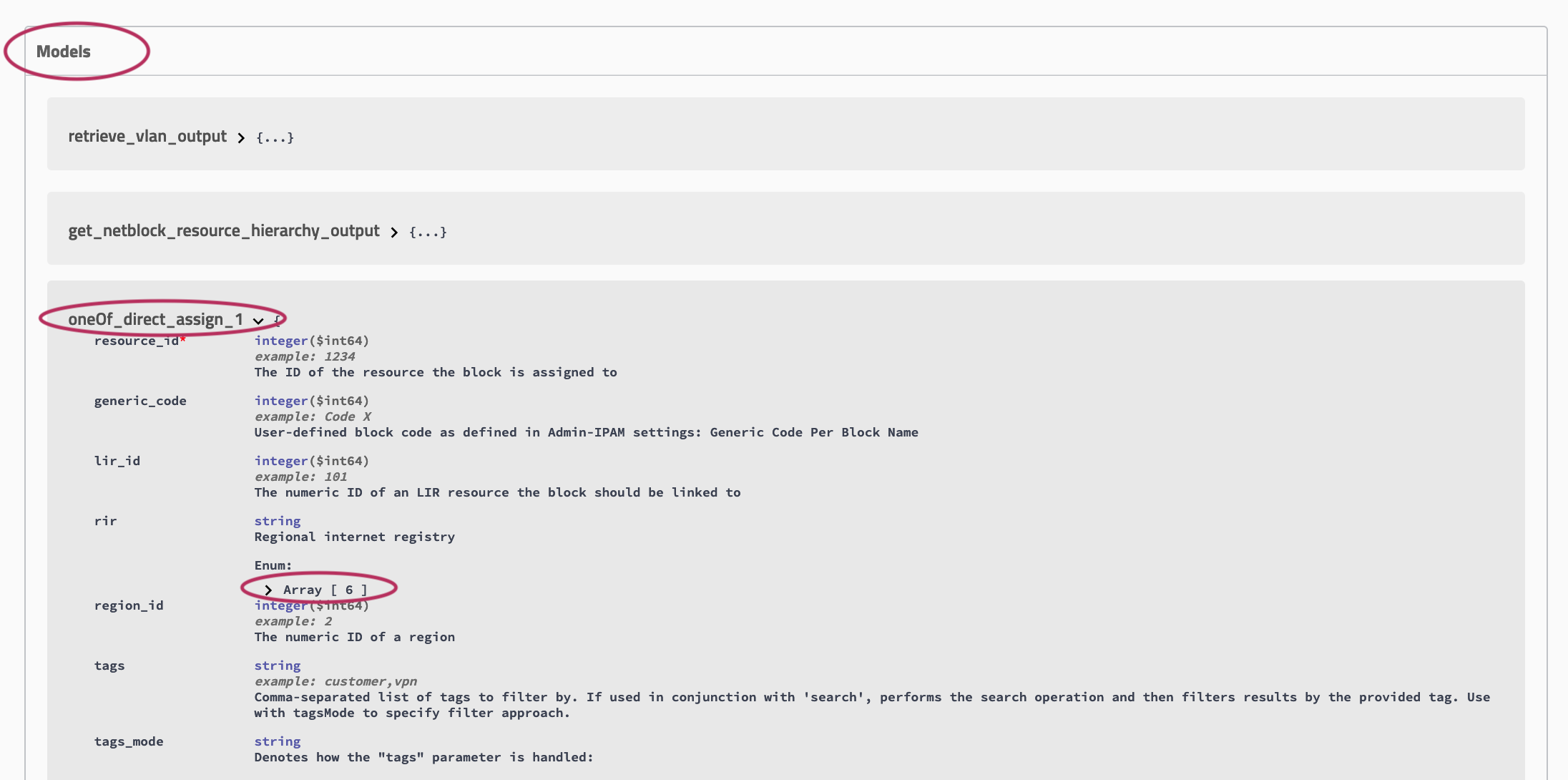
Additional "Model" examples are available at the bottom of the page with additional descriptive information.
Expand At the bottom of the page, click on "Models".

Then, click on the "Model" you wish to view. Some models may contain additional information that you can expand to view, such as valid values for a parameter. In the example below, the circled "array" will display valid RIR values.
Testing/Executing Endpoints in Swagger
...
- Navigate to the call that you want to try out.
Expand the call to view its details, then click the "Try it out" button.
Expand 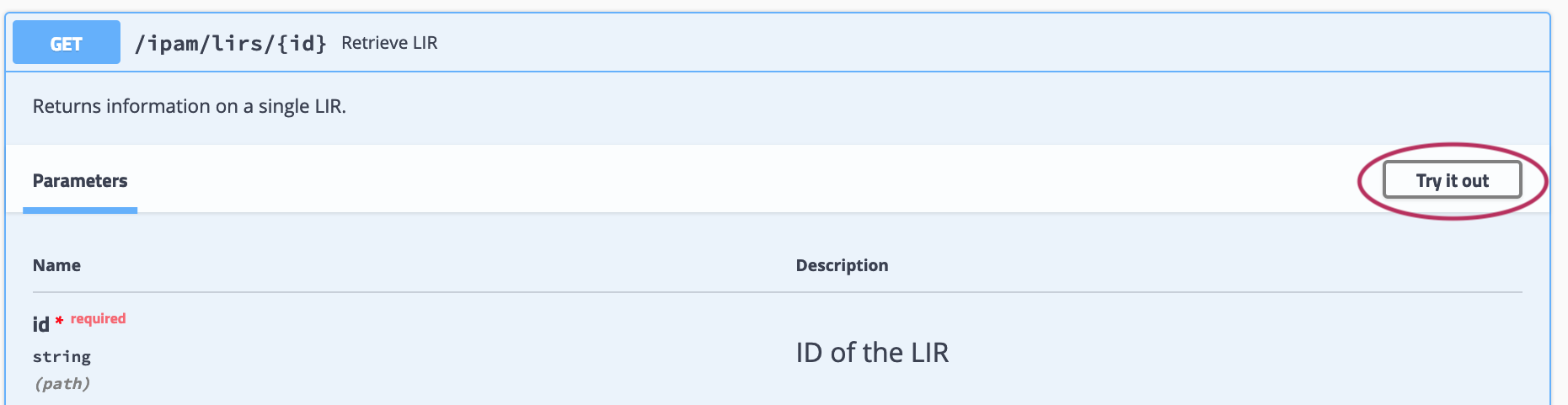
Input the desired parameters to test, and click "Execute".
Expand 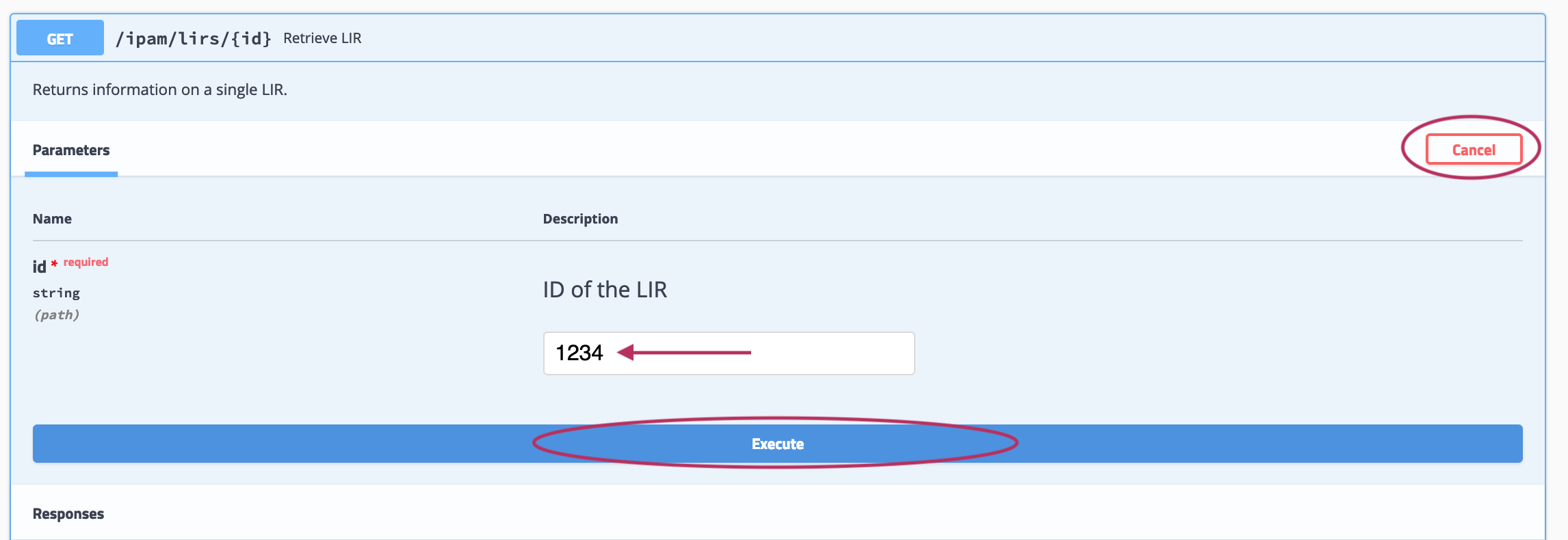
If the call is a method that uses a JSON request body, you will have the option to edit the body text in the "Example Value" box - when done, click "Execute".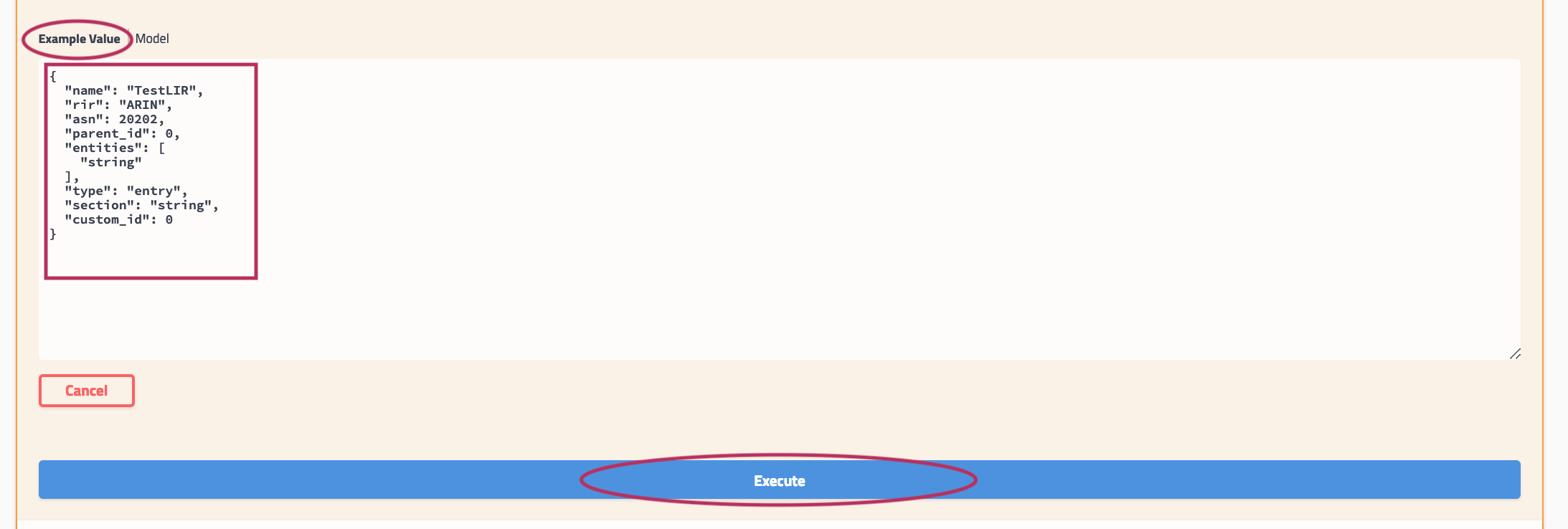
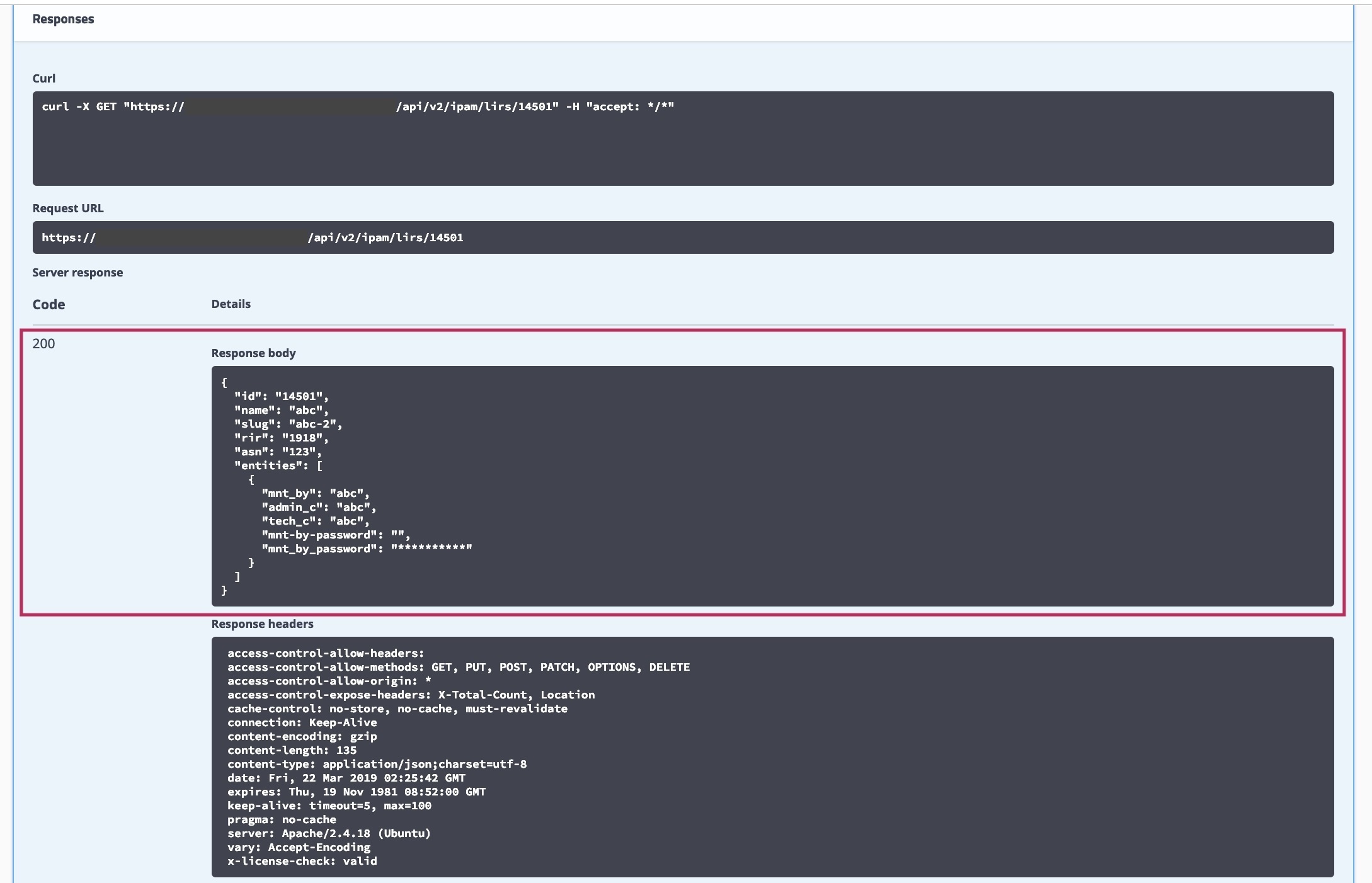
The example response will display under "Responses" after being executed. The "Response" section also includes the cURL command, Request URL, and Response Headers.
Expand 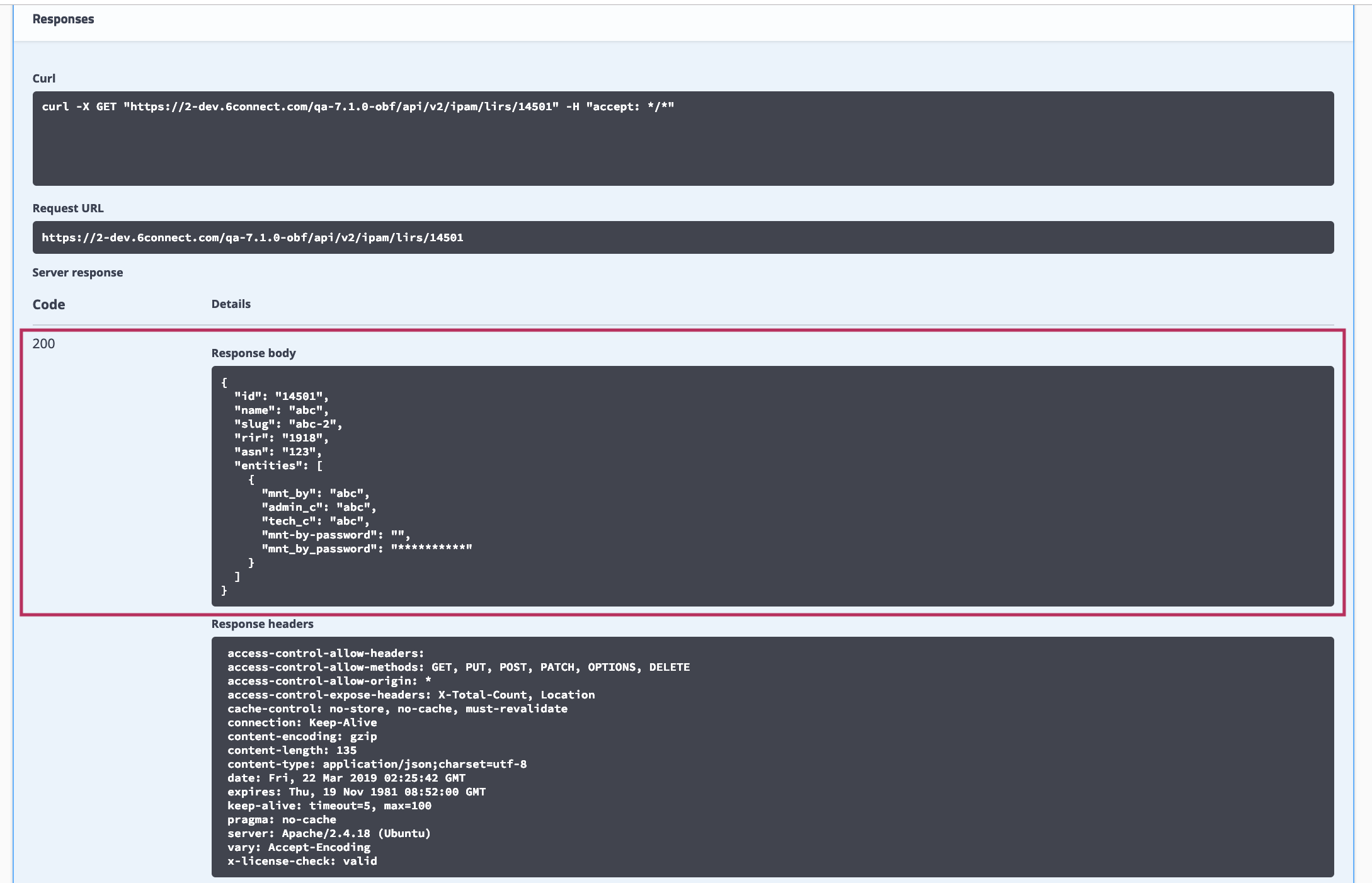
APIv2 - Nested Queries
...
| Code Block |
|---|
curl -X POST "https://2-dev.example.com/qa-7.4.1$HOSTNAME/instance/api/v2/resources/query" -H "accept: application/json" -H "Content-Type: application/json" -d "{\"type\":\"entry\",\"attrs\":[{\"key\":\"_custom_id\",\"value\":\"101\",\"rule\":\"AND\"},{\"attr_rule\":\"AND\",\"attr_nested\":[{\"attr_key\":\"_section\",\"attr_value\":\"78\",\"attr_rule\":\"OR\"},{\"attr_key\":\"_section\",\"attr_value\":\"74\",\"attr_rule\":\"OR\"}]}]}" |
...
- Invoke cURL:
curl -X PATCH "https://your-instance-domain$HOSTNAME/instance-name/api/v2/config" -H "Content-Type:application/json;charset=utf-8" -u testing@example.com:password -d "{\"auto_merge_limits\":\"10\"}"
- Use the Request Flag (-X):
curl -X PATCH "https://your-instance-domain$HOSTNAME/instance-name/api/v2/config" -H "Content-Type:application/json;charset=utf-8" -u testing@example.com:password -d "{\"auto_merge_limits\":\"10\"}"
- This specifies a custom request method to use when communicating with the HTTP server. The specified request method will be used instead of the method otherwise used (which defaults to GET)
- Specify the HTTP Action:
curl -X PATCH "https://your-instance-domain$HOSTNAME/instance-name/api/v2/config" -H "Content-Type:application/json;charset=utf-8" -u testing@example.com:password -d "{\"auto_merge_limits\":\"10\"}"
- In quotes, specify the URL of the APIv2 endpoint you are executing. This should be similar to: "https://[ProVisionInstance]$HOSTNAME/instance/api/v2/[endpoint family-action]"
curl -X PATCH "https://https://your-instance-domain$HOSTNAME/instance-name/api/v2/config" -H "Content-Type:application/json;charset=utf-8" -u testing@example.com:password -d "{\"auto_merge_limits\":\"10\"}"
- Use the Header Flag (-H):
curl -X PATCH "https://https:$HOSTNAME//your-instance-domain/instance-name/api/v2/config" -H "Content-Type:application/json;charset=utf-8" -u testing@example.com:password -d "{\"auto_merge_limits\":\"10\"}"
- Denotes an extra header to include in the request when sending HTTP to a server. You may specify any number of extra headers. Note that if you should add a custom header that has the same name as one of the internal ones curl would use, your externally set header will be used instead of the internal one. This allows you to make even trickier stuff than curl would normally do.
- Add endpoint-specific data, such as specifying a JSON payload or attribute setting. This may involve one or more additional flags or information sets, depending on the endpoint:
curl -X PATCH "https://https://your-instance-domain$HOSTNAME/instance-name/api/v2/config" -H "Content-Type:application/json;charset=utf-8" -u testing@example.com:password -d "{\"auto_merge_limits\":\"10\"}"
...
| Info | ||
|---|---|---|
| ||
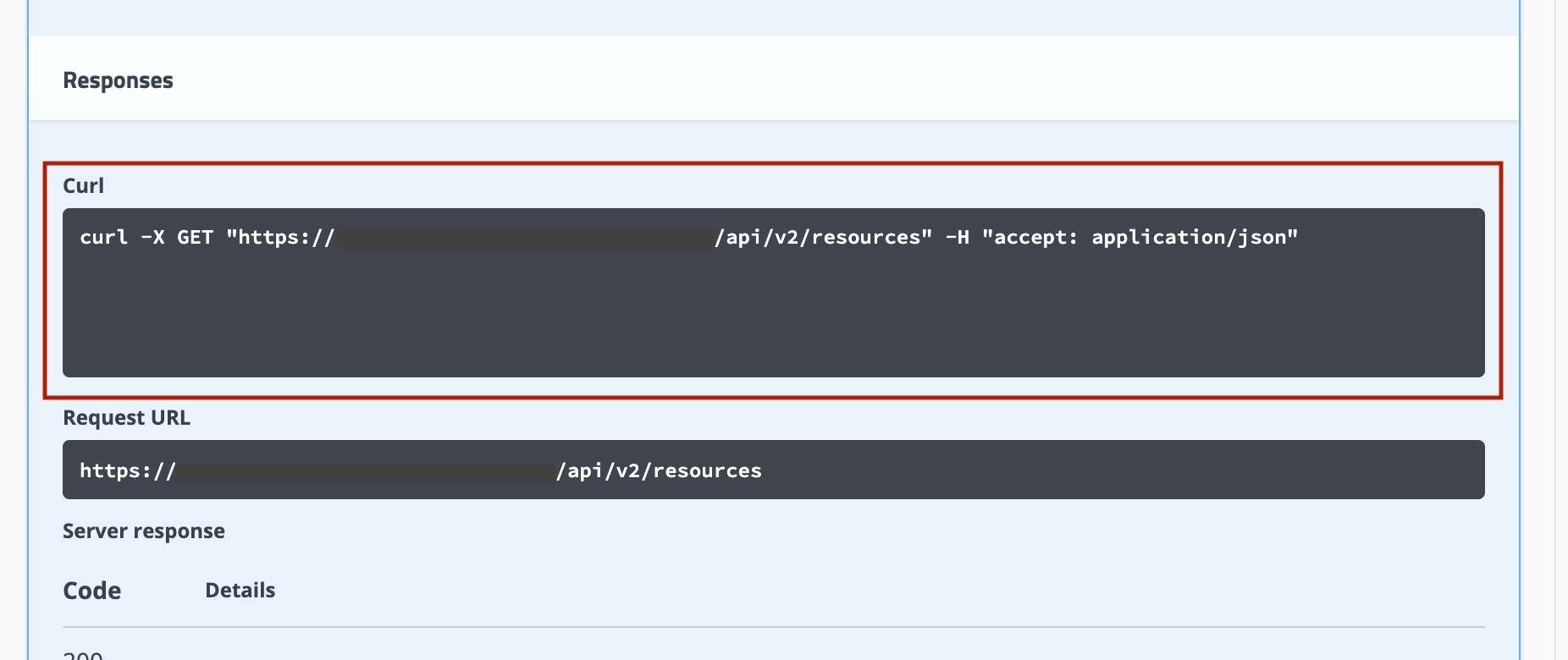
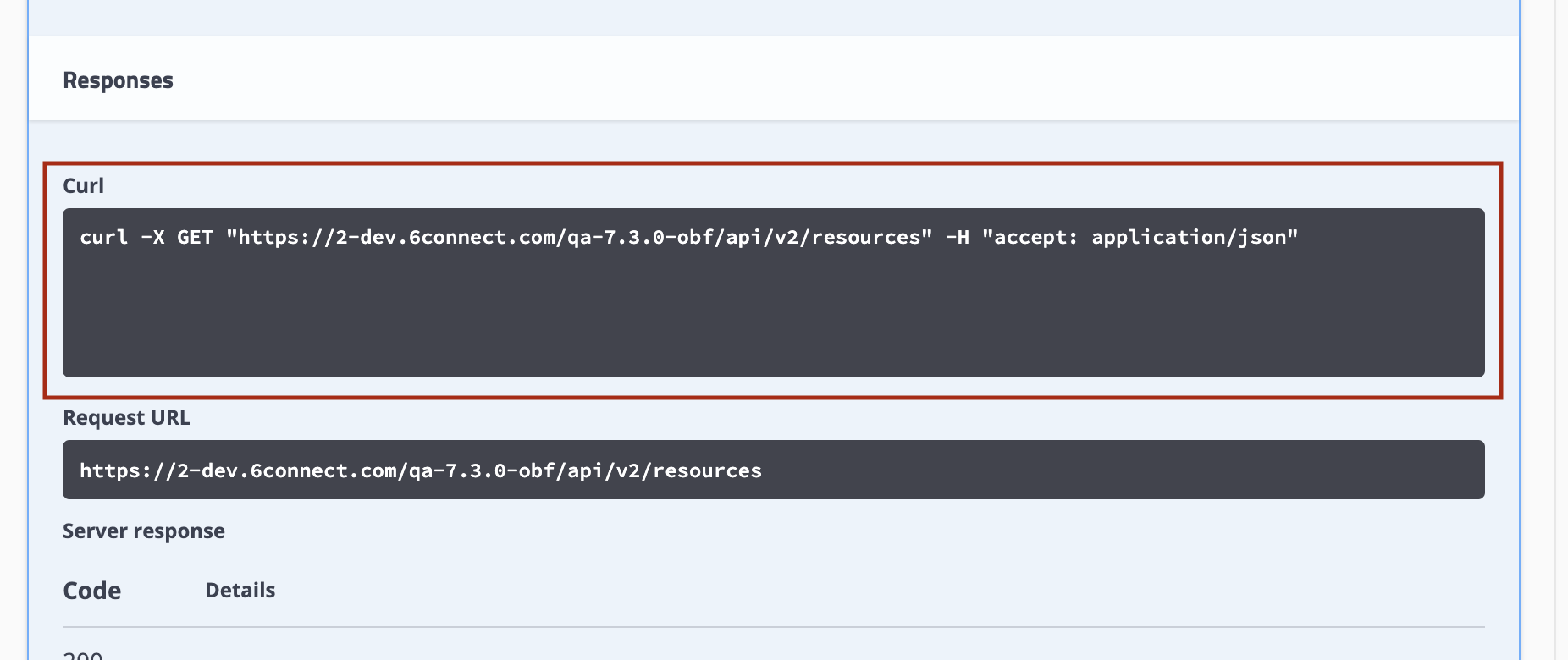
Swagger displays cURL commands and request URLs in the execution response! Use the "Try it Now" feature from your instance's Swagger page (Accessed from Admin → API Tab → APIv2 Swagger Documentation) for the endpoint/attribute changes you wish to make, and view the cURL command for that change. Copy the command text, and use it as a template for your next cURL execution of the command!
For help using Swagger to test endpoints, see "Testing Endpoints in Swagger" in this APIv2 documentation page. |
cURL Examples
...
This example authenticates a ProVision user, so that you may perform APIv2 commands as that user.
| Code Block | ||
|---|---|---|
| ||
curl -X GET "https://2-dev.example.com/qa-7.3.0$HOSTNAME/instance/api/v2/config" -H "accept: */*" -u testing@example.com |
...
| Code Block | ||
|---|---|---|
| ||
curl -X GET "https://2-dev.example.com/qa-7.3.0$HOSTNAME/instance/api/v2/config" -H "accept: */*" -u testing@example.com:password |
...
This example illustrates how to provide POST/PATCH data to an APIv2 command via cURL. This command updates the ProVision automerge the automerge configuration setting:
| Code Block | ||
|---|---|---|
| ||
curl -X PATCH "https://2-dev.example.com/qa-7.3.0$HOSTNAME/instance/api/v2/config" -H "Content-Type:application/json;charset=utf-8" -u testing@example.com:password -d "{\"auto_merge_limits\":\"10\"}" |
...
| Code Block | ||
|---|---|---|
| ||
curl -X POST "https://2-dev.example.com/qa-7.4.1$HOSTNAME/instance/api/v2/resources/query" -H "accept: application/json" -H "Content-Type: application/json" -d "{\"type\":\"entry\",\"attrs\":[{\"key\":\"_custom_id\",\"value\":\"101\",\"rule\":\"AND\"},{\"attr_rule\":\"AND\",\"attr_nested\":[{\"attr_key\":\"_section\",\"attr_value\":\"78\",\"attr_rule\":\"OR\"},{\"attr_key\":\"_section\",\"attr_value\":\"74\",\"attr_rule\":\"OR\"}]}]}" |
...
| Code Block | ||
|---|---|---|
| ||
curl -X POST "https://2-dev.example.com/qa-7.4.3$HOSTNAME/instance/api/v2/resources/274/links" -H "accept: application/json" -H "Content-Type: application/json" -d "{\"resource_id\":\"15648\",\"relation\":\"dnsZoneView\",\"data\":{}}" |
Where resource #274 is the "Default Group" on the instance (your instance may vaeyvary), and Resource #15648 is the resource ID for the new zone. The two are now linked together.
...