Working with DNS Records
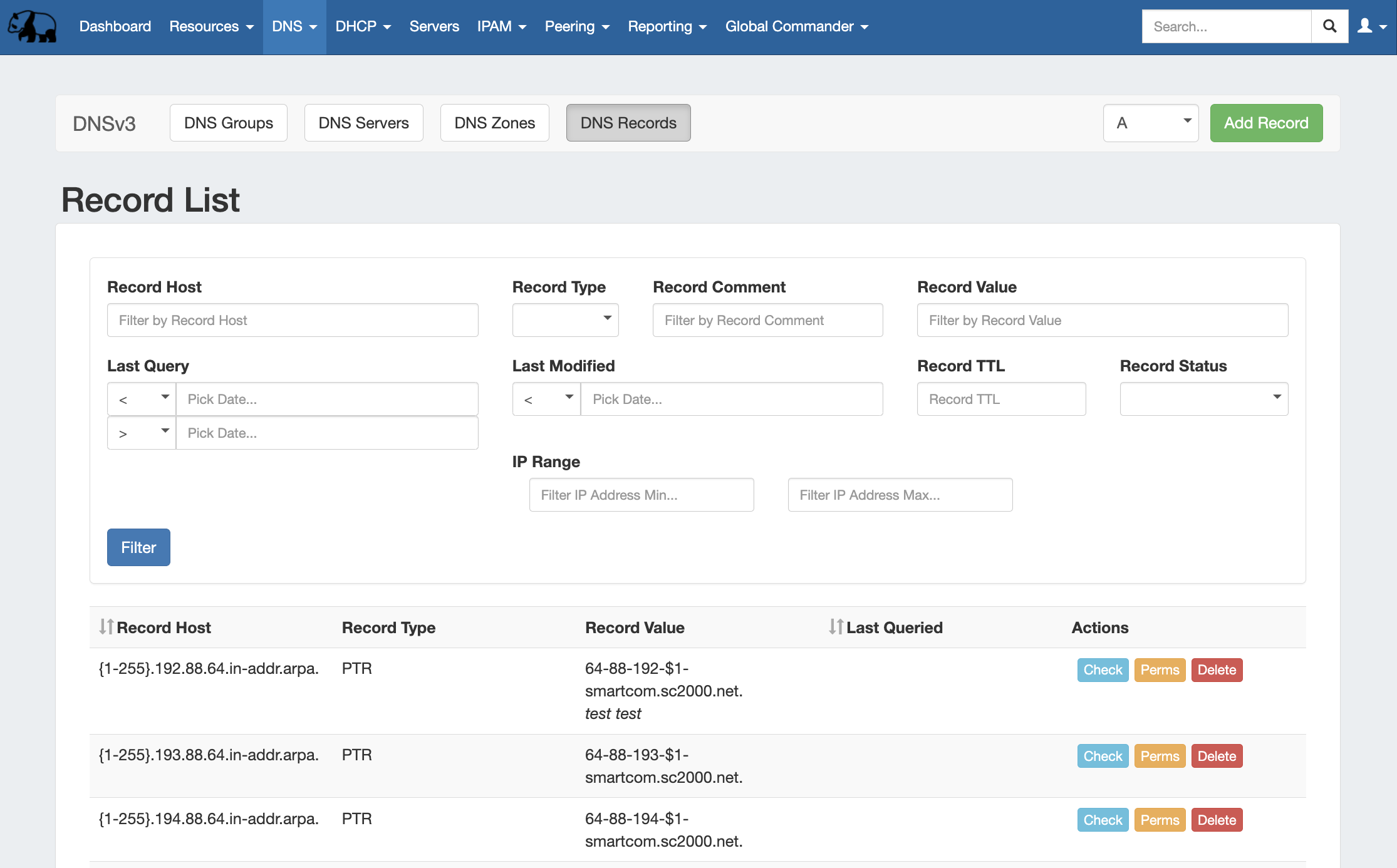
DNS Records may be managed either from the Zone View page (for the records under their respective zone) or globally through the DNS Records sub-tab.
...
The DNS Records List provides a global list records for expedited searching, filtering, adding, and editing of DNS Records.
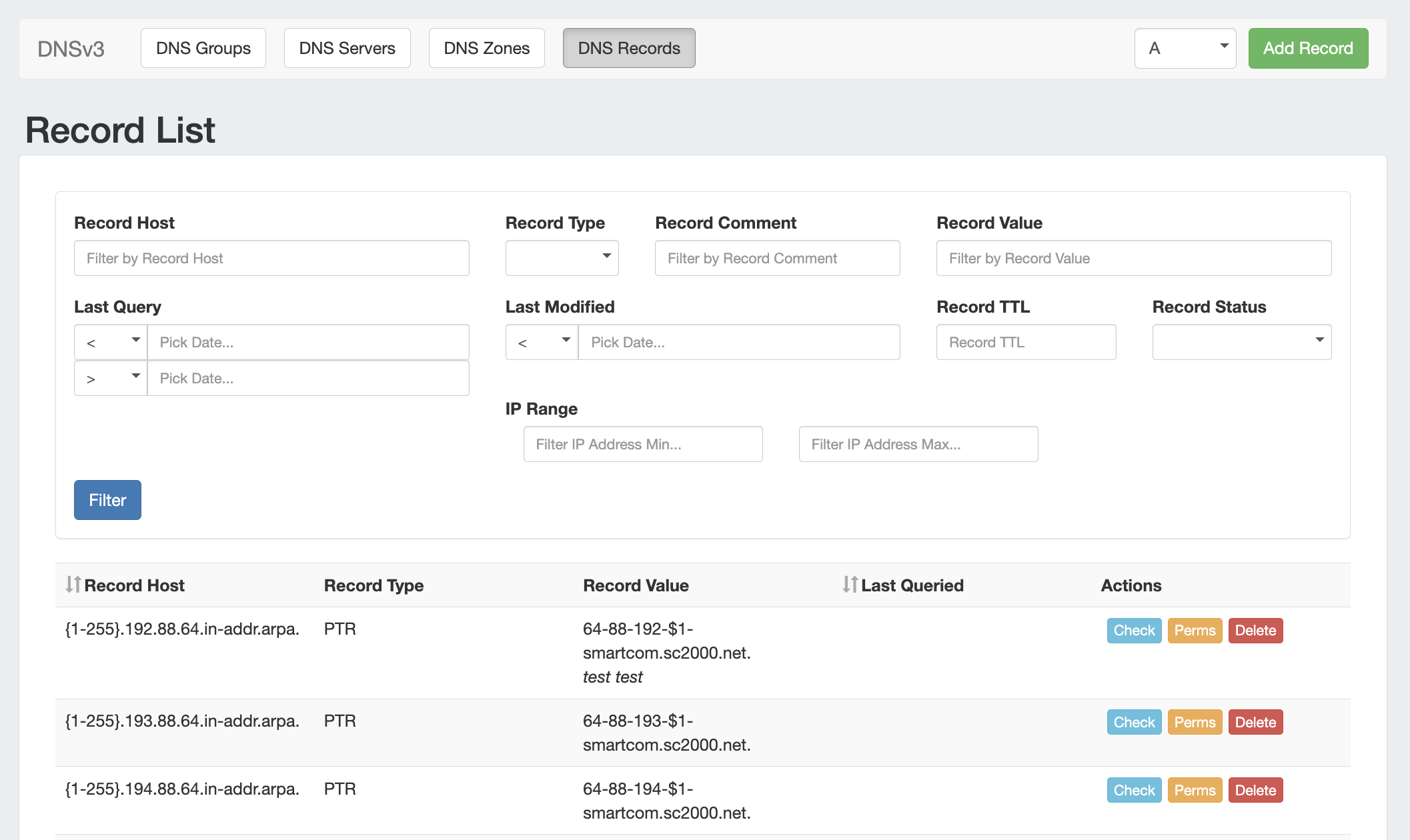
From the DNS Tab, click on the "DNS Records" sub-tab button, or select it from the DNS dropdown menu.
...
After entering your filter criteria, click "Filter".
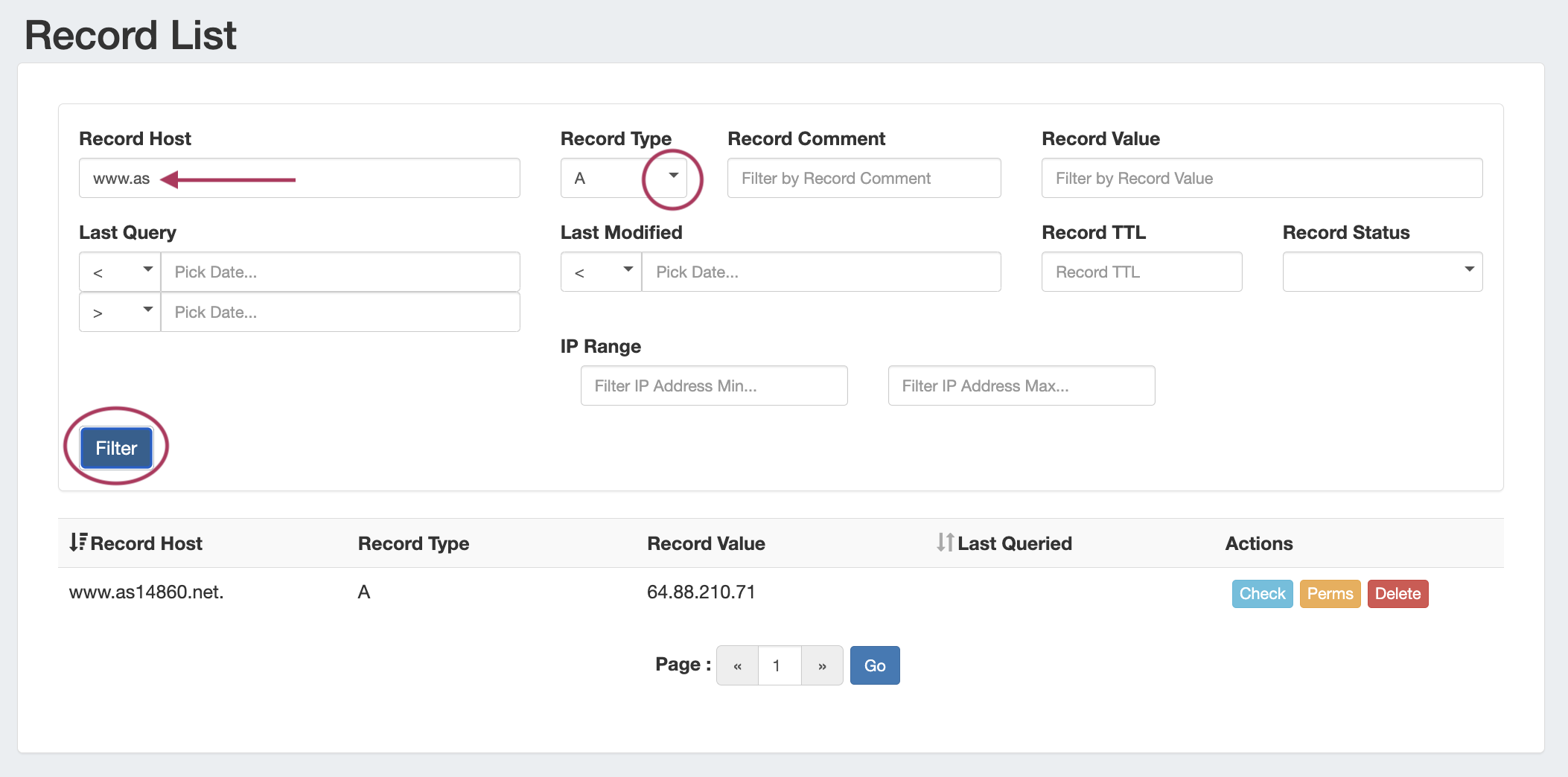
Record Actions
...
- Click the "Check" button to run an DNS Monitor error check on the record
- Review or change record permissions by clicking "Perms" (Admin only)
- Delete the record by clicking "Delete"
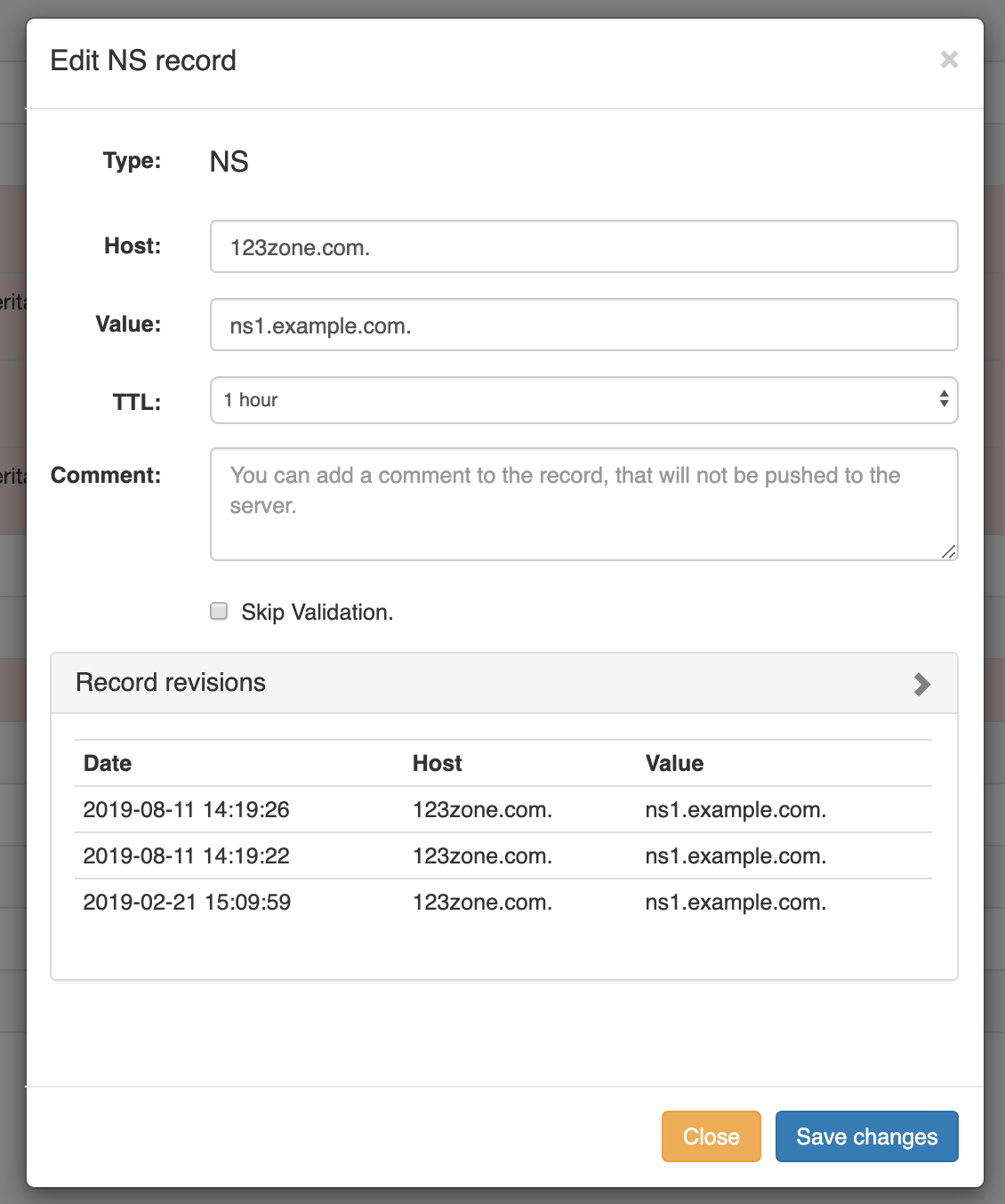
- Review or Edit record details by double-clicking on the row for the desired record.
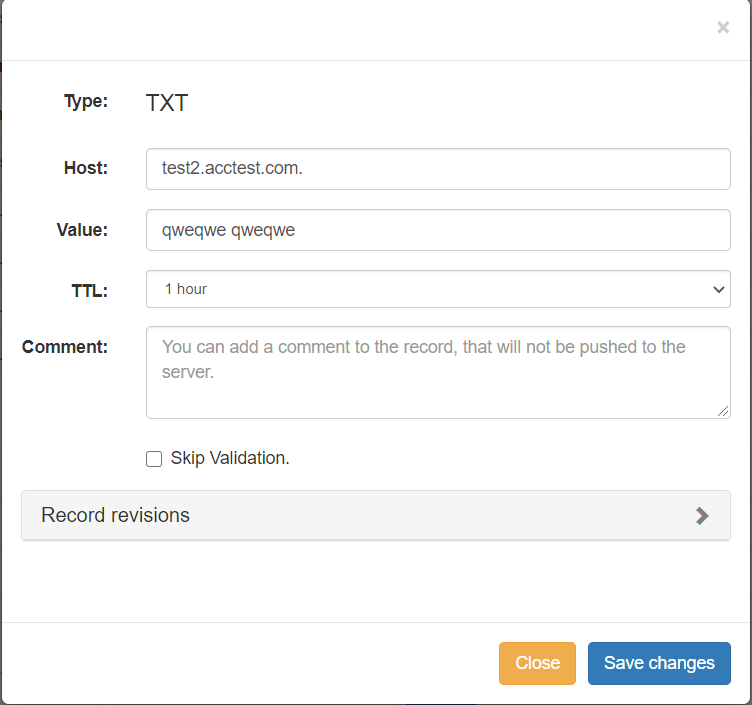
- Review record revision dates or enter your desired edit, then click "Save changes" to complete.
Add a New Record
At the top of the DNS Records page, select the desired record type, then click "Add Record".
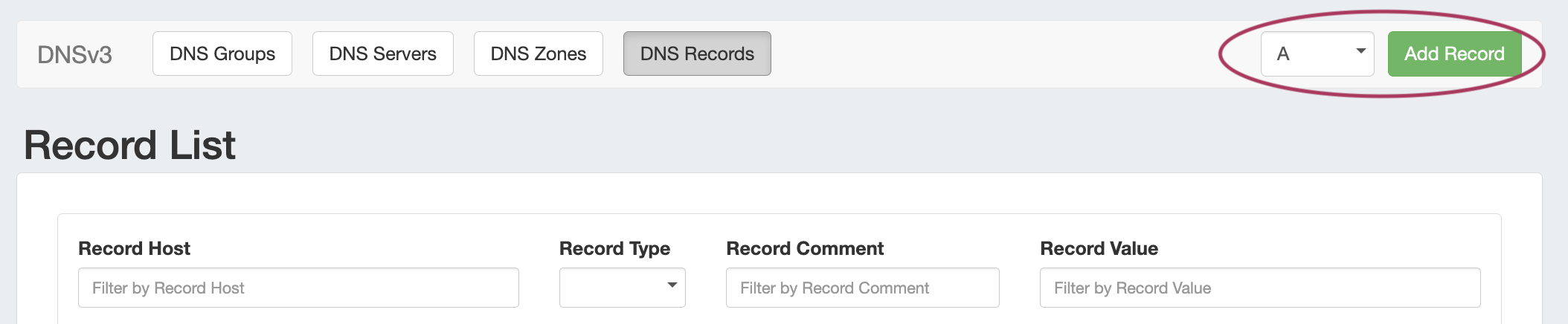
Available Record Types for the Record List include the following:
...
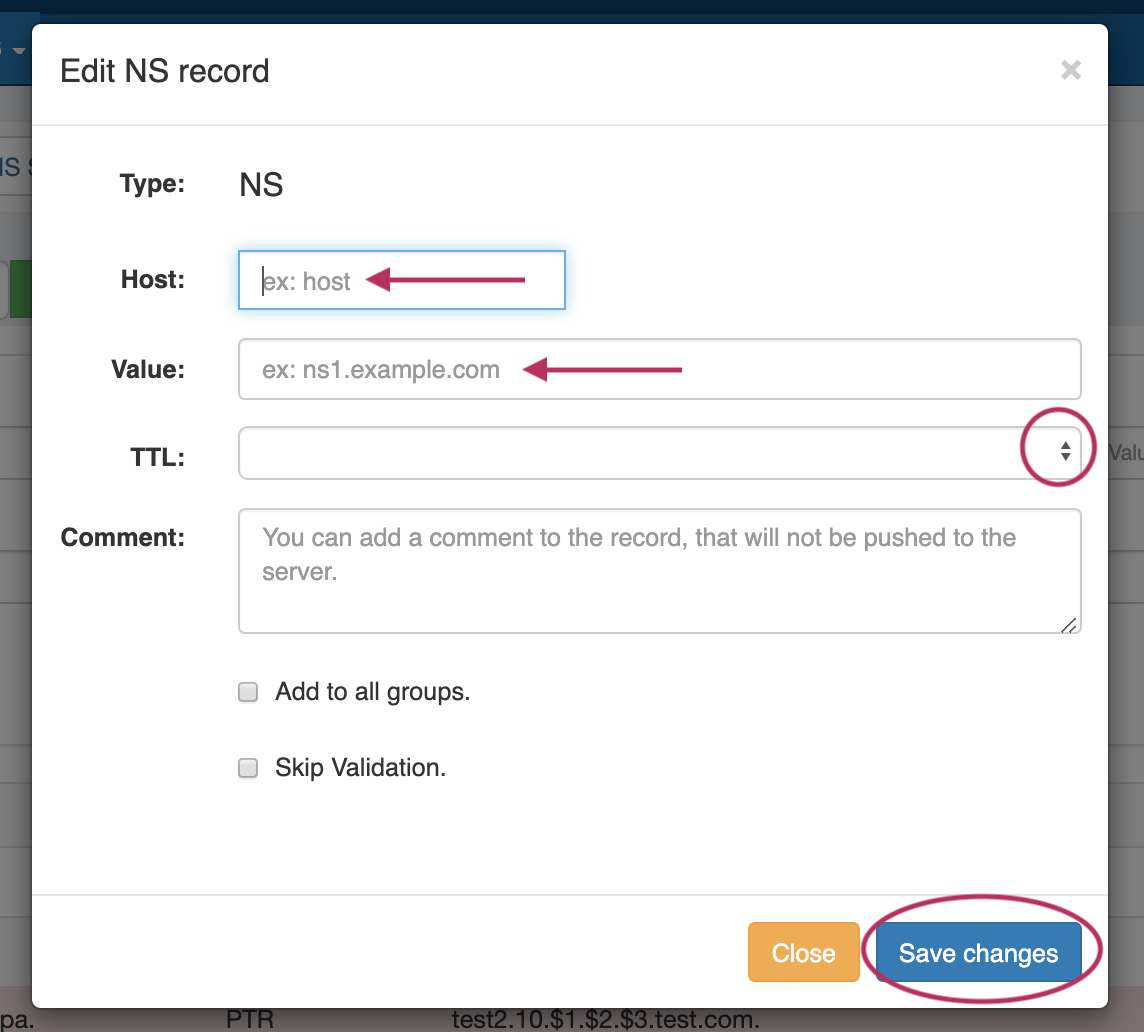
Enter the record information for the record type. When done, click "Save Changes".
Working with Zone Records - Zone View Page
...
Select the desired record type from the dropdown list, then click "Add".

Fill in the information for the new record, selecting options for adding to groups or skipping validation.
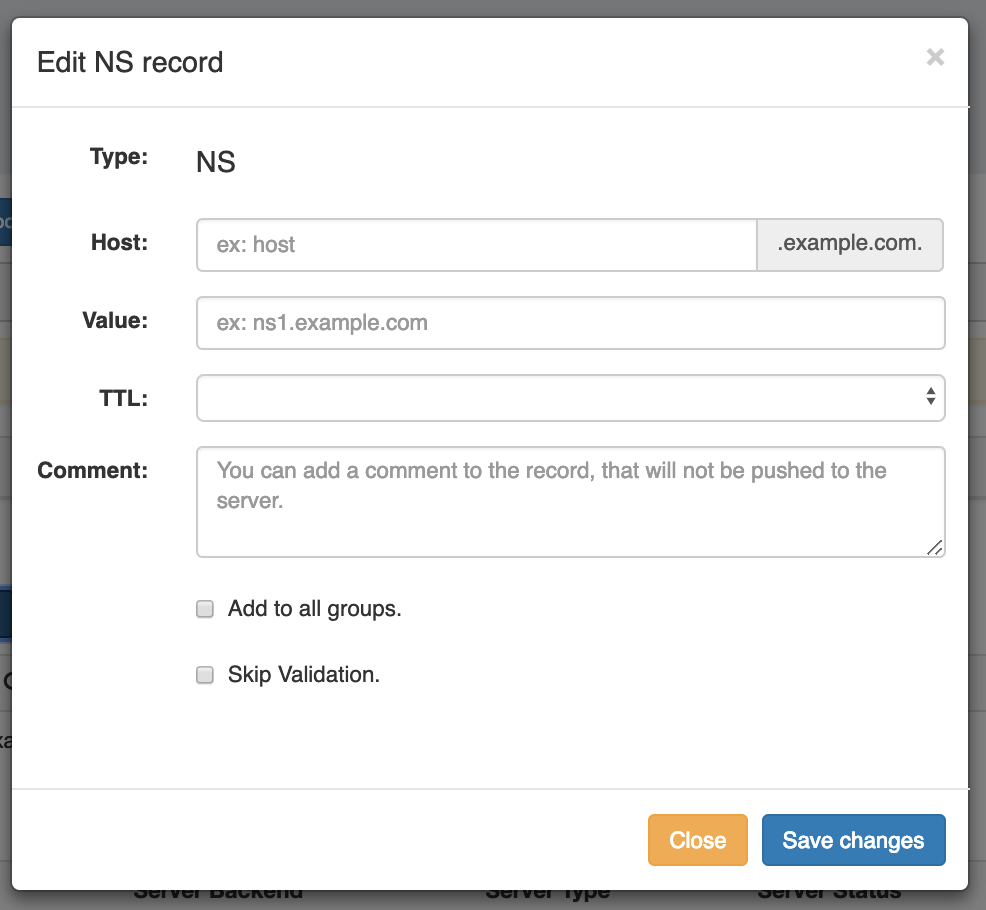
When done, click "Save Changes".
| Info | |||||
|---|---|---|---|---|---|
| |||||
When working with records (like TXT), there is no need to add quotes around the record value - ProVision will automatically add double quotes for the TXT records on Zone Push, and will also automatically use quotes to split TXT values larger than 255 characters. If your record value contains internal quotes that you wish to keep, you may escape it by adding a backslash ( \ ) before the quote from the "Edit Record" screen. Examples:
If you have additional questions on handling of quote characters in zone records, please contact support. |
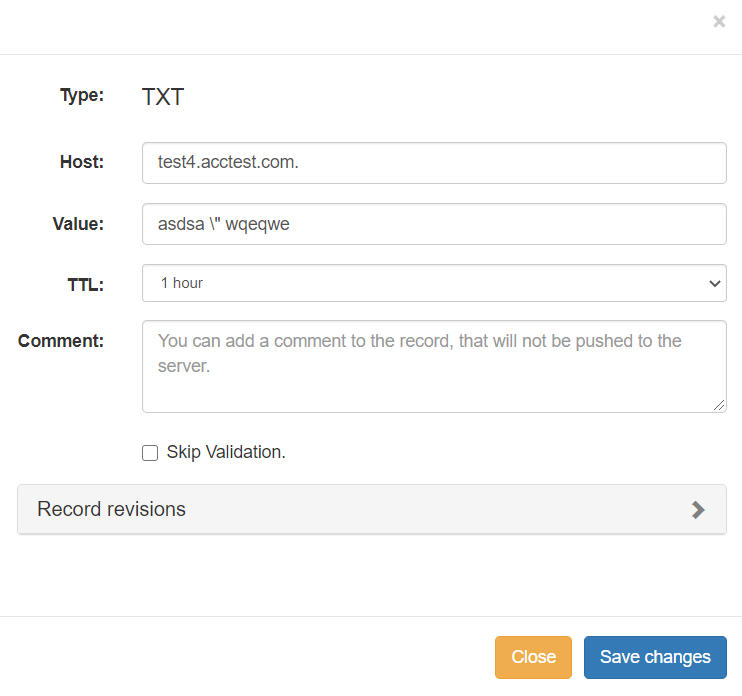

...
Select the desired record type from the dropdown list, then click "Add".
Enter the Host value for the record.
...
Example:
Host: h69-131-159-$1.qncyfi
Value: 69.131.159.{240-255}
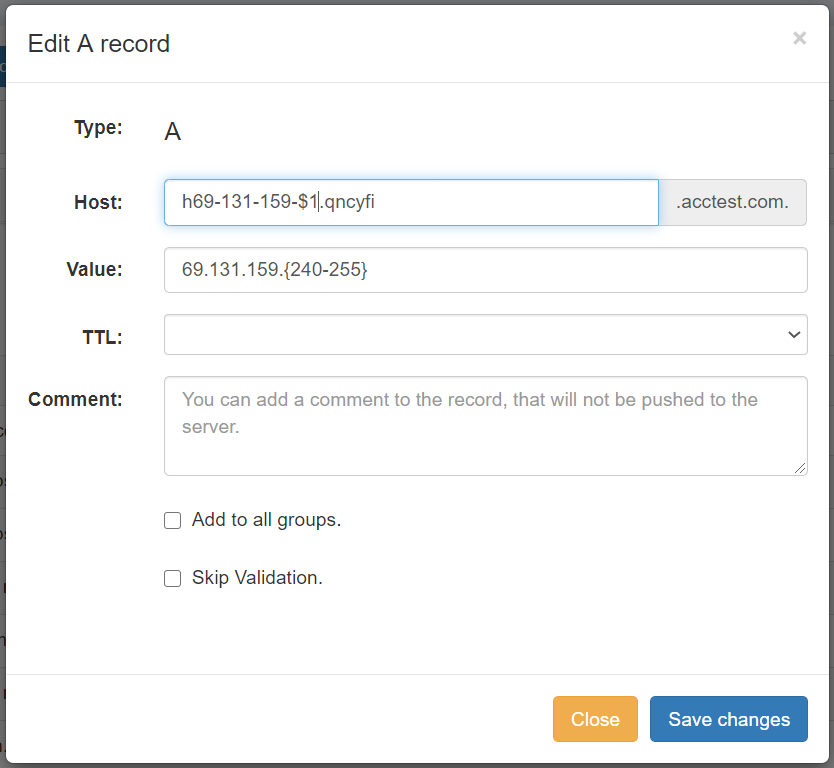
and this is expanded to:
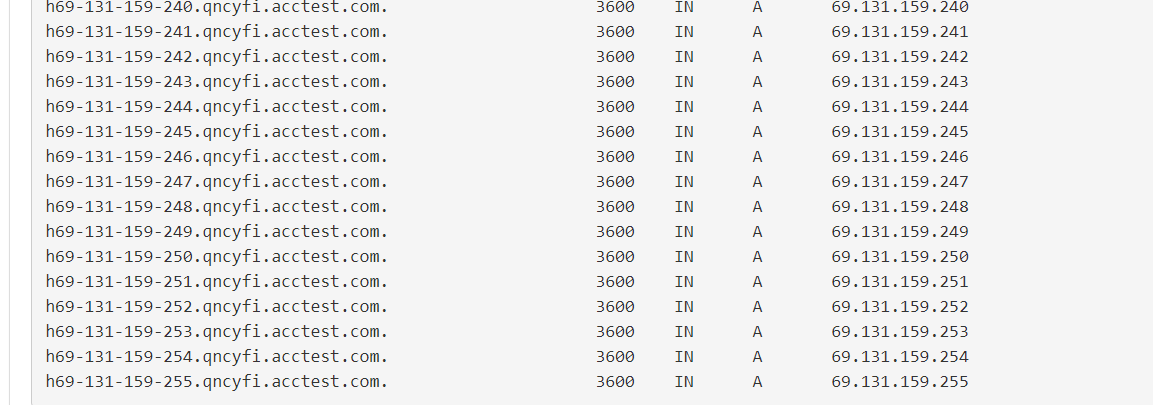
When you are done, click "Save Changes" to complete the edit.
...
ProVision can be configured auto-generate IPv4 / IPv6 PTR records in reverse zones based on template.
Example IPv4 :
If the zone is named 33.44.in-addr.arpa.
Host : {100-150}.{22-24}
Value : $1-$2$2-available.example.com.
The generated records on push will look like :
100.22.33.44.in-addr.arpa. IN PTR 100-22-available.example.com.
101.22.33.44.in-addr.arpa. IN PTR 101-22-available.example.com.
...
149.24.33.44.in-addr.arpa. IN PTR 149-24-available.example.com.
150.24.33.44.in-addr.arpa. IN PTR 150-24-available.example.com.
Example IPv6 :
If the zone is named 0.f.e.d.c.b.a.9.8.7.6.5.4.3.2.1.ip6.arpa.
Host : 0.{0-f}.{2-3}.d.c.b.a.9.8.7.6.5.4.3.2.1
Value : $1-$2$2-host.example.com.
The generated records on push will look like :
0.0.2.d.c.b.a.9.8.7.6.5.4.3.2.1.0.f.e.d.c.b.a.9.8.7.6.5.4.3.2.1.ip6.arpa. 3600 IN PTR 0-2-host.example.com.
0.1.2.d.c.b.a.9.8.7.6.5.4.3.2.1.0.f.e.d.c.b.a.9.8.7.6.5.4.3.2.1.ip6.arpa. 3600 IN PTR 1-2-host.example.com.
...
0.e.3.d.c.b.a.9.8.7.6.5.4.3.2.1.0.f.e.d.c.b.a.9.8.7.6.5.4.3.2.1.ip6.arpa. 3600 IN PTR e-3-host.example.com.
0.f.3.d.c.b.a.9.8.7.6.5.4.3.2.1.0.f.e.d.c.b.a.9.8.7.6.5.4.3.2.1.ip6.arpa. 3600 IN PTR f-3-host.example.com.
Autogeneration of Reverse Zone Records is also performed when generating a reverse zone from the IPAM Gadget:
...
Autogenerate a reverse zone from an IP Block by clicking on the CIDR link in the block list.

The reverse zone will be created for the block, and the Zone View page will load, displaying further information and autogenerated records.
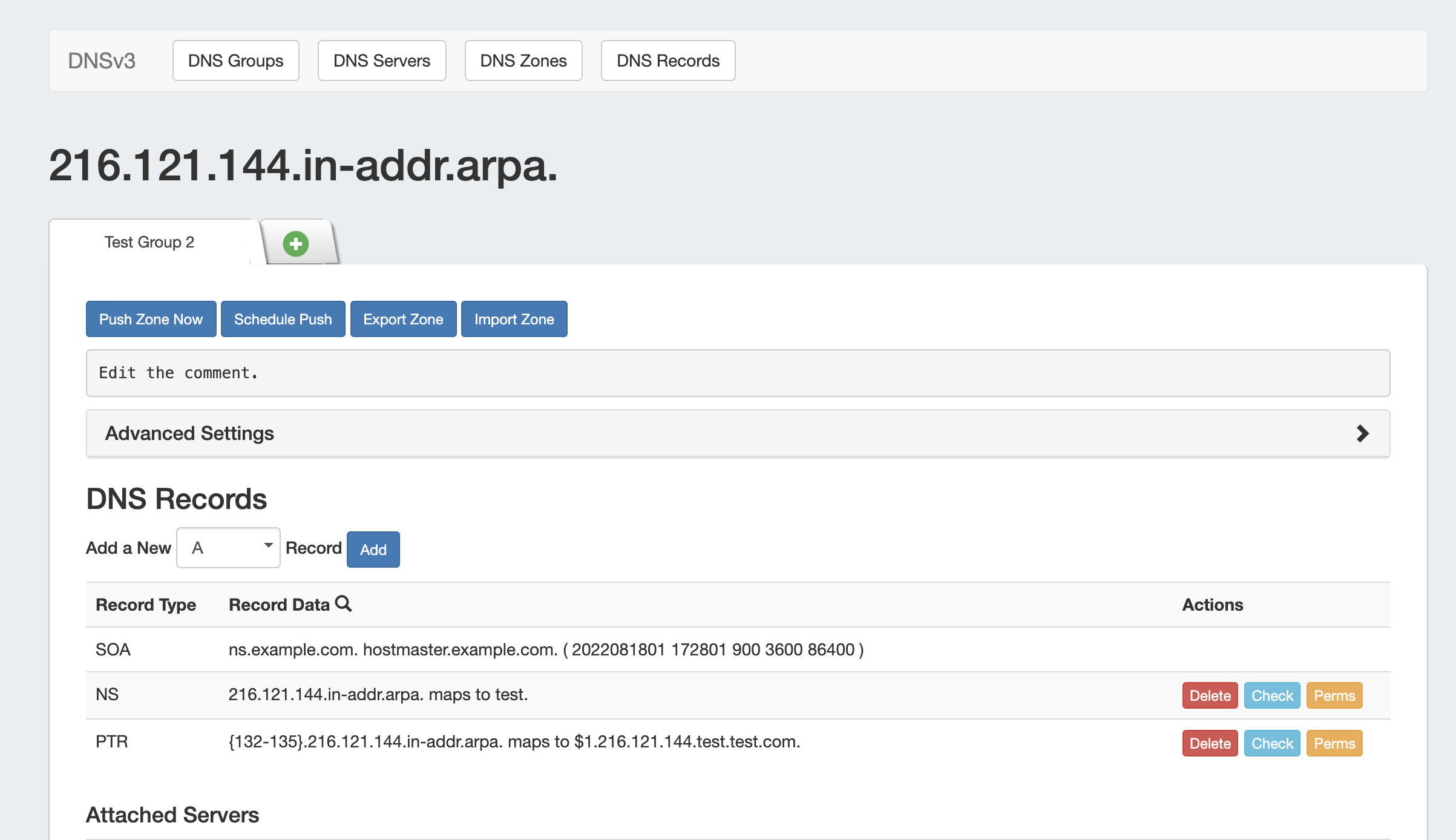
Import Zone Records
...
| Info | ||
|---|---|---|
| ||
You may wish to enable "Save Import File" in Admin Settings → DNS Settings prior to importing zone files, so that the file is available for later download. See Working with DNS Zones - Common Tasks or Import DNS Zones. |
Click "Import Zone" on the Zone View page.

A Zone Import dialog box will open. Next to Zone File:, click "Choose File" and select your .zone file to import. Then, select an import policy to follow.
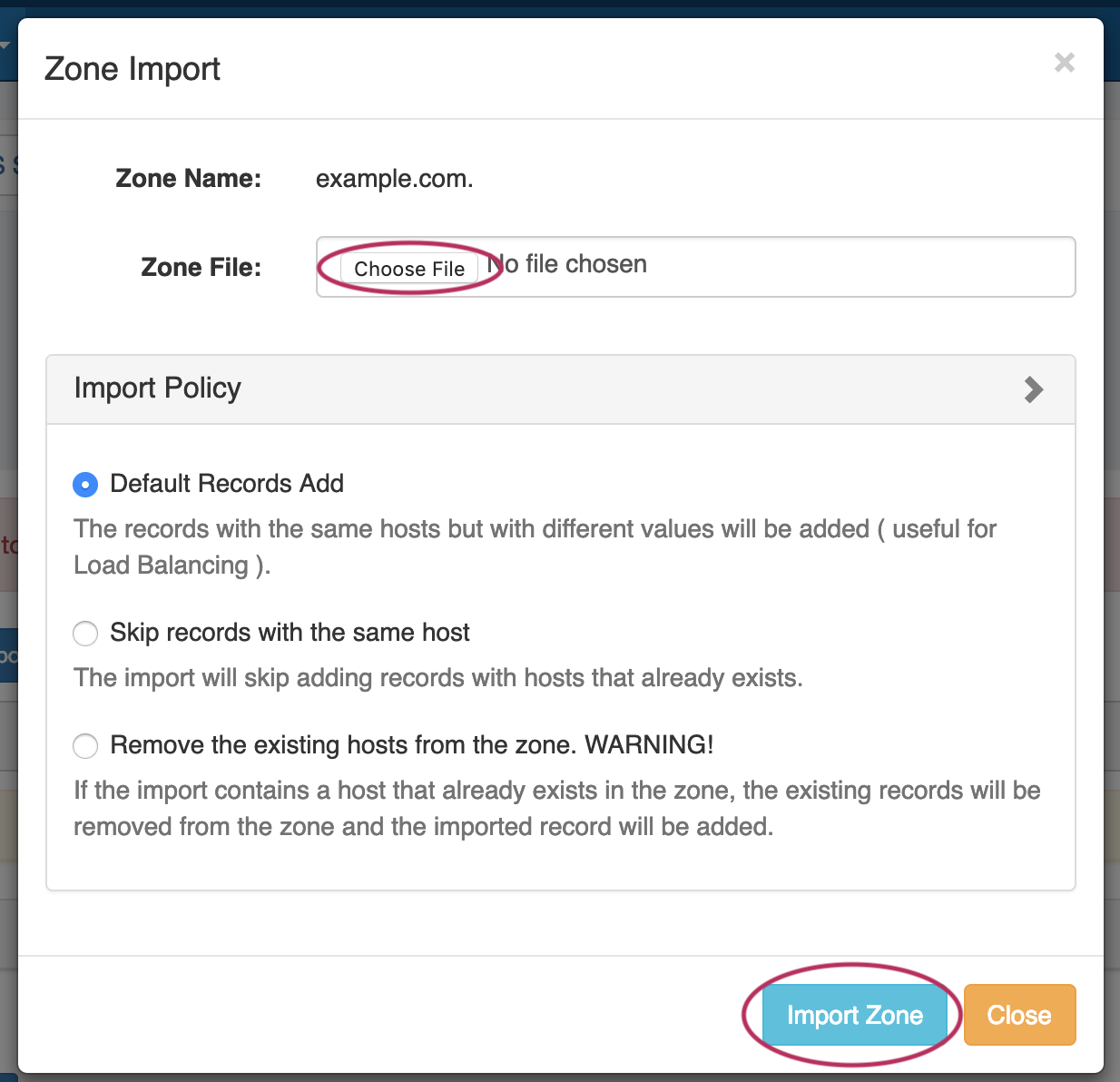
When done, Click "Import Zone".
Edit Zone Records
To edit an existing zone record, click on the record line in the DNS Records list.
The Edit Record dialog will open, allowing you to fill in record details.
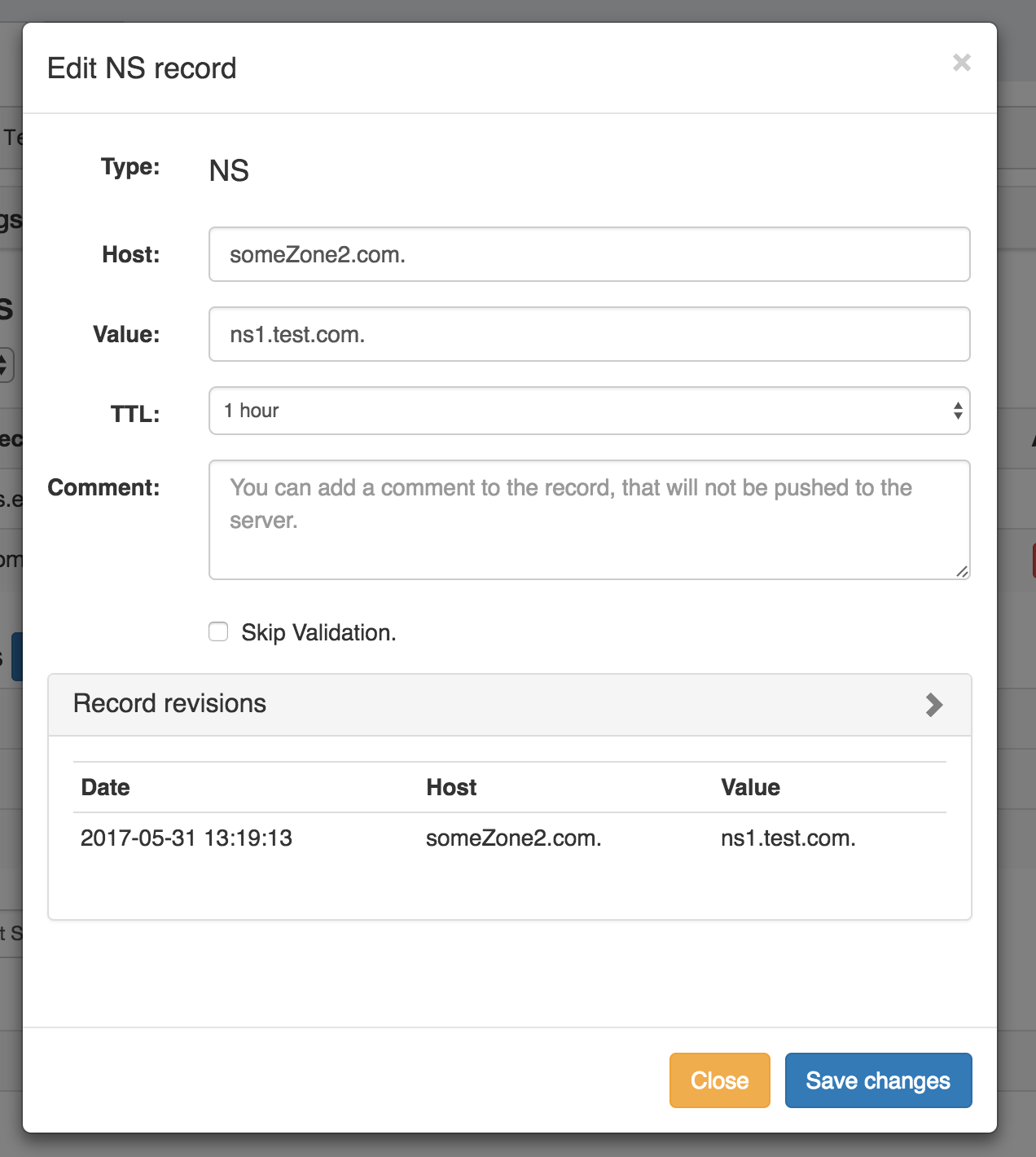
Fill in the Host, Value, TTL, and comment if desired.
...
Delete a zone record by clicking the "Delete" button under "Actions" for the desired record entry.

Check a Record
Check a record for errors by clicking the "Check" button under "Actions" for the desired record entry.

A dialog box will appear, with details on any errors.
...
Under the "Attached Servers" section of the Zone View page, next to "Attach Server:", select the desired server to attach and choose the server type (Default, Master, Slave), then click the "Attach" button.

To detach a server from a zone, look for the server under the "Attached Servers" list, then click "Detach" under actions for that server.
...
If a zone has had changes successfully pushed, a "Zone Backups" section appears near the bottom of the page, showing the date and time of the backup.

To view details, or restore the zone to the previous version, click on the row of the desired date/time backup, and the "Zone Restore" module will open.
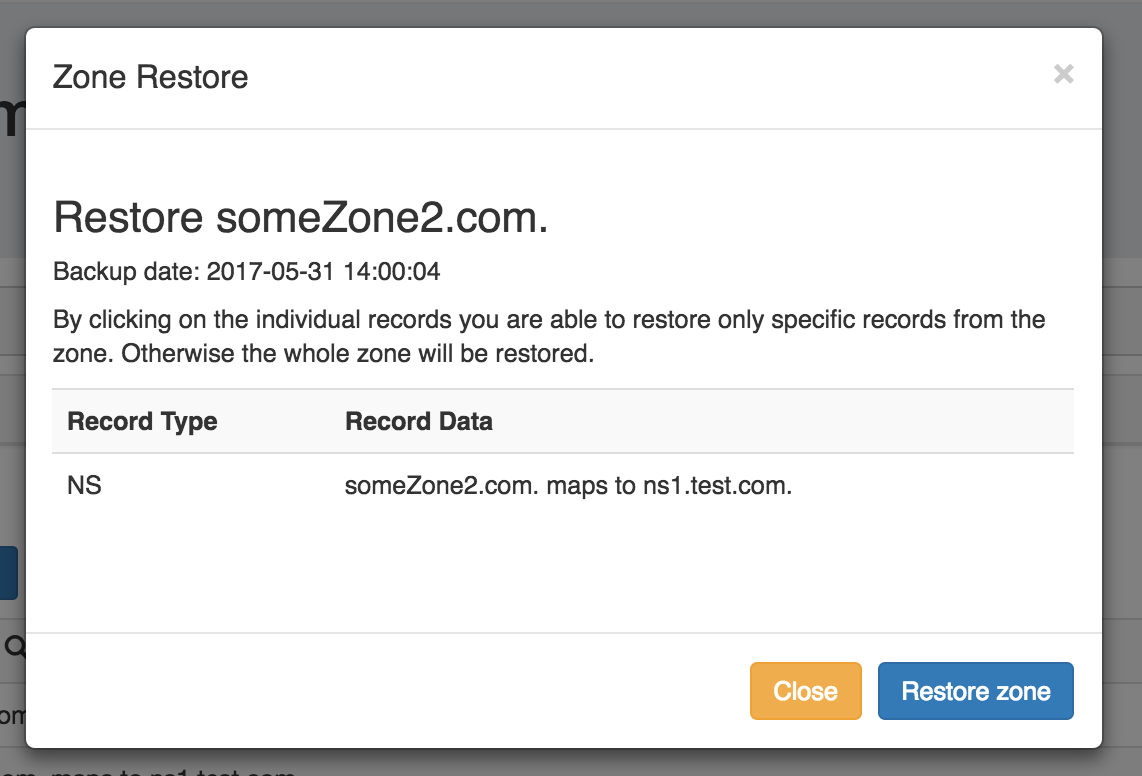
From here, you may restore individual records by clicking on them, or restore the entire zone by clicking the "Restore Zone" button.
...