Working with Managed Servers
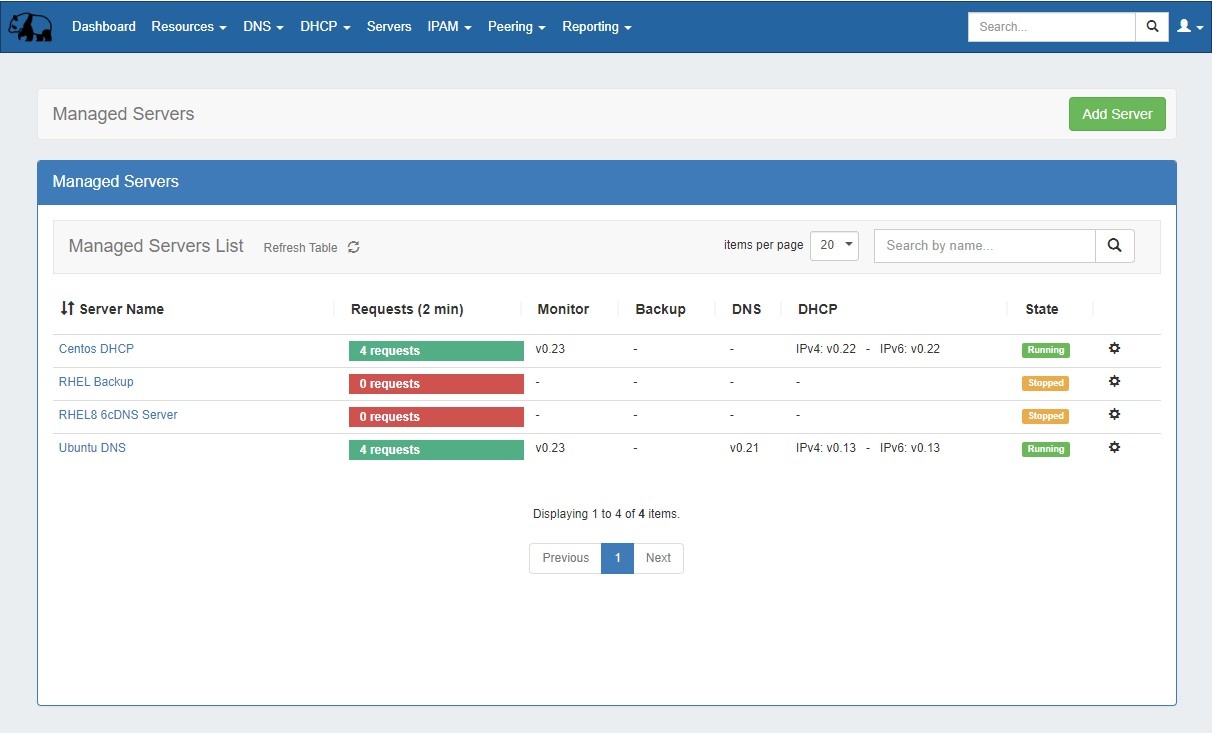
The Managed Server page is where you can add a new server, view the list of existing servers, and view monitoring data on each server. From here, you may also access server settings and details for each server.
...
The Managed Server Section List provides server and monitoring data for each managed DNS / DHCP / Backup server.
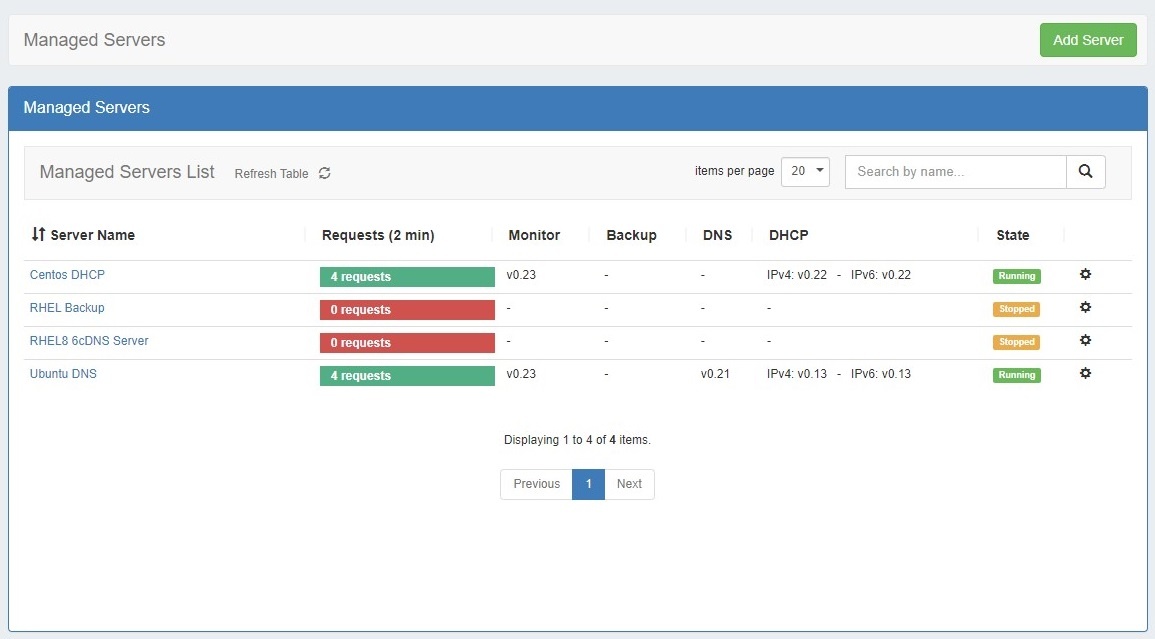
The list provides the following information:
...
Action Menu (gear icon): Right click on the action menu (or anywhere on the row) to display available server actions
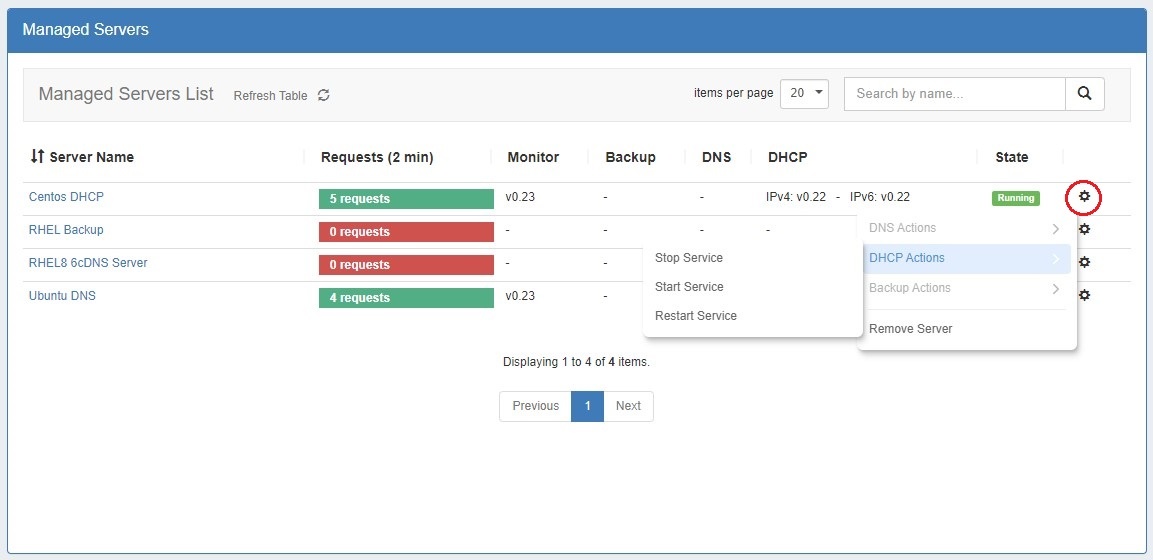
Working with the Managed Server List
...
To set up a new managed server, click "Add Server" at the top right of the Managed Server Tab.

From there, proceed through each of the five steps of the Add New Server wizard, below:
| Expand | ||
|---|---|---|
| ||
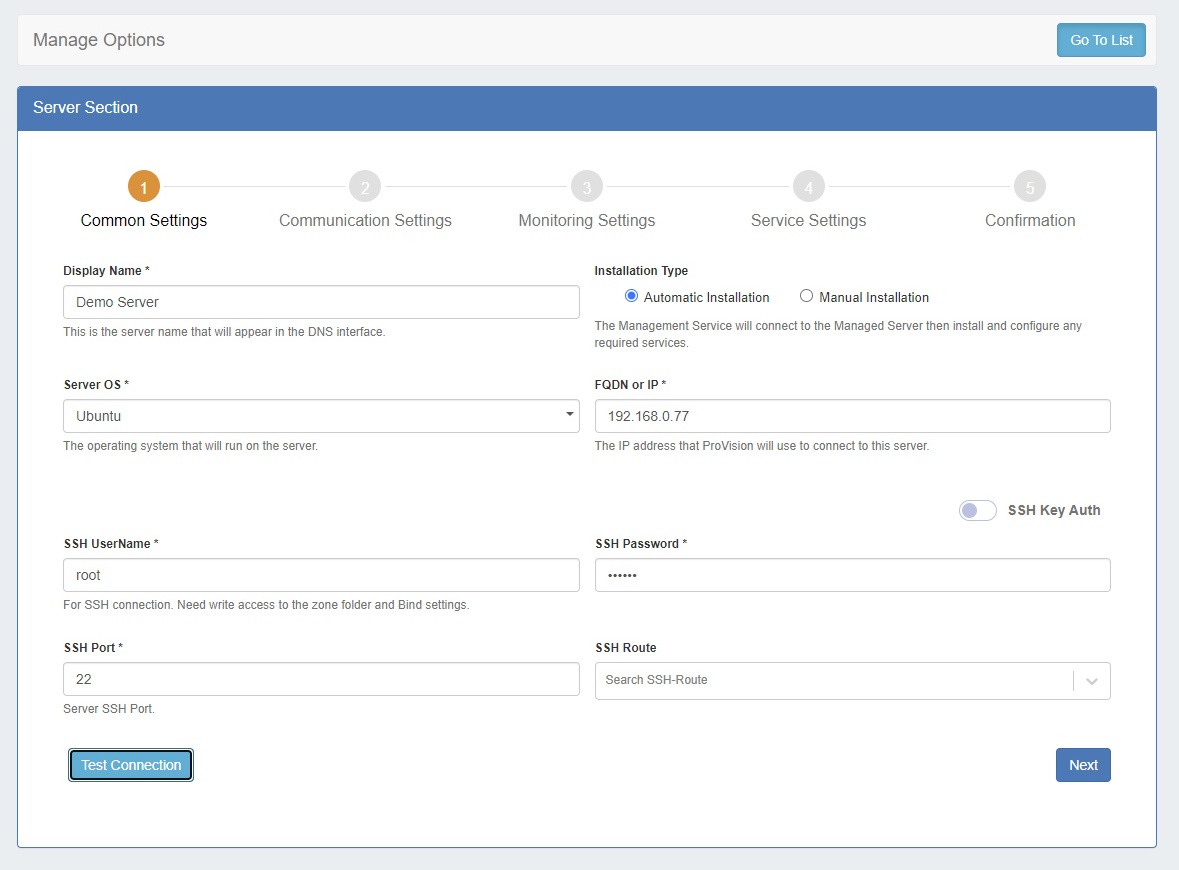
Step 1: Common Settings
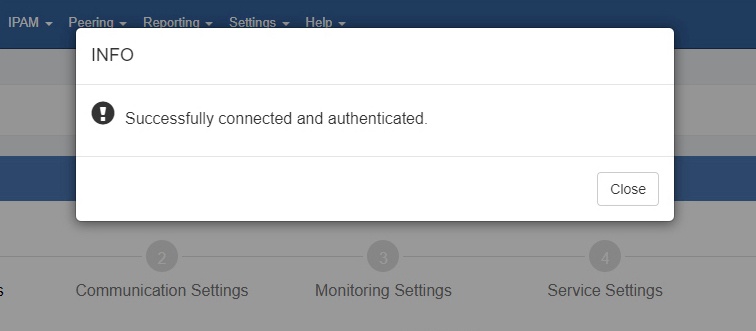
Enter the common settings for the new server: Display Name: The display name for the server Installation Type: You may choose either an automatic installation, where ProVision handles the installation, or perform a manual installation. After selecting the installation type, enter the required fields for the server, depending on the selected install type: Display Name (always required) Server OS (always required) FQDN or IP (required for automatic installations) SSH Username / Password (required for automatic installations) SSH Port (required for automatic installations) SSHRoute (optional) After entering in the common settings, click "Test Connection" to verify the connection and authentication.
Once a connection has been confirmed, click "Next". |
...
| Expand | ||
|---|---|---|
| ||
Step 2: Communication Settings
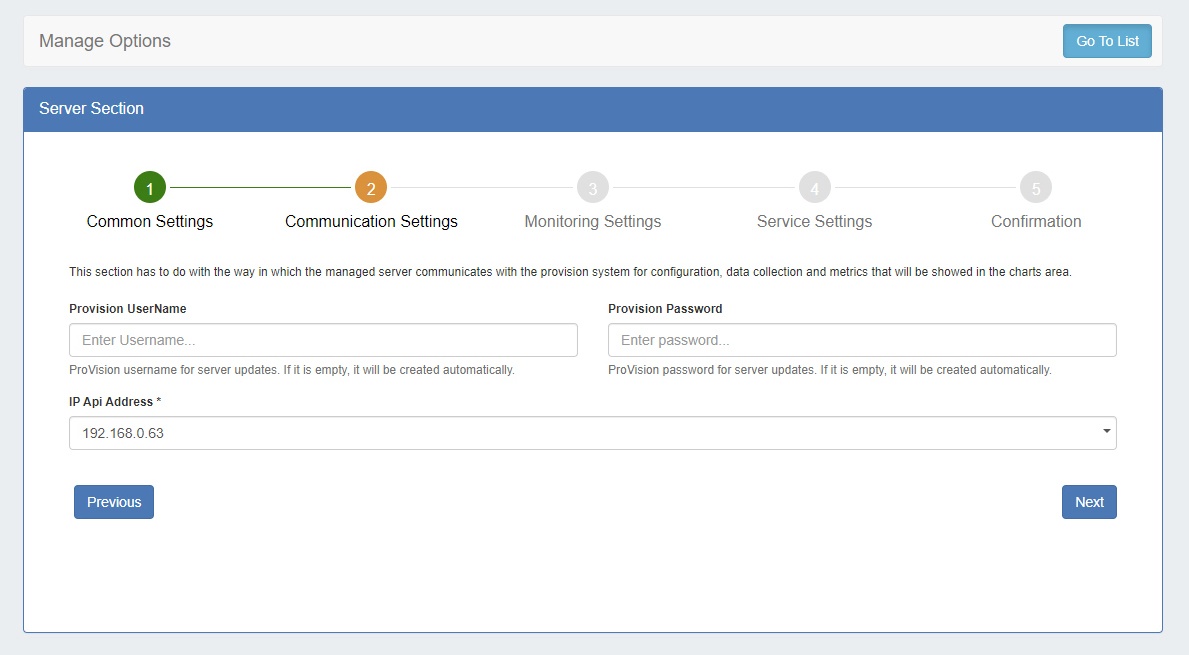
Managed servers require a ProVision user account and API IP in order to communicate configuration, data, and monitoring information. ProVision Username / Password: You may enter a specific ProVision username and password, or allow one to be automatically generated. If you enter an existing ProVision user, please ensure that the user is included under the 6cservers group and/or has full C/R/U/D resource permissions on the "6c server" resource. IP API Address: The API address the managed server should use. There are cases when the DNS servers are in different networks and should communicate with ProVision on different IPs. Click "Next" to proceed. |
...
| Expand | ||
|---|---|---|
| ||
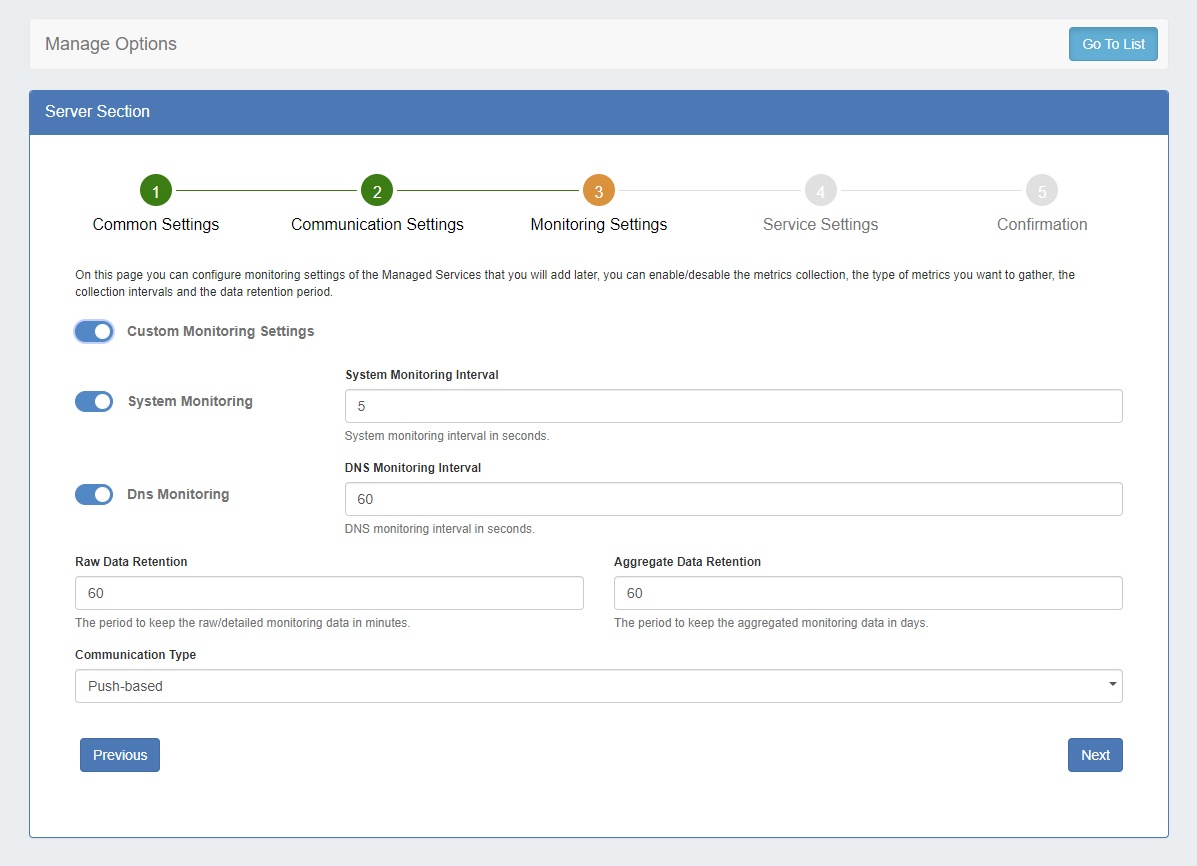
Step 3: Monitoring SettingsSelect the desired monitoring settings for the server. You may either accept the default settings, or click on the toggle for Custom Monitoring Settings to override default settings.
Options include: System Monitoring: Enable / Disable monitoring for system statistics. If enabled, enter the desired System Monitoring Interval (in seconds). More frequent intervals require larger storage, but generates more data in cases where investigation is needed. DNS Monitoring: Enable / Disable monitoring for DNS statistics. If enabled, enter the desired DNS Monitoring Interval (in seconds). DNS requests are collected for the set time interval, and then sent as an aggregated result. Raw Data Retention: How long to keep the raw data, in minutes. This affects how far back you could investigate an incident using the detailed data. Raw data requires sizable storage needs; so the default setting is 1440 min (1 day). Aggregated Data Retention: How long to keep the aggregated data, in days. Communication type: Select either Push-based (when the server pushes data to ProVision) or Pull-based (when ProVision connects to the server and pulls the data). Push-based is the preferred method, but Pull-based may be desirable in cases where a firewall would not allow inbound connections to ProVision. Click "Next" to continue. |
...
| Expand | ||
|---|---|---|
| ||
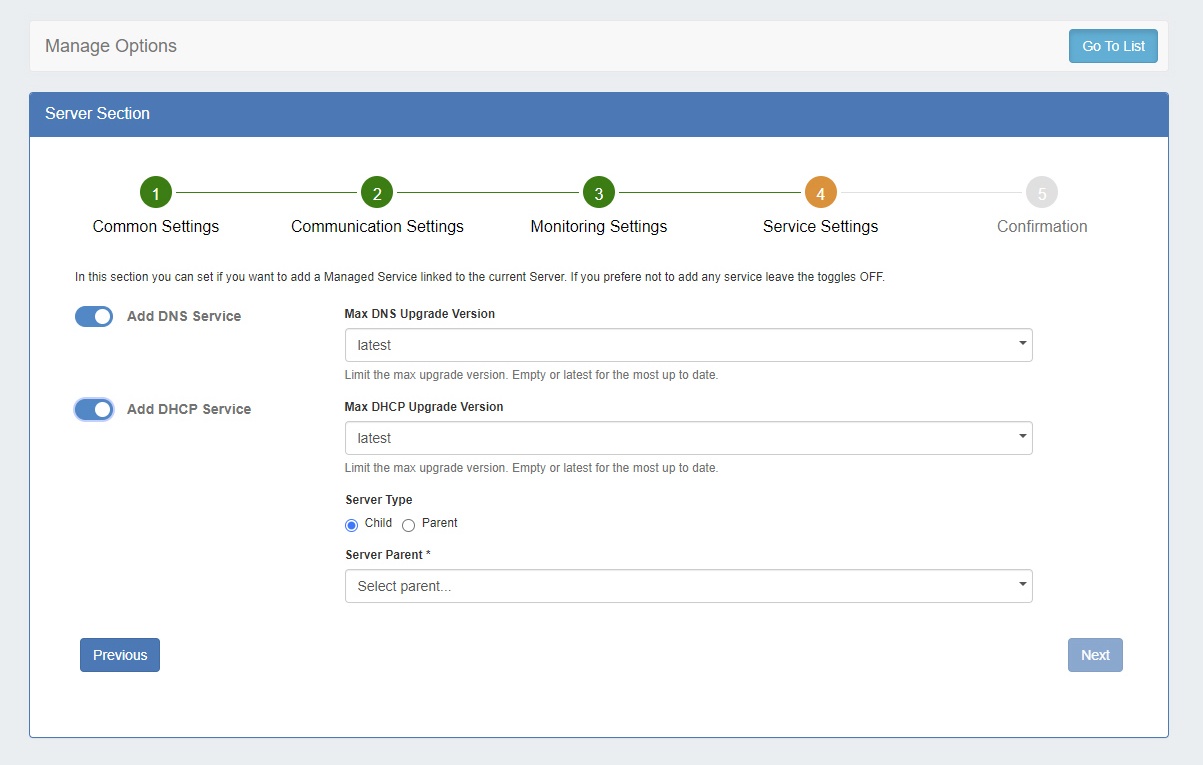
Step 4: Service SettingsHere you can select which components to install linked to the current server. If you prefer not to add a service, both toggles may be disabled.
Add DNS Service: Enable / Disable to add a DNS Managed Service link. Options include: Max DNS Upgrade Version: Select either "latest", or select a specific version to install and not upgrade beyond, in case of known issues or incompatibility. Add DHCP Service: Enable / Disable to add a DNS Managed Service link (Kea / MySQL DB). Multiple DHCP instances can connect to one database, organized as one parent with multiple children. In ProVision, "1 database" = "1 dhcpmodule resource" , and only a "parent" DHCP can have address and credentials for the database. The children don't store any information about the database and the necessary data is taken from the parent; no "dhcpmodule resource" are created for the children. Options include: Max DHCP Upgrade Version: Select either "latest", or select a specific version to install and not upgrade beyond, in case of known issues or incompatibility. Server Type: Select "Child" or "Parent".
Add Backup Service: Enable / Disable to add a Backup Managed Service link. Options include: Max DNS Upgrade Version: Select either "latest", or select a specific version to install and not upgrade beyond, in case of known issues or incompatibility. Web Username / Password: Enter the Username and password for the ProVision Backup web interface. DB Username / Password: You may enter a specific ProVision username and password, or allow one to be automatically generated. If you enter an existing ProVision user, please ensure that the user is included under the 6cservers group and/or has full C/R/U/D resource permissions on the "6c server" resource. Notification Email: Enter an email to receive email about low disk space. When you are done setting up service and database settings, click "Next". |
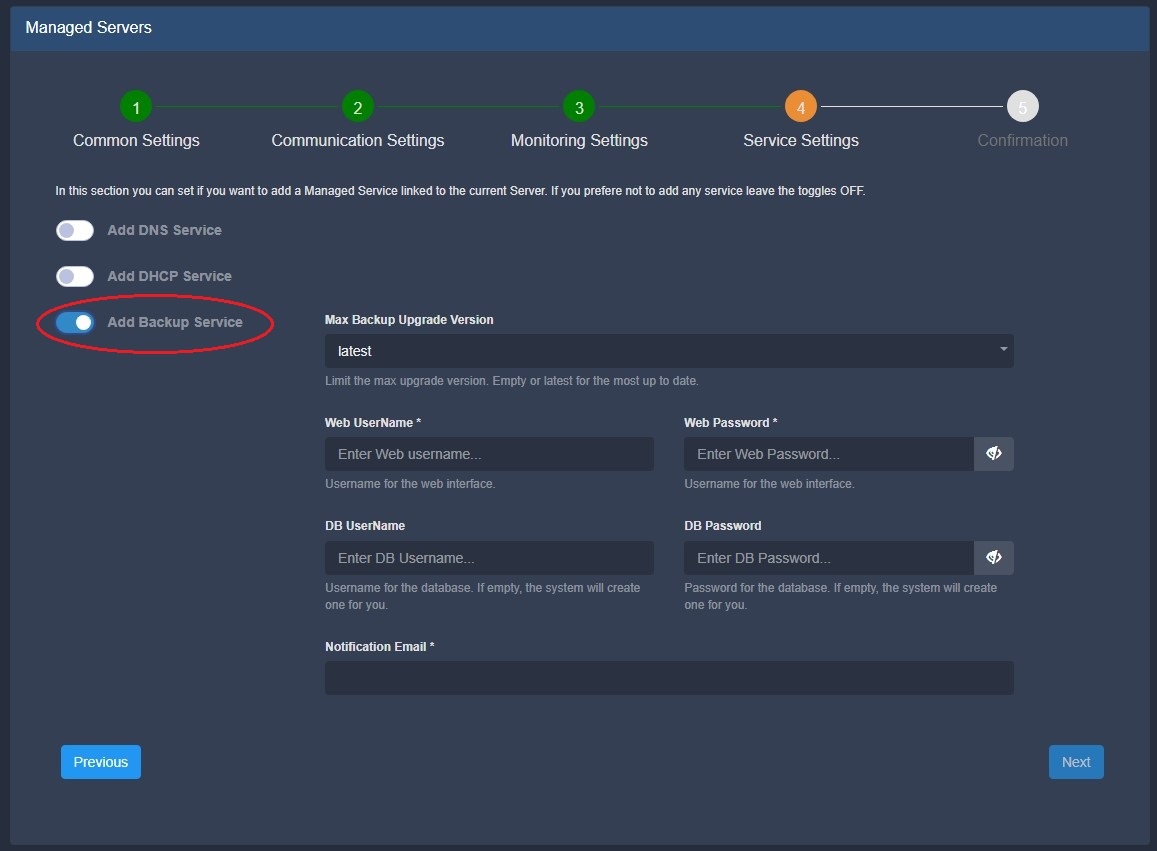
...
| Expand | ||
|---|---|---|
| ||
Step 5: ConfirmationThe last step to setting up a new managed server is review and confirmation.
Options selected in previous steps will display on the page - review and confirm all settings, utilizing the "Previous" button if changes are needed. Once settings are verified, click "Create Server" to complete the setup wizard. The new Managed Server will display in the Managed Server list. |
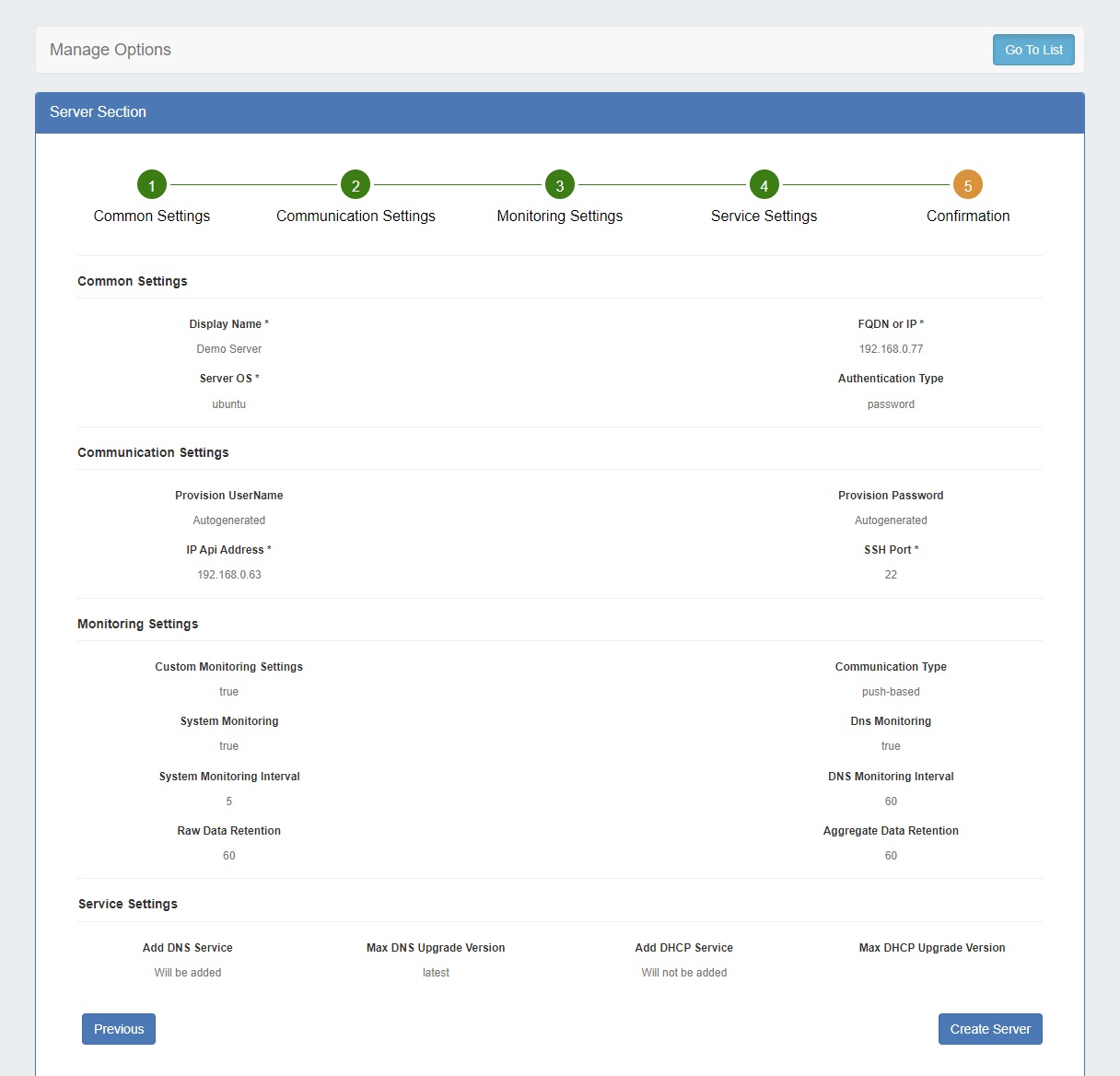
...
The details of a server are organized into tabs: Settings, Services, Monitoring, and RPS.
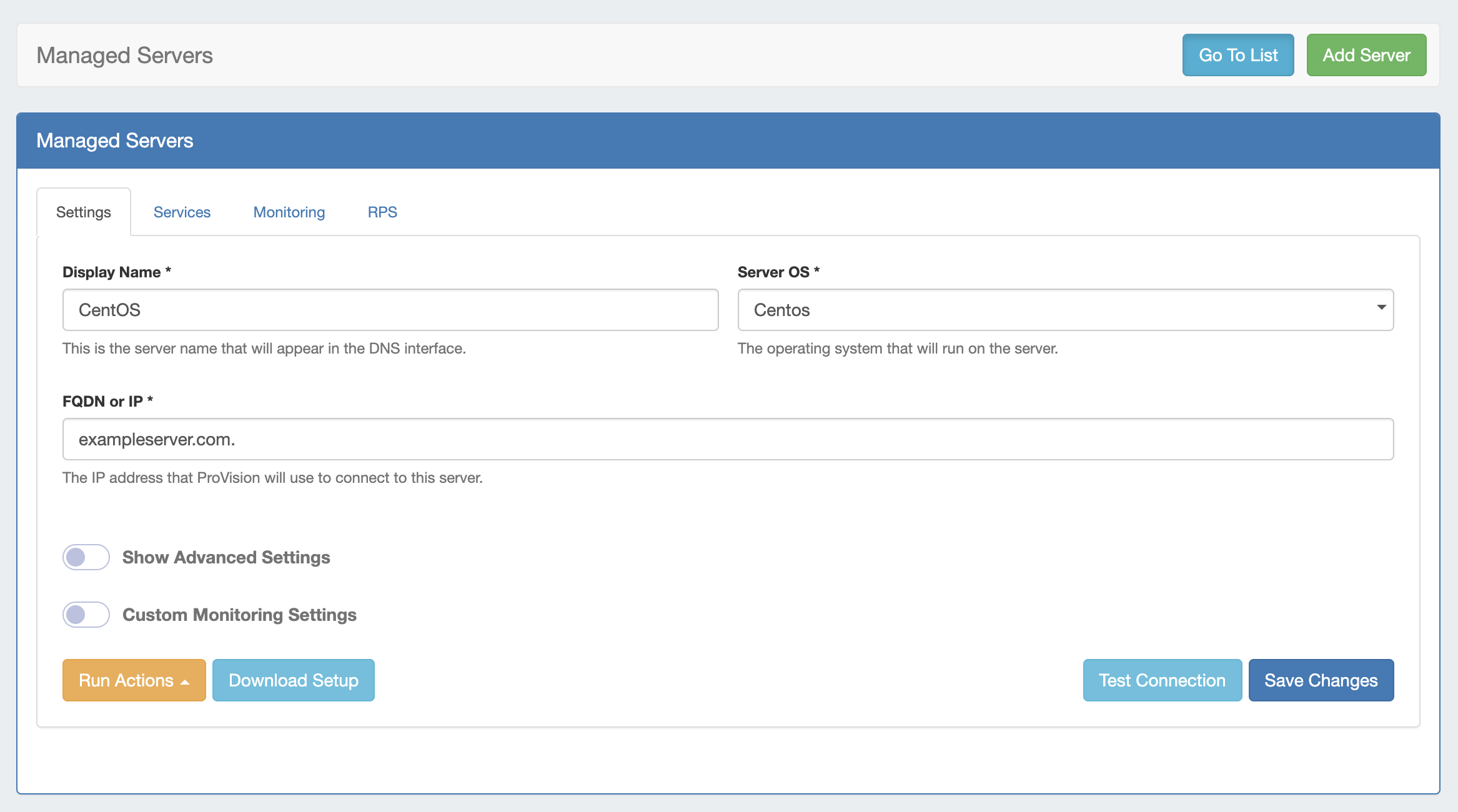
Settings
By default, only "Display Name", "Server OS" and "FQDN or IP" fields are shown.
...
| Expand |
|---|
Toggle on "Show Advanced Settings" to see the ssh credentials, "IP Api Address" and the max versions for each component:
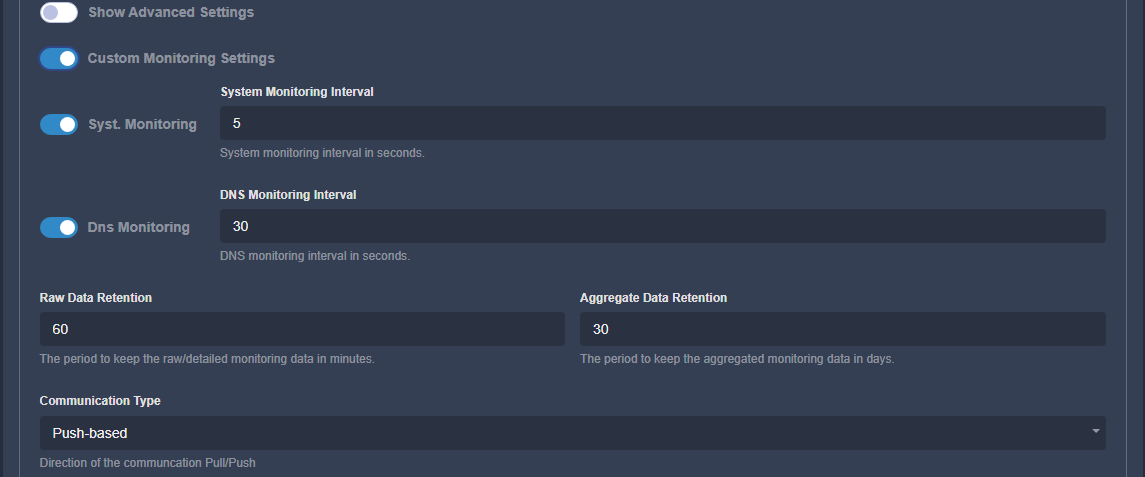
Toggle on "Custom Monitoring Settings" to view/edit the monitoring settings:
This will be toggled if the user has set custom settings earlier or during the setup. The fields are the same as in the Monitoring Settings step during setup and are described there. At the bottom left of the settings module, two buttons are available: "Run Actions" (including Push Install, Push Update, and Run Diagnostic options) and "Download Setup". On the bottom right, you may click "Test Connection" to test the SSH connection to the server.
|
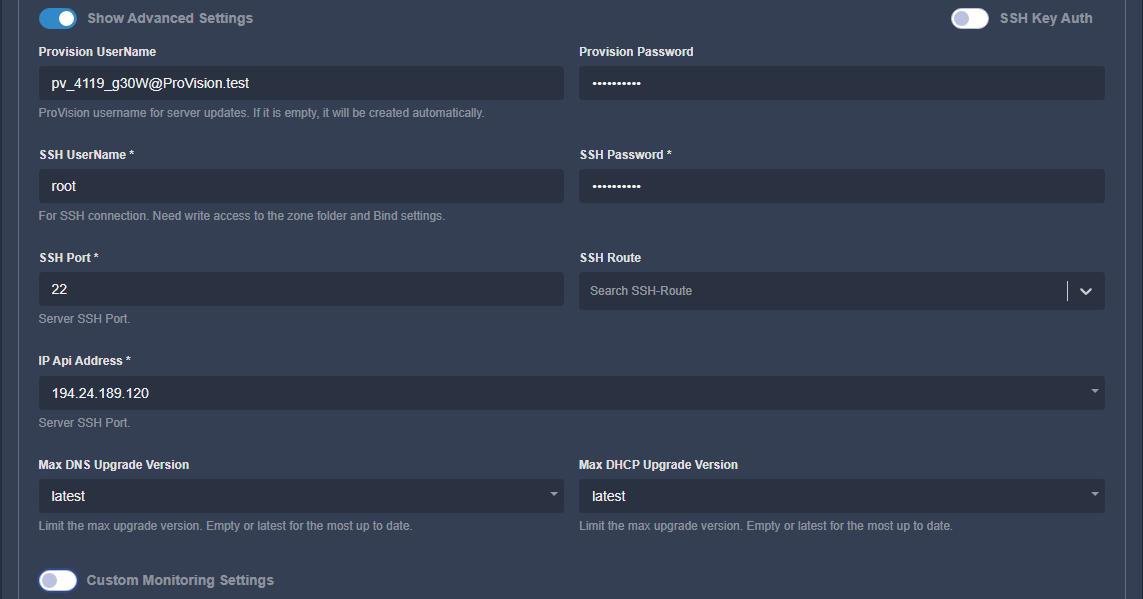

...
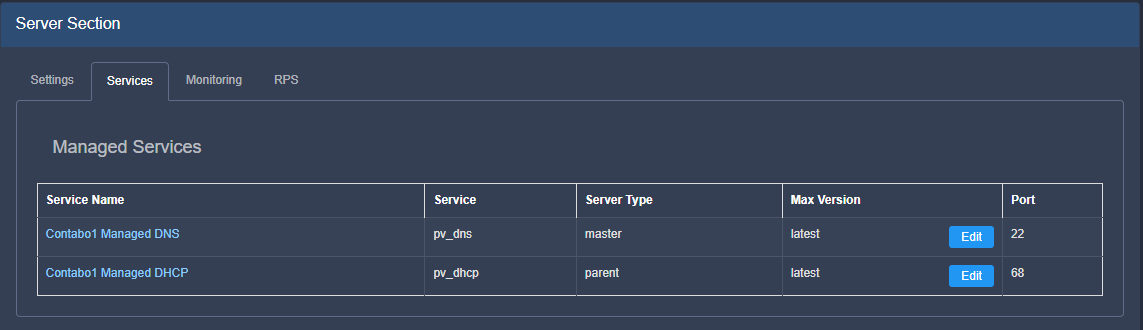
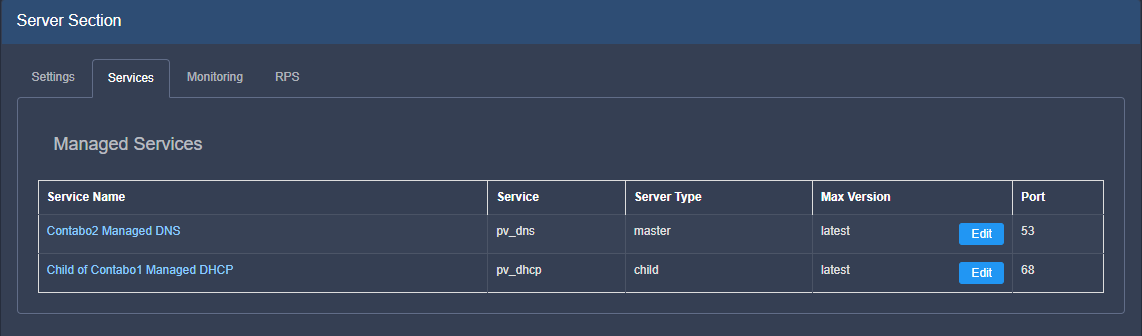
Under Services, you can view the enabled components for this server.
| Expand |
|---|
Click on a component to open a new tab with component details. In case of a "child" DHCP service, the link will lead to its parent.
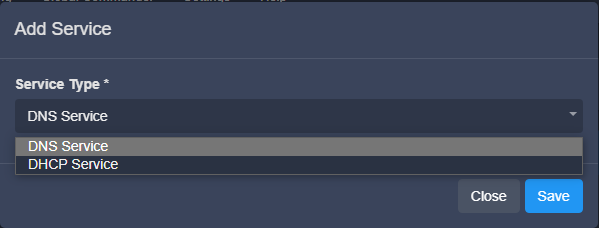
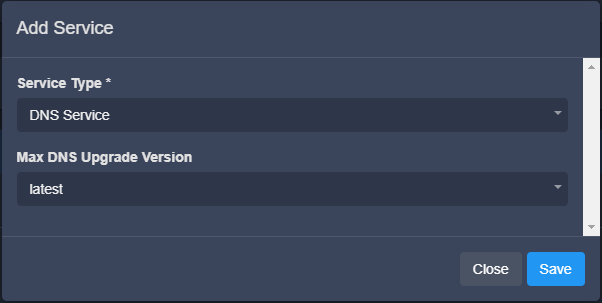
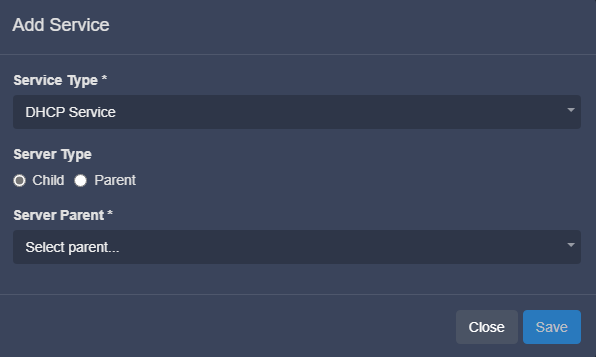
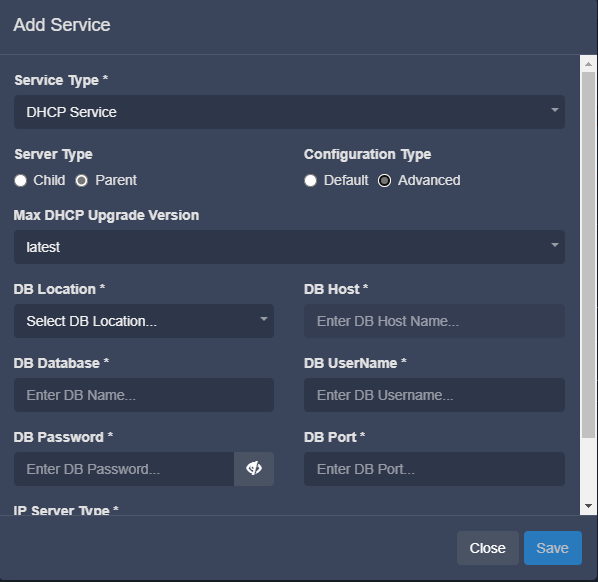
Add ServiceThe "Add Service" button shows a popup to choose the service.
For DNS there is nothing to select:
For DHCP, the interface is the same as during the setup wizard:
|
...
Under Monitoring, you can see the aggregated system statistics + "DNS aggregate":
| Expand |
|---|
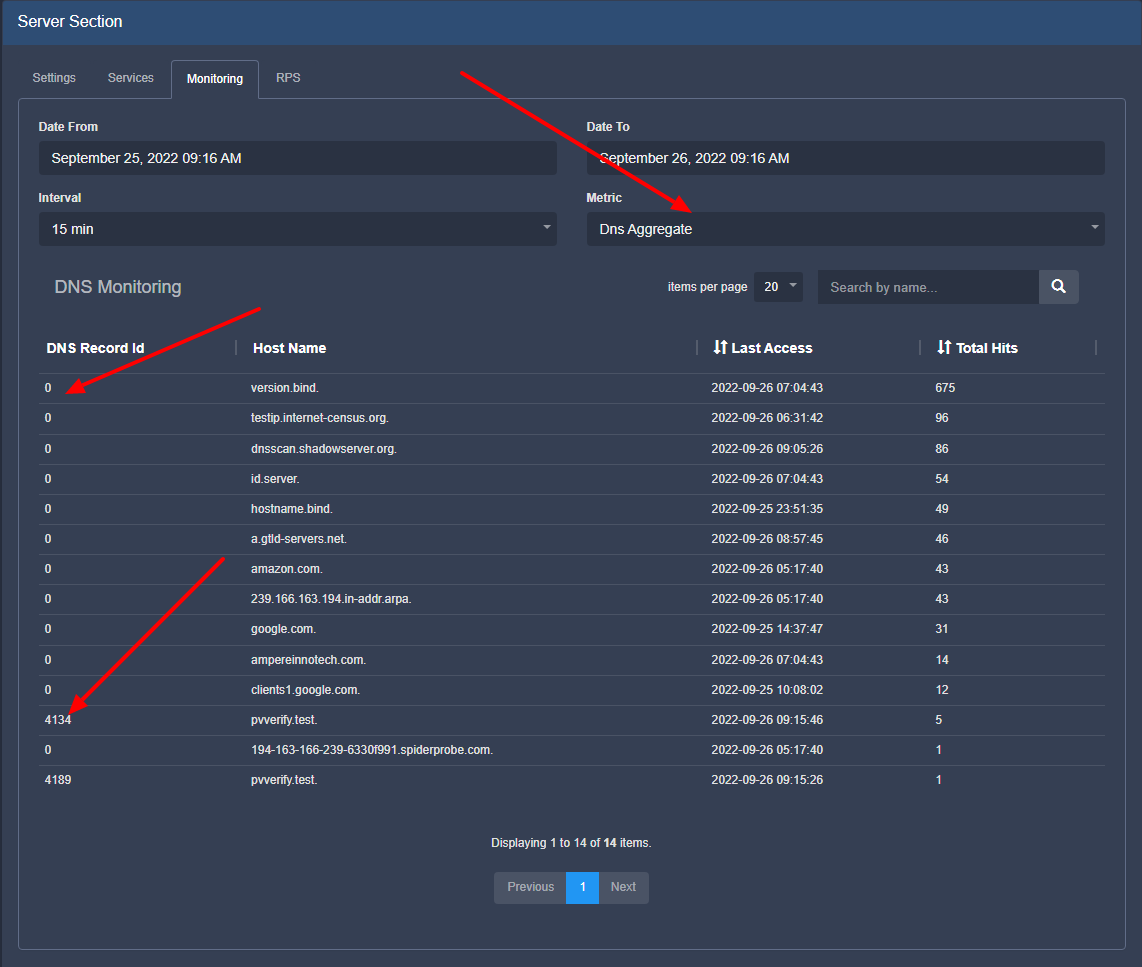
Select a certain time interval (by default, the last 24h) and aggregation interval (5 min, 15 min, 30 min, 1 hour). Note - the charts are different for the different metrics. For example, selecting "Dns Aggregate" shows a different set of information:
For the DNS records, we aggregate the overall total hits and the last time it was accessed. This is in order to be able to see the most/least used records and the ones which haven't been used for a long time and could be deleted. "Date From" and "Date To" here refer to the "Last Access". If the request is for a record, for which we don't have resource, the ID will be 0. We have "pvverify.test" two times, because one of them is for "A" request and the other is for "TXT". |

...
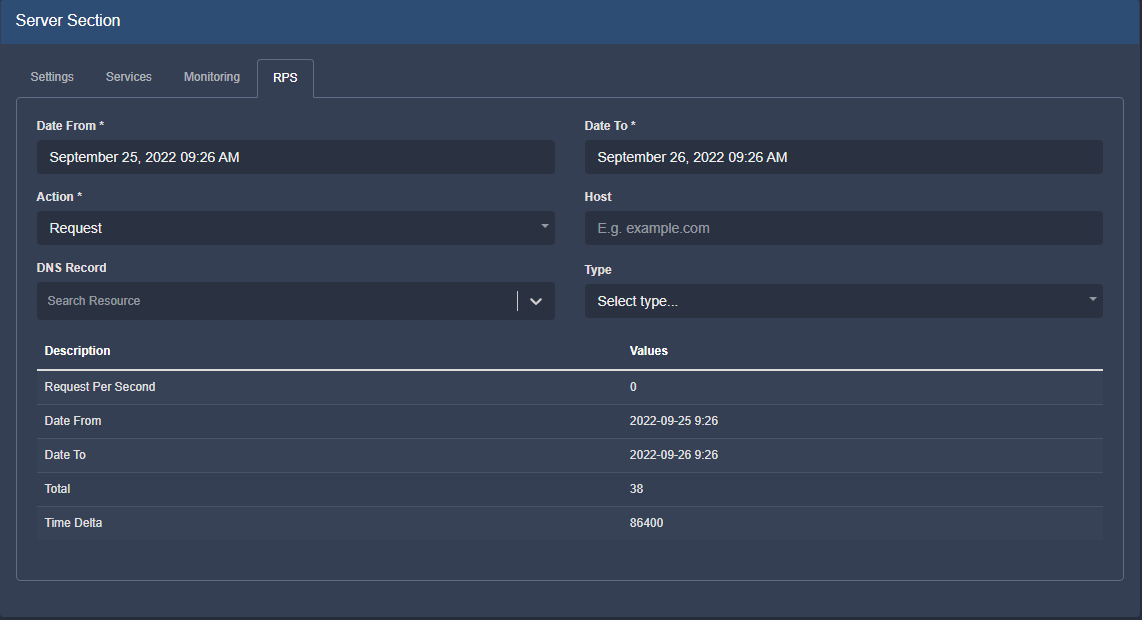
Under RPS, you can search for data for a given dns record.
| Expand |
|---|
Date From/ Date To: Time interval to search Action: Request or response DNS Record: Search for a specific resource Host: Search by host Type: DNS request type (A, AAAA, CNAME, MX, TXT etc.) |
...
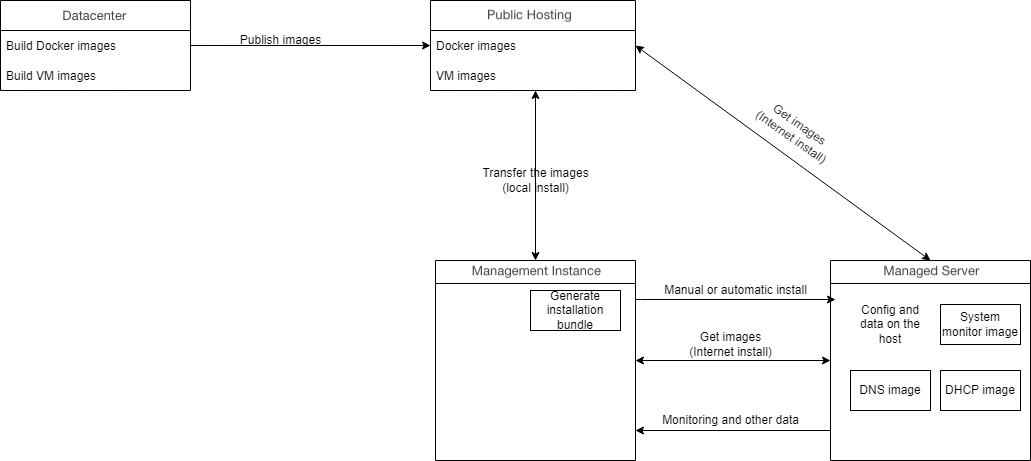
If there is newer version of any component, it will be downloaded and used.
The overall process is:
Requirements
Python 3.6+ and Docker are the only requirements. If we run the installation with root (see below) and we have internet access, the installation process will install Docker.
...
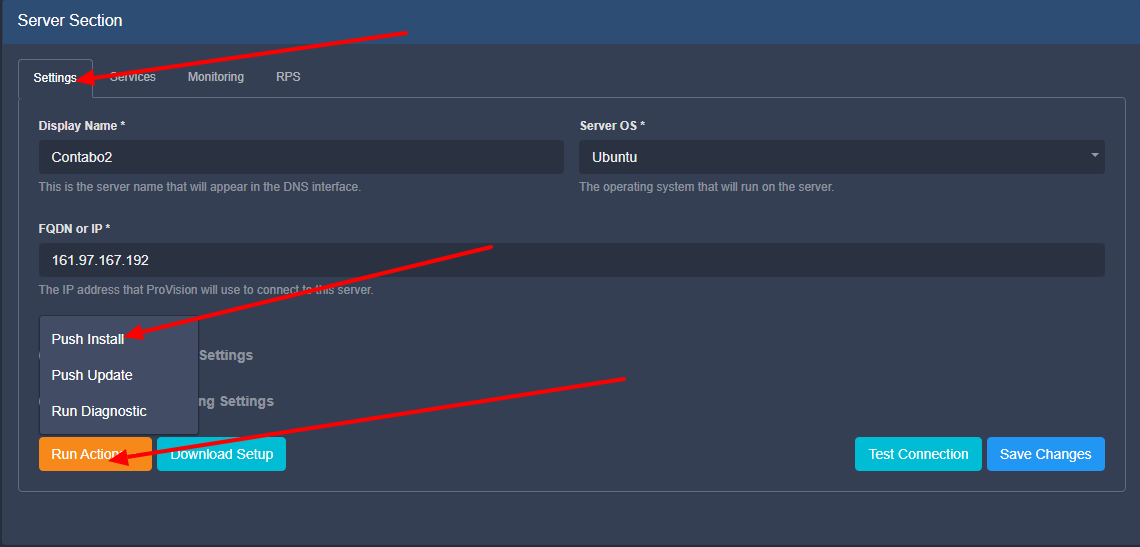
Go to the details page → Settings tab → "Run Actions" → "Push Install"
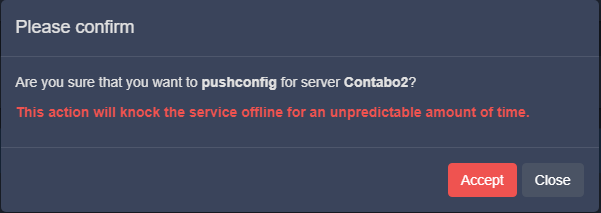
Confirmation dialog will be shown:
Popup with the progress will be shown.:
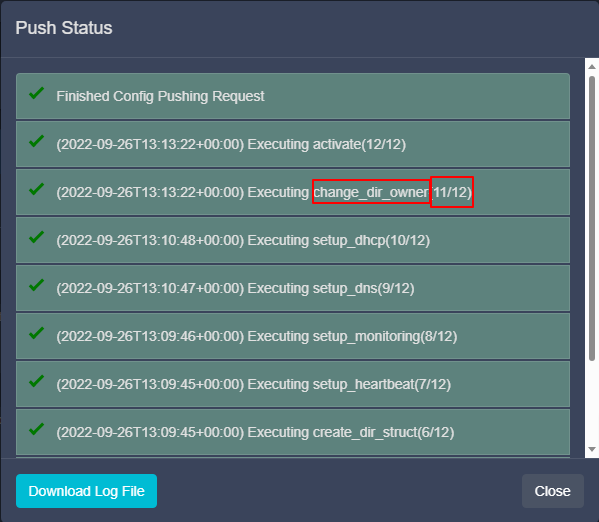
Each command/step is shown together with the overall progress.
...
This case is usually when the user doesn't want to input the root user in ProVision, but he has root access. The setup bundle should be downloaded and saved on your local computer:
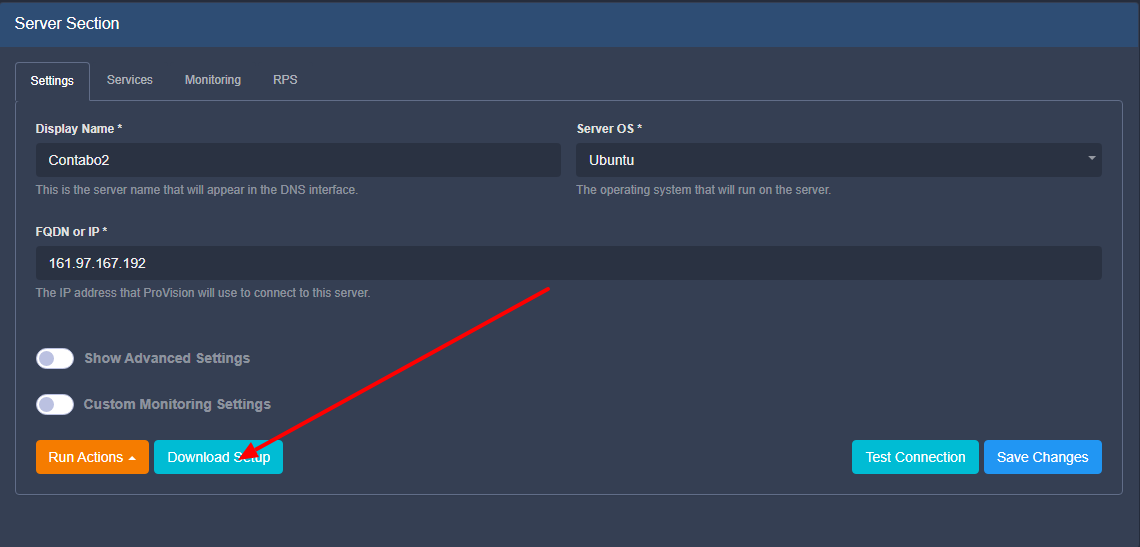
The setup bundle name will be in format "setup-XXX.tar" where XXX is the resource ID of the managed server. The rest of the process is:
...
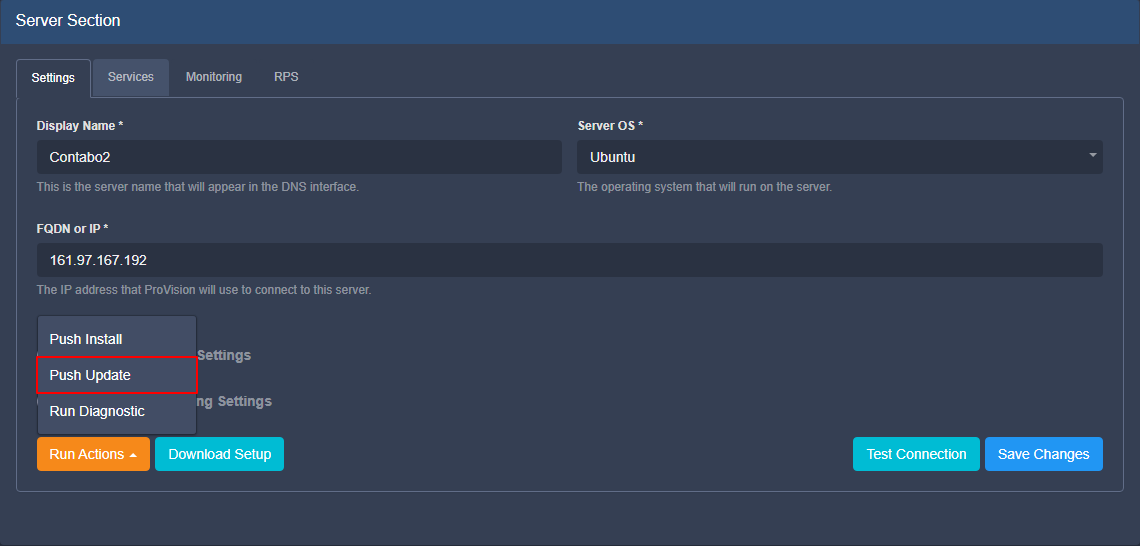
In ProVision's Managed Servers page, open the server details. Then, under the settings tab, click "Run Actions, and select "Push Update". ProVision will automatically create a backup file in /provision/backups/.
Managed Server Diagnostics / Debug
...
The user can run some basic diagnostics from the Managed Serve details page, under the Settings tab. Click "Run Actions", then "Run Diagnostics":
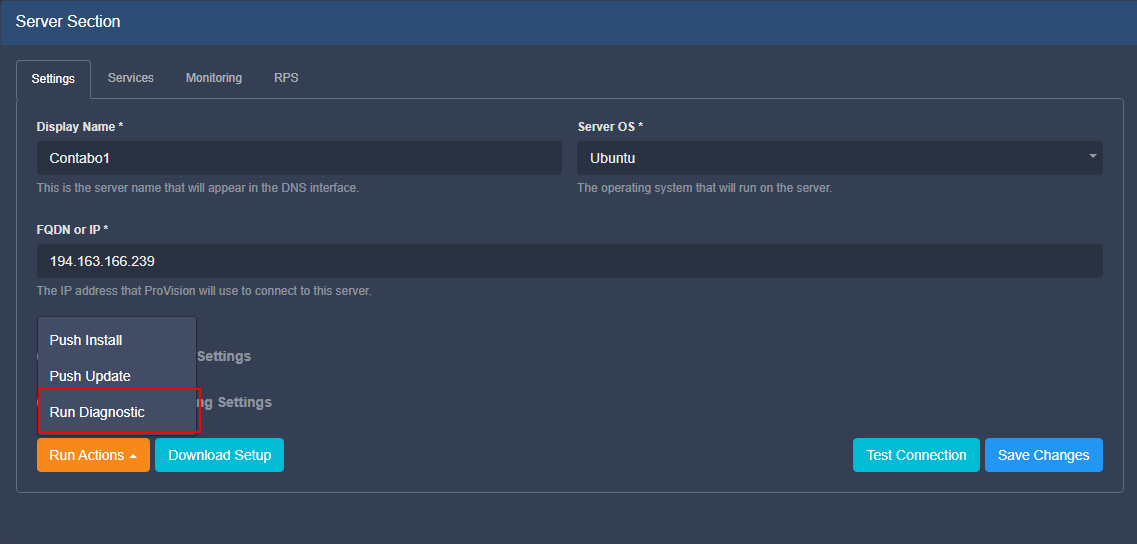
All the debug and diagnostic tools are in the monitoring component, thus it needs to be running in order to function.
After clicking the button, a confirmation dialog will be shown with the results:
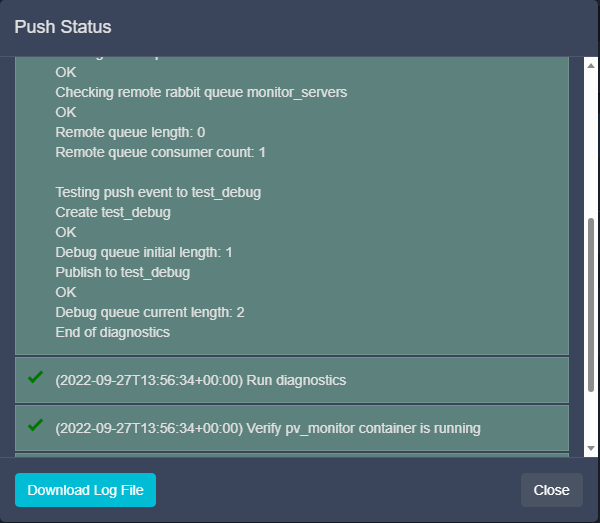
We verify if we have docker running, if the monitoring component is running and the RabbitMQ connection.
...
To delete a managed server, right click on the action menu/ row for the server, and select "Remove Server".
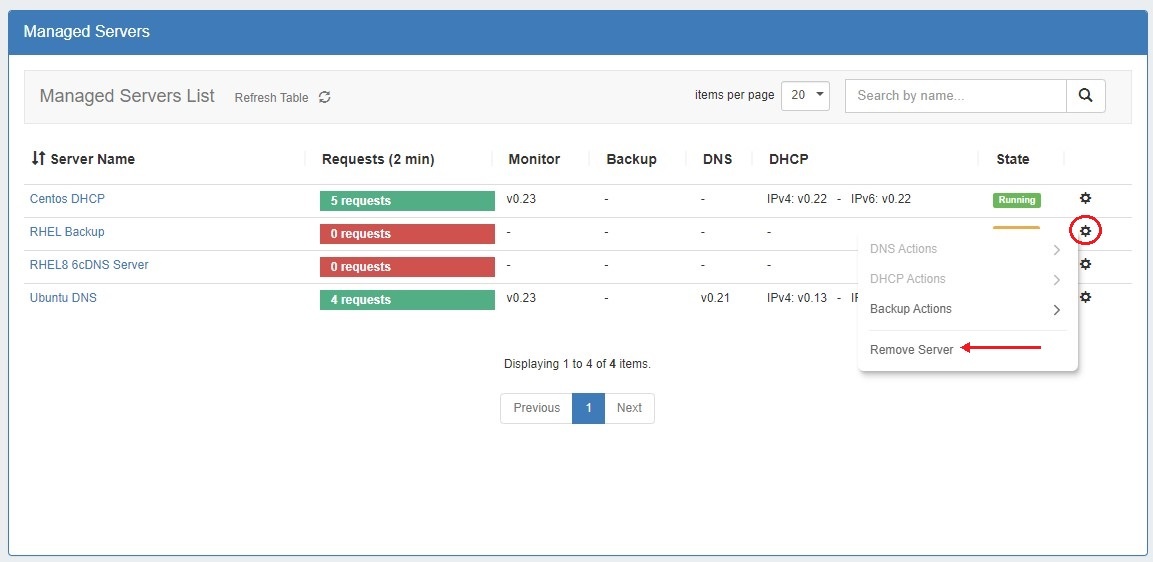
A modal will pop up to confirm the deletion. You may also delete the associated user.
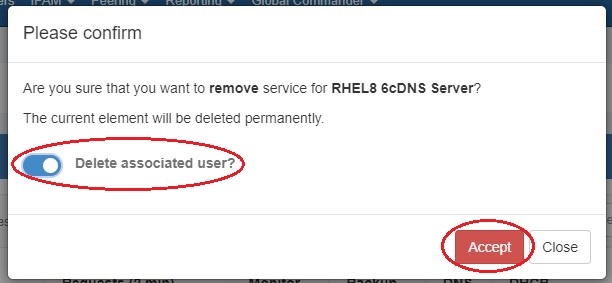
| Warning |
|---|
Use the "Delete associated user" function carefully! If the associated user is a standard ProVision user, not an automatically generated user, deleting it could cause problems. Be sure you know which user will be deleted. |
...