BIND DNS Zone Import
The BIND DNS Zone Upload / Import tool uses the named.conf configuration file tied to the zones you are uploading, a .zip or .tar file of the zones themselves, and an optional .csv file mapping zones to customers. The following steps are used when importing BIND DNS zones:
| Table of Contents |
|---|
Before you Begin: Preparing your DNS Zones for Import
If your zone data is currently in BIND format - this is very straightforward.
There are three components for the upload process:
1) The named.conf configuration file tied to the zones you are uploading (required)
This tells the importer the Zone Name and where the zone file is written. It could be as simple as a multi-line file:
...
For a sample Simple Config: conf.conf
2) A ZIP or TAR file of the DNS zones themselves (required)
This is as it sounds - a file archive where we can find the zones and it should match the configuration file uploaded in Step 1.
...
For a sample simple ZIP: zones.zip
3) Match CSV for assigning DNS Zones to Resources (optional)
This file allows the administrator to "assign" zone files to a given Resource. If you have Imported a group of Resources, they have Resource IDs associated with them. You can then import DNS zones and assign them to those Resource IDs. When complete, you will be able to pull up the Resource Record and see the DNS Zones associated to that Resource ID.
...
For a sample CSV: config.csv
Importing your DNS Zones (BIND)
...
Video Walkthrough
Widget Connector url https://www.youtube.com/watch?v=kD3ecJOzXt4
...
Step 1: Create a new DNS Import Job
Navigate to the Data Import Tab from the Admin button to import your data. Select "BIND Zone Upload/Import" under "DNS Import".
...
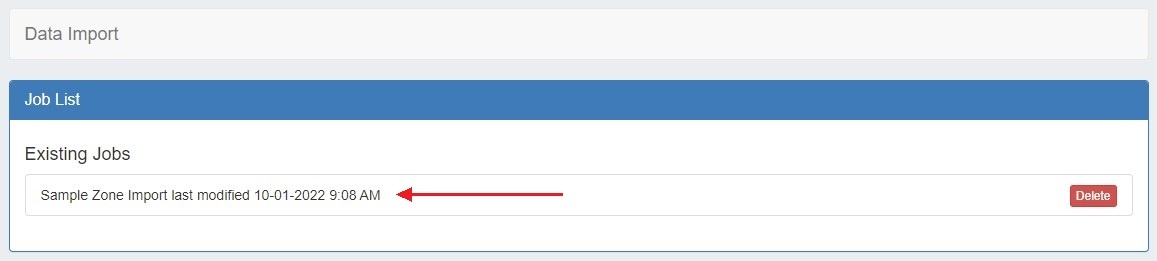
After importing, the new job will appear under the "Existing Jobs" section. To continue working with this job, select it from the list and the next step will appear on the page.
Step 2: Map Data Columns (Optional)
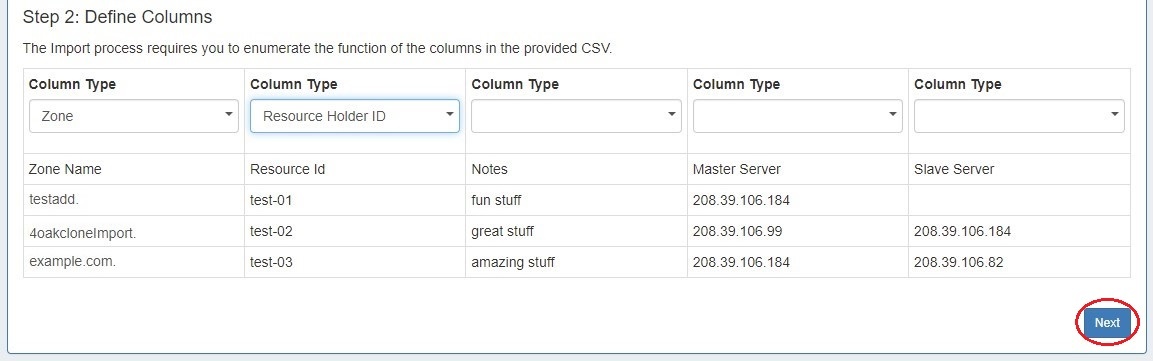
If you chose to load an optional match CSV file to assign DNS Zones to Resource, a mapping step will be available. Otherwise, proceed to Step 3: Reviewing Data.
...
When completed, hit "Next".
Step 3: Reviewing Data
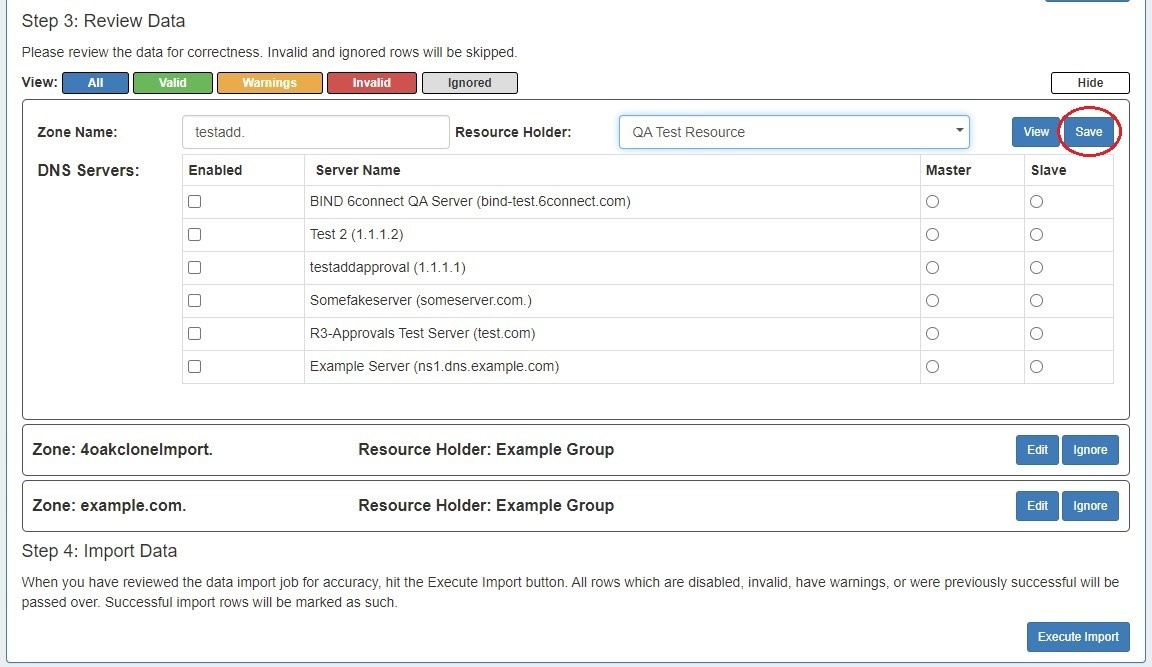
After supplying the file set and defining columns (if applicable), a review step is provided. The configuration file is broken into individual jobs, scanned for errors, and shown by row (in batches of 100) to be reviewed. Zones with errors will show as color coded. and can be filtered to be viewed by All, Valid, Warnings, Invalid, or Ignored. From here, the zone can be edited or ignored.
...
After editing, hit "Save", and continue reviewing / editing data as desired.
Step 4: Execute Import
When the review step is completed, hit the "Execute Import" button. A progress bar will appear to show progress and note errors if they occur.
...