DHCP Groups
...
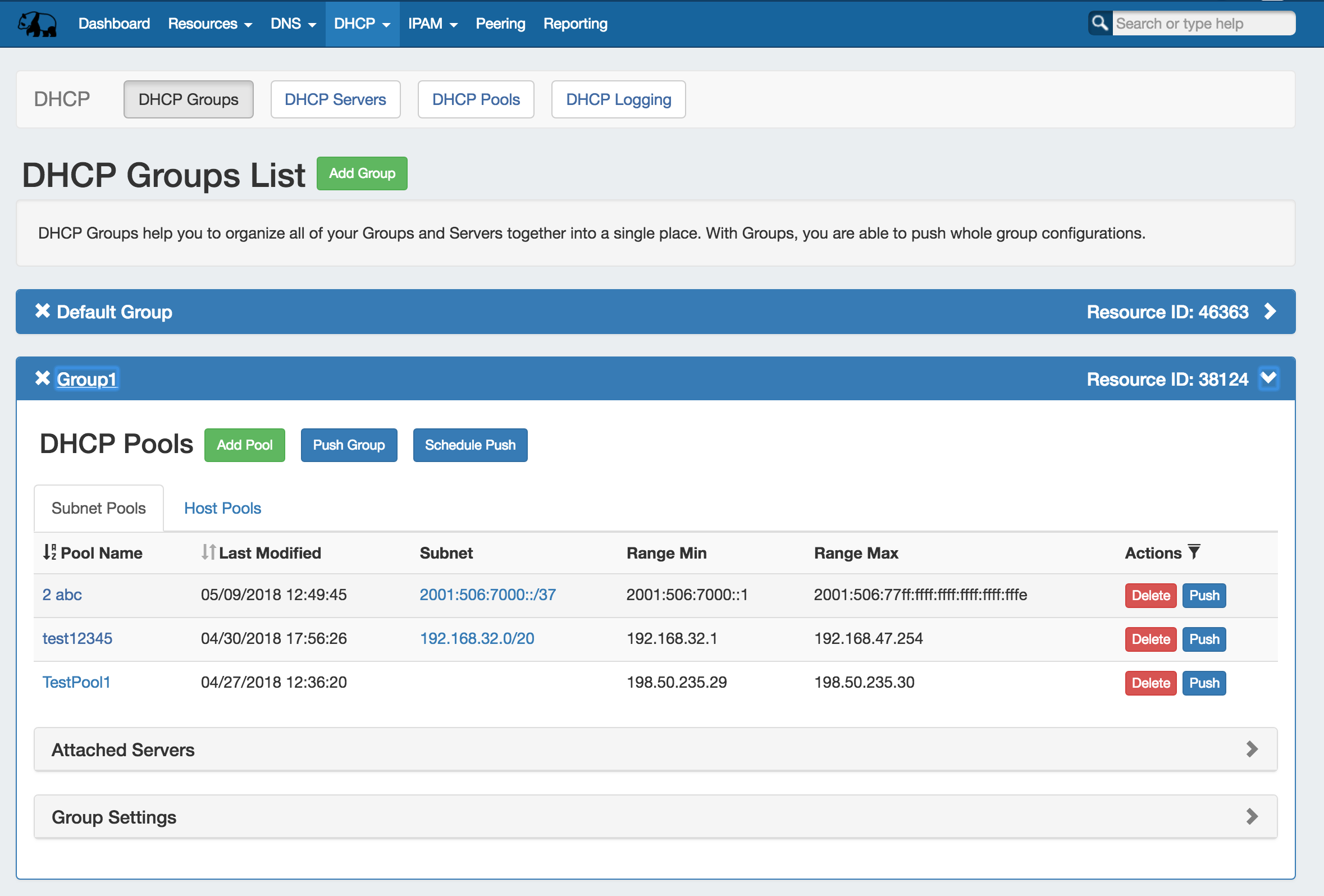
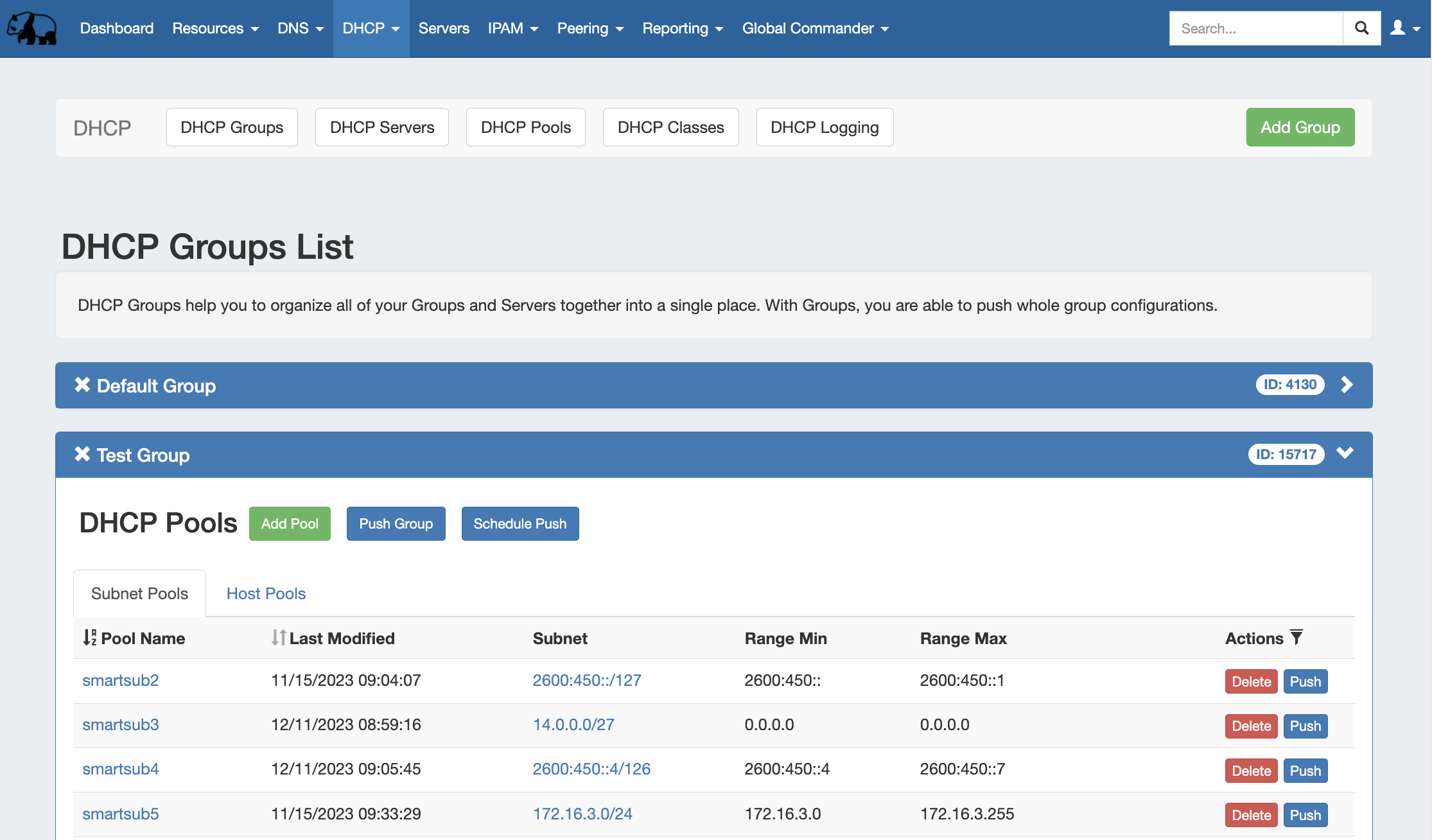
The DHCP tab DHCP Groups List allows allows you to create, view, and manage groups of DHCP servers Servers and poolsPools. Using groups, you can configure and push selected combinations of pools at zones at one time.
| Table of Contents |
|---|
DHCP Groups List Interface
...
Navigation:
...
Move between the DHCP Groups, DHCP Servers, DHCP Pools, DHCP Classes, and DHCP Logging pages via the subtab buttons below the main navigation bar.
The right side of the DHCP navigation bar contains the option to create a new DHCP Group by clicking "Add Group".

DHCP Group Container:
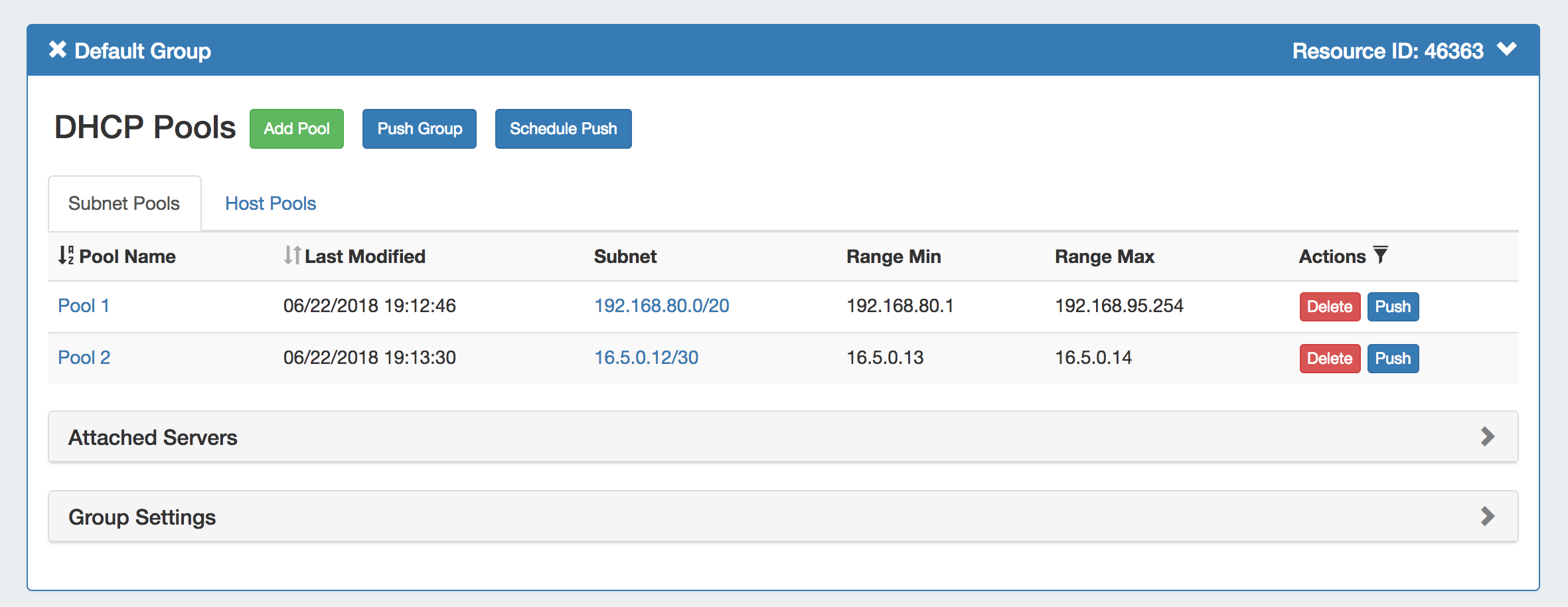
The DHCP Group container displays the DHCP Group information in the top header bar, showing the group name, group id, and visibility controls:
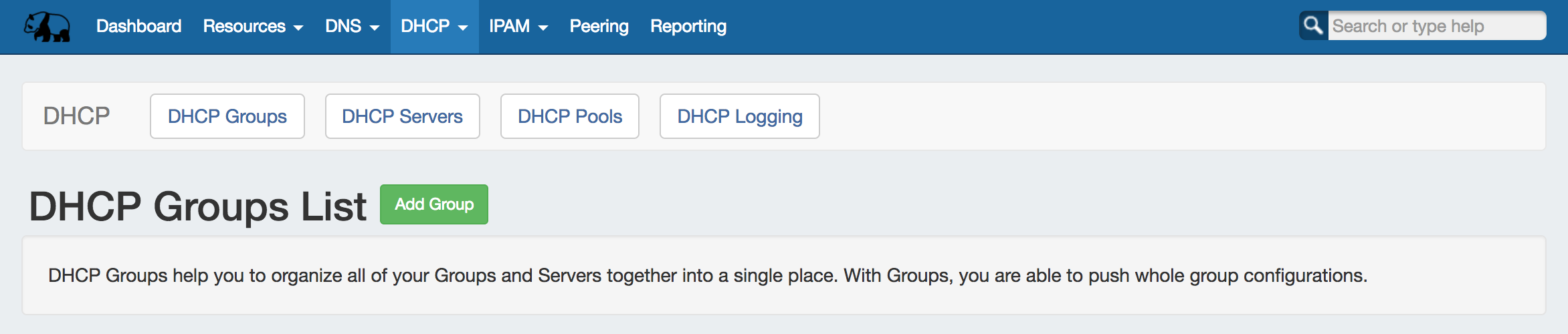
1) Add Group Button: Opens a dialog for creating a DHCP Group
2) Group Container: The Group container header shows the group name. Expand or close the group container by clicking on the expansion arrow ( > ) on the far right of the header.
...
Clicking on the X will delete the
...
Group and all
...
zones included in the group.
...
Rename the group by clicking on the name, then typing the desired changes and clicking outside of the name.
...
Group
...
Pool Actions:
3) Add Pool Button: Opens a dialog for creating a DHCP
...
Pool under that group.
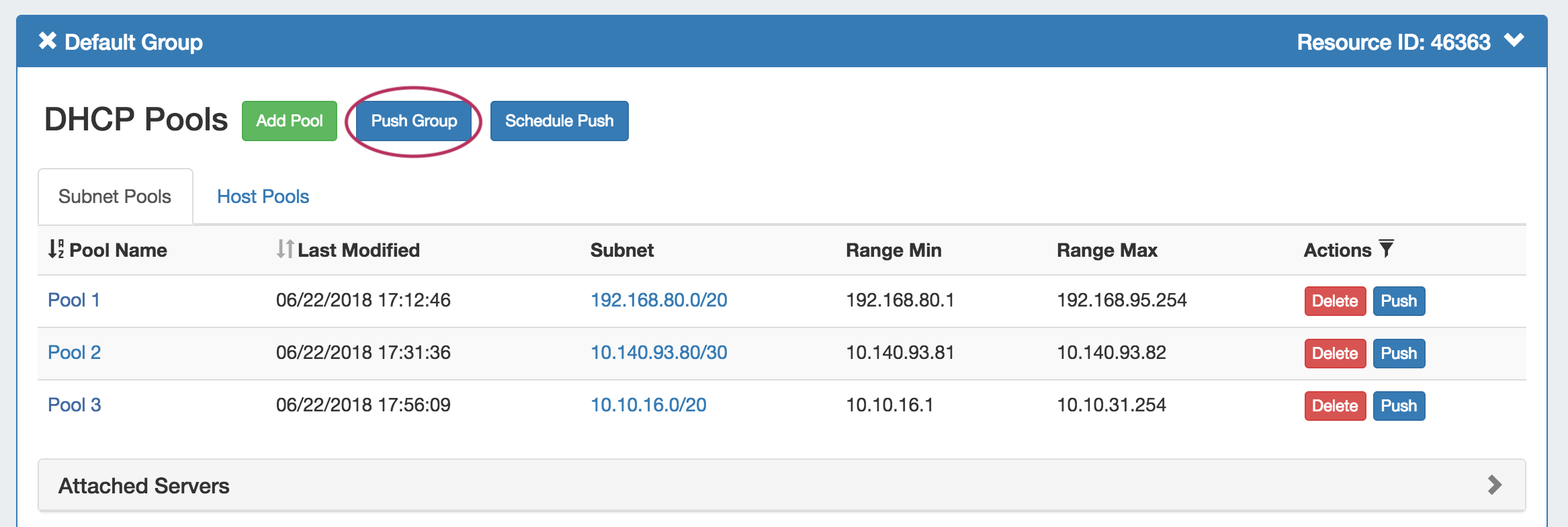
4) Push Group Button: Pushes all pools in the group to the associated DHCP server.
5) Schedule Push Button: Schedules a push of all pools in the group to the selected day and time. Requires the scheduler tab / cron tasks to be enabled.
...
6) Pool List
...
: Subnet and Host Pools included in the Group.

7)
The group pool list displays subnet and host pools included in the group under separate tabs:
Subnet / Host Pools Tabs
...
: Shows zone list containing only forward or reverse zones, respectively.
8) Pool Name (Sortable): The name of the pool. Clicking on the pool name will open the pool details page. Clicking on the "Pool Name" header
...
will sort the
...
zone list
...
by ascending or descending
...
by name.
...
9) Last Modified (Sortable):
...
The date and time the pool was last modified.
...
Clicking on the "Last Modified" header
...
will sort the list by most / least recent modification date.
10) Subnet (or IP): The subnet or IP of the subnet/host pool, respectively.
11) Range Min (or MAC): The starting range address for subnet pools, or the MAC for host pools.
12) Range Max:
...
For the subnet list,
...
the ending range address for the pool.
13) Actions:
...
Clicking on the "Actions" header
...
will reveal sortable filters for selected fields. Buttons under the Actions column indicate
...
actions that may be performed on each pool:
...
14) Delete: Deletes the pool from ProVision.
...
15) Push: Pushes the pool to the associated server.
Attached Servers Module

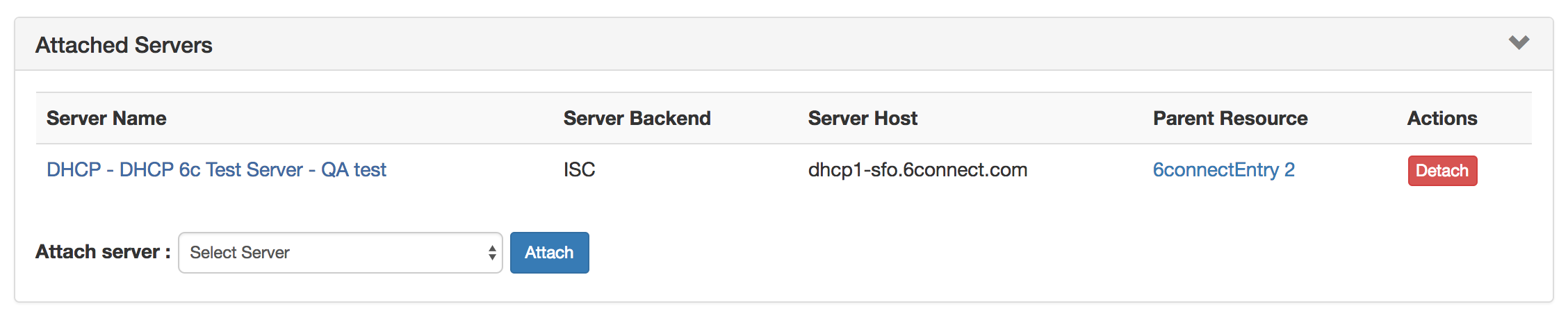
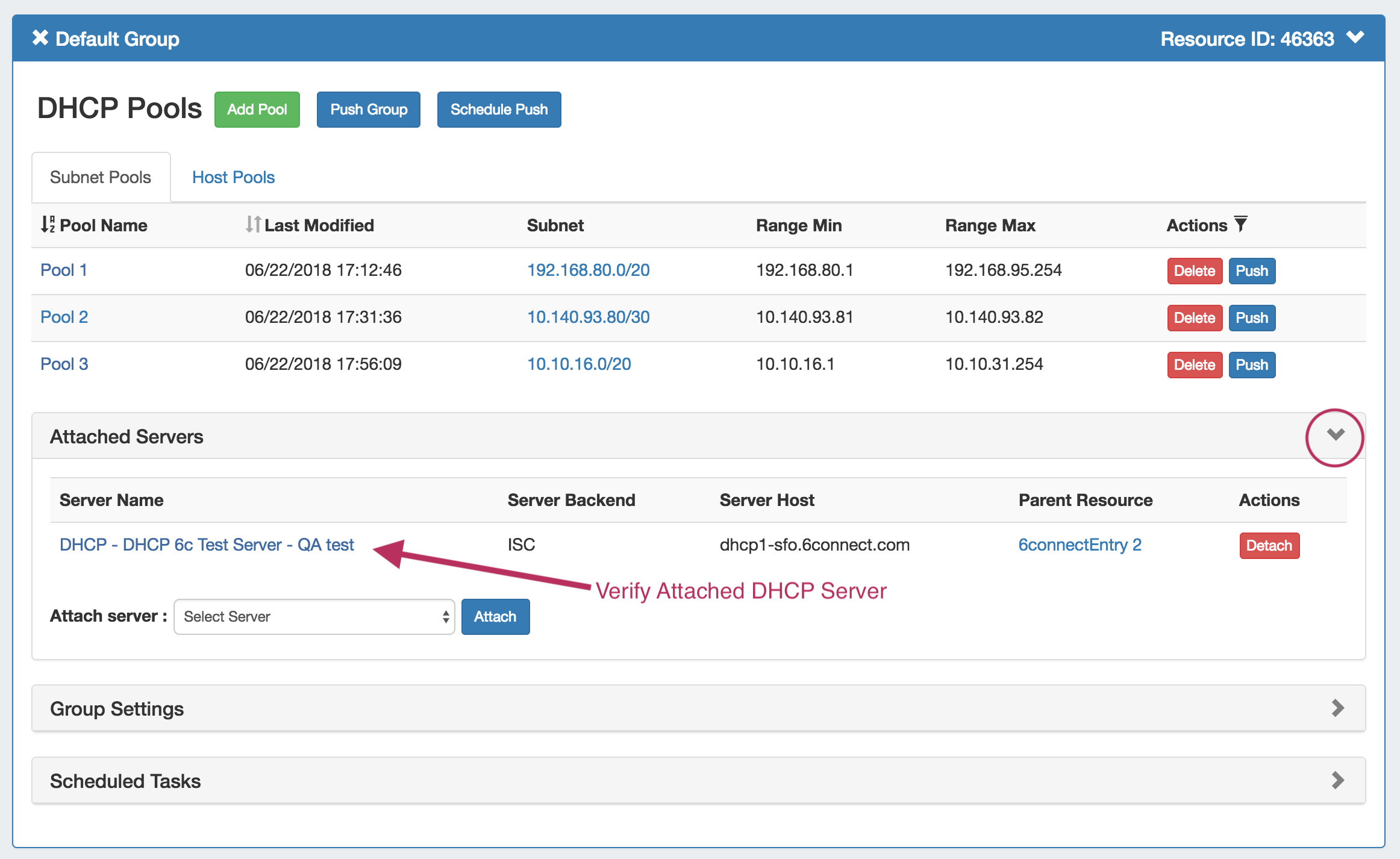
The Attached Servers module displays information on servers attached to the DHCP group. Click 16) Attached Servers: Click on the header title or expand arrow ( > ) to expand or collapse the module.
- Attached Servers List: Displays the Server Name, Server Backend, Host, Parent Resource, and available actions. Click on the Server Name or Parent Resource link to view details
- Actions: Buttons under the Actions column indicate available actions for the server:
- Detach: Detaches the server from the DHCP group.
- Perms: View or edit permissions for the attached server.
- Attach Sever: Select an available server from the dropdown and click "Attach" to attach to the DHCP group.
Group Settings Module
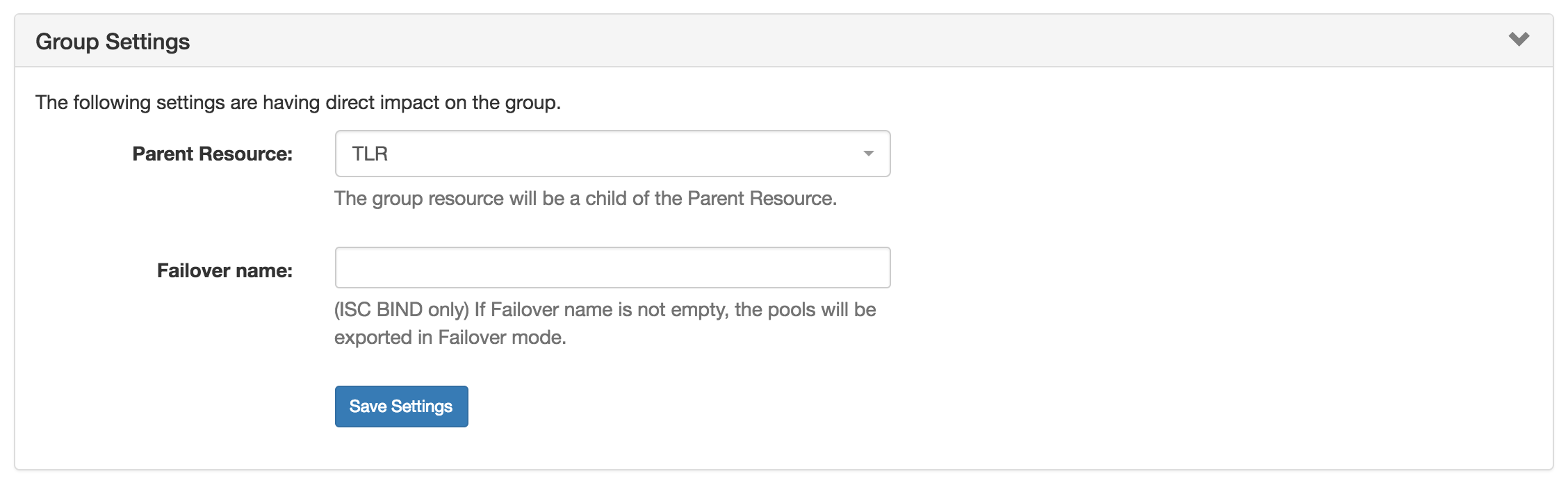
Manage the parent resource and failover (BIND only) for the DHCP group. Click on the header title or expand arrow ( > ) to expand or collapse the module.
...
. View, attach, or detach a DHCP server from the group.
17) Group Settings: Click on the header title or > to expand or collapse. Edit default group settings including the Parent Resource and Failover name.
18) Save Settings Button: Saves any changes made to the DHCP Group Settings options.
22) Scheduled Tasks
...

If : If a scheduled push has been set up for the group, the task information will show in a "Scheduled Tasks" module. Click on the header the header title or > to expand arrow ( > ) to expand or collapse the module.
- Scheduled Tasks List: Displays scheduled tasks applied to the DHCP Group, its repeat settings, and last run time.
- Actions: Buttons under the Actions column indicate available actions for the tasks:
- Delete: Click to delete the scheduled task.
From here, you may review or delete scheduled group pushes.
Working with DHCP Groups
DHCP groups Groups allow for organizing multiple pools together and linking those pools with one or more servers. Pools may be pushed individually, as a groupGroup, or at the server level.
A ProVision automatically designates a Default Group for pools to be imported or added into is automatically designated. Creating additional groups Groups is completely optional.
Add a Group
Create DHCP groups Groups by clicking the "Add Group" Button, then add subnet or host pools under the group by clicking "Add Pool" for the desired group.Group.
Pools may be pushed individually, as a part of a DHCP Group, or through pushing an entire DHCP Server.
To create a new groupGroup, from the the DHCP Tab Tab, select the the DHCP Groups sub sub menu. Then, click the "Add Group" button at the top right of the pagenext to "DNS Groups List".
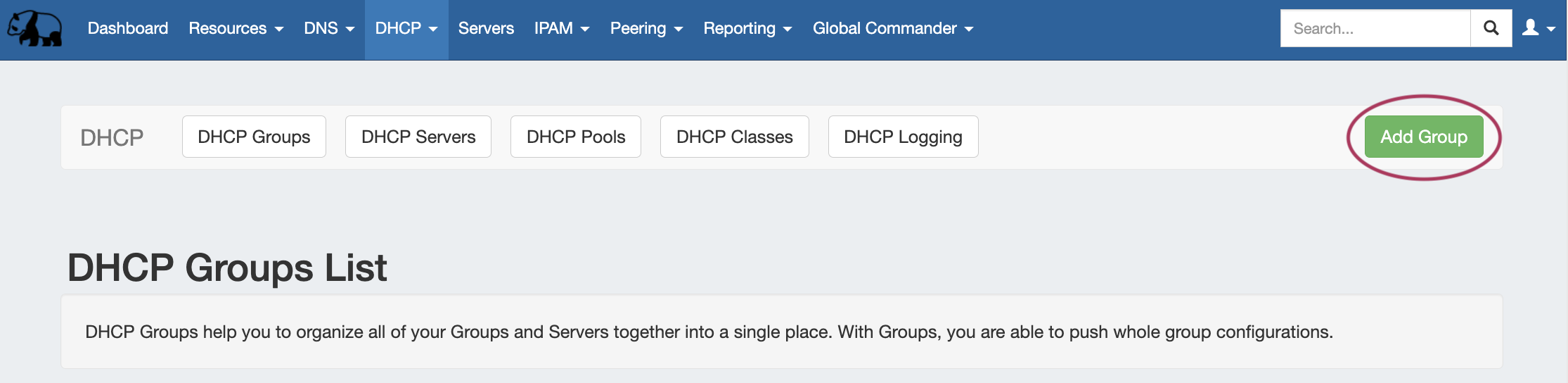

This will open the "Create New Group" dialog.
Enter the desired
...
Group Name and select a parent resource.
Click the "Save Changes" button when complete.
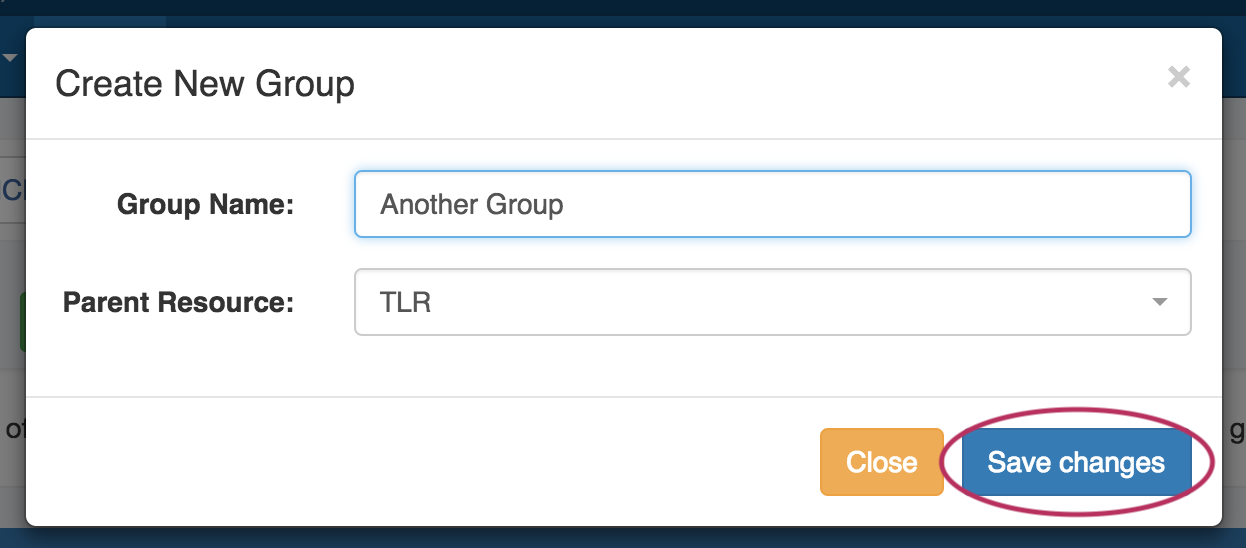
The new group will be added to the DHCP Groups List.
...
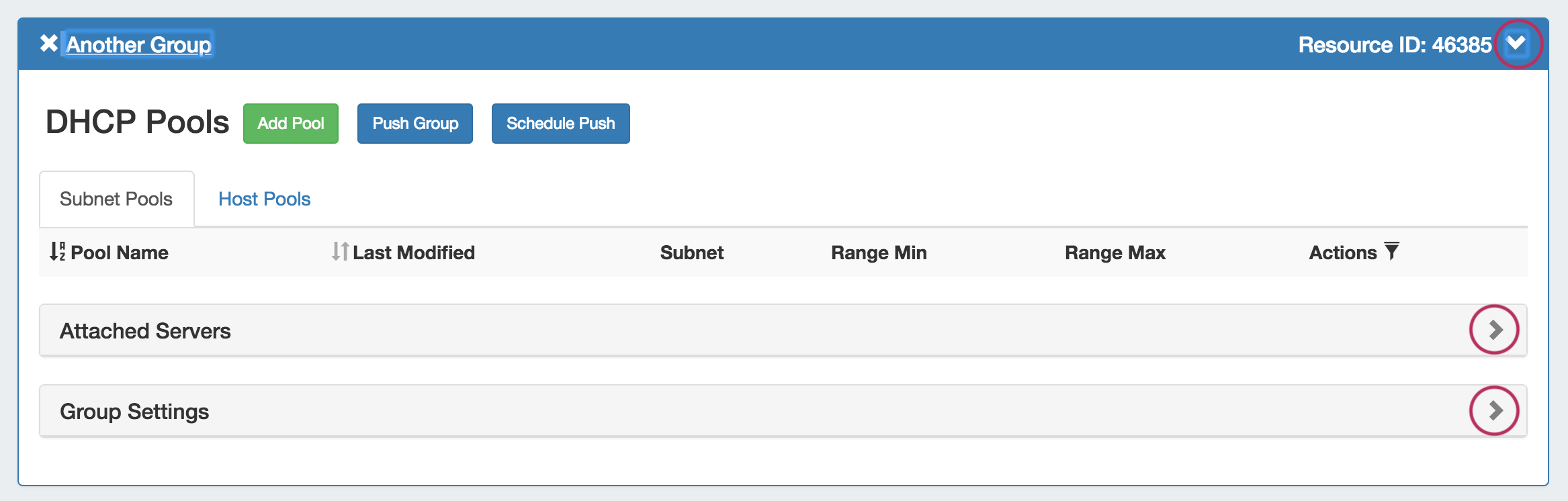
Open the group Group container for a group the new Group by clicking on the expansion arrow at the top right corner of the header.
Information for Attached Servers and Group Settings may also be viewed and edited by clicking on the expansion arrows for each section.
Edit a Group
Edit a Group Name:
Edit the name for a group Group by clicking inside the groupGroup's nameName. A highlight box will appear around the name, and a cursor inside the box.
...
Edit the text as desired using your mouse or arrow keys to navigate through the text. When complete, click anywhere outside of the name box, and a confirmation dialog will appear.
...
Click "Confirm" to save your changes, or "Close" to exit without saving.
Edit a Group's Settings:
Expand Under the desired Group, expand the "Group Settings" module by clicking on the expansion arrow in the upper right corner of the header for the group.
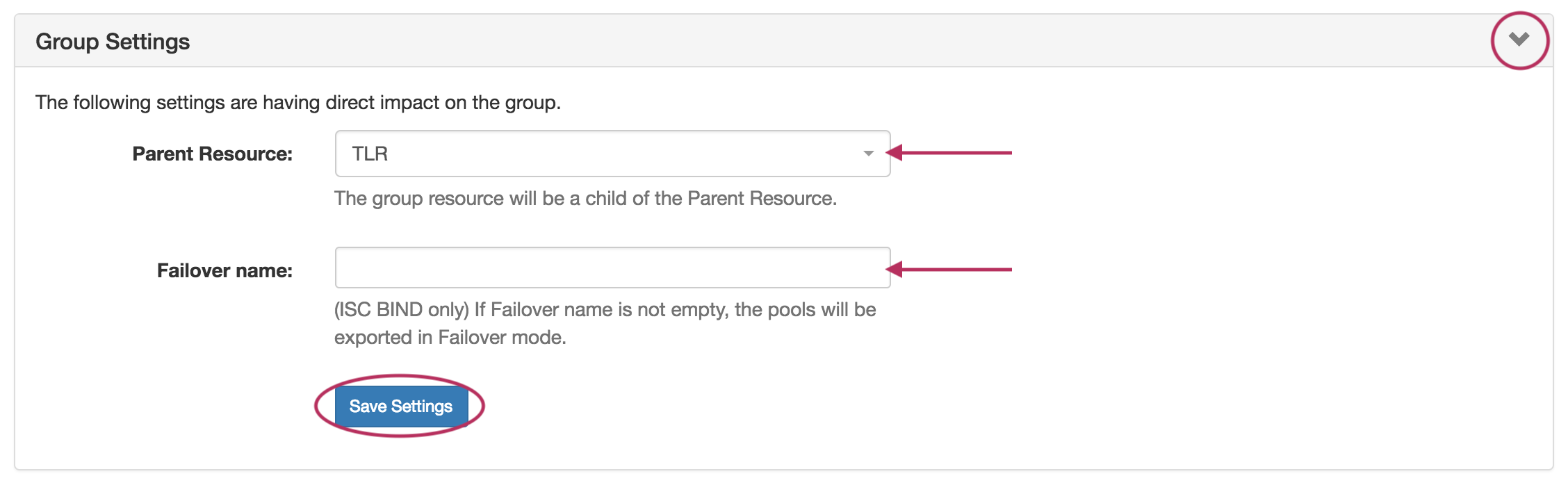
Edit Parent Resource
...
Change the parent resource for the DHCP
...
Group by searching and selecting the desired resource from the dropdown box.
Edit Failover Name
...
Edit the Failover name by typing the name directly in the Failover Name input. If the Failover name is not empty, the pools will be exported in Failover mode. NOTE: This is for ISC BIND only.
When done with your edits, be sure to click the "Save Settings" button.
Add Pools to a Group
To add a new pool to a DHCP groupGroup, click the "Add Pool" button inside the desired groupGroup.
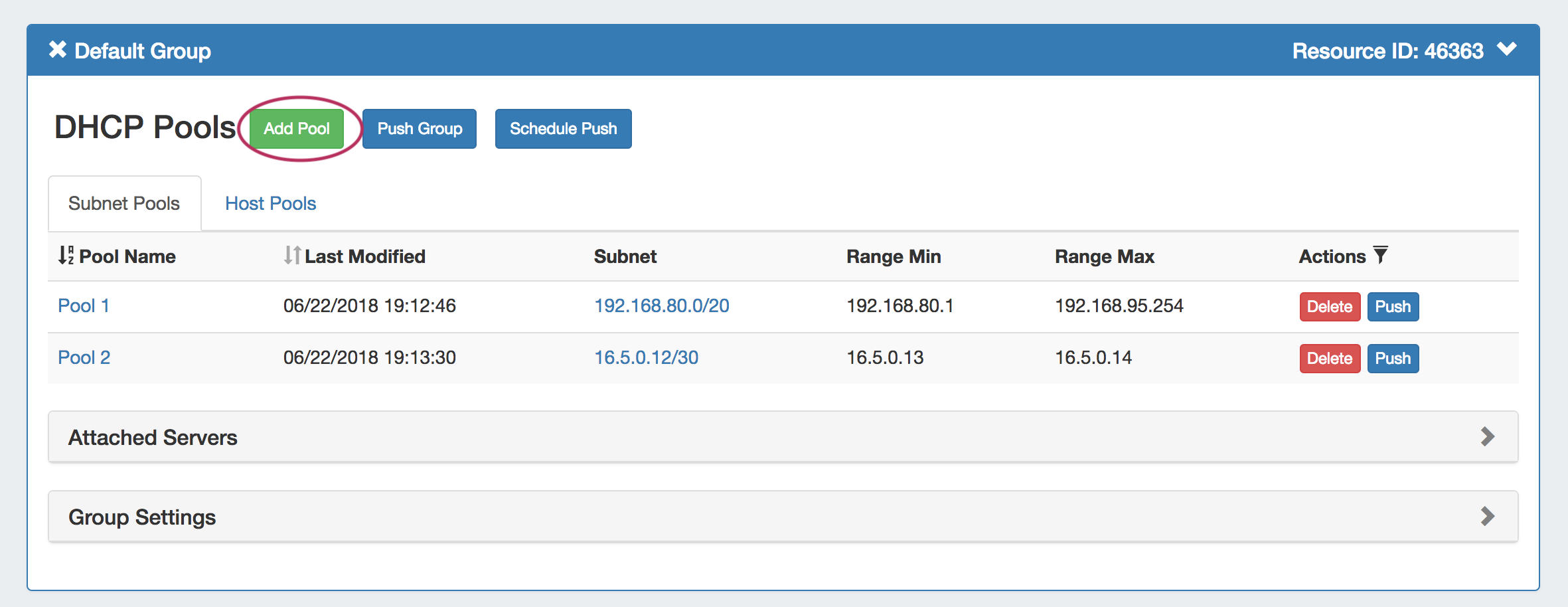 The Create New Pool dialog will open. Select either "Subnet" or "Host" for the Pool Type to enter values for the new pool.
Add a Subnet Pool
To add a new subnet pool to a DHCP groupGroup, select "Subnet" as the Pool Type. Select the parent resource and type in a subnet nameSubnet Name.
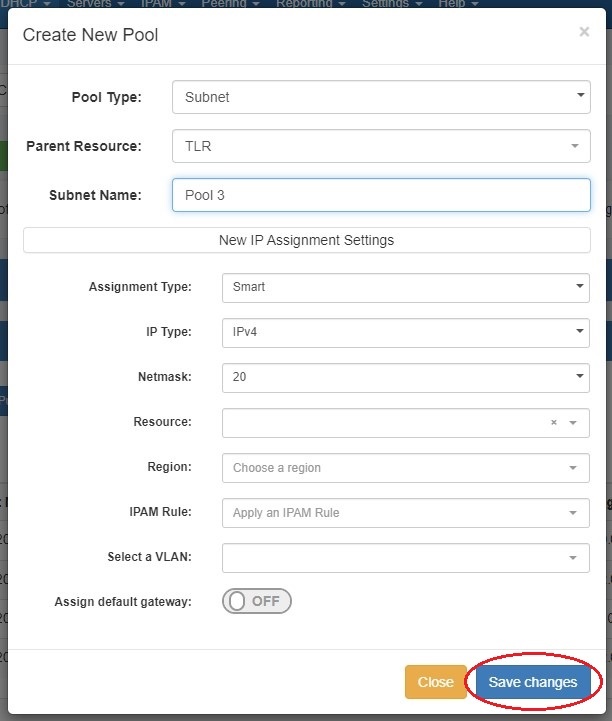
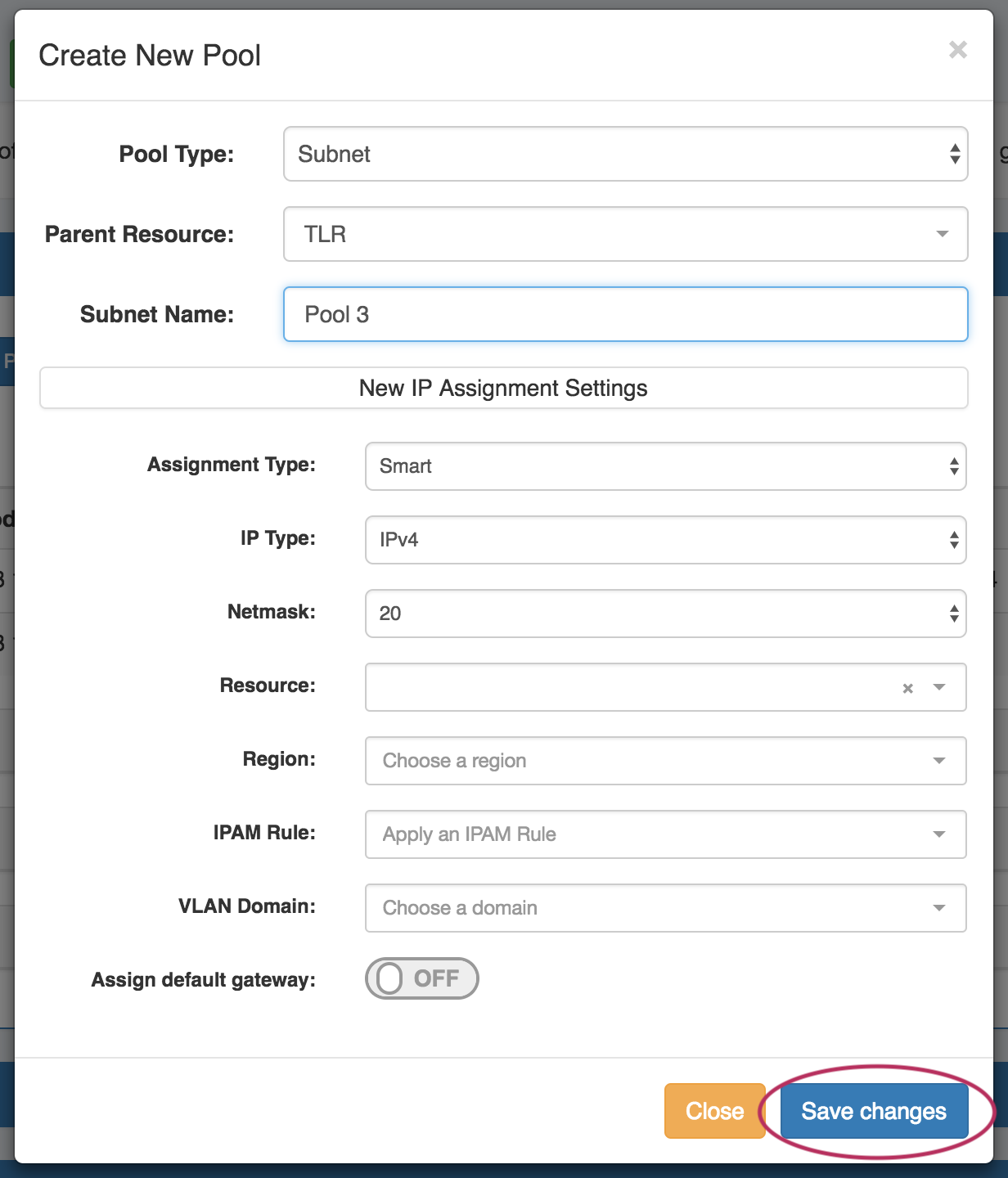
Next, choose an assignment type under "New IP Assignment Settings". ProVision can - you may either have ProVision smart assign a block for the pool that matches your provided criteria, or you may directly assign a specific block.
Smart Assign
To Smart Assign a DHCP pool, select "Smart" for the Assignment type, choose IPv4 or IPv6 for the IP type, then select a netmask.
...
If no block matches the given criteria, a message will state so. Try either removing some criteria, or ensure that blocks exist in IPAM (with subassignments enabled!) with the given attributes.
Direct Assign
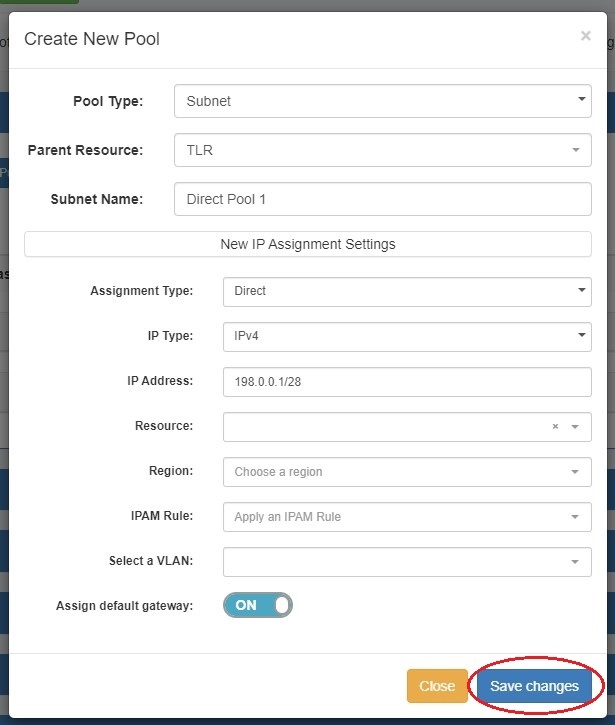
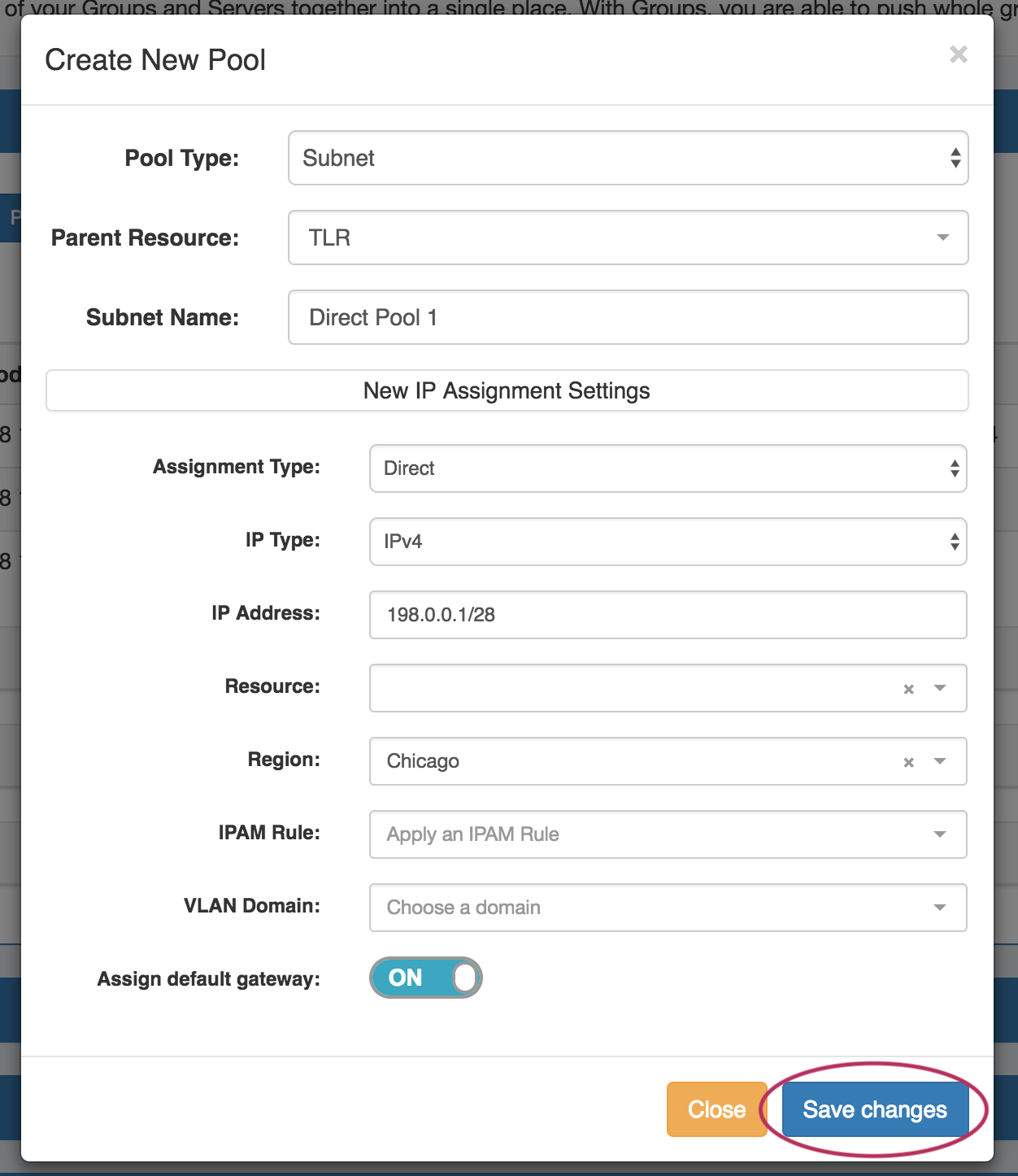
To Direct Assign a DHCP pool, select "Direct" for the assignment Assignment type, choose IPv4 or IPv6 for the IP type, then type in the desired IP addressAddress.
All other fields are optional - Resource, Region, IPAM Rules, and VLAN may be selected to further narrow the block criteria, if duplicate blocks exist. If desired, toggle "Assign Default Gateway" on.
When done, click "Save Changes". If the typed block exists , in ProVision with subassignments enabled, and meets any additional criteria, that block will be assigned to the pool.
Add a Host Pool
To add a new host pool to a DHCP groupGroup, select "Host" as the pool typePool Type. Select the parent resource, and add a hostname Hostname and MAC addressAddress.
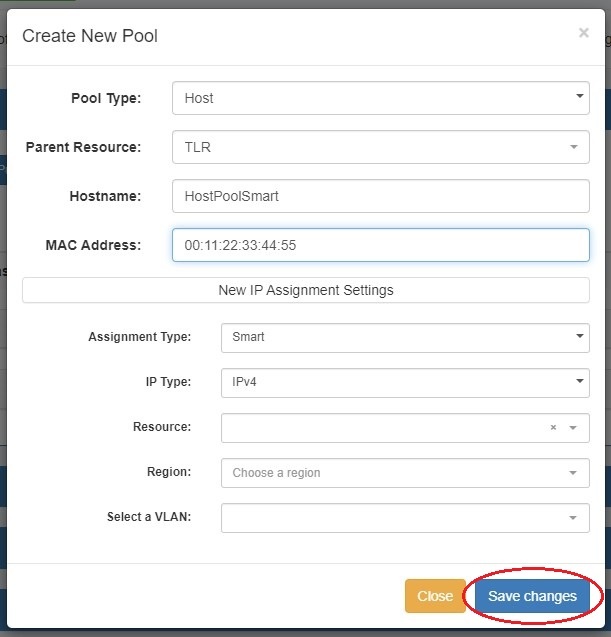
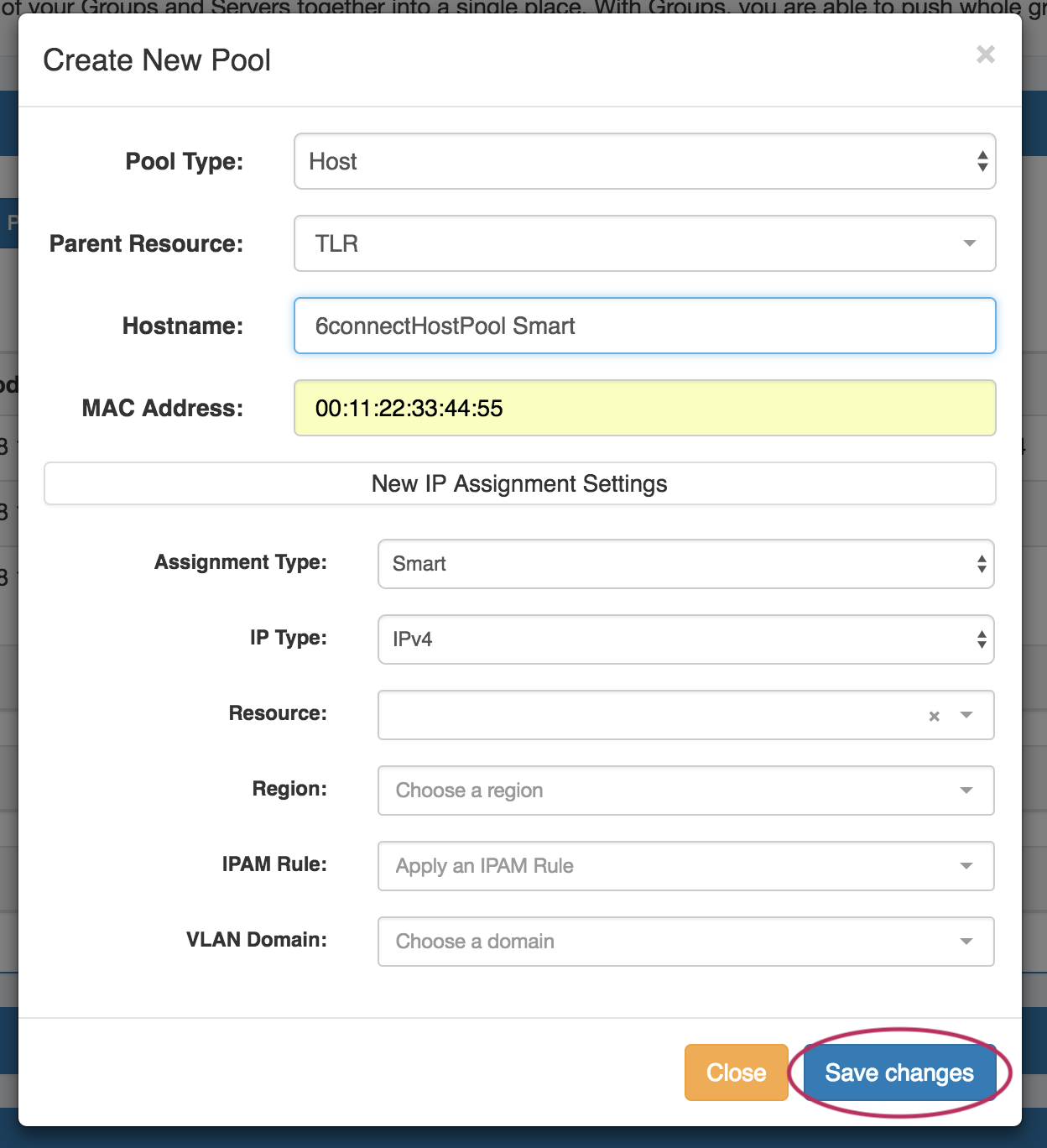
Next, choose an assignment type - you may either have ProVision smart assign a block for the pool that matches your provided criteria, or directly assign a specific block.
Smart Assign
To Smart Assign a DHCP pool, select "Smart" for the assignment Assignment type and choose IPv4 or IPv6 for the IP type.
...
If no block matches the given criteria, a message will state so. Try either removing some criteria, or ensure that blocks exist in IPAM (with subassignments enabled!) with the given attributes.
Direct Assign
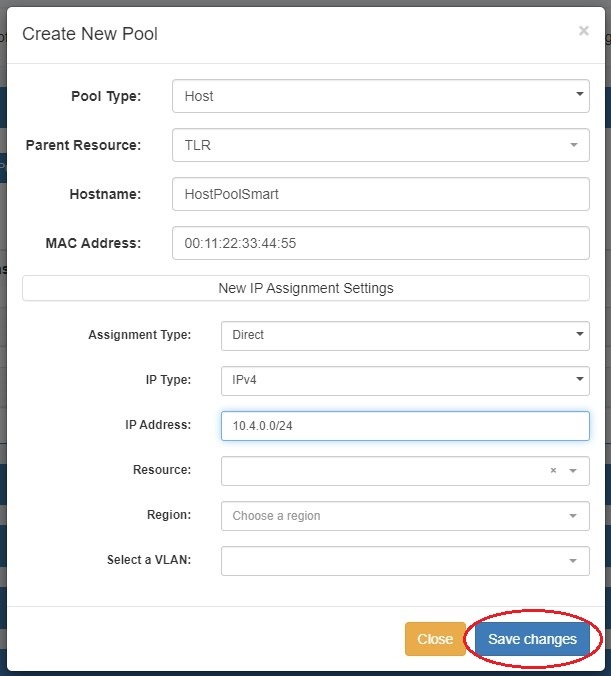
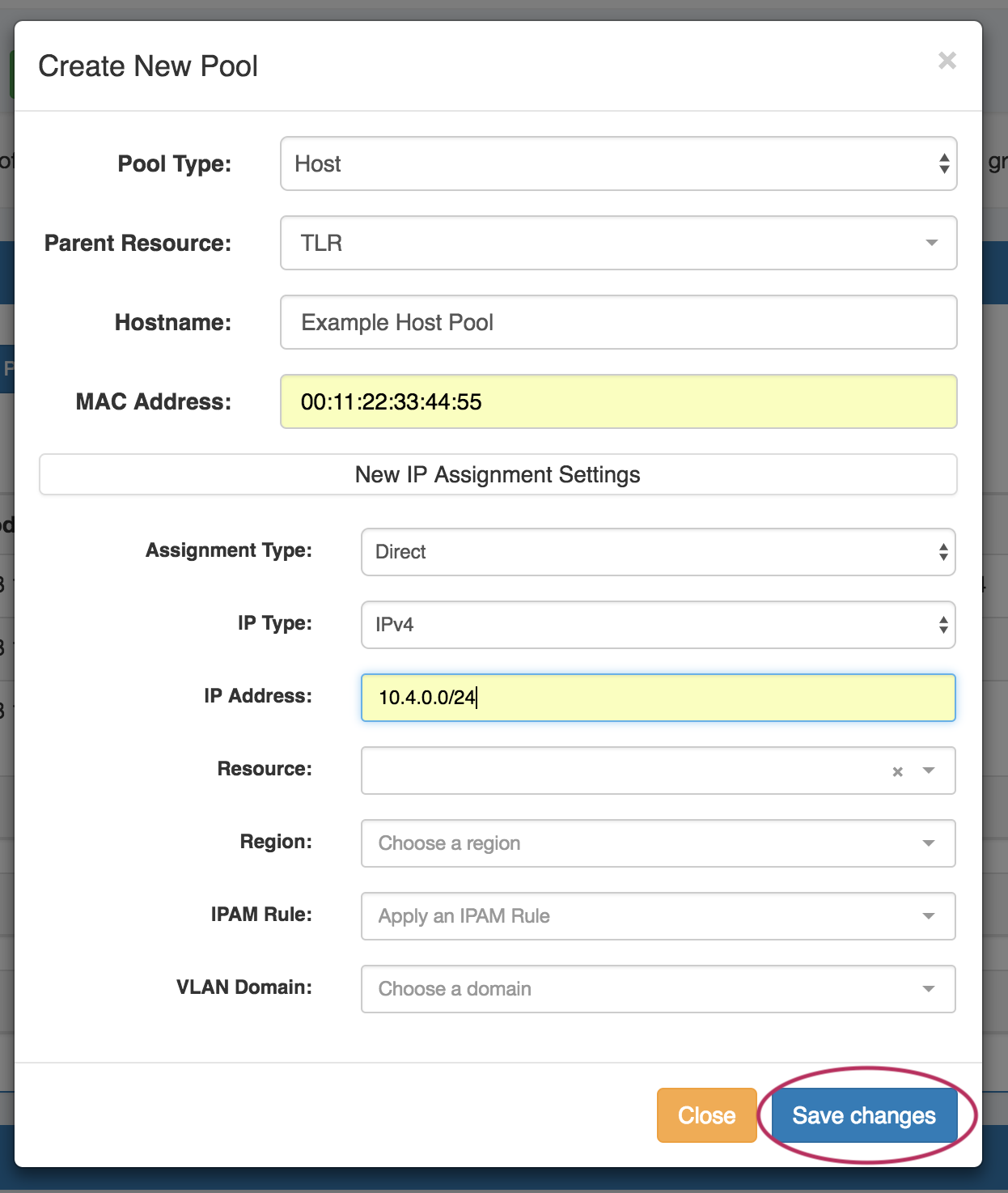
To Direct Assign a DHCP pool, select "Direct" for the assignment Assignment type, choose IPv4 or IPv6 for the IP type, then type in the desired IP addressAddress.
All other fields are optional - Resource, Region, IPAM Rules, and VLAN may be selected to further narrow the block criteria, if duplicate blocks exist.
When done, click "Save Changes". If the typed block exists , in ProVision with subassignments enabled, and meets any additional criteria, that block will be assigned to the pool.
Pushing a DHCP Group
Before pushing a group, expand the "Attached Servers" section and verify that the correct server is attached to the DHCP groupGroup.
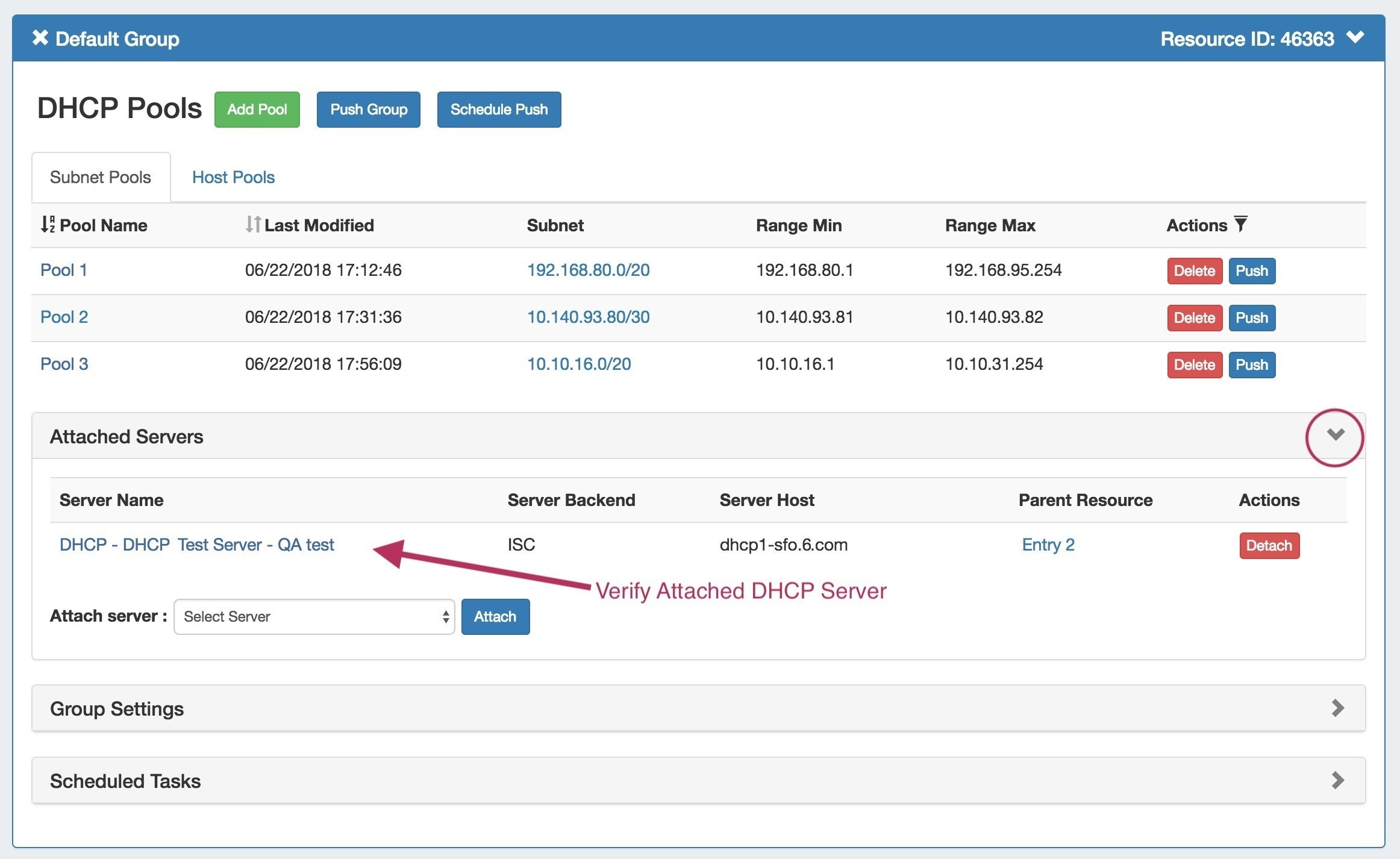
Pools pushes may be performed manually or through a scheduled task.
Manual Group Push
After verifying the attached server, manually push the group Group by clicking the "Push Group" button under the desired DHCP groupGroup.
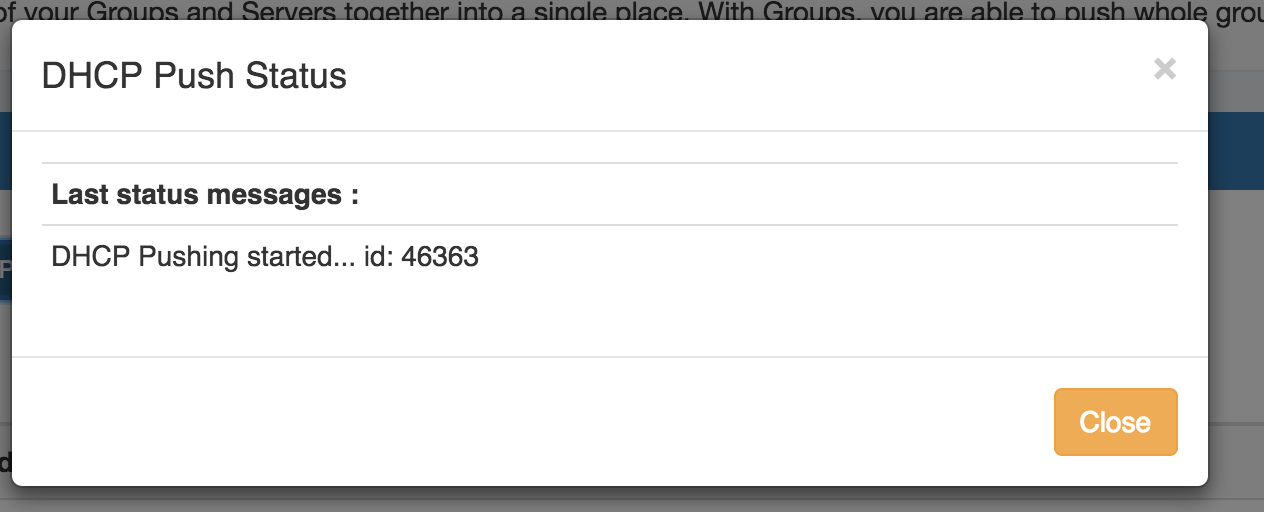
A DHCP Push Status window appears. If successful, a green "Finished DHCP Pushing Request" will appear as the final message.
If errors occur, an error message will show with details on the issue. When complete, hit the "Close" button.
Scheduled Group Push
Scheduled pushes may be set up through the "Schedule Push" button for the groupGroup.
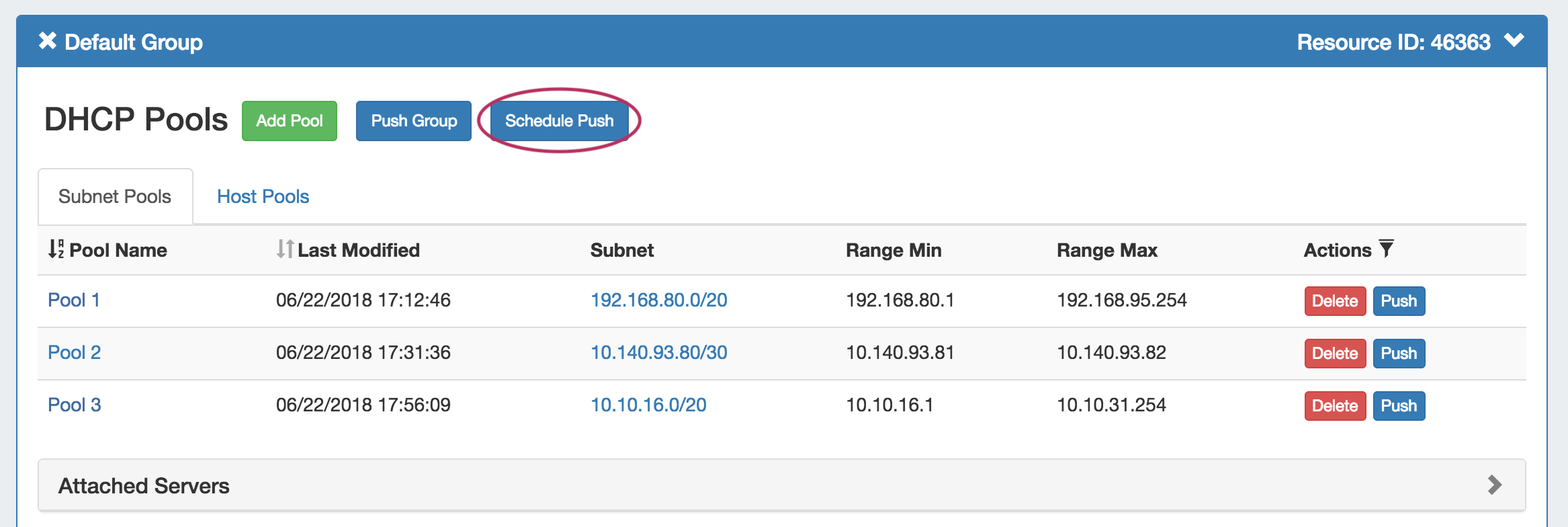
Click "Schedule Push" for the groupGroup, then select a date, time (24 hour12 hour, with AM / PM toggle), add a notification email address, and click "Save changes".
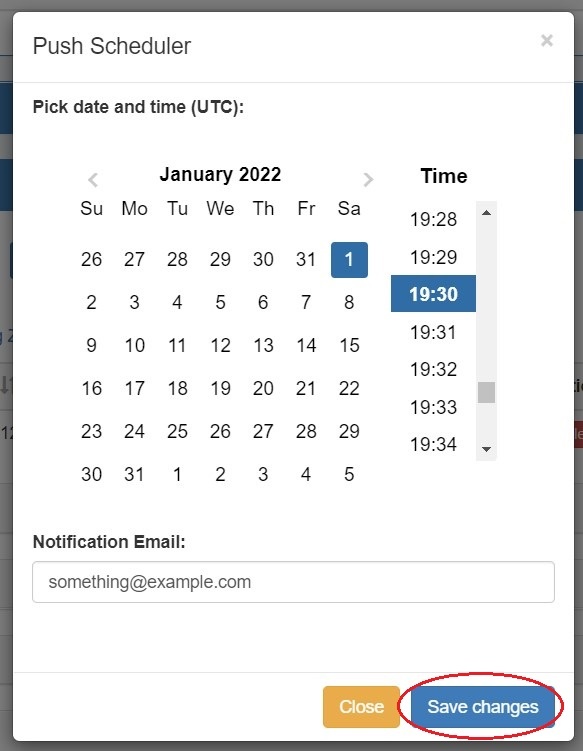
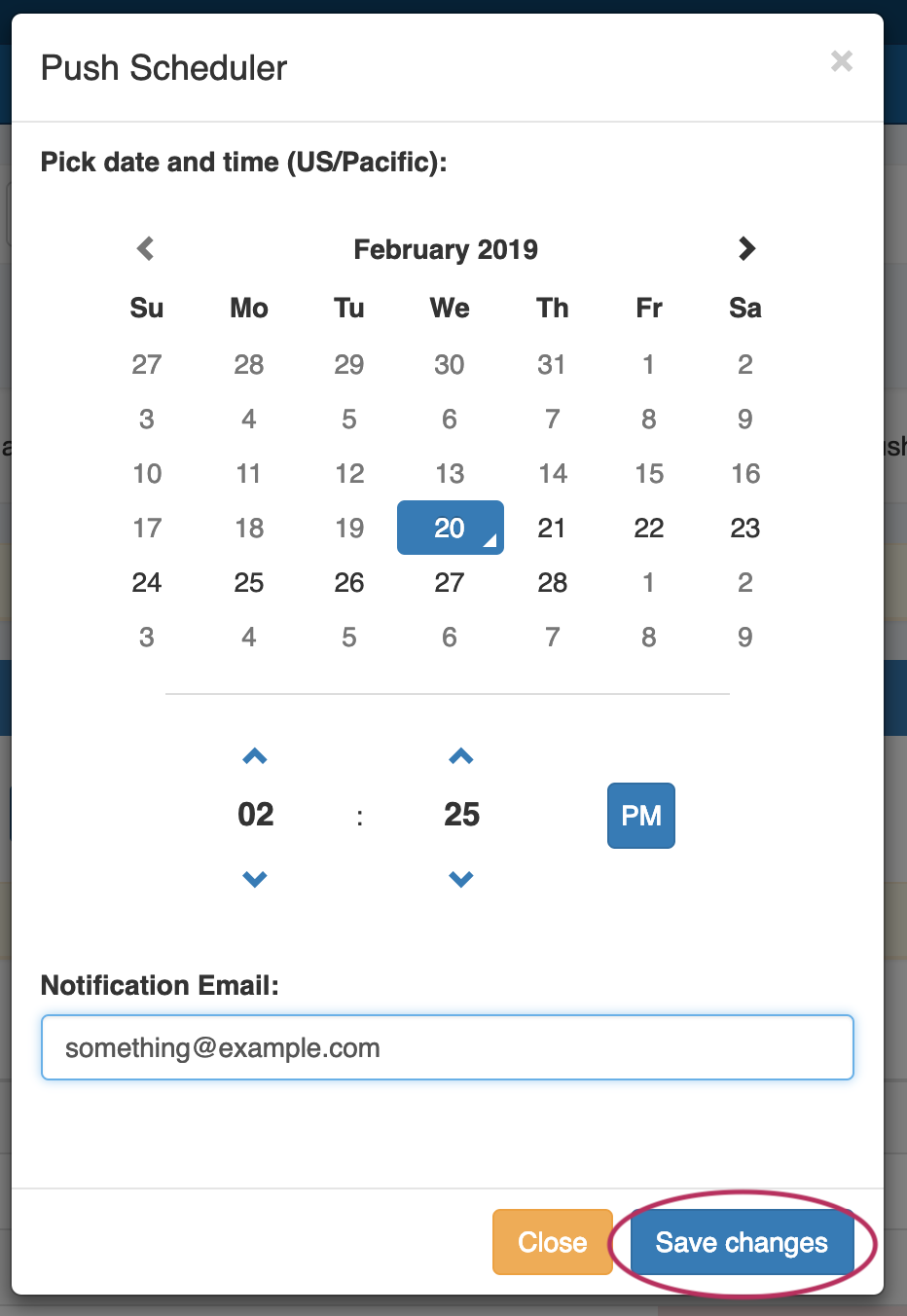
The scheduled Scheduled task will be shown in both the group Group details (under "Scheduled Tasks") and the the Admin Scheduler task list.
...
The task may be deleted prior to running by clicking the "delete" button, but will automatically be removed once completed.
Delete a Group
Delete a non-Default Group by clicking on the "X" to the left of the groupGroup's name in the DHCP Groups List. When you delete a DHCP groupGroup, pools under the group will not be deleted.They will no longer be associated with a DHCP groupGroup, and can be managed from the DHCP Pools Listlist.


A confirmation message will appear, click "Confirm" to save your changes, or "Close" to exit without saving.
...
For more information on DHCP tasks, see:
Administrative Tasks: