...
There are two DHCP Gadgets available to integrate onto a Resource Entry Page resource entry page - the DHCP Management Gadget, and the DHCP Customer Configuration Gadget.
For an overview of Gadgets gadgets and how to attach them to Resource resource pages, see see Gadgets and Adding a Gadget to a Section .
...
DHCP Management Gadget (Legacy)
| Info |
|---|
Note: As of ProVision 7.0.0, the DHCP Management Gadget is a legacy feature. While it is still available to be used, we recommend checking out the updated DHCP Tab and using the DHCP Groups, DHCP Servers, and DHCP Pools pages as the primary DHCP management system. |
...
Verify that the DHCP Gadget is attached to to the Resource Sectionresource section. Then, you can enable the gadget by selecting the radio button next to "On", and click "Update".


Once enabled, the DHCP Management Gadget will show sections for "Group Management", "Connection Configuration", "Server Details", "Scan Server", "DHCP Pools", and "Create a New DHCP Pool". Once pushes or unpushed configuration changes occur, a "Current Pushed Configuration" or "Unpushed Configuration" section will be available for review.
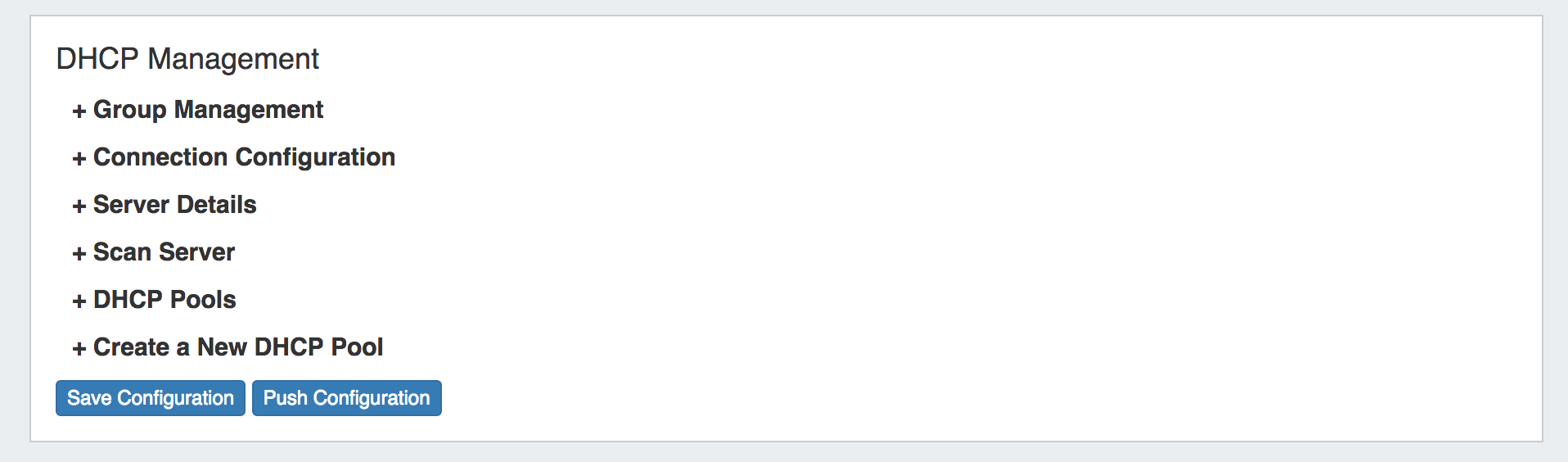
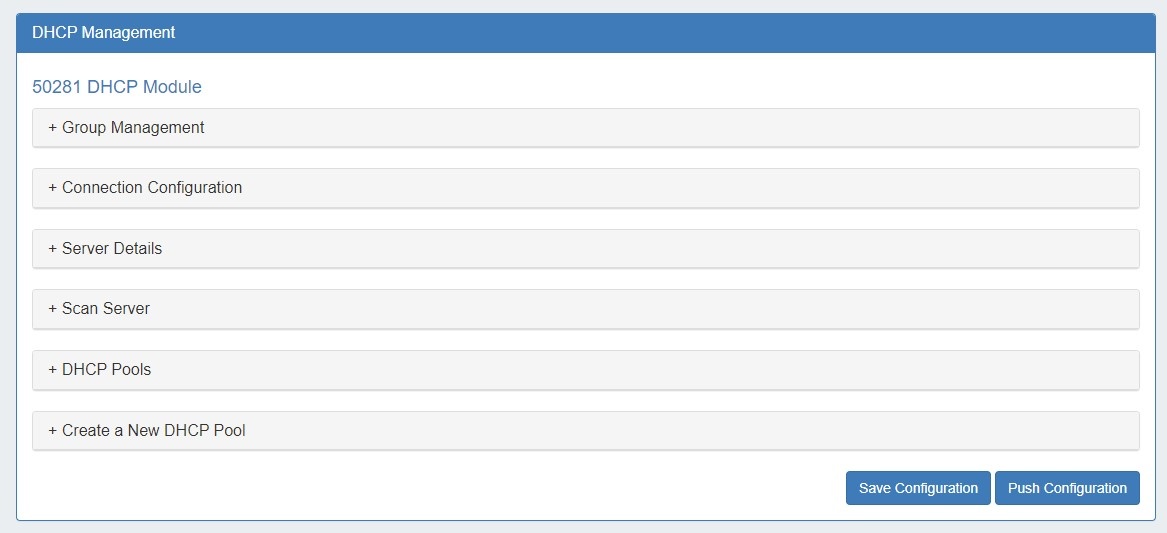
These sections will be reviewed in detail further on in this section.
| Note | ||
|---|---|---|
| ||
ProVision versions prior to 7.0.0 required creating or identifying specific IPAM blocks as "DHCP Aggregates" using the "DHCP Available" status to assign DHCP pools from. As of 7.0.0, these statuses have been removed, and any IPAM block may be used to assign DHCP pools from, as long as they are subassignable and meet the assignment criteria provided by the user. This applies to all DHCP Management functions - the DHCP Management Gadget, DHCP Customer Configuration Gadget, and all DHCP Tab areas. |
...
Once DHCP functions are enabled for a Resource Sectionresource section, you will be able to manage configurations per Resource resource by expanding the relevant areas on the Resourceresource's Entry entry page.
Group Management
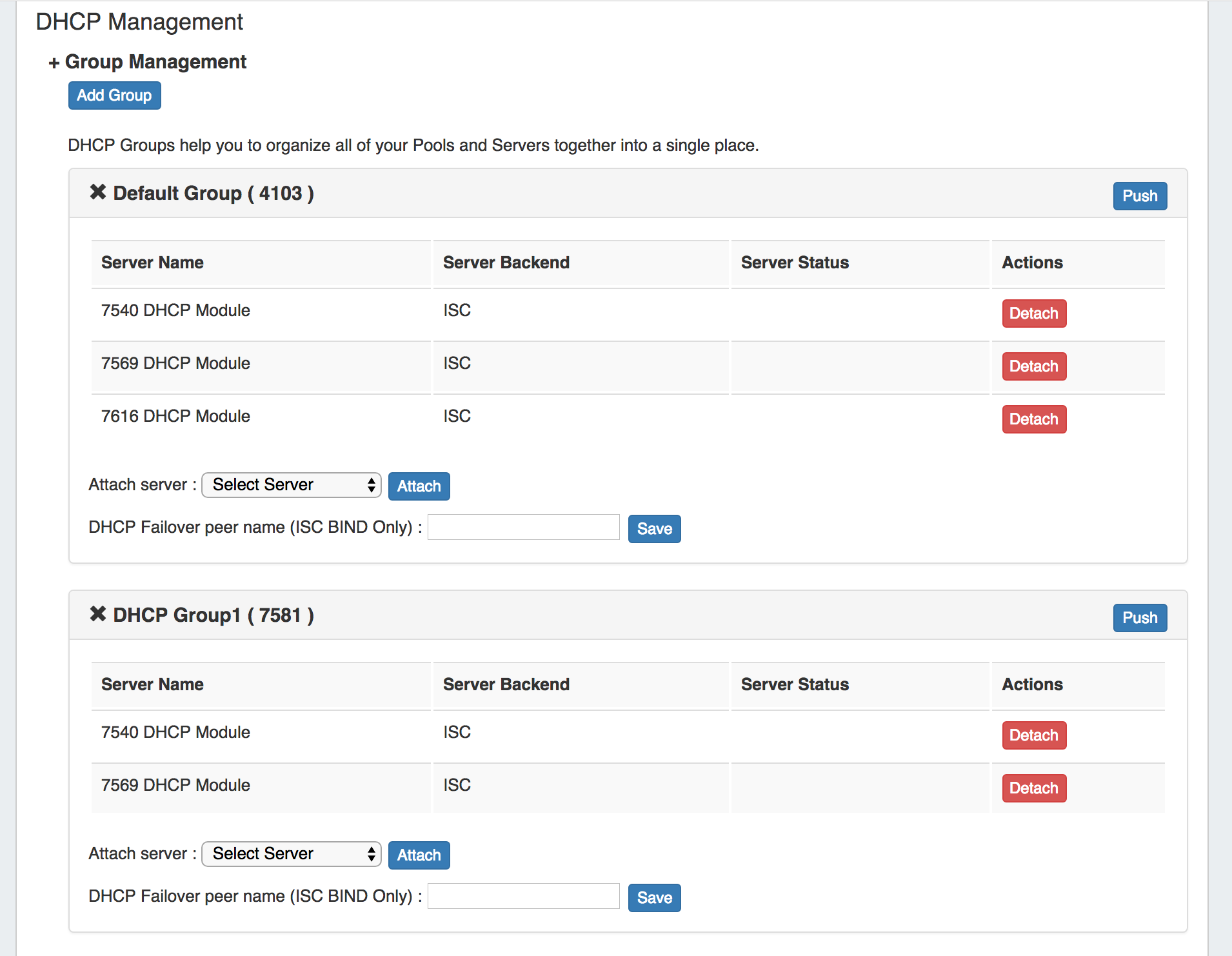
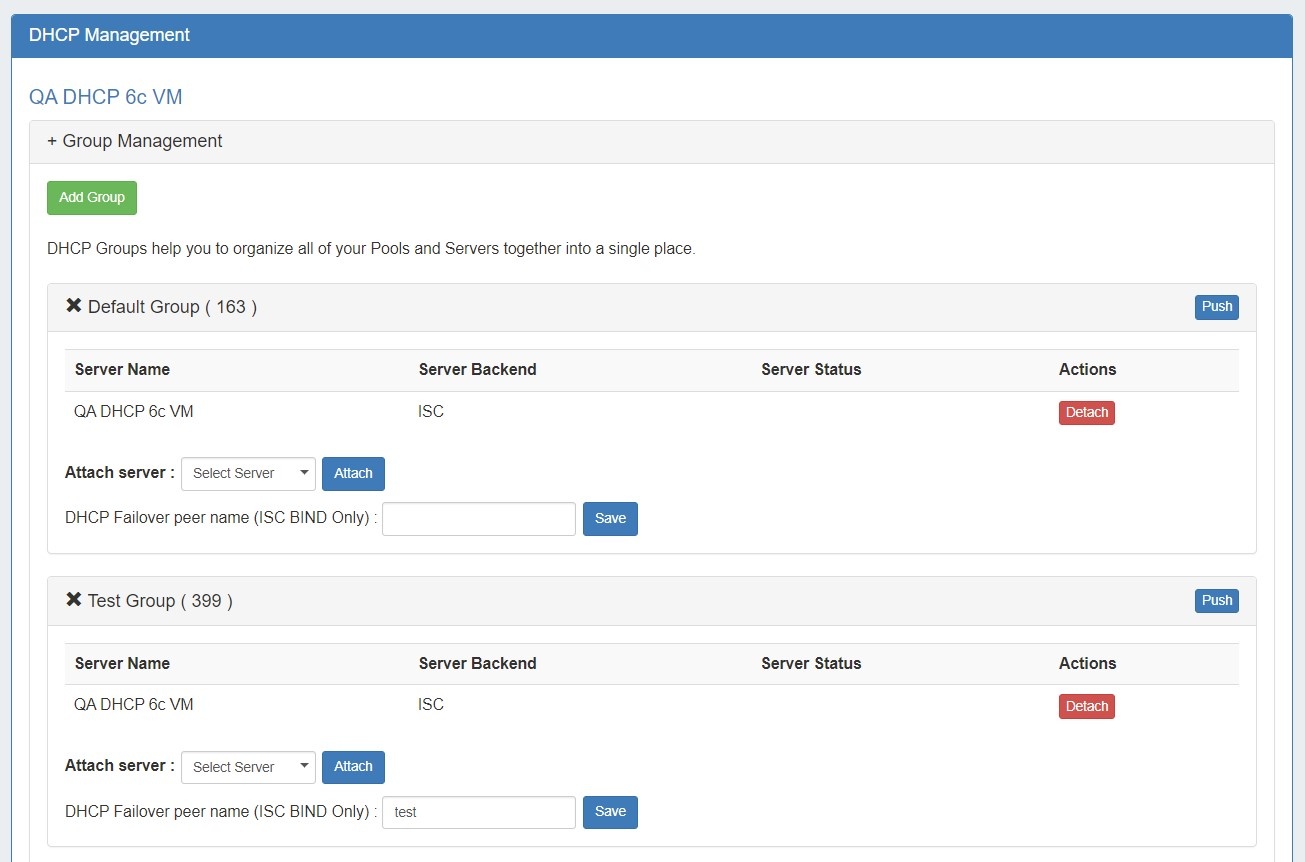
This section of the DHCP Management Gadget allows you to create and manage DHCP Groupsgroups.
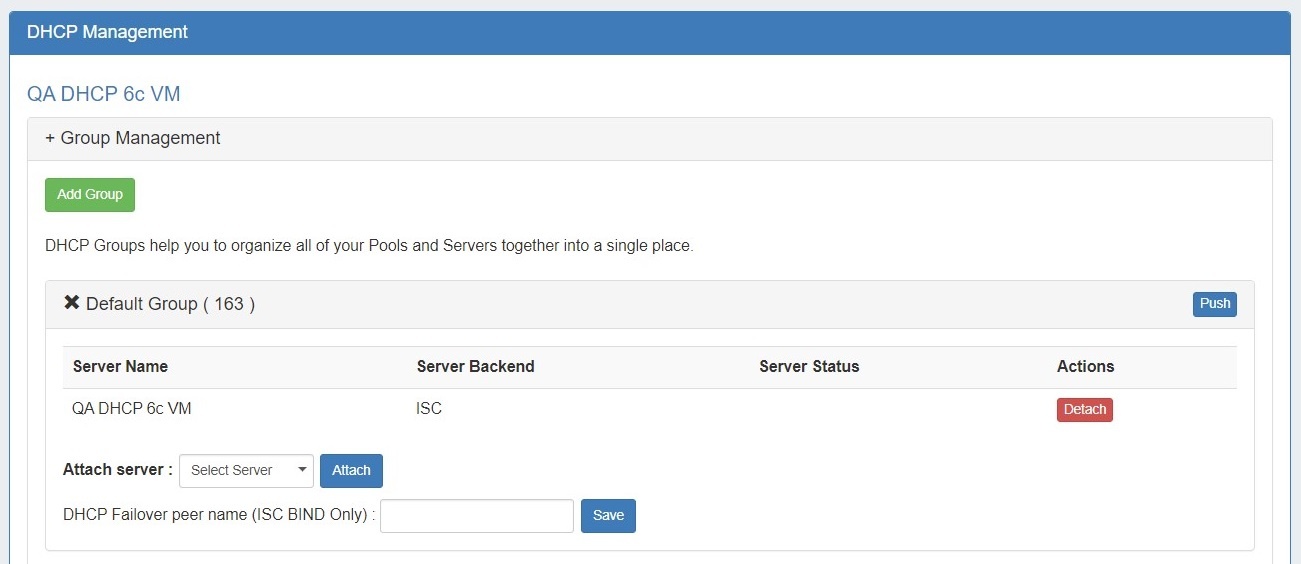
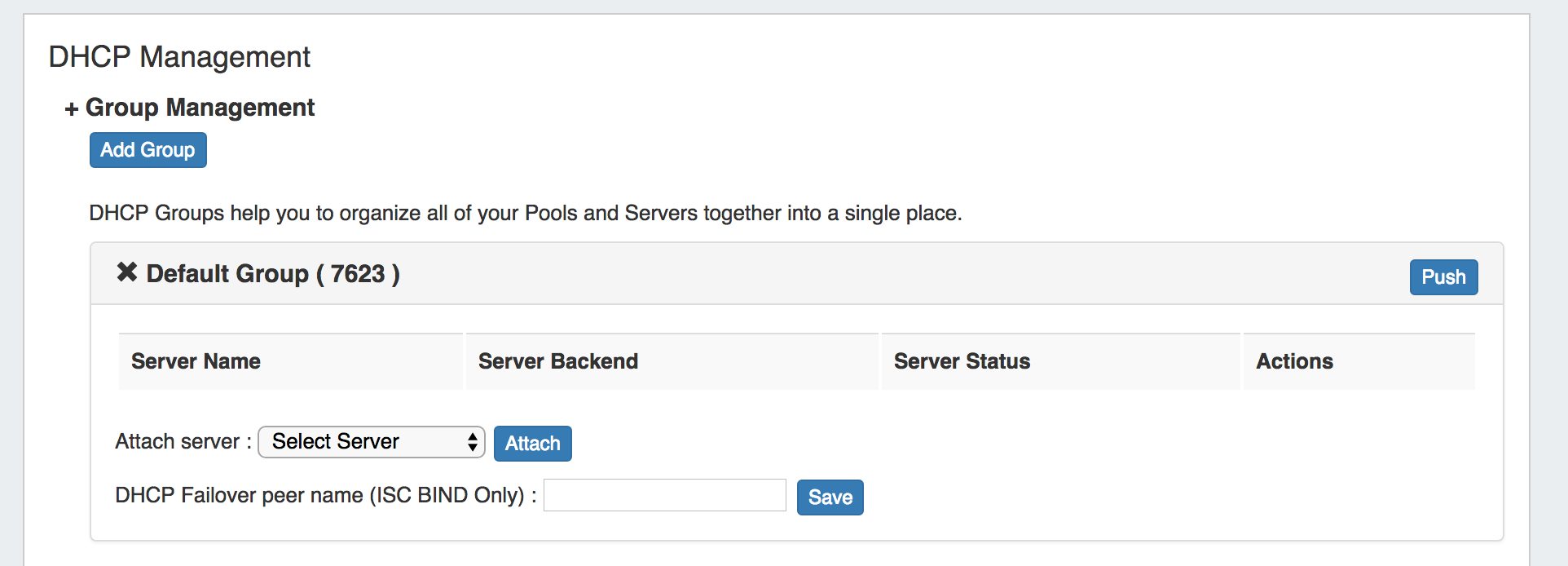
DHCP groups help you to organize all of your Pools and Servers together into a single place, and push pools linked to a DHCP Group to all of the servers attached to that Groupgroup. It also allows for the designation of a DHCP Failover Peer for ISC BIND servers.
Working with DHCP Groups
...
| Expand |
|---|
Ensure that all necessary DHCP servers are created via the DHCP Tab DHCP Servers page. See Working with DHCP Servers for additional information. All DHCP servers listed under the DHCP tab will be available to select to attach to DHCP Groups (in the format of "ResourceID - DHCP Module")groups. |
Step 2: Create DHCP Groups
| Expand |
|---|
Select a DHCP server page with the DHCP Management Gadget from, and expand the Group Management section. Note: Any DHCP server page with the Manangment Management Gadget is fine to use, as the Group Management section will globally update to be the same in any DHCP Management Gadget. As of ProVision 7.0.0, DHCP Groups groups may also be created and managed from the the DHCP Groups page under the DHCP TabDHCP Tab.
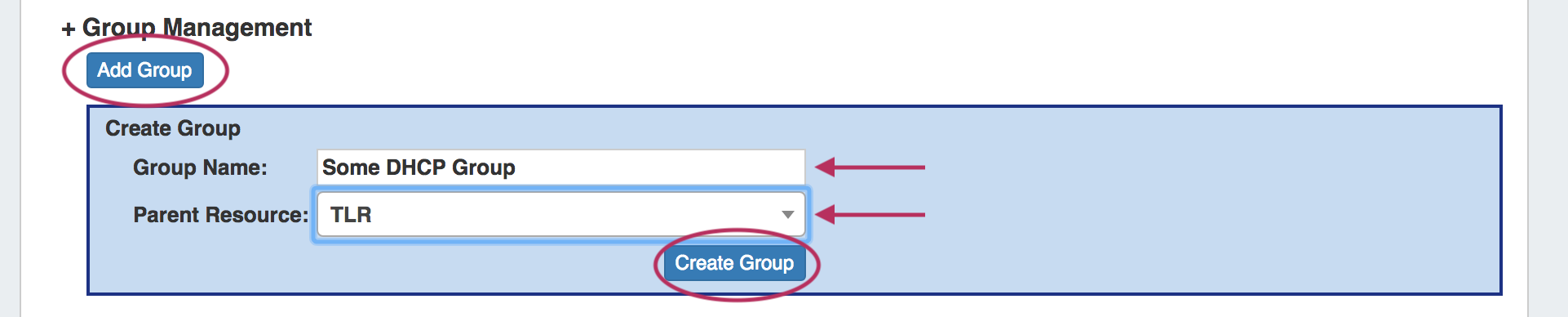
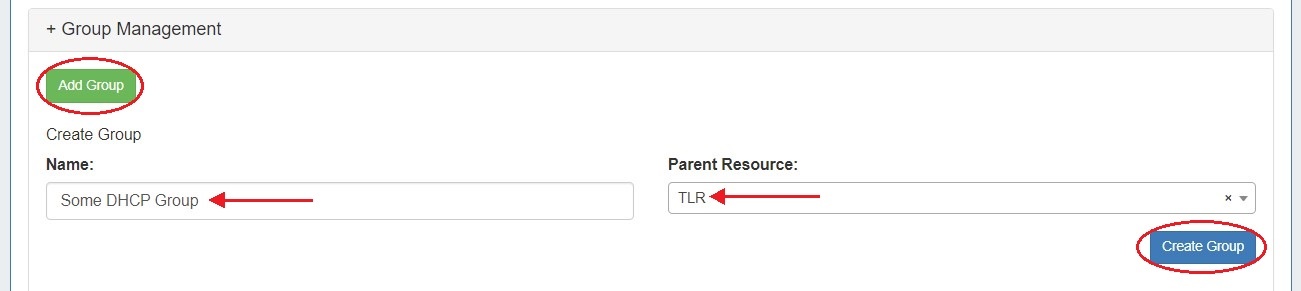
A "Default Group" should be available immediately, or you can click the "Add Group" button to create a new DHCP Groupgroup. Type in the desired Group Name group name and select a Parent Resource parent resource for the Groupgroup, then click "Create Group".
Your new Group group will be available in the DHCP Management Gadget. To delete the DHCP Groupgroup, click the "X" next to the Group group name. |
Step 3: Attach DHCP Servers to Groups
| Expand |
|---|
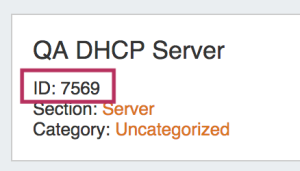
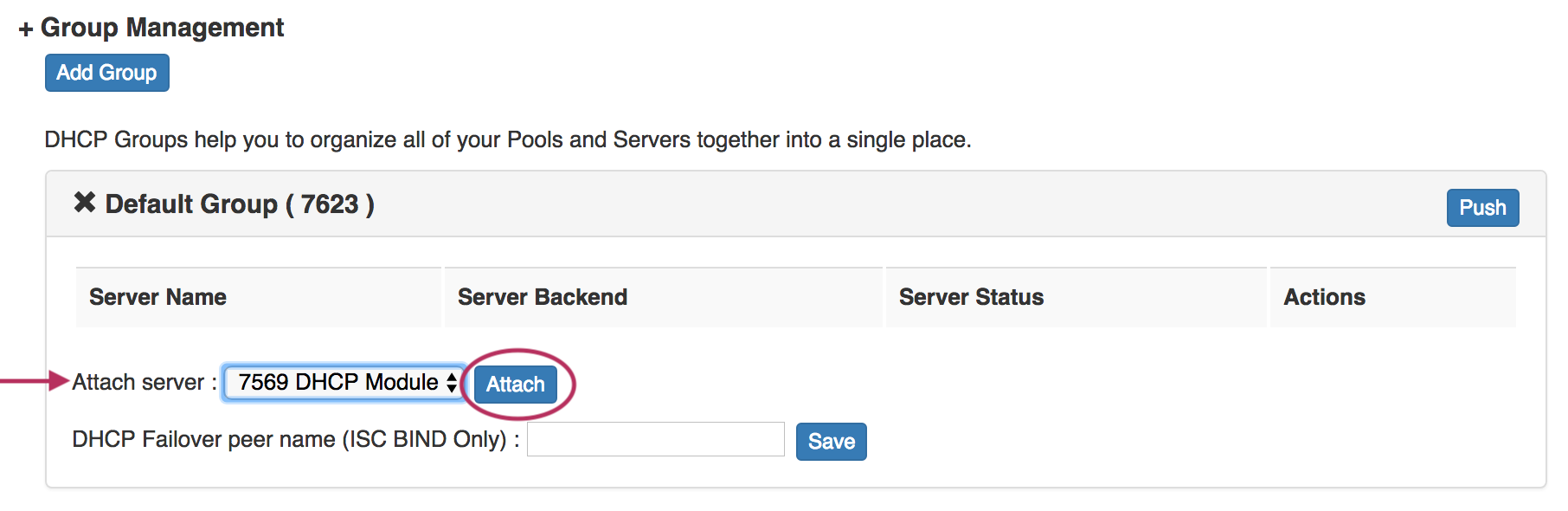
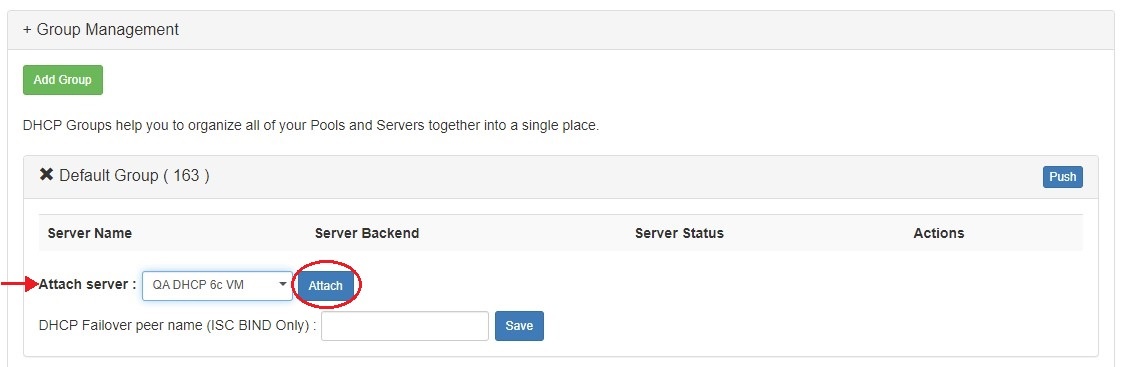
All DHCP servers listed under the ProVision DHCP Tab will be available to select and attach to the Group. They are identified by their resource ID number, so if necessary, check the server's resource ID number in the resource information Gadget. Select the desired server from the "Attach Server" selector, then click "Attach". The server is now attached to the group and available for pushes.
If needed, a server may be removed from a DHCP Group group by clicking the "Detach" button. |
...
| Expand |
|---|
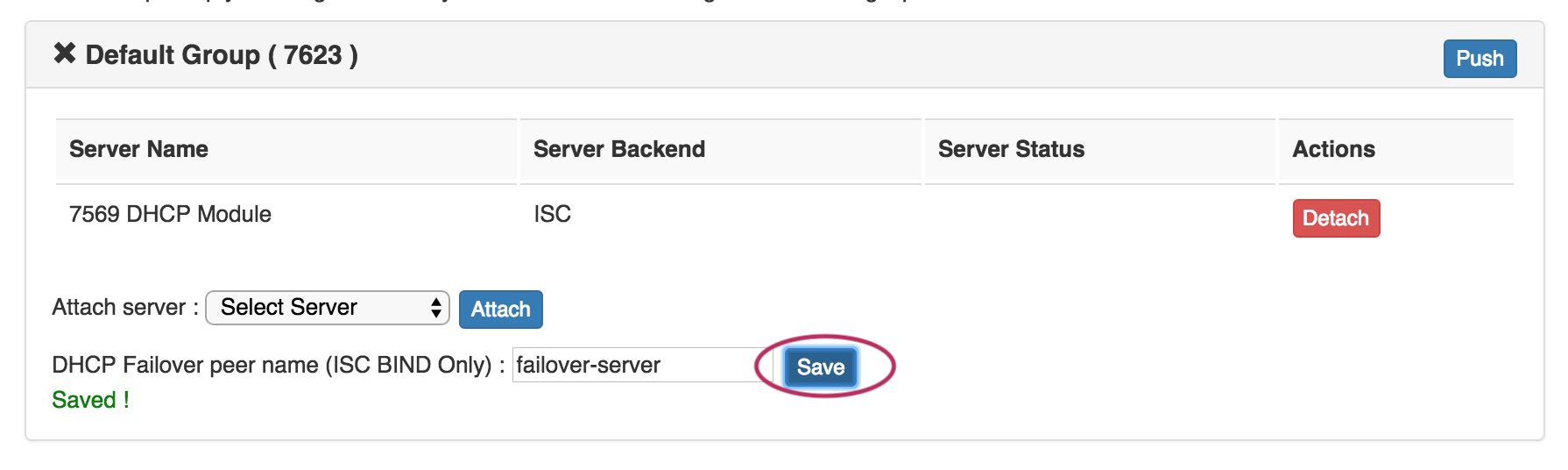
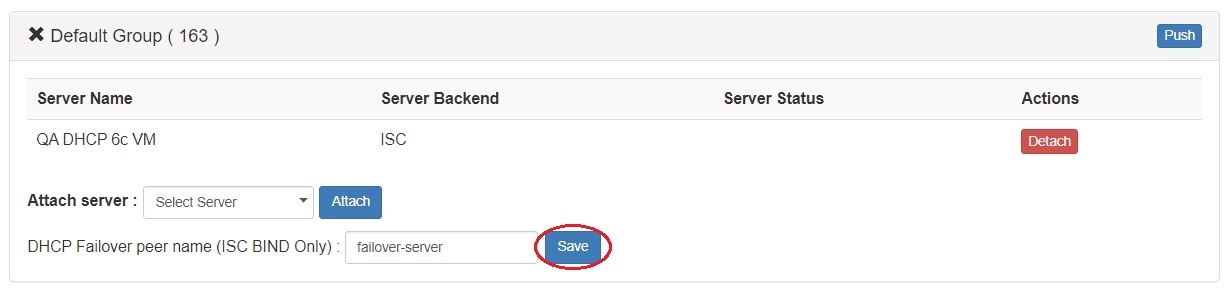
If a DHCP failover peer is configured for the server, enter the server name and click the "Save" button. In the event that the primary server fails to push, the push will be sent to the failover peer instead.
|
Step 5: Link Pools to DHCP Groups
| Expand |
|---|
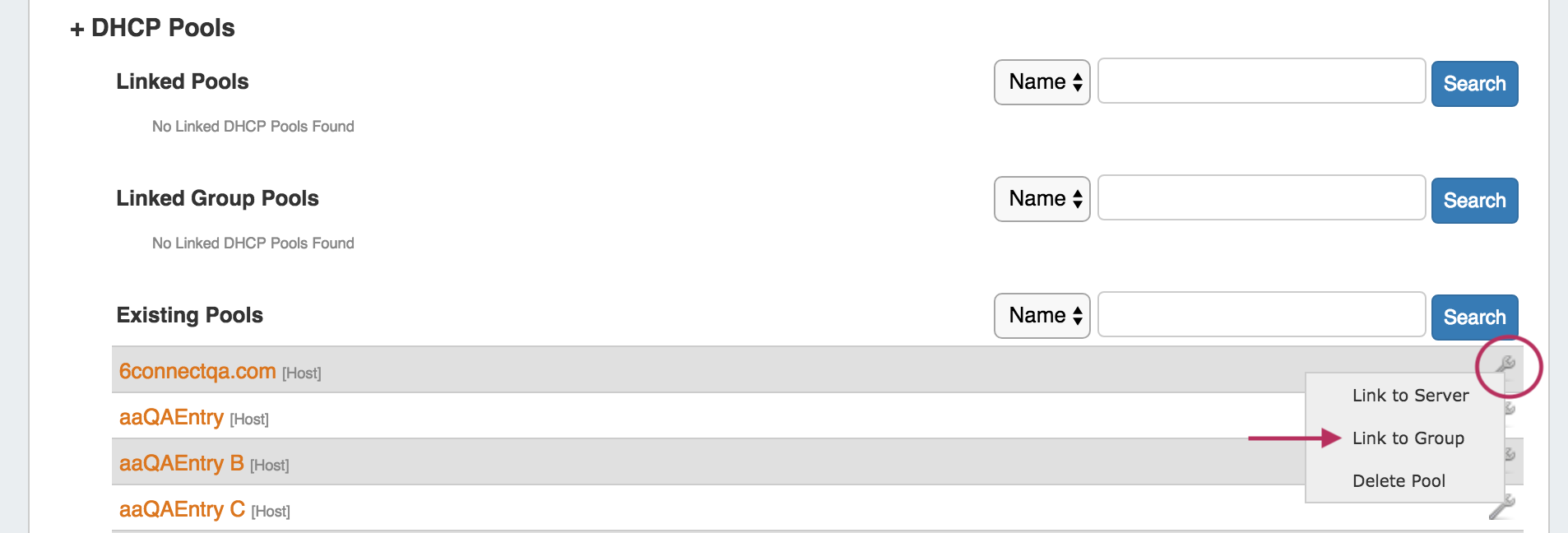
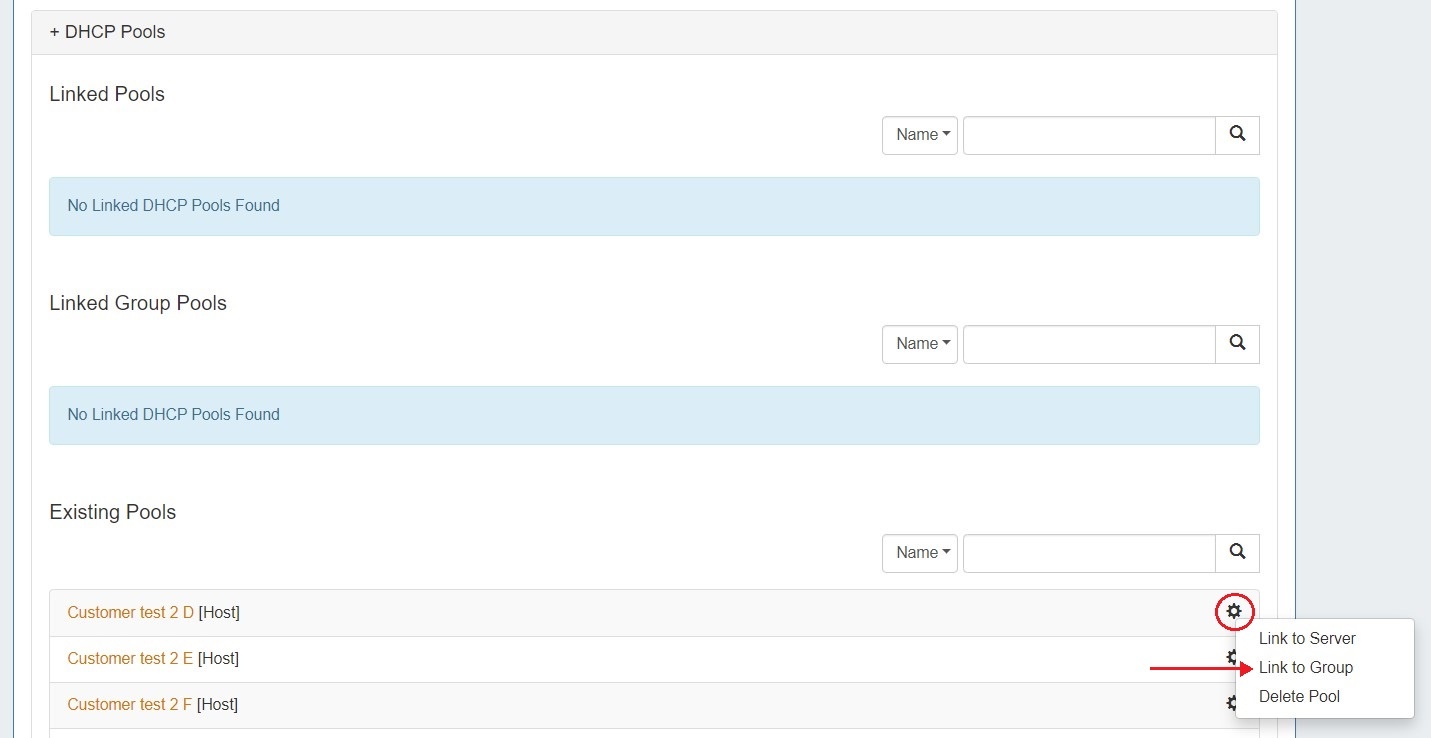
From the Existing Pools list under the DHCP Pools section, click the Action Menu (gear icon) for the pool you wish to link to a DHCP Groupgroup. From there, click "Link to Group".
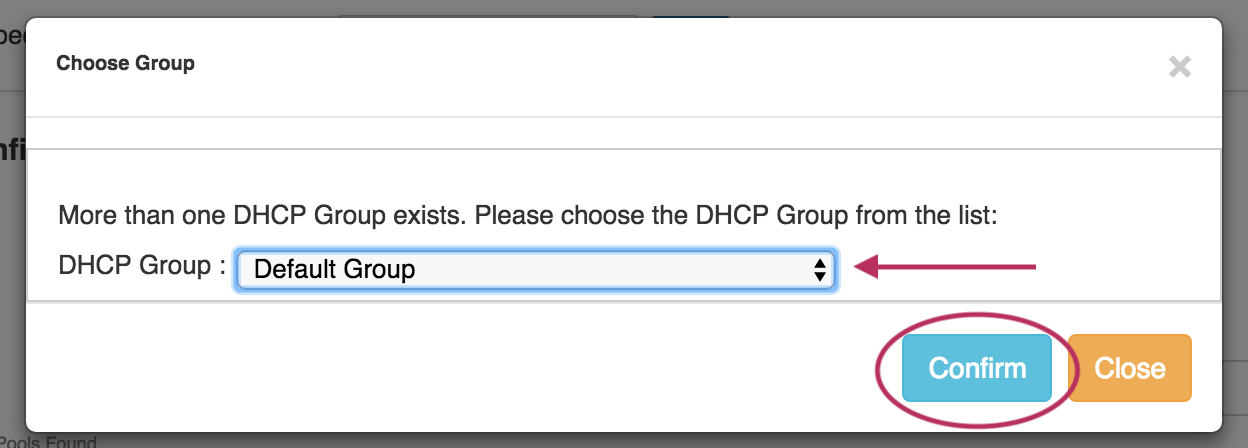
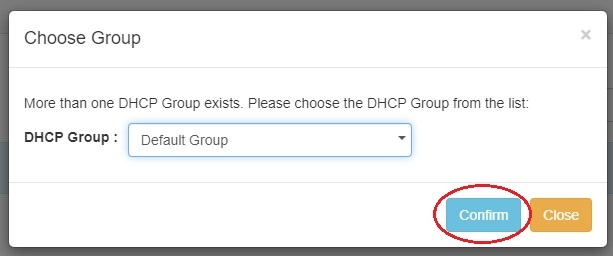
If multiple DHCP Groups groups exist, a dialog box will pop up for you to select the desired Group group to link the pool to. Select the DHCP Groupgroup, then click "Confirm" to add the pool to the Groupgroup.
Once linked, the DHCP Pool pool will show under the "Linked Group Pools" area of the DHCP Pool section. From here, if desired, you may remove the pool from the group by clicking the Action Menu and "Remove Link".
|
Step 6: Push the DHCP Group
| Expand |
|---|
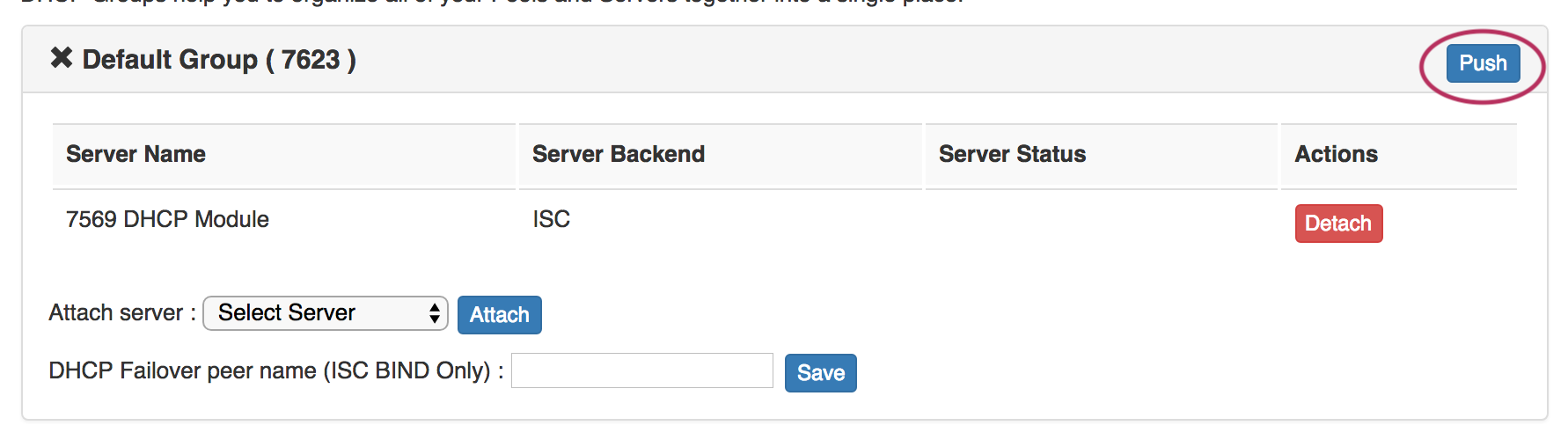
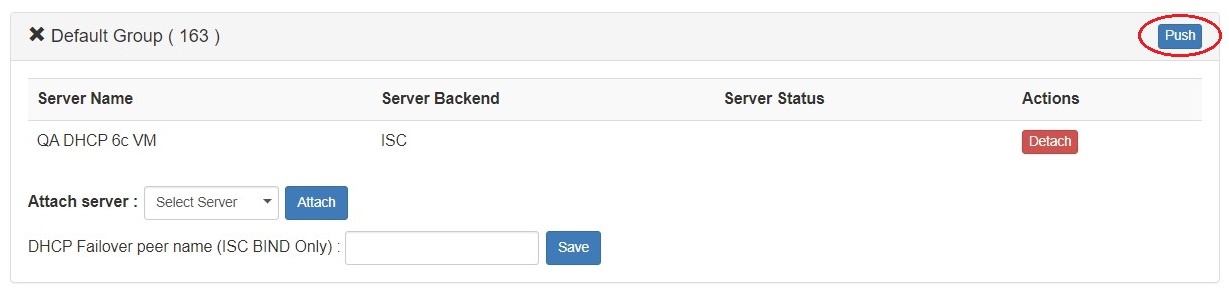
Lastly, click the "Push" button for the DHCP Group group to push the linked pool(s) for the Group group to the linked DHCP Modulemodule, and then push all DHCP servers linked to the Groupgroup.
While pushing, a status box will appear to show status and any errors, if applicable. |
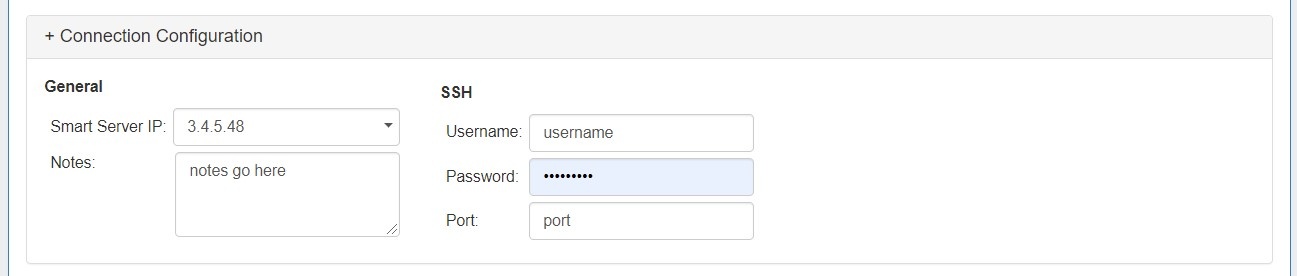
Connection Configuration
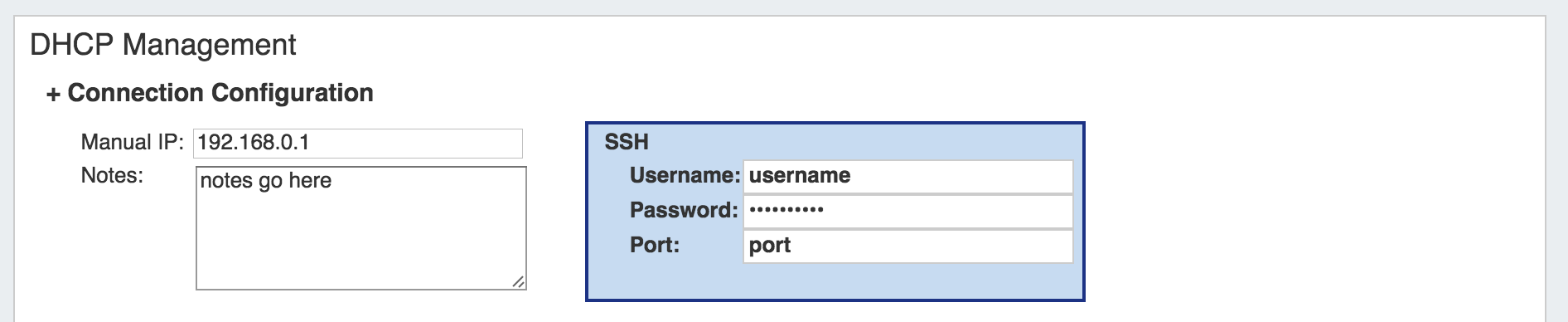
In this gadget area, you may enter in the information that will be used for ProVision to communicate to the DHCP Serverserver.
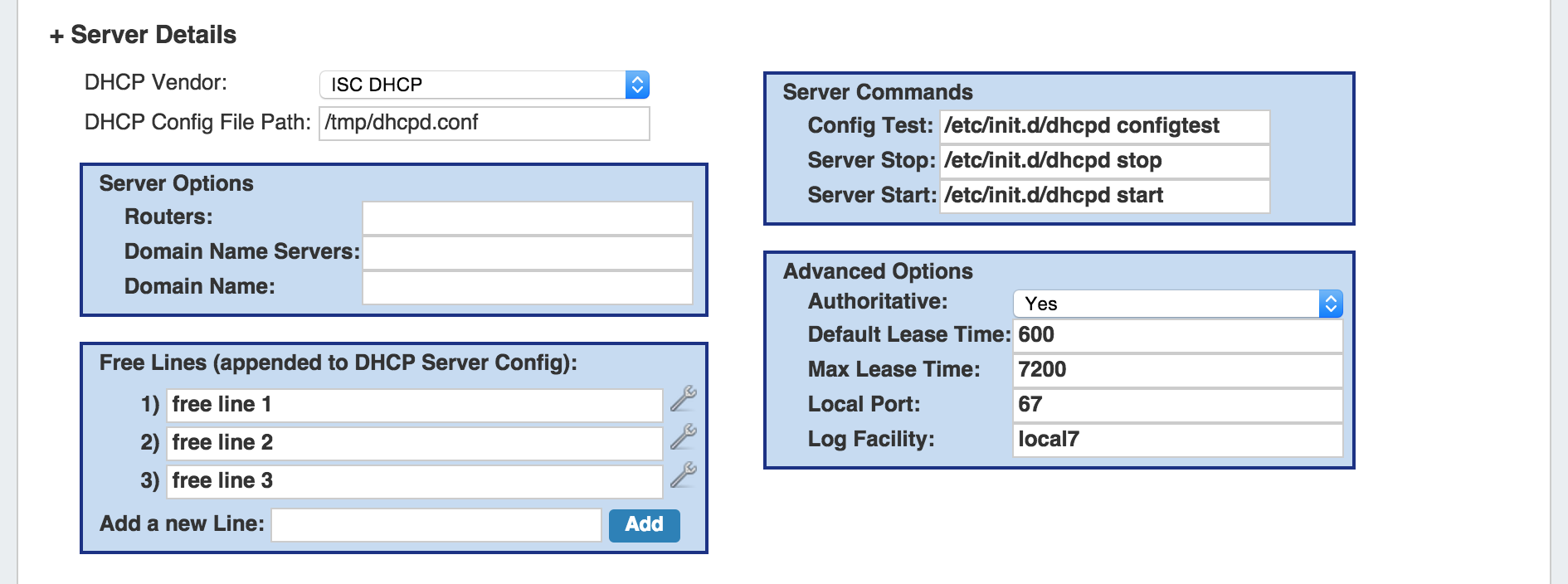
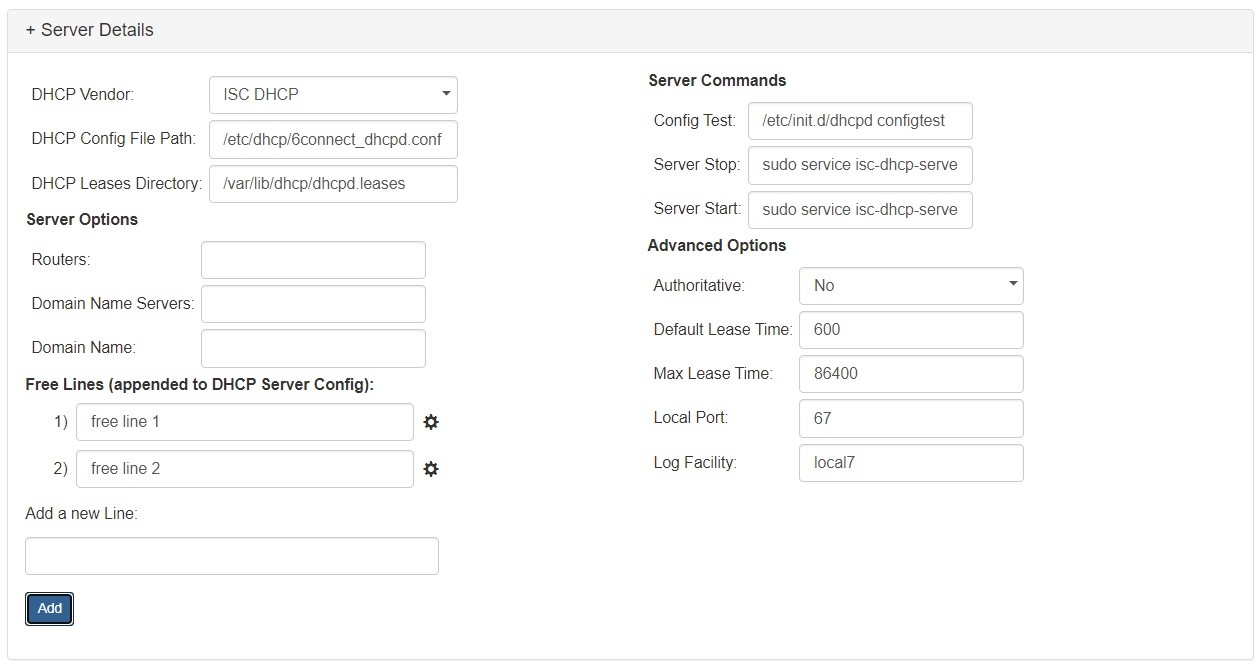
Server Details
Server details and advanced options may be entered under this portion of the gadget.
| Info | ||
|---|---|---|
| ||
A note on the Server Command: Config Test option: This command is run after the newly-written DHCP Config file has been transferred to the server but before the server is restarted. Due to the wide variety of DHCP install configurations that can arise on different systems, it is best if the Config Test option is as explicit as possible. For example: sudo /usr/sbin/dhcpd -t -cf /etc/dhcp/dhcpd.conf This command explicitly requests the DHCP daemon start in test-only mode (-t) with a specific config file (-cf). This config file should be the location supplied in the "DHCP Config File Path" section. |
...
Scan Server provides a "Scan Now" button, which scans the DHCP server and returns found IPs under DHCP Poolspools.


The returned IPs are divided by Pools pools and IPv4/IPv6. Returned fields include MAC address, IP address, and name. The percentage utilization of IP space out of the available DHCP Pool pool space is also included at the top of the list.
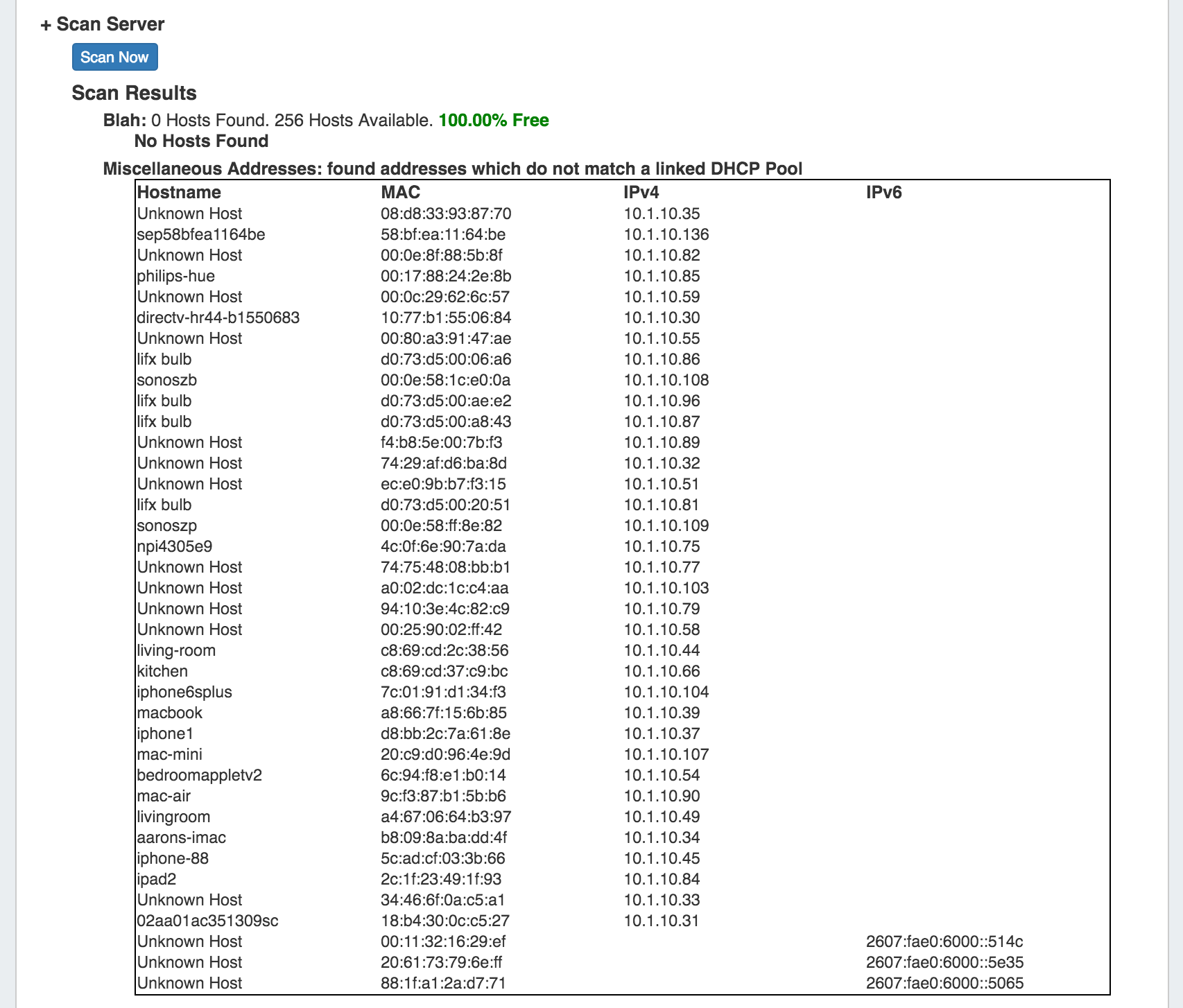
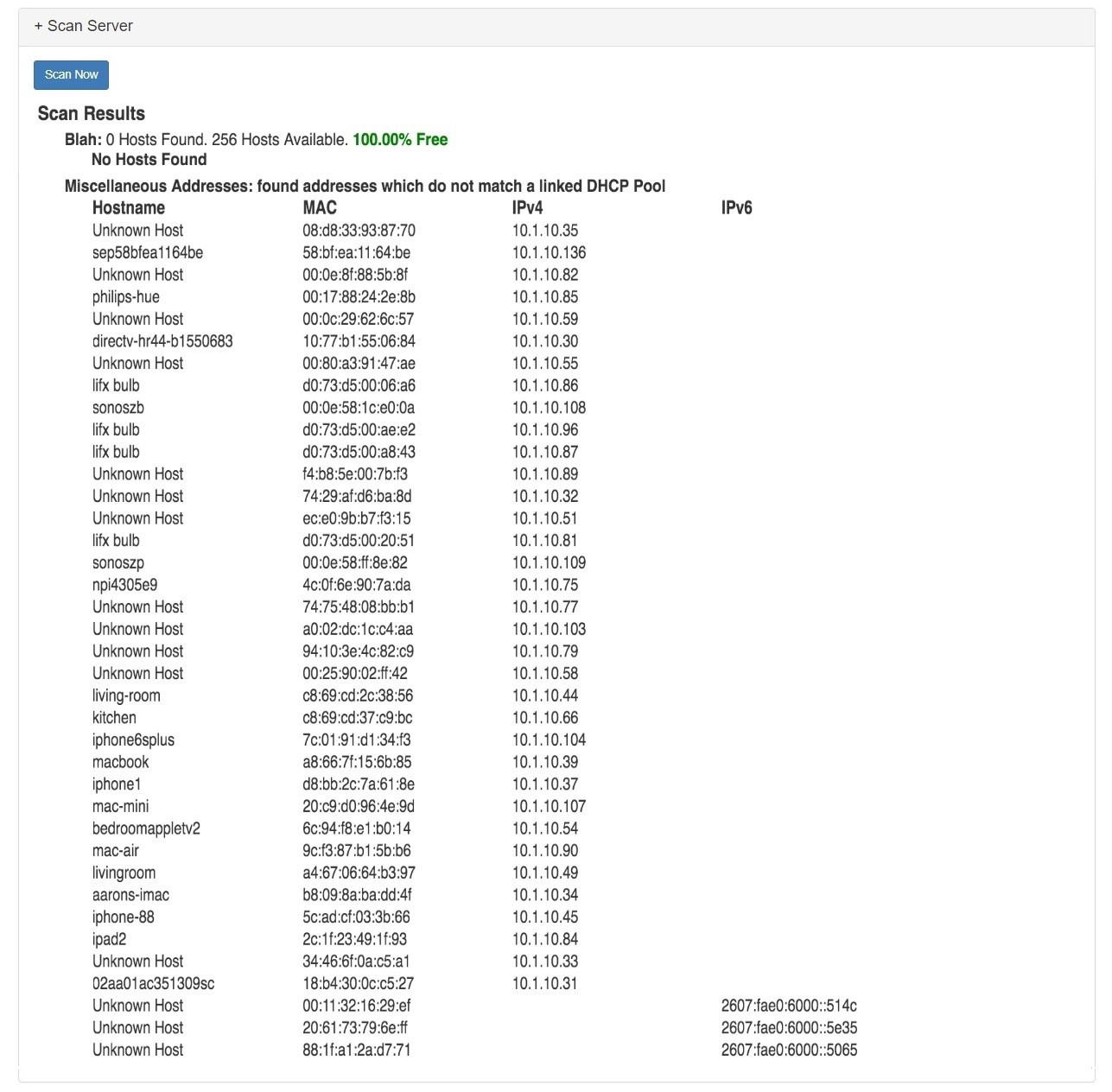
If the scan is unable to be completed, an error message will appear in the DHCP Management section.
...
In this area, the admin can specify what DHCP Pools pools are linked to the DHCP server or DHCP Groupsgroups.This includes any host reservations, as well as DHCP Pools pools as defined in the next section.
Use the Action menu on Existing Pools Menu on an existing pool to Link to Server, Link to Group, or Delete Pool. The Action menu Menu for Linked Pools will show the option to Remove Link from Pools.






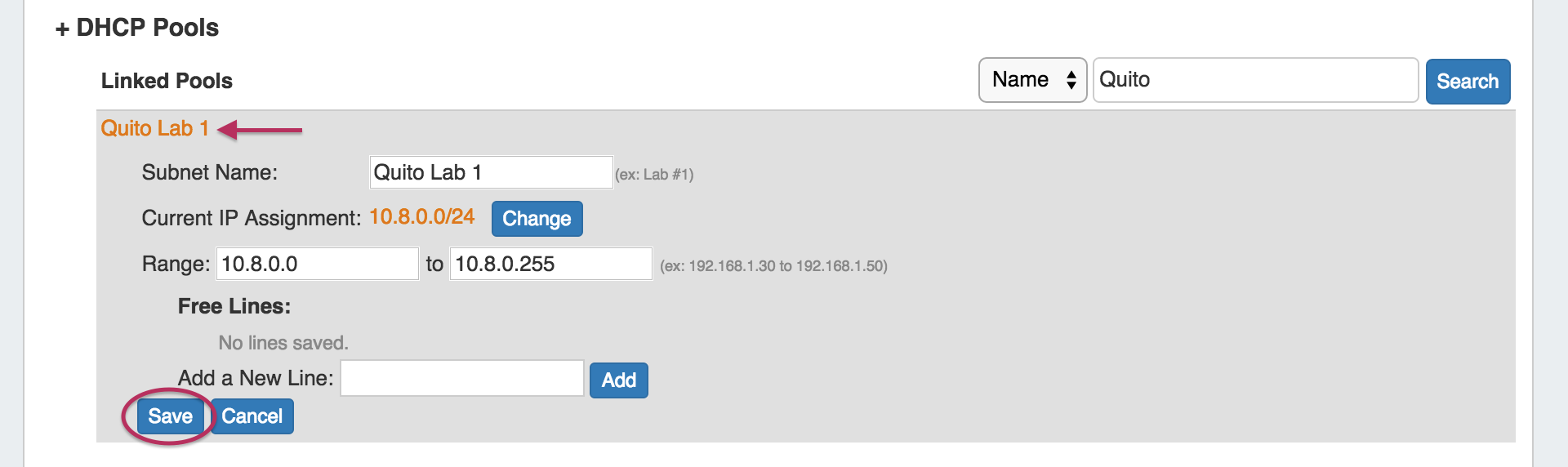
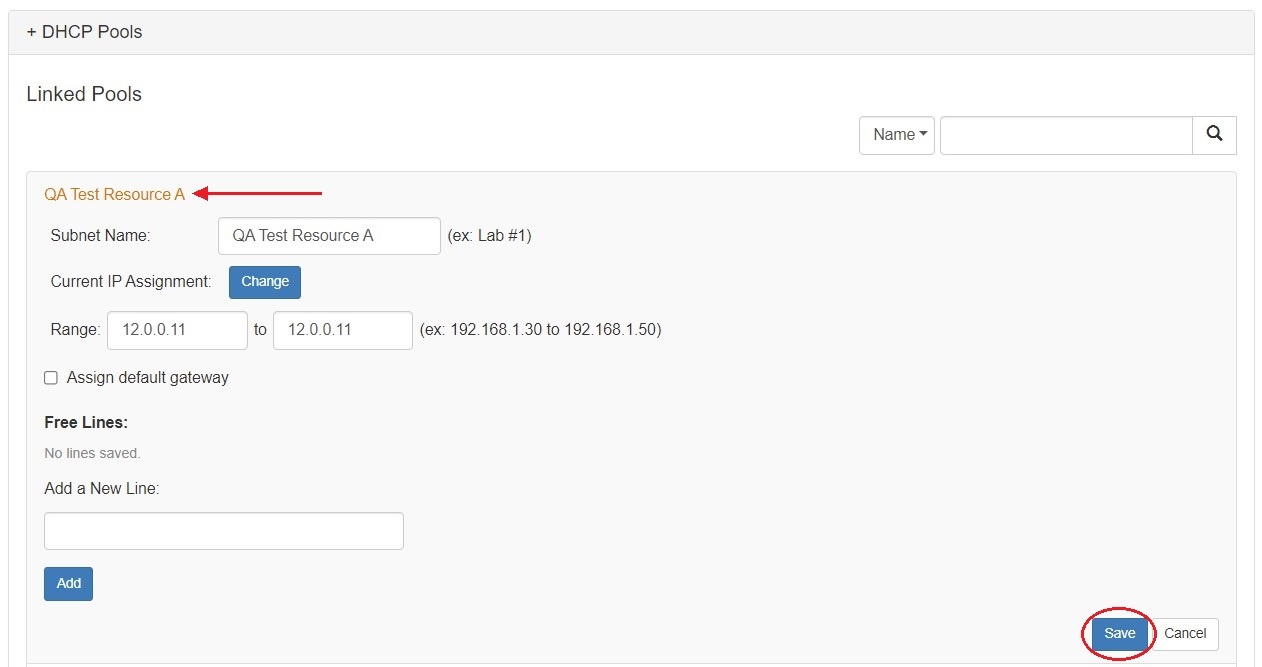
Additional edits may be made to pools by clicking on the Pool pool name. This allows the Pool pool name, assignment, and lines to be changed. Be sure to hit "Save" after making changes.
DHCP Pool Search:
Both Linked and Existing DHCP pools have field-specific search options to filter the DHCP pool list(s). Select the search term type from the dropdown list, type the search term in the search box, then hit the "Search" icon.


For both Linked and Existing pools, search terms include:
...
For Existing Pools, additional filter terms may be included to further filter the IP search by Region or assigned Resource.


After entering your search terms, click the "Search" icon, and the pool list will filter to the results.
...
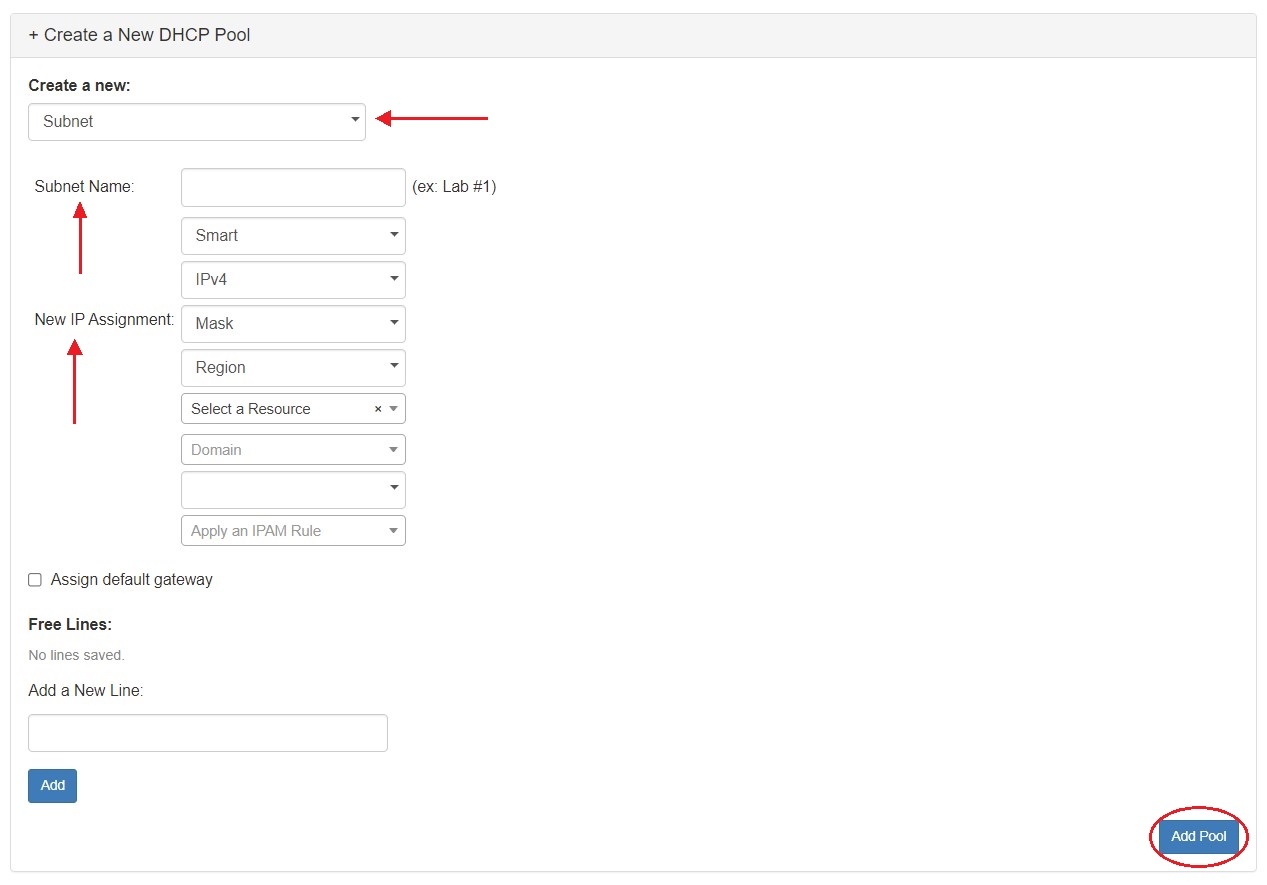
Create a New DHCP Pool - Subnets
When Assigning assigning a Subnet subnet (via dropdown) the IP Assignment assignment selection will pull the data from any IPAM block meeting your defined criteria. You can use either a Smart or Direct assignment depending on your preference. For Smart Assign pool creation, existing IP Rules may be applied to reserve additional addresses out of the pool range. To create an IP Rule, see IPAM Rules.
| Info | ||
|---|---|---|
| ||
For DHCP Poolspools, ProVision automatically reserves the first and last address of the pool for Gateway and Broadcast addresses, respectively. If an additional IP Rule is applied, the rule will begin with the second address in the block. For example: if a DHCP Pool pool is created using 10.0.0.64/29 with an IP Rule of "Reserve First Three", the resulting pool range would be 10.0.0.68 through 10.0.0.70, as the first four as well as the final address would be reserved. |
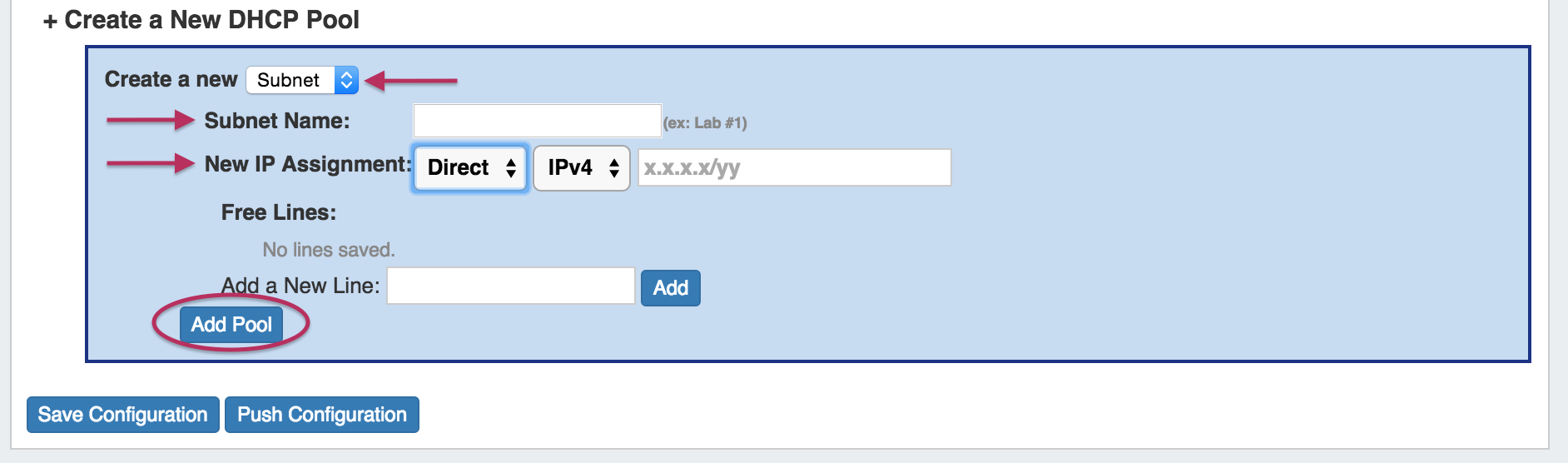
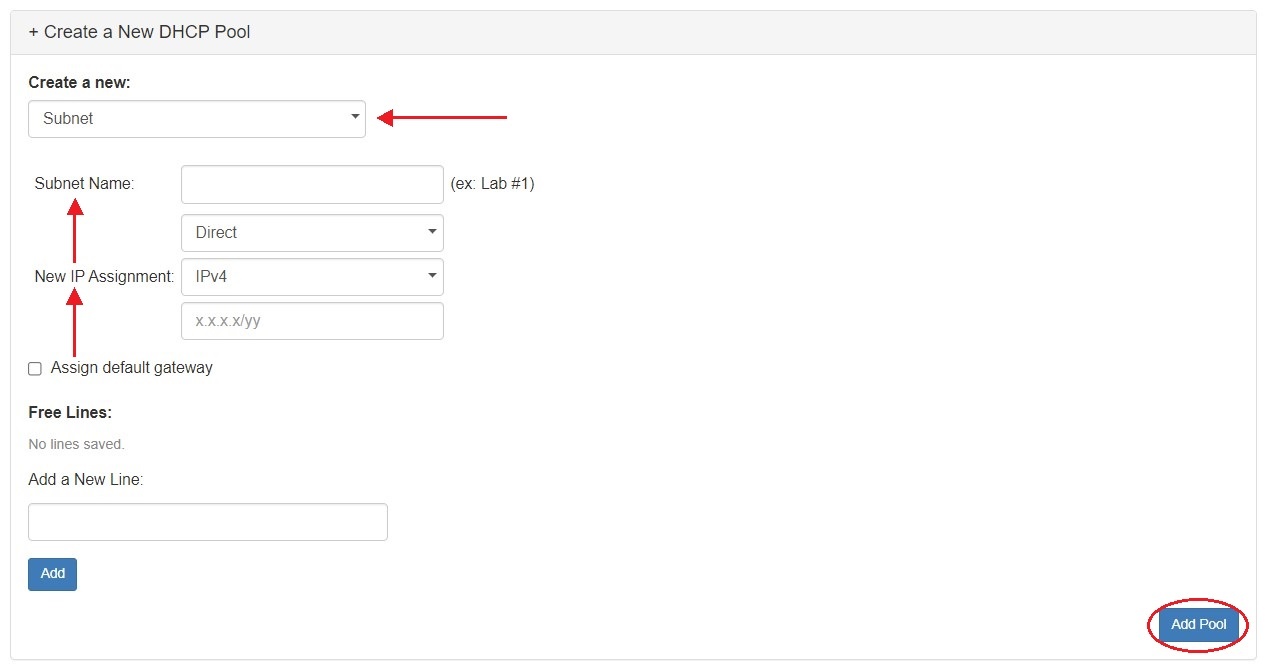
Enter the name of the Pool pool / Subnetsubnet, and select the assignment criteria:
For Smart Assign: select IPv4 / IPv6, Mask, then optional Region, Resource assignment, Domain - VLAN, and IP Rules criteria, add free lines if desired, then click "Add Pool".
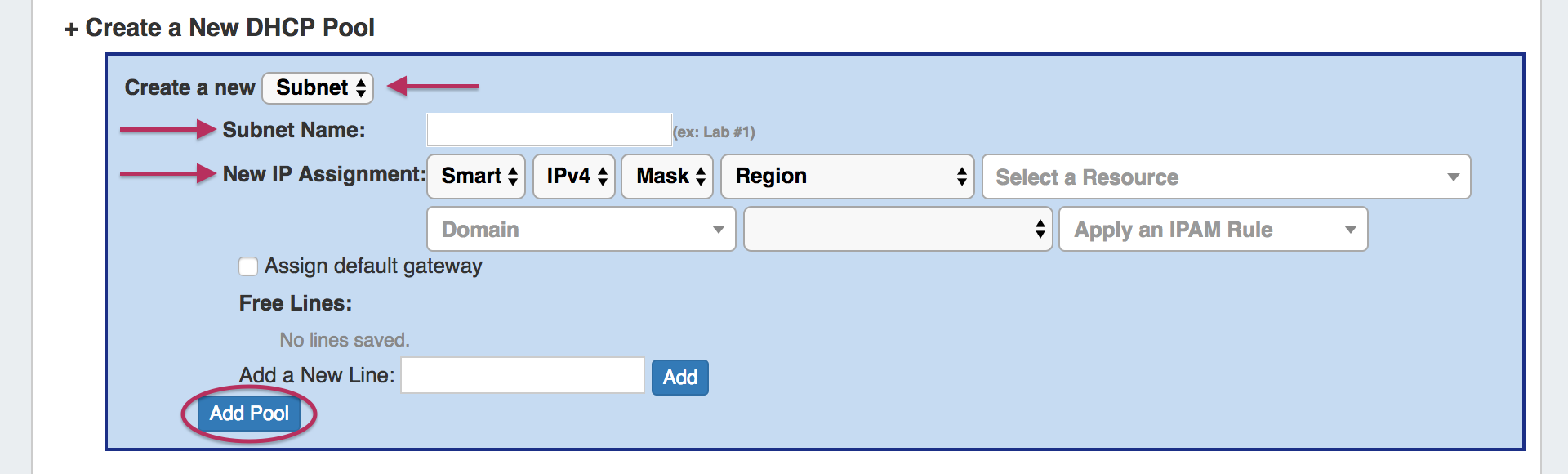
For Direct Assign: select IPv4 / IPv6 and enter the block in CIDR format, add free lines if desired, then click "Add Pool".
Create a New DHCP Pool - Host
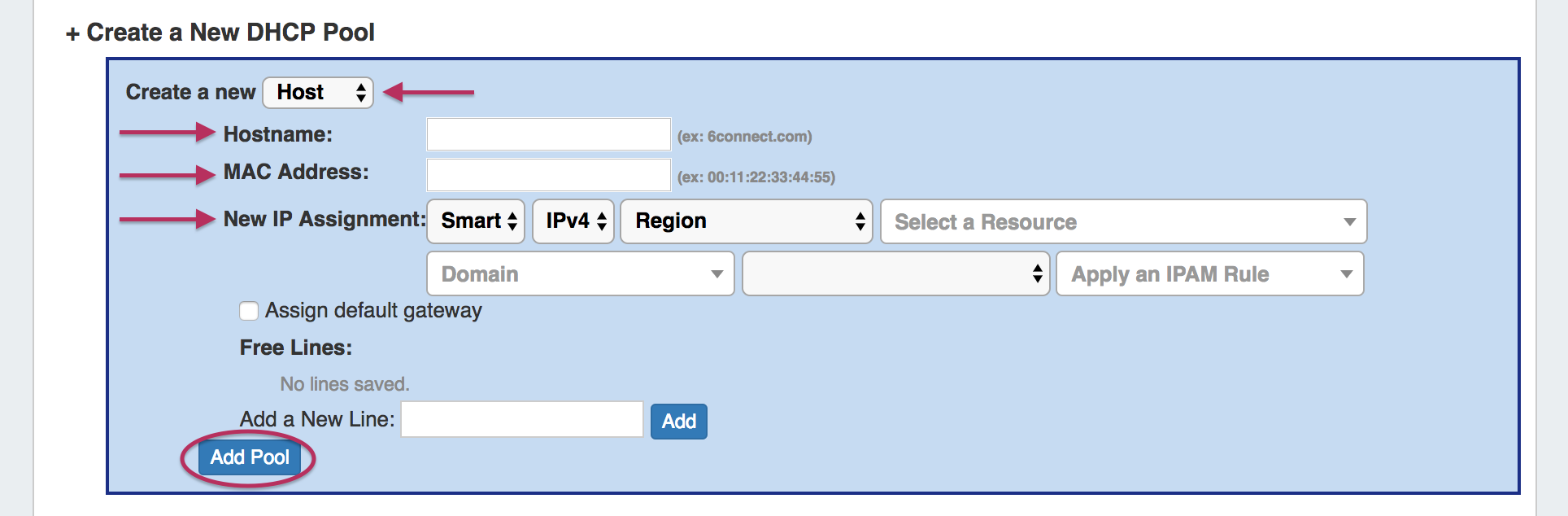
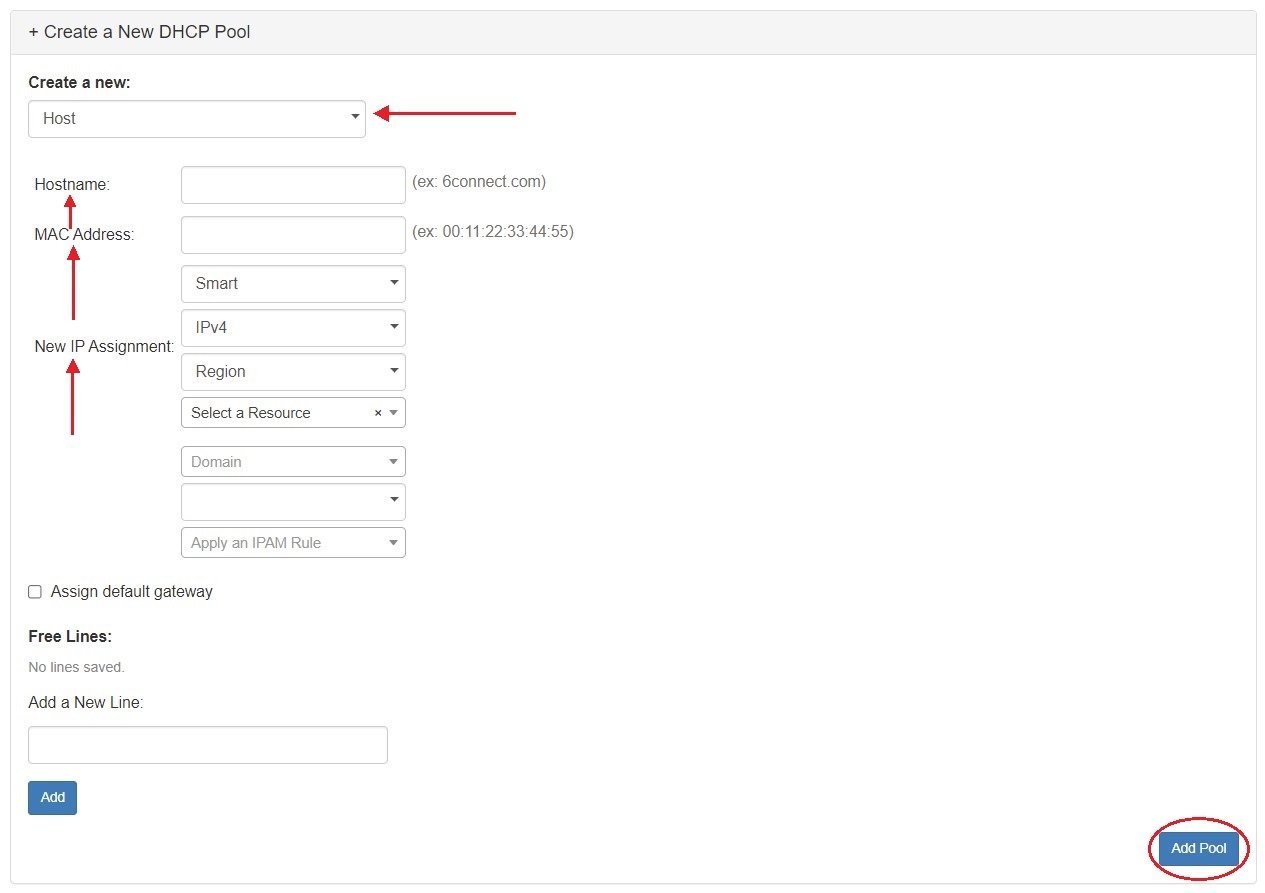
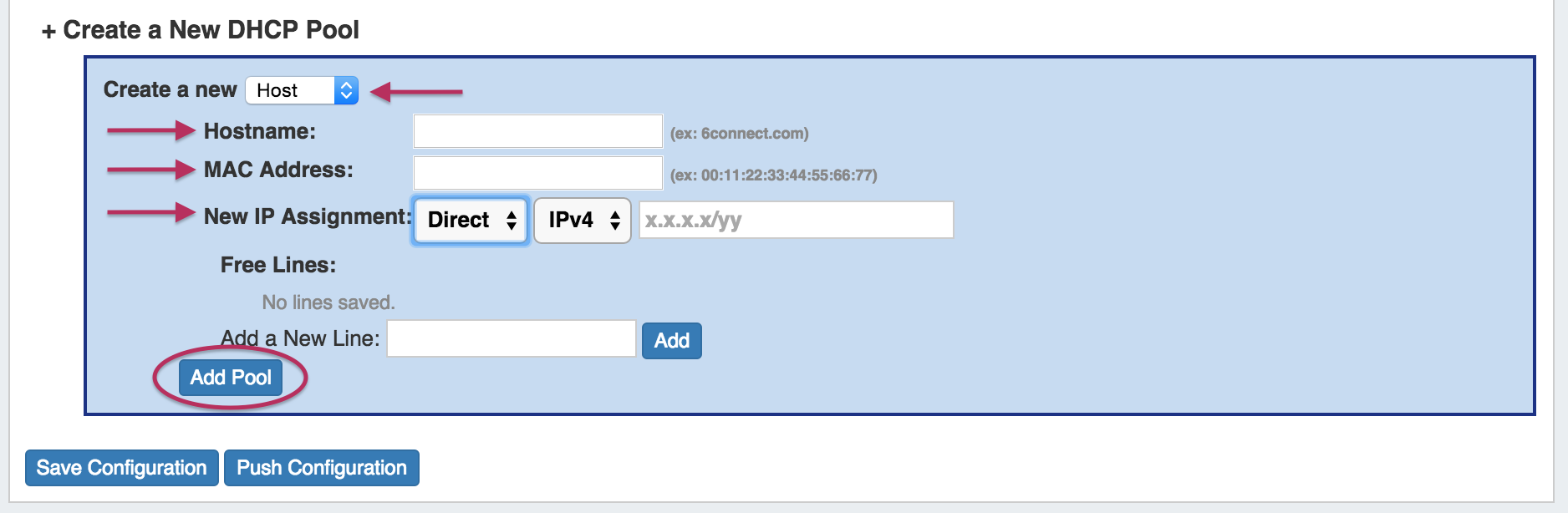
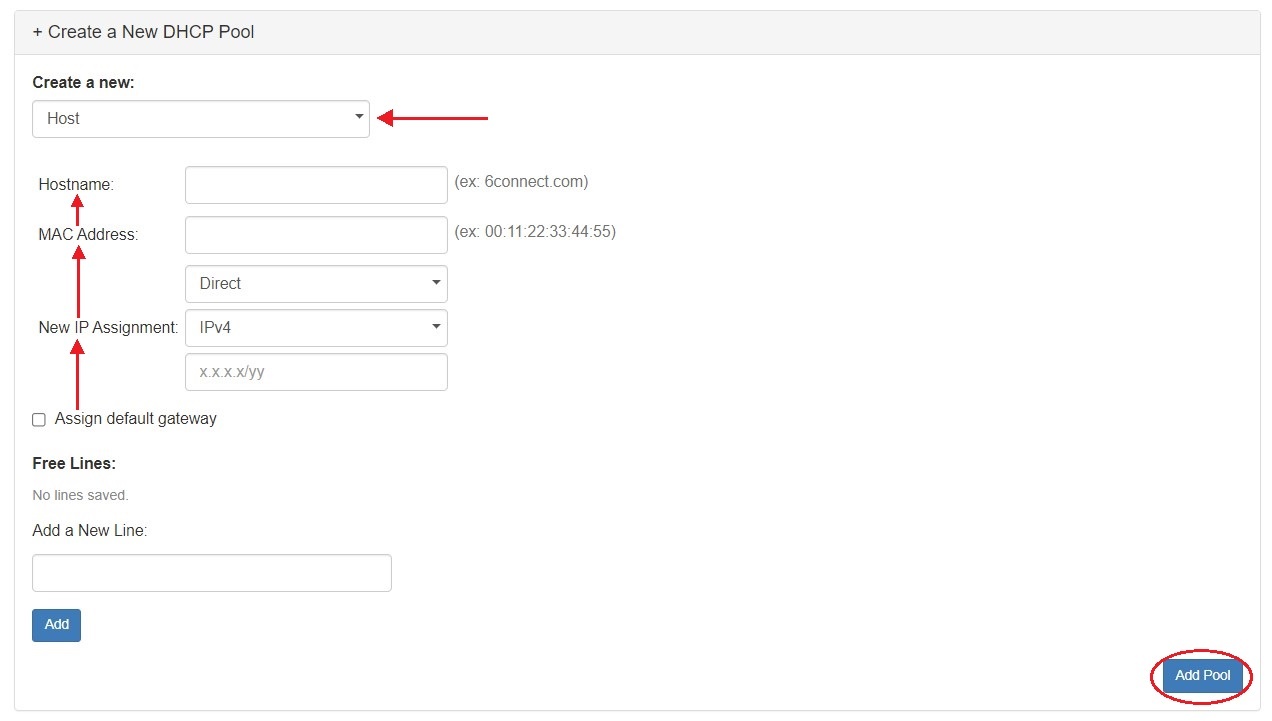
When reserving Hostname/MAC data, change the Dropdown dropdown to "Host". This will also give you an option to assign from an existing DHCP block (smart assignSmart Assign) or a specific IP address (direct assignDirect Assign).
Enter the name of the Hostname hostname and MAC address, then select the assignment criteria:
For Smart Assign: select IPv4 / IPv6, then optional Region, Resource assignment, Domain - VLAN, and IP Rule criteria, add free lines if desired, then click "Add Pool".
For Direct Assign: select IPv4 / IPv6 and enter the block in CIDR format, add free lines if desired, then click "Add Pool".
Current Pushed Configuration
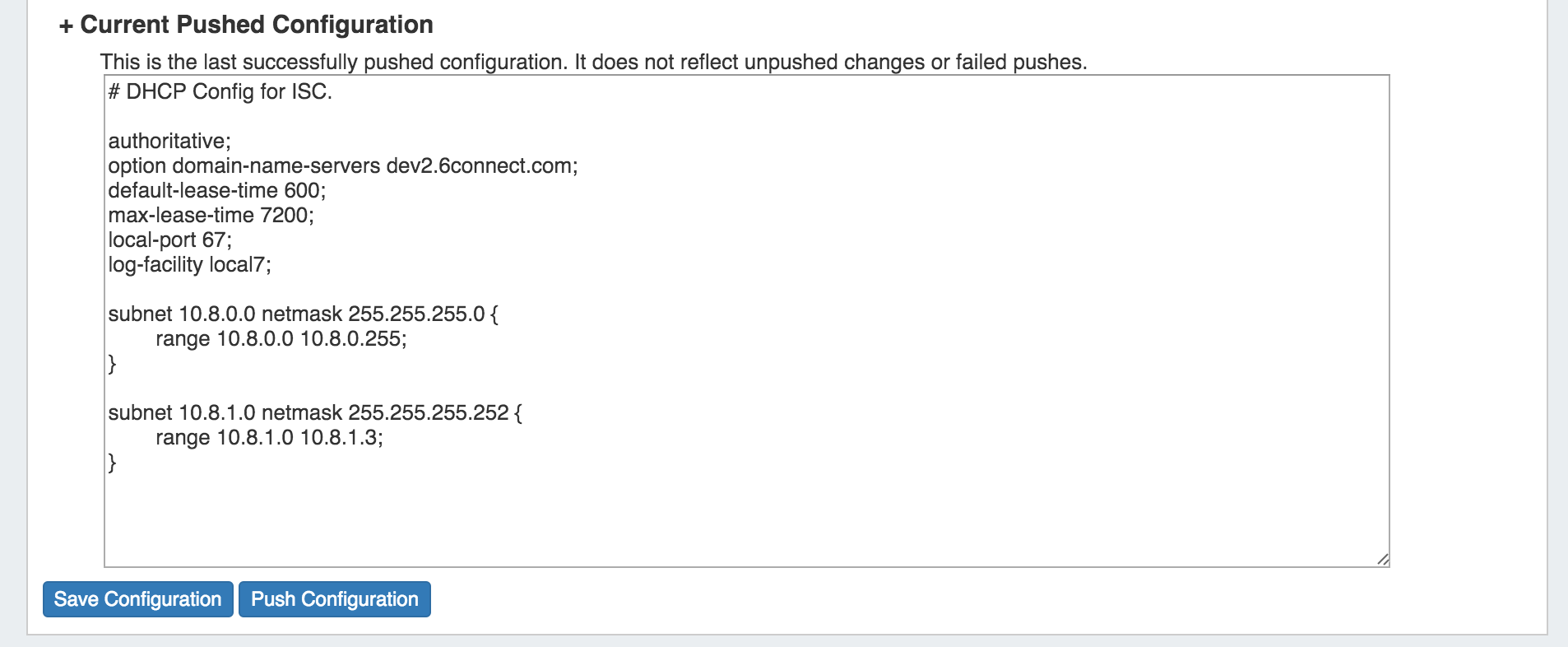
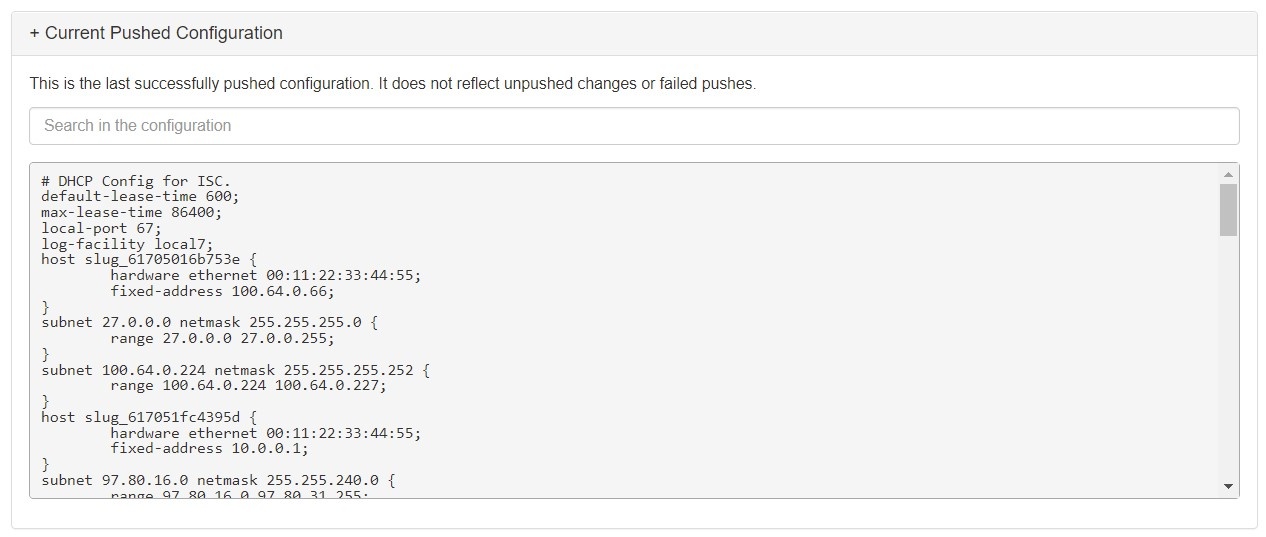
Expanding "Current Pushed Configuration" allows you to view the detailed text (read-only) of the last sucessfully successfully pushed configuration.
Current Pushed Configuration does not reflect any un-pushed changes or failed pushes.
Saving/Pushing DHCP Server Configurations
It is recommended that you save your configuration after changes. Save your changes by clicking the "Save Configuration" button at the bottom of the DHCP Management Gadget.
When you Push push a Configuration configuration (by clicking "Push Configuration") the configuration is automatically saved.
Working with the DHCP Customer Configuration Gadget
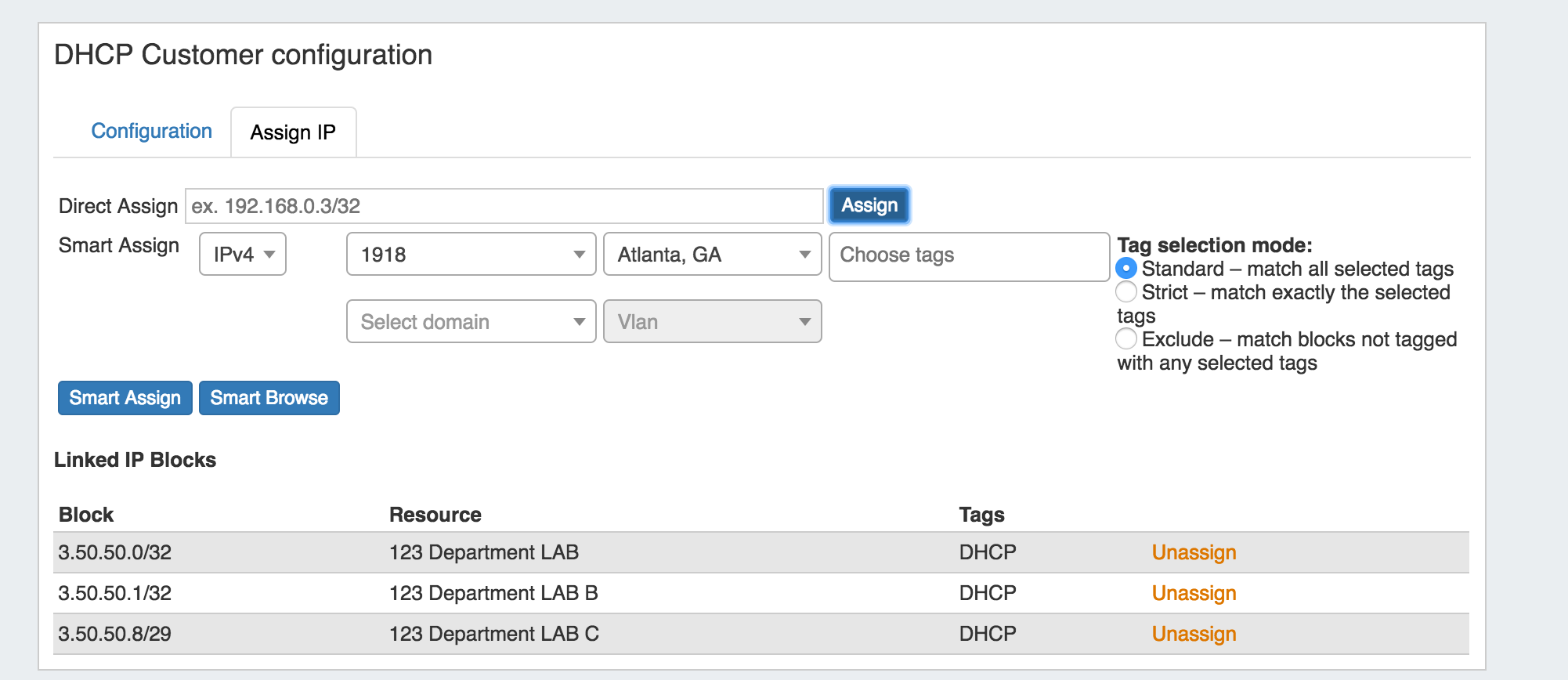
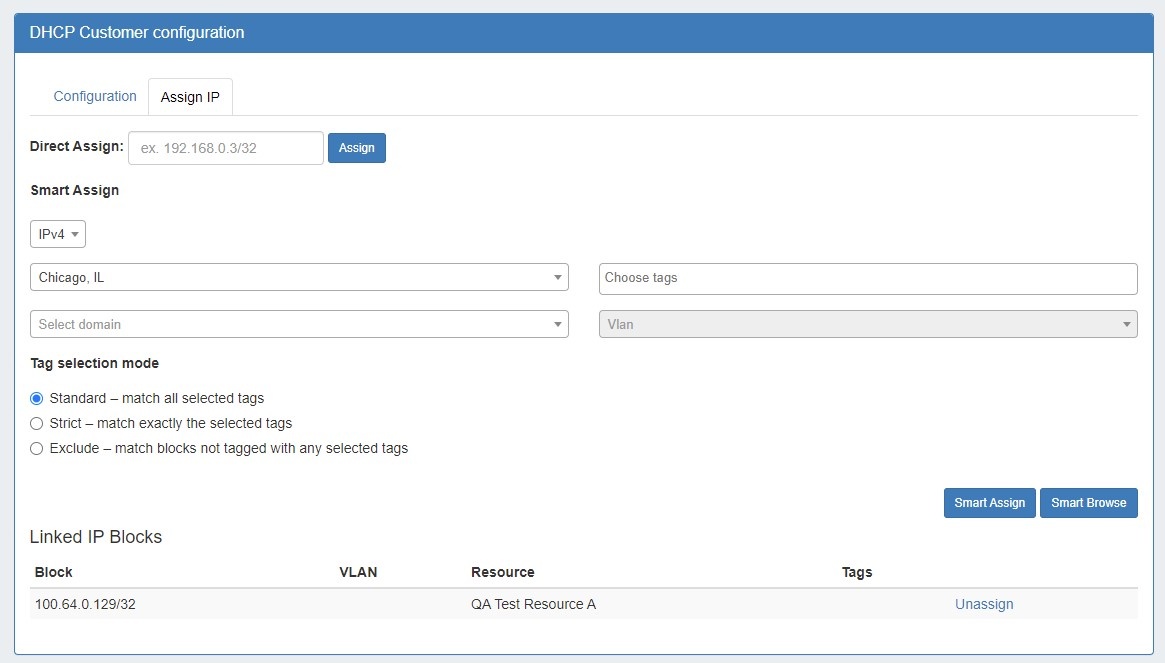
The DHCP Customer Configuration Gadget allows users to assign APNIC IP aggregates to the DHCP server pools and generate DHCP Server Configuration changes.
These configurations are then sent to the associated DHCP server Management Gadget as "Unpushed Configurations", where they may be held until a manual or schedule push occurs.
Setting up the DHCP Customer Configuration Gadget
Before using the DHCP Customer Configuration Gadget, the following should be set up in ProVision:
- The associated DHCP server should be created in ProVision and set up in the DHCP Management Gadget or DHCP Tab - DHCP Servers list (See: DHCP TabDHCP Tab).
- Add the DHCP Customer Configuration Gadget to the desired Sectionsection. You may want to create a specific "DHCP Customer" Section section for DHCP customer entries (See: Customizing Sections).
- Have, or set up IPAM Aggregates with subassignable blocks from the IPAM Tab APNIC Aggregates for DHCP use from the IPAM Tab with the desired IP space type, RIR, Region(s), Tags, and any desired VLAN criteria. Regions are a required field when assigning IPs from the DHCP Customer Configuration Gadget. Any APNIC aggregate may be used for DHCP, so you may want to create a "DHCP" IPAM Tag to help denote the desired aggregate(s).
- If you are planning on Direct Assigning the DHCP blocks in the Customer Configuration Gadget, ensure that the desired blocks in the DHCP are split to individual /32 or /128 size. Smart Assign and Smart Browse will automatically split the block to assign the correct size.
Using the DHCP Customer Configuration Gadget
Step 1) Link the Gadget with the desired DHCP Serverserver


Step 2) Assign IP's for Pools pools from DHCP Aggregatesaggregates
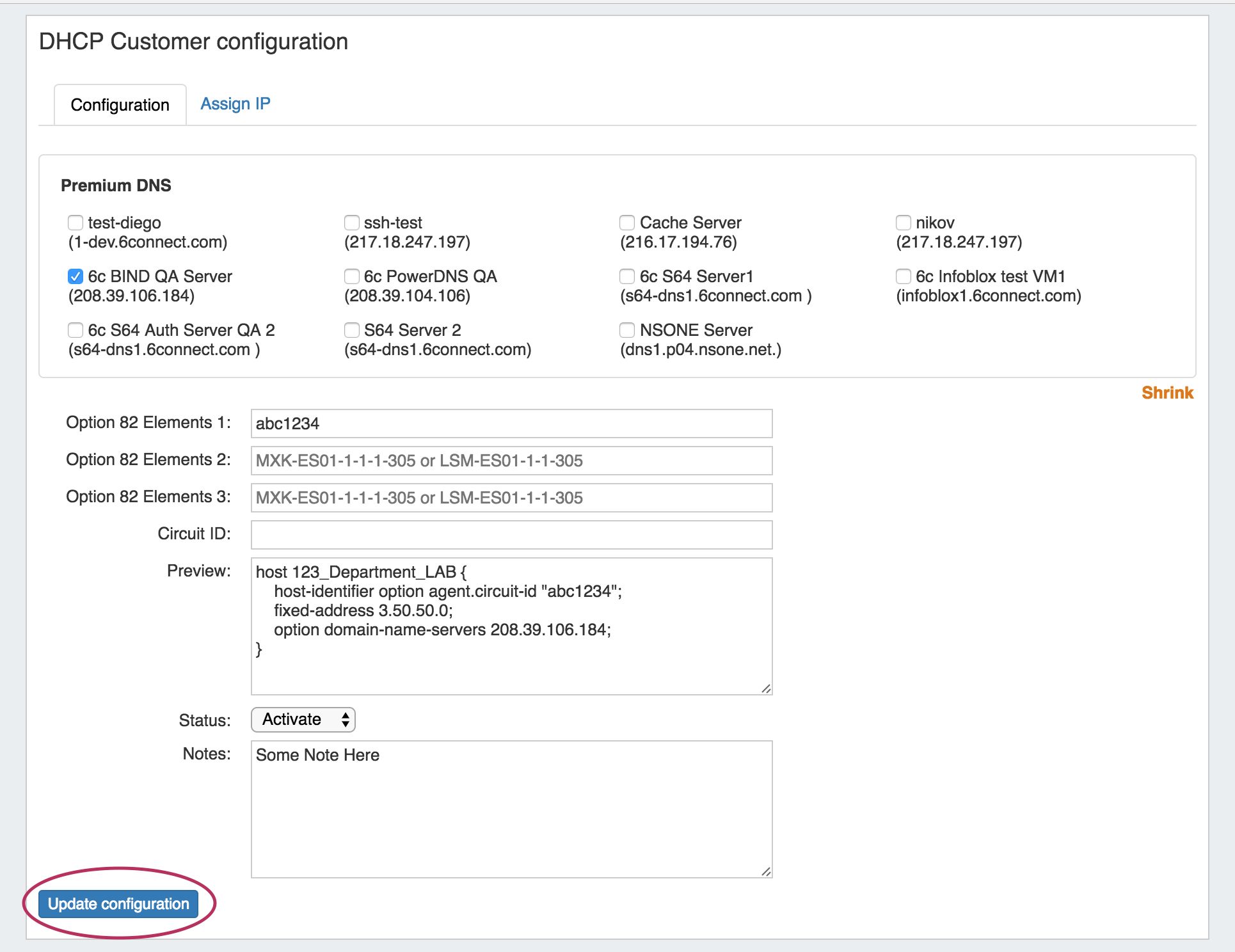
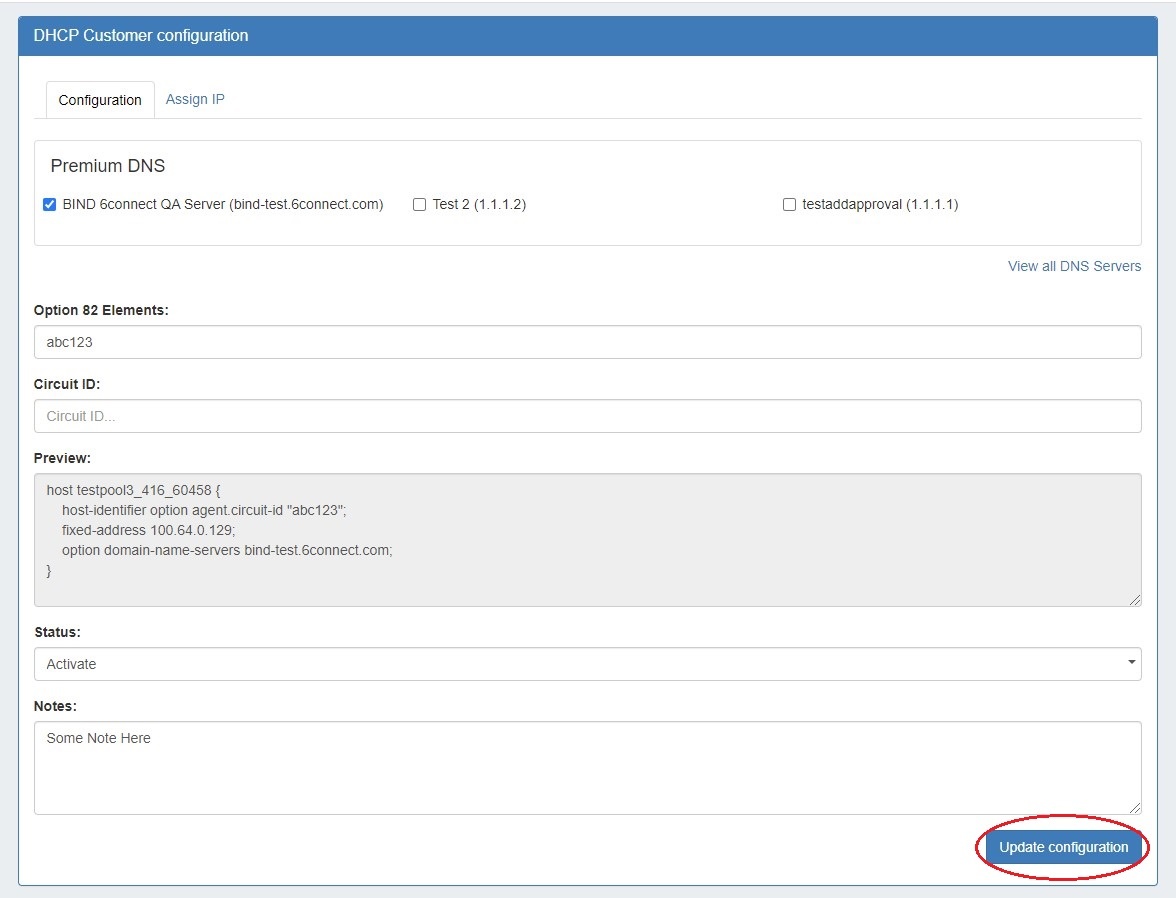
Step 3) Set up configuration information - add Option 82 Elements, Circuit ID, and notes. Use the "Preview" field to confirm the accuracy of the data, and select the status as "Activate" or "Terminate".
Once saved, the updated configuration will be sent to the DHCP Management Gadget.
Step 4) an An admin user may manually push the updated configuration from the DHCP Management Gadget, or use a a scheduled DHCP push task to automate the pushes.
See Gadgets - DHCP Customer Configuration for more details.
Additional Information
For more detail on advanced DHCP topics and the DHCP API, see API Module - DHCP.