Preparing for Data Import
Before importing your data into ProVision, there are a few steps we recommend in order to make the import process as smooth as possible:
...
Prior to importing your data, there is a key step of Data Normalization to ensure that information is accurate. If you need assistance with parsing your data prior to importing, contact support for help from our Data Analyst service. You You can also use off the shelf tools like Microsoft Excel, MySQL, or Google Refine if you intend to take on the task of data cleanup in house.
...
Get to the Data Import Tab from the Admin button to import your data. For larger data import runs, feel free to contact support at any time for assistance.
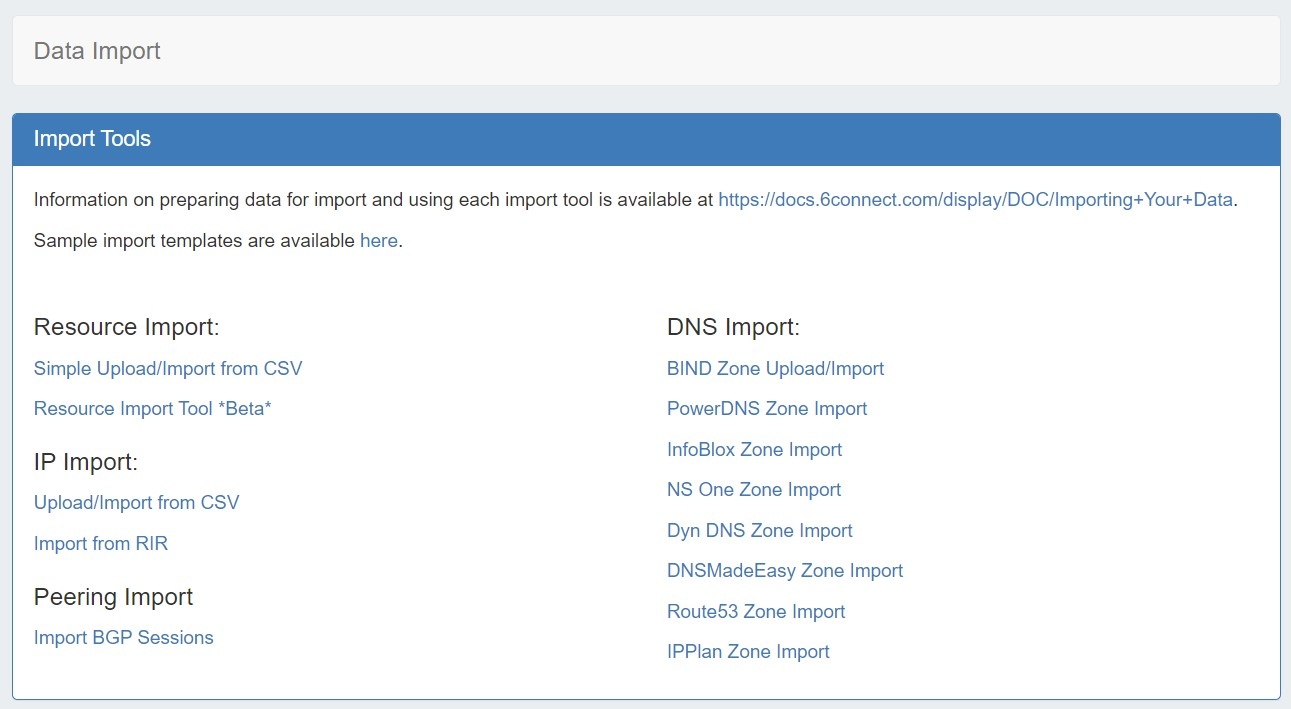
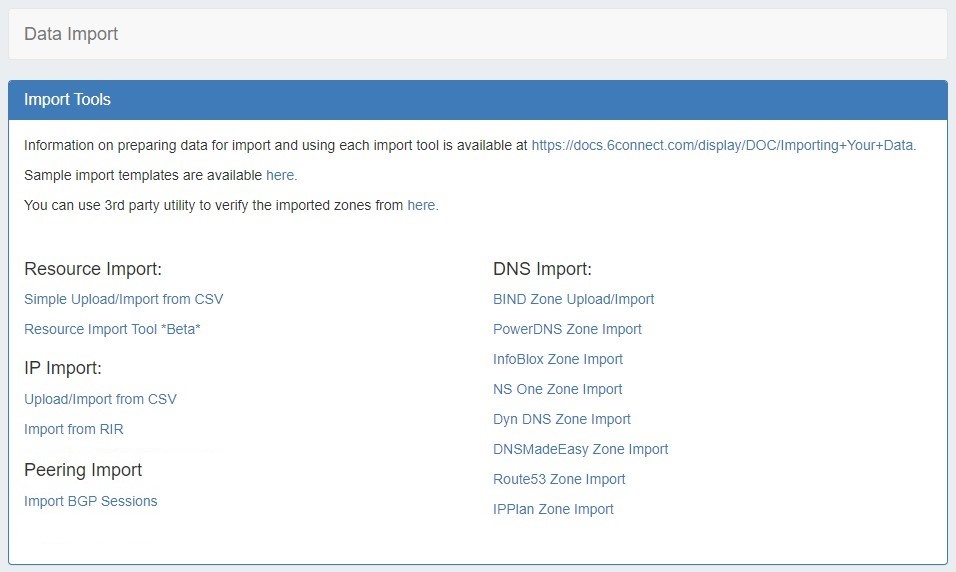
Data Import Overview: Which Import Tool Should I Use?
Resource Import
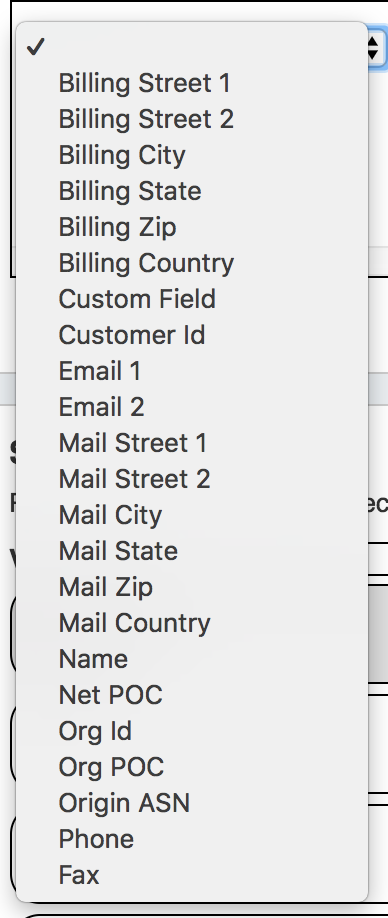
Simple Upload / Import from CSV: Use this tool if you have a simple .csv file of customer / contact information, such as name, address, billing address, phone numbers, POC, etc. See Resource Import from CSV for more details.
...
| Expand | ||
|---|---|---|
For Resource Import from .csv, the following fields are REQUIRED:
All other fields are optional.
|
Resource Import Tool: The Resource Import tool is designed for importing .csv files for any resource type (company, physical devices, contacts, customers, etc), and allows for customized headers through integrating ProVision's customizable sections and fields. It also allows for data editing within the tool.
Use the Resource Import Tool if you have resource data that does not fit under the Simple Upload / Import from CSV field options, and can equate that data to fields in an existing or newly created Section.created Section.
| Info |
|---|
Note: The Resource Import Tool currently supports field attributes which are able to be added to Section. High level resource information metadata (associated Parent, Category, etc) are outside the scope of this tool, but may be imported via the API or by custom import services. Contact support for additional assistance. |
| Info | ||
|---|---|---|
| ||
| A tutorial / walkthrough for this tool is available at the Resource Import Tool page. |
Peering Import
Import BGP Sessions: This section imports peering sessions from a selected exchange and router. Routers must be created prior to using this importer. See Peering Routers and Importing Sessions for additional information.
IP Import
Upload / Import from CSV: Use this tool if you have a .csv file of IP block information, such as CIDR, mask, ASN, RIR, etc.
This tool supports the following fields:
...
Import from RIR: This tool automatically lookups your ARIN or RIPE information based on the IP address you are connected to. Once it identifies the blocks assigned to your company, you can import both 1918 aggregates as well as public IP space from ARIN and RIPE. See Import Aggregate Blocks for more detail on this tool.
DNS Import
The following DNS Import options are available from the Data Import tab:
...
Expand From the View Zone page, a zone file (.zone) may be imported into a ProVision zone to populate record data. Click "Import Zone".

A Zone Import dialog box will open. Next to Zone File:, click "Choose File" and select your .zone file to import. Then, select an import policy to follow.
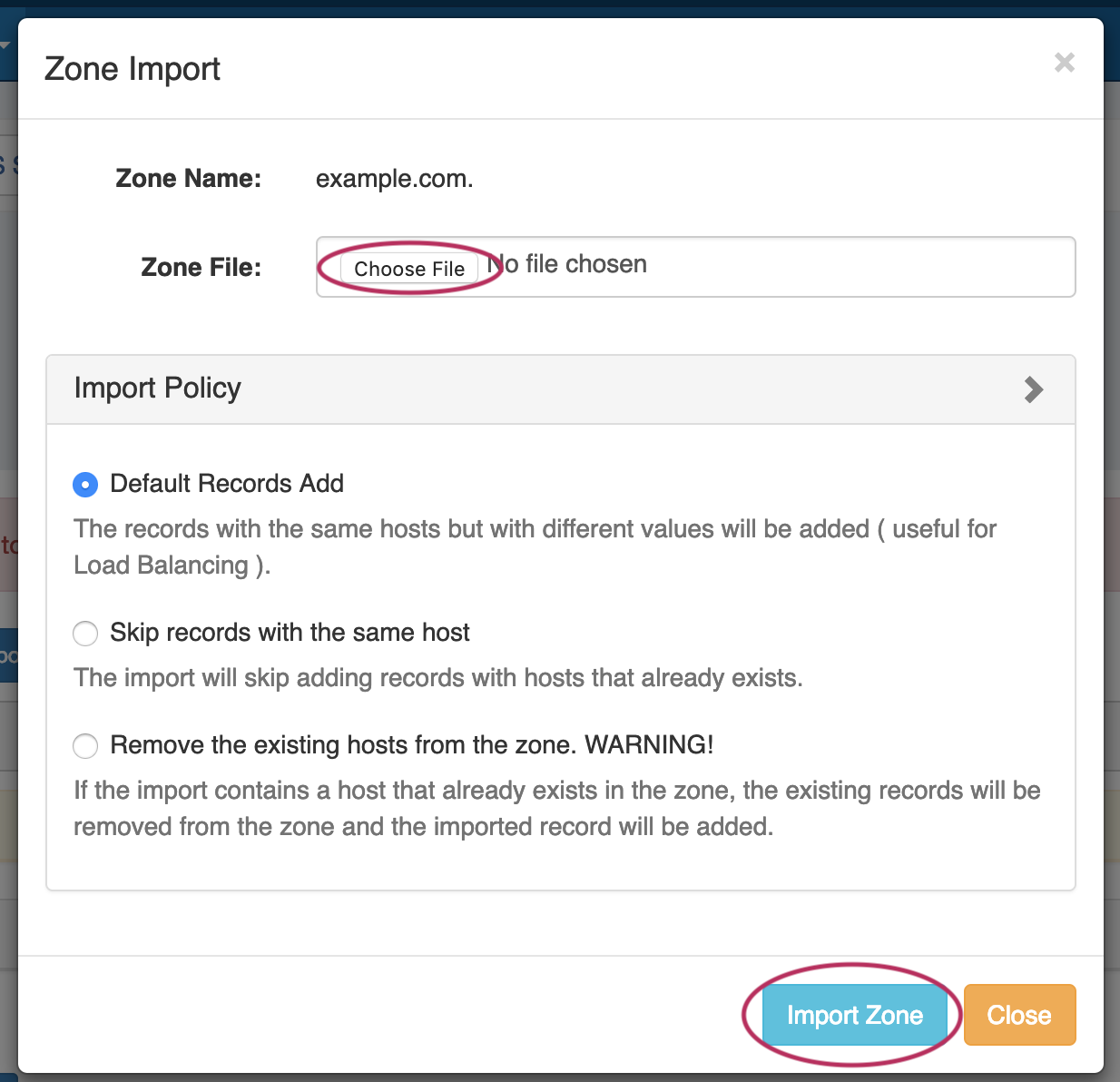
When done, Click "Import Zone".
Import Templates
Import template sample files are available for selected ProVision import tools. A link is provided for a download page, both here and on the Data Import Tab.
...
Customer Sample Import - Download the customer-import-sample.csv file from the import templates page linked above, used in the Resource Import: Simple Upload / Import from CSV Tool.
Additional Information
For more details, see:
...