Customizing Resource Views
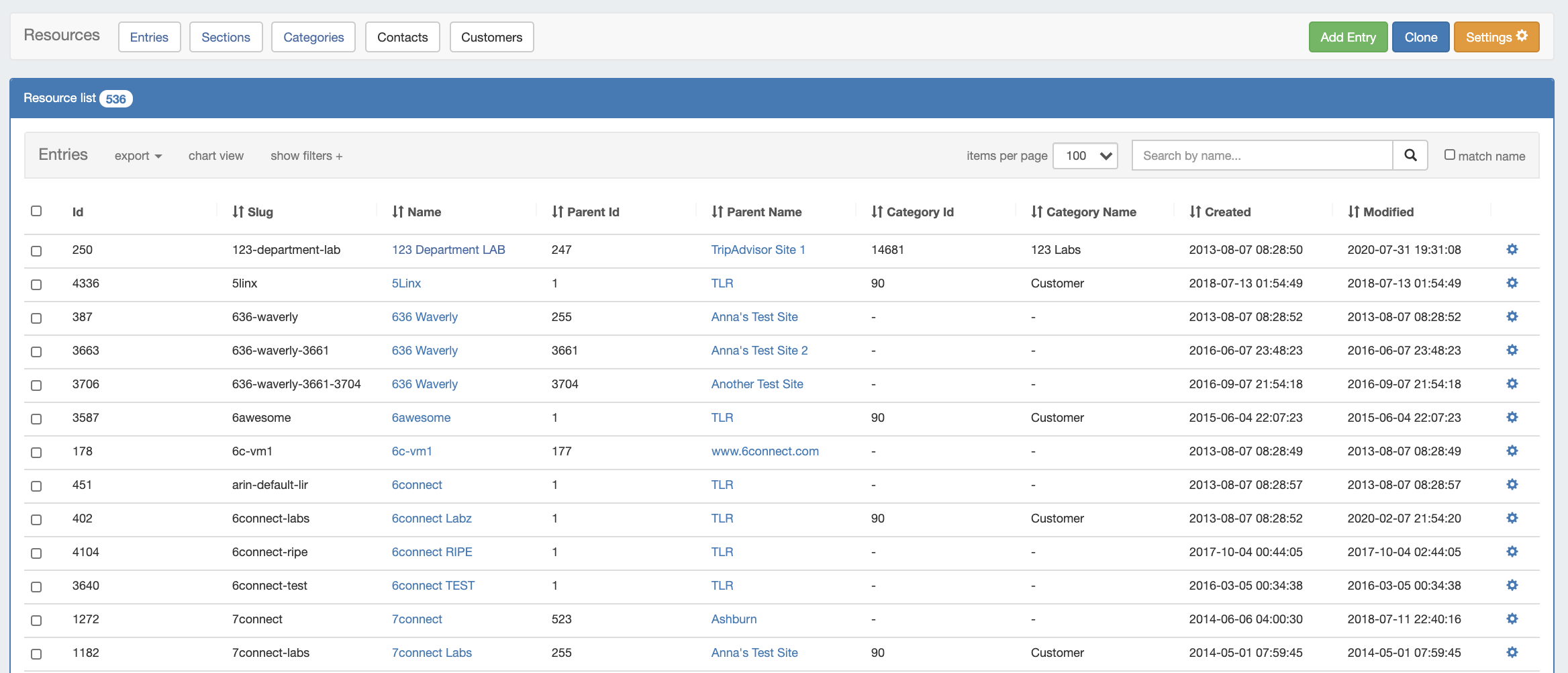
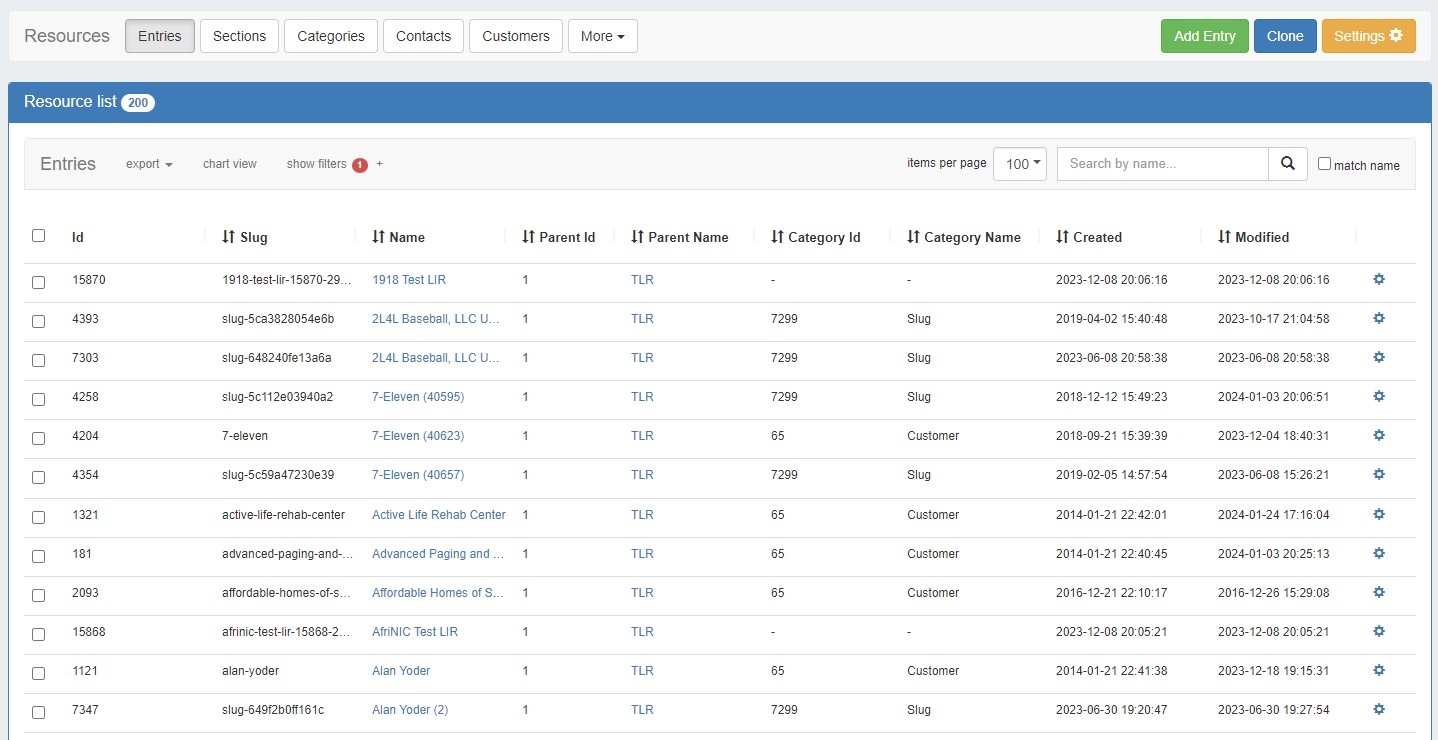
The list of Resource Entries is under the Resources Tab. To access it, you may either click on the Resources Tab, or select "Entries" from the Resource Tab dropdown menu.
...
These settings may be changed for any Resource View, including the default Views. You may also create a new view at any time by clicking "Add View" at the top page header.
Default Views
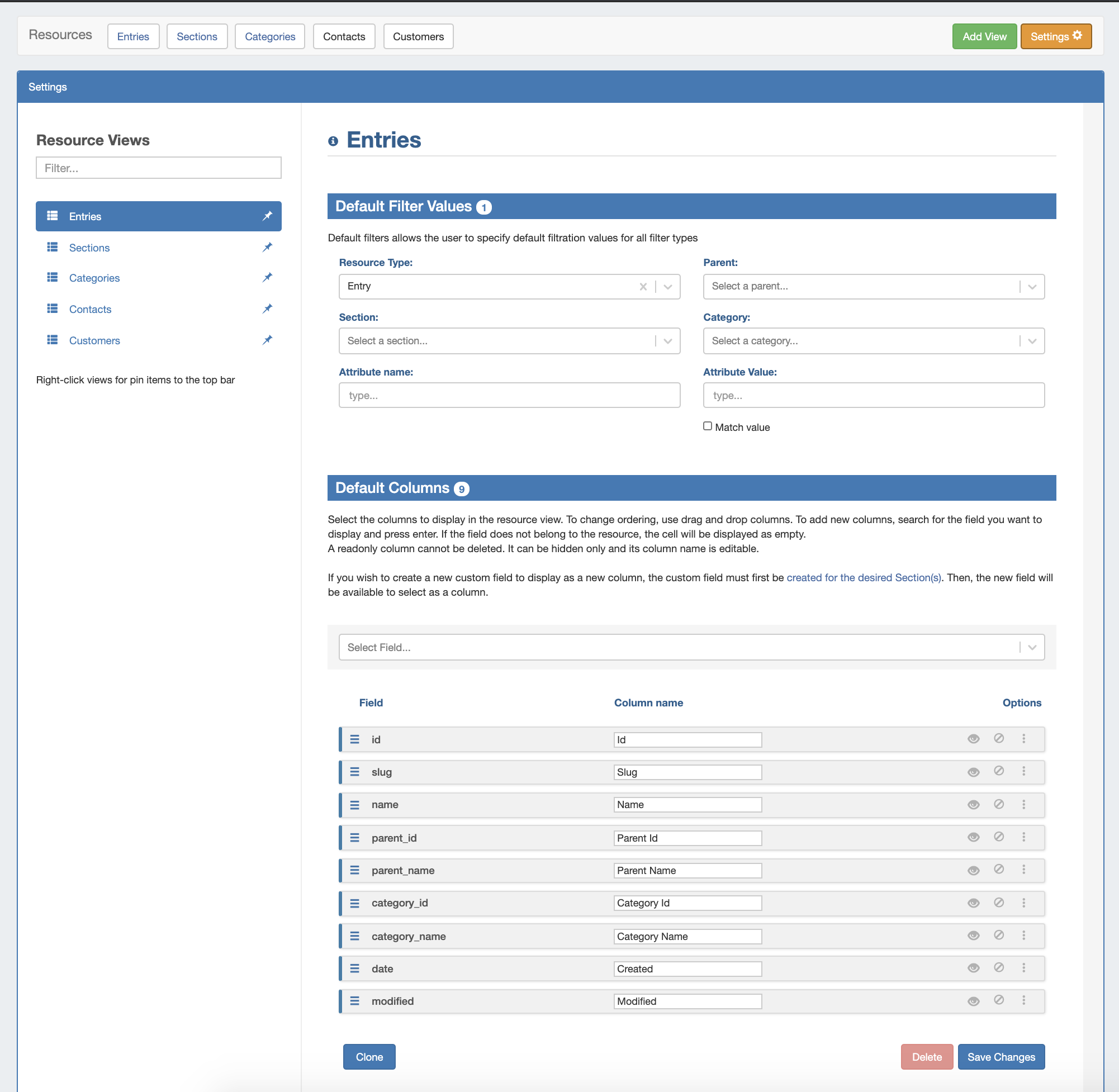
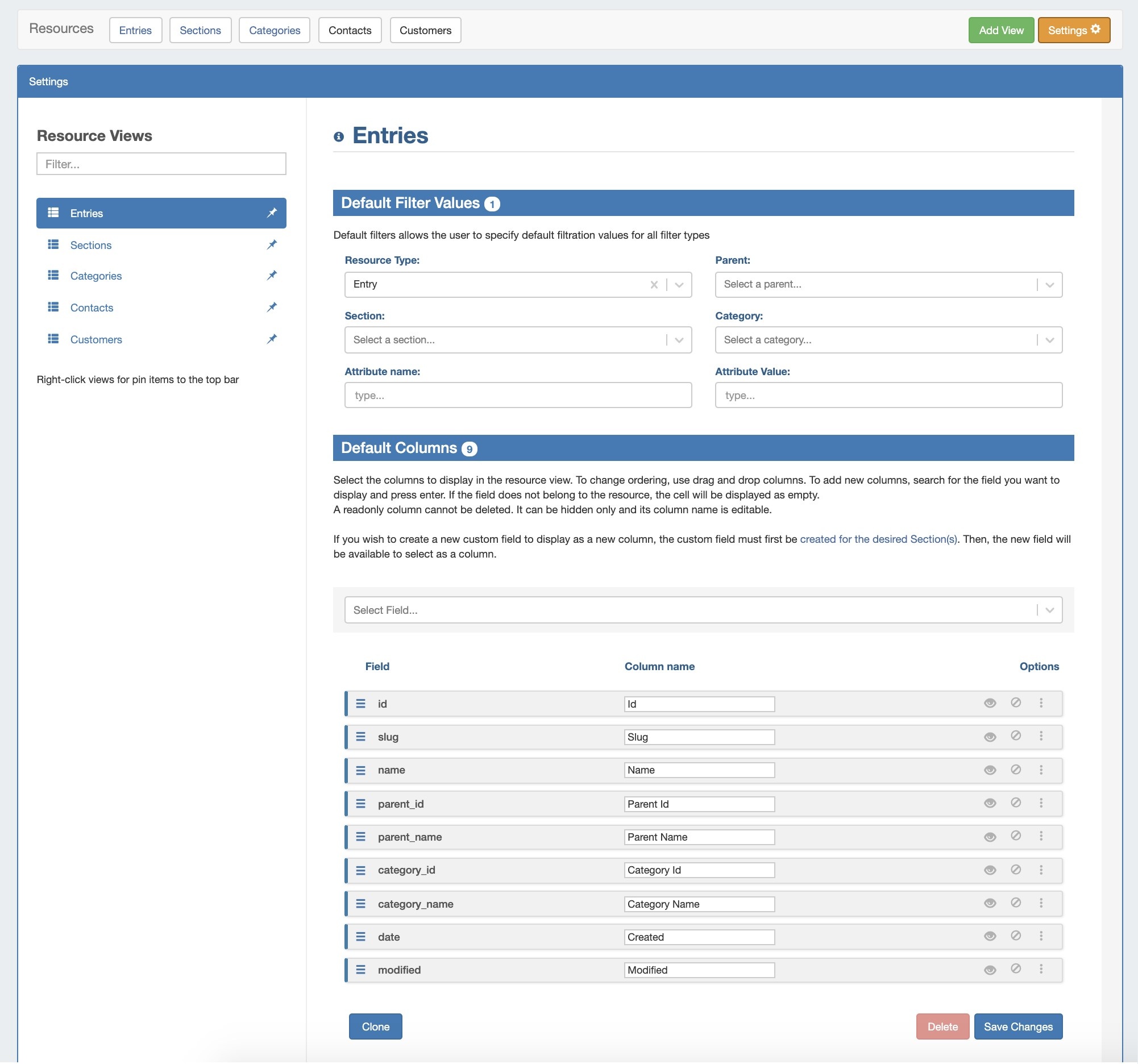
Five default Resource Views are provided, and are automatically pinned to the top header bar for quick access:
- Entries: Displays resource entries. Applied filter: Resource Type = Entry
- Sections: Displays sections. Applied filter: Resource Type = Section
- Categories: Displays categories. Applied filter: Resource Type = Category
- Contacts: Displays contacts. Applied filter: Resource Type = Contact
- Customers: Displays the customer list. Applied filter: Category = Customer
For all of the default views, the default column fields include:
...
All existing views are listed on the left sidebar of the page under "Resource Views".
Filter the View List
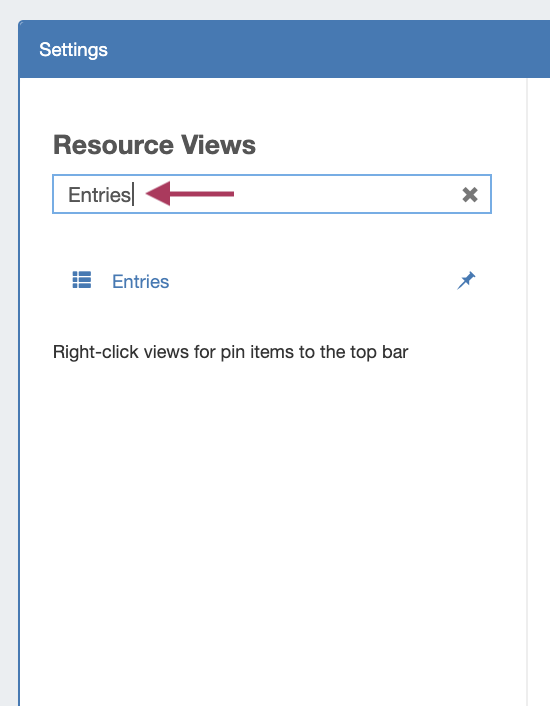
To filter the view list, type all or part of the view name into the search bar, and the list will filter down to relevant results.
Pin / Unpin a Resource View
To Pin / Unpin a Resource View to the top header bar (where it will display as a button), right-click on the view, then select:
...
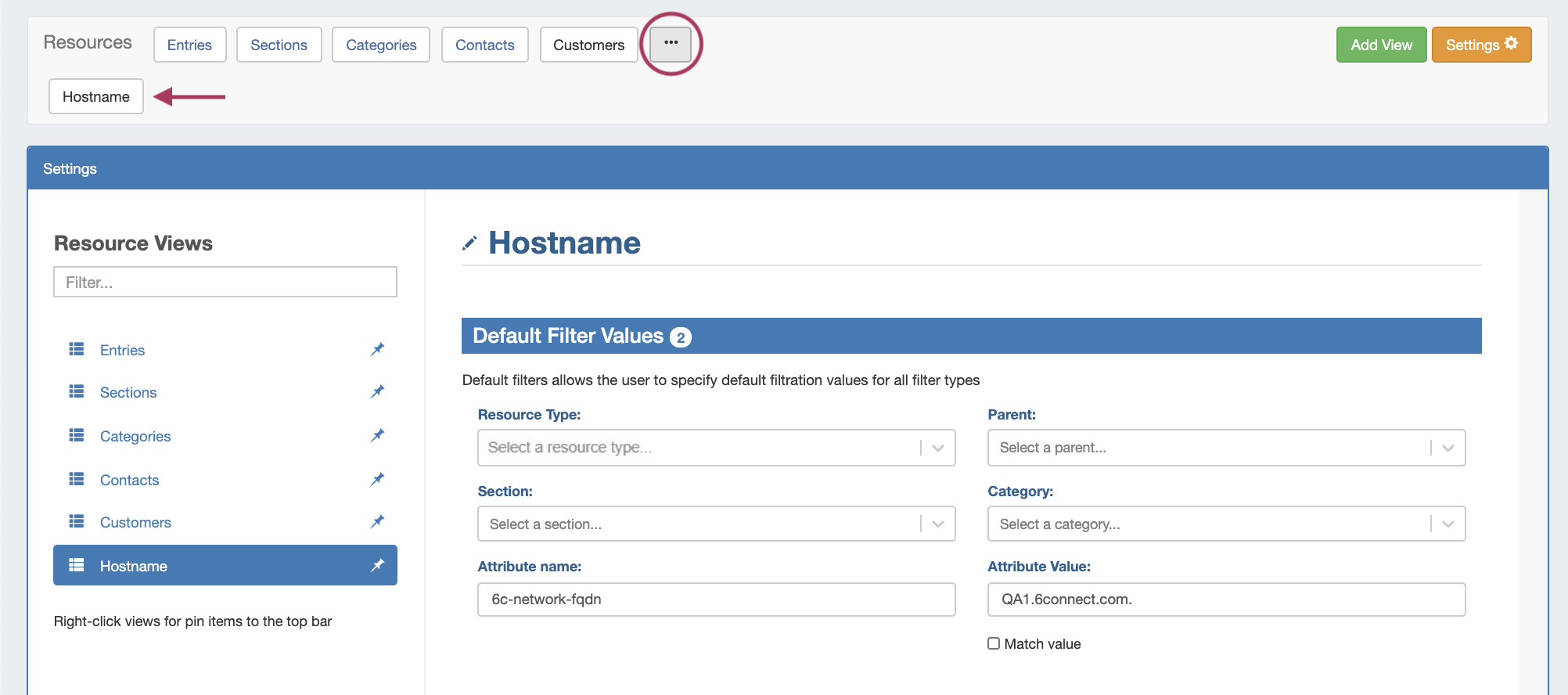
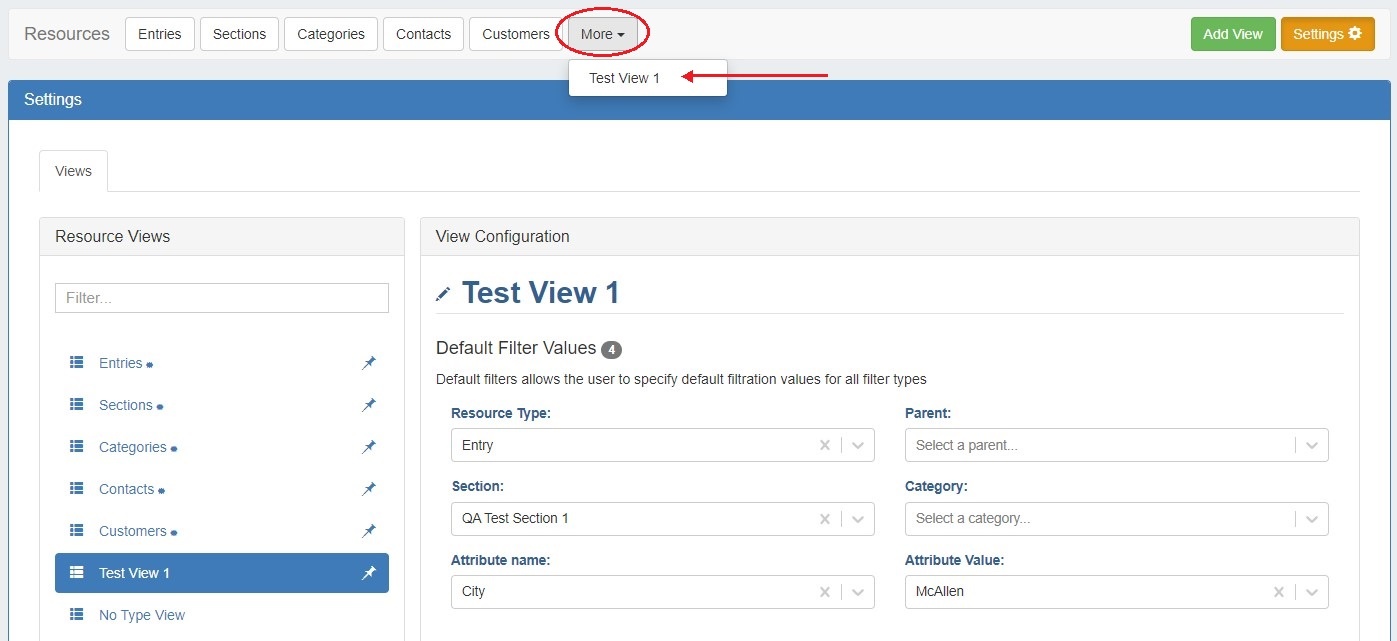
If custom views are pinned, they will be visible in a second button row dropdown by clicking the expand (...) "More" button in the page header:
Create a New View
...
Create a new view by specifying a name. Then hit the "Create" button. The new view will be added to the view list, with no default filters applied and standard default columns enabled.
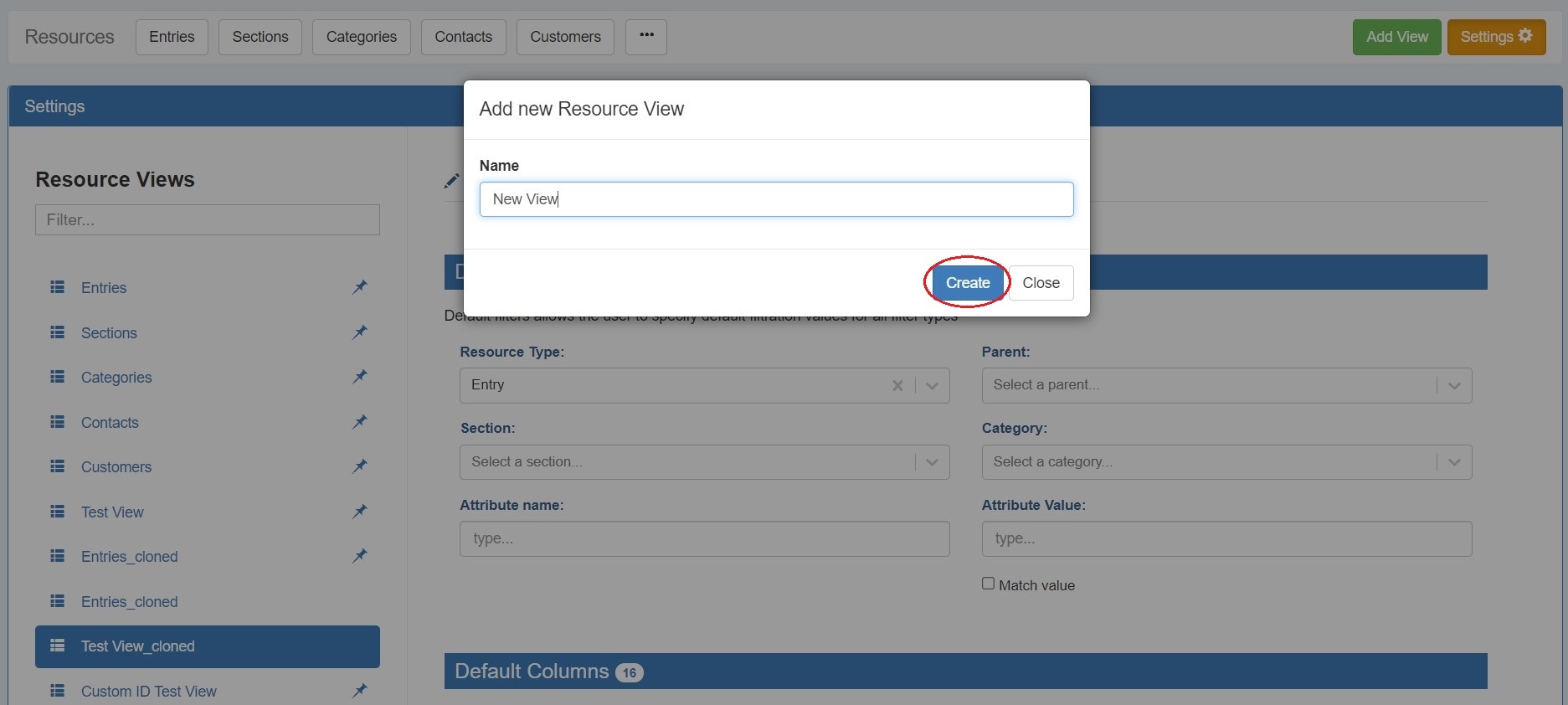
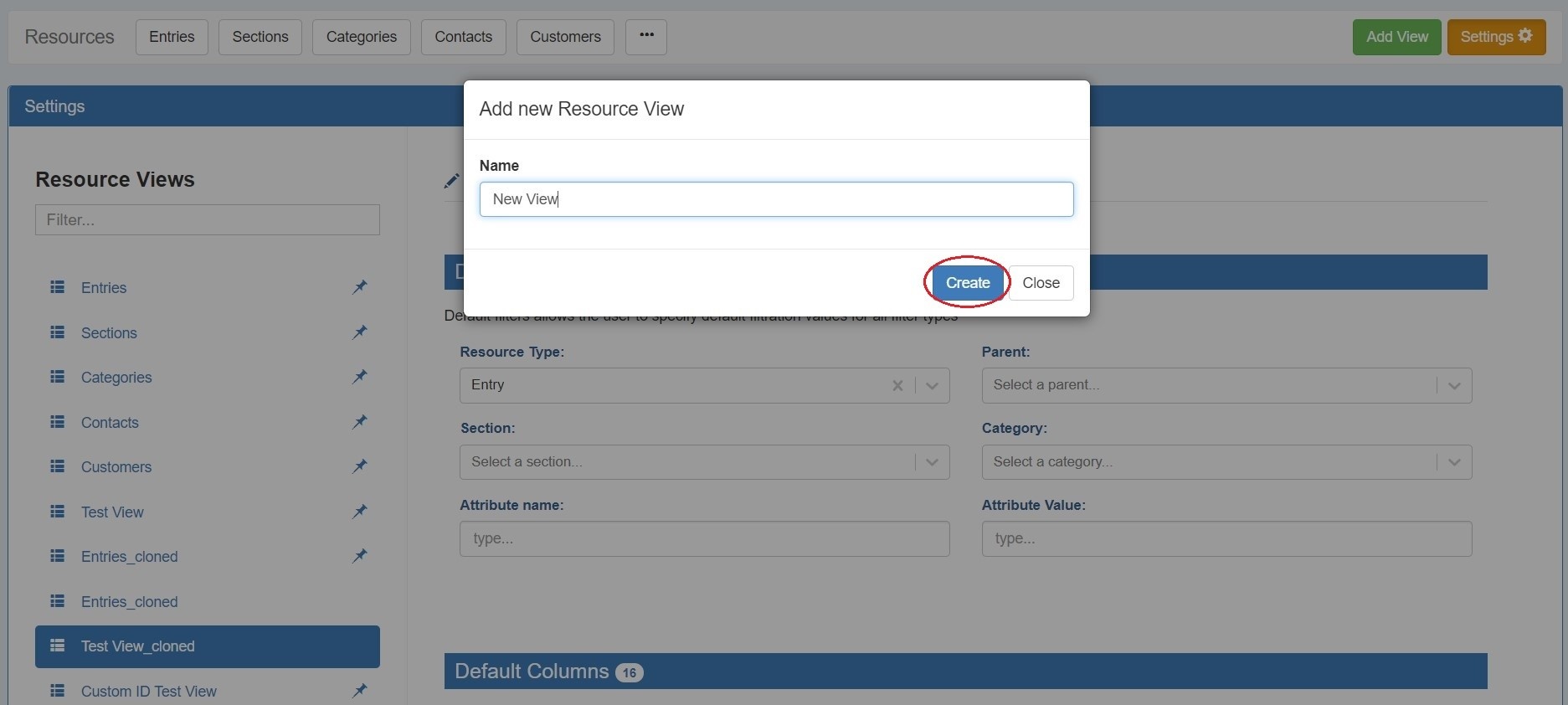
Click on the new view in the list to select it. From here you can apply specific filters to the view, display field attributes as columns, and adjust column order visibility.
...
Section: Select a resource section, such as Resource Holder, Server, Rack, VM, or any custom section from your ProVision instance.
Category: Select an existing category, such as Customer, Internal, or any custom category that has been created.
...
See the following pages for additional information on working with Working with Resources in ProVision:
| Children Display | ||
|---|---|---|
|
...