DNS Groups List
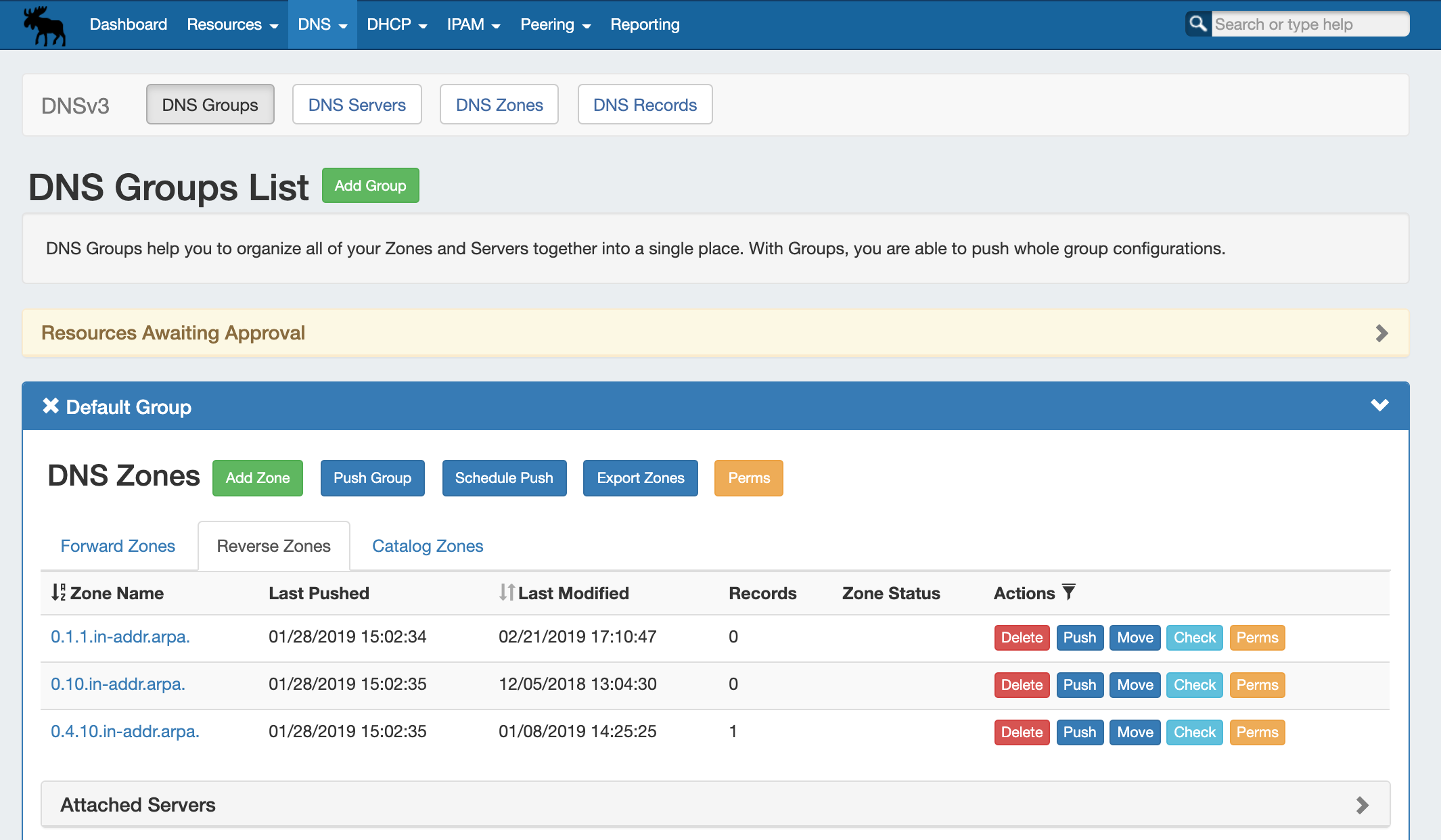
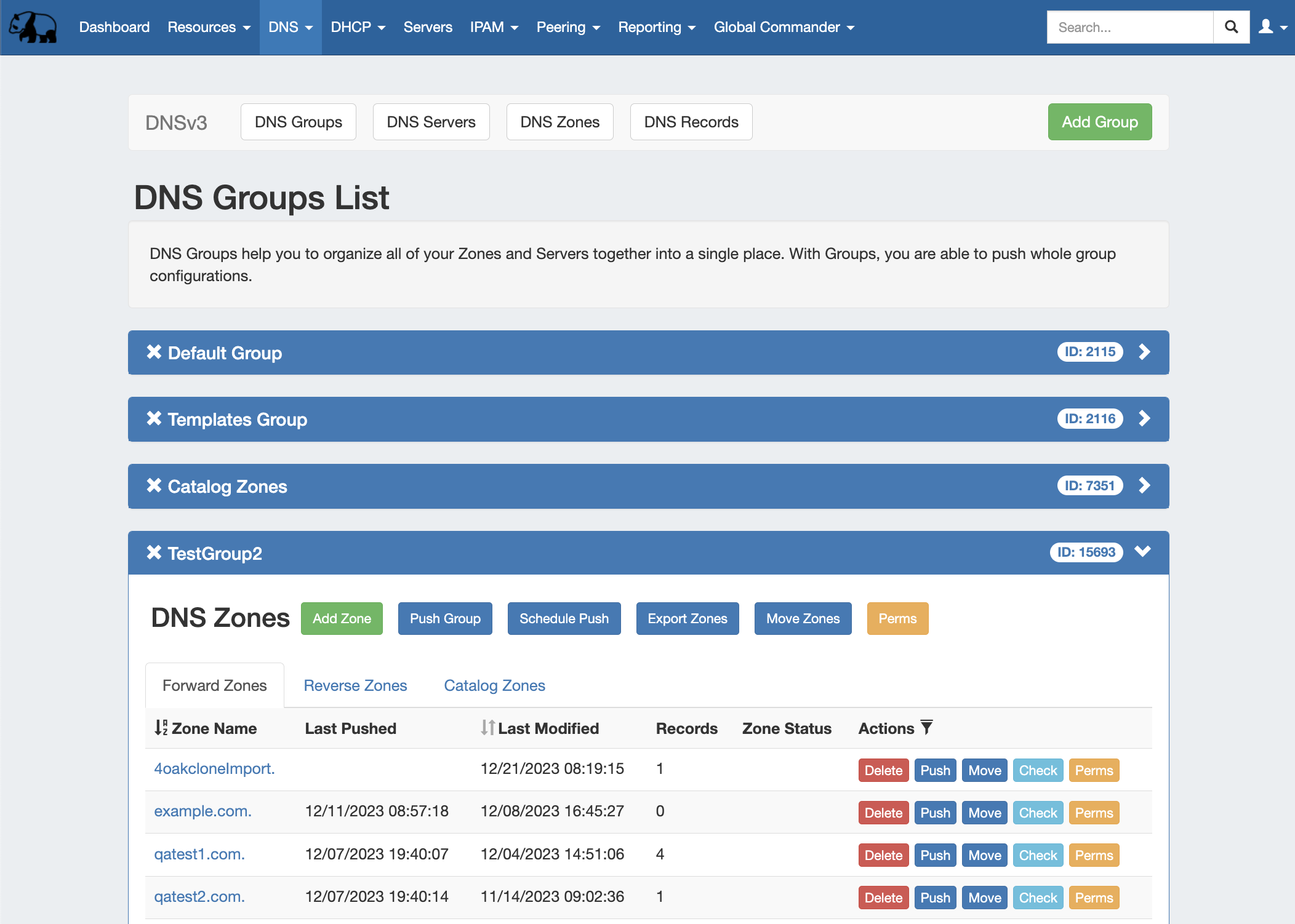
The DNS tab Groups List allows allows you to create, view, and manage groups of DNS Servers servers and Zoneszones. Using groups, you can configure and push selected combinations of zones at one time.
...
DNS Groups List Interface
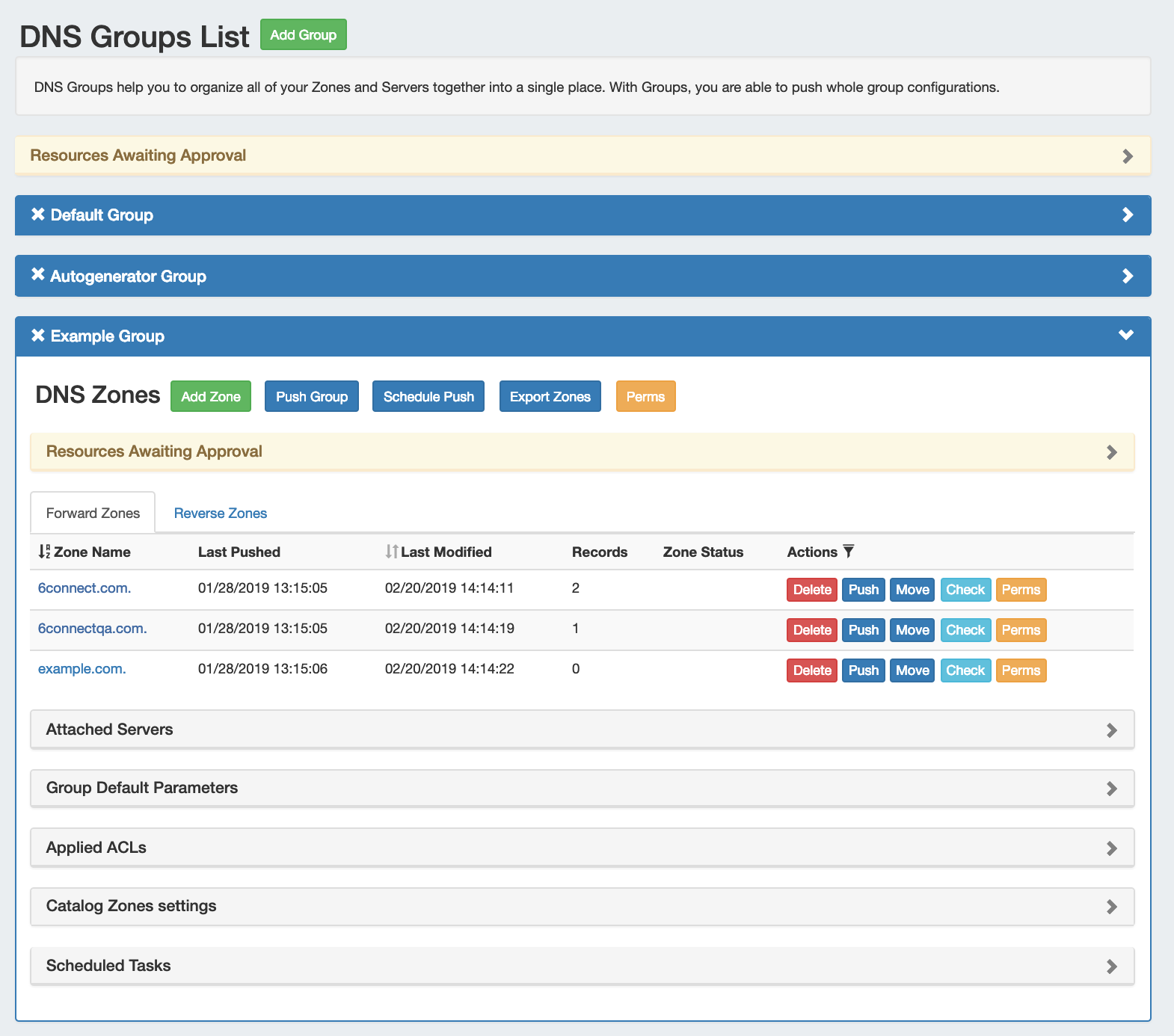
1) Add Group Button: Opens a dialog for creating a DNS Group
2) Resources Awaiting Approval Module - Group Level: Lists pending DNS Group level Approval events either submitted by, or able to be approved/rejected by, the current user.
...
DNS Group Navigation
Move between the DNS Groups, DNS Servers, DNS Zones, and DNS Record pages via the subtab buttons below the main navigation bar.
The right side of the DNS navigation bar contains the option to create a new DNS Group by clicking "Add Group".

DNS Group Resources Awaiting Approval
A "Resources Awaiting Approval" module will display above the DNS Group containers if a DNS Group change has been submitted on that page that is pending approval.

DNS Group Container
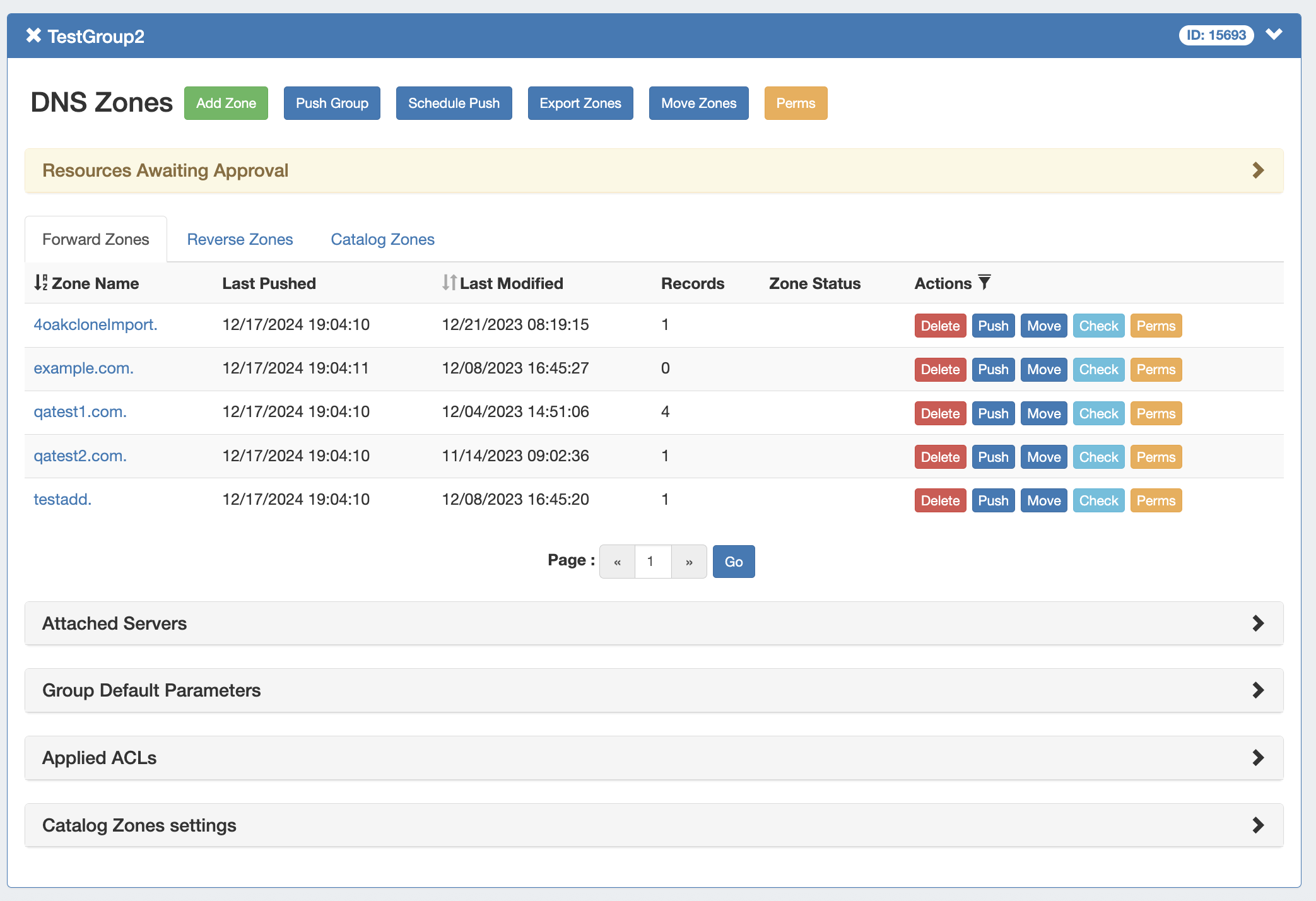
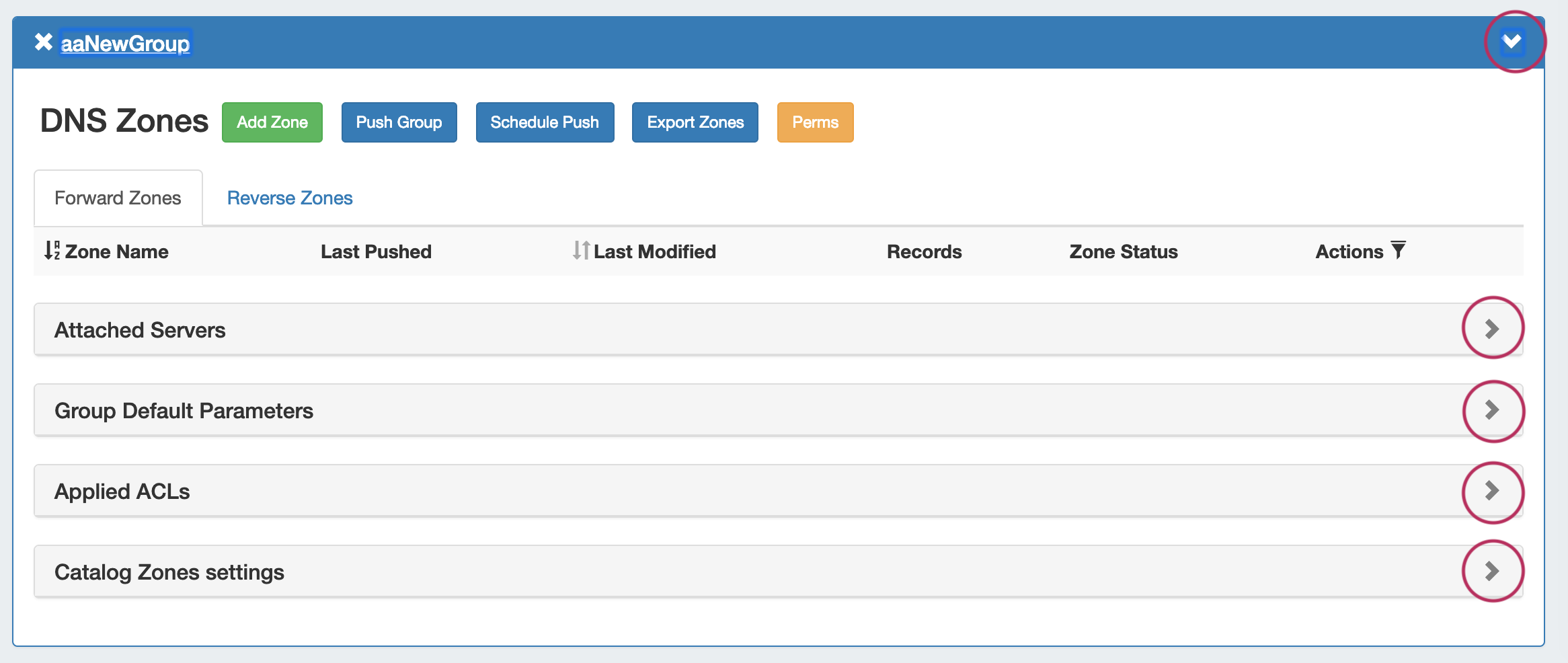
The DNS Group container displays the DNS Group information in the top header bar, showing the group name, group id, and visibility controls:
- Expand or close the group container by clicking on the expansion arrow ( > ) on the far right of the header.
- Clicking on the X will delete the
...
- group and all zones included in the group.
- Rename the group by clicking on the name, then typing the desired changes and clicking outside of the name.
- A Resources Awaiting Approval module will display above the zone list if the current user has submitted a zone list level approval request, or can respond to a submitted request.
Information for Attached Servers, Group Default Parameters, Applied ACLs, and Catalog Zones settings may also be viewed and edited by clicking on the expansion arrows for each section.
DNS Group Actions

Group Level action buttons are located above the zone list:

...
- Add Zone Button: Opens a dialog for creating a DNS zone under that group.
...
- Push Group Button: Pushes all zones in the group.
...
- Schedule Push Button: Schedules a push of all zones in the group to the selected day and time. Requires the scheduler tab / cron tasks to be enabled.
...
- Export Zones: Exports all zones in the group into a .zip file.
...
- Move Zones: Moves all zones in a group.
- Perms (Admin): Provides a shortcut for Admin users to change the group/user permissions for the DNS
...
- group.
...
...
- Resources Awaiting Approval Module - Zone
...
- Level: Lists pending DNS Zone
...
- level
...
- approval events either submitted by, or able to be approved/rejected by, the current user.
DNS Zones List
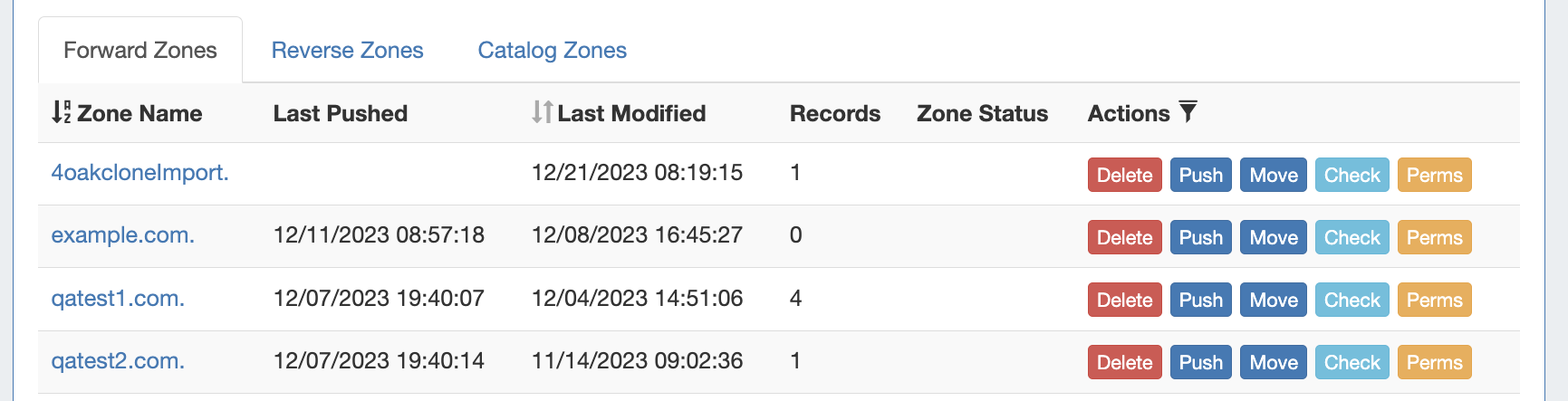
The zone list displays 10) Zone List: Forward and reverse zones included in the Group.
...
group under separate tabs:
- Forward / Reverse / Catalog Zones Tabs: Shows zone list containing only forward
...
- zones, reverse zones,
...
- or catalog zones when selected.
...
- Zone Name (Sortable):
...
- Displays the name of the zone.
...
- Click on the zone name
...
- to open the zone details window, showing individual records.
...
- Click on the "Zone Name" header will sort the zone list by ascending or descending by name.
...
- Last Pushed: The date and time the zone was last pushed.
...
- Last Modified (Sortable). The date and time the zone was last modified. Clicking on the "Last Modified" header will sort the zone list by most / least recent modification date.
...
- Records:
...
- How many records are in the zone.
...
- Zone Status:
...
- Will notify if the zone or server connection contains errors, after a check has been performed
...
- . Clicking on the "Contains Errors" message will provide additional details on the error.
...
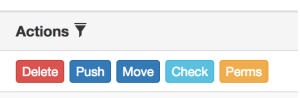
- Actions: The actions that may be performed on each zone:
...
- Delete: Deletes the zone from ProVision and removes the entry in ProVision conf file on the remote server(s) (the user will also receive a prompt to confirm they wish to complete the action).
...
- Push: Pushes the zone to the associated server.
...
...
- Move: Moves the zone to a different
...
- group.
...
...
- Check:
...
- Performs a check on the zone, notifying the user if errors or warnings are present for the zone.
...
- Perms (Admin): Provides a shortcut for Admin users to change the group/user permissions for the zone.
Attached Servers Module

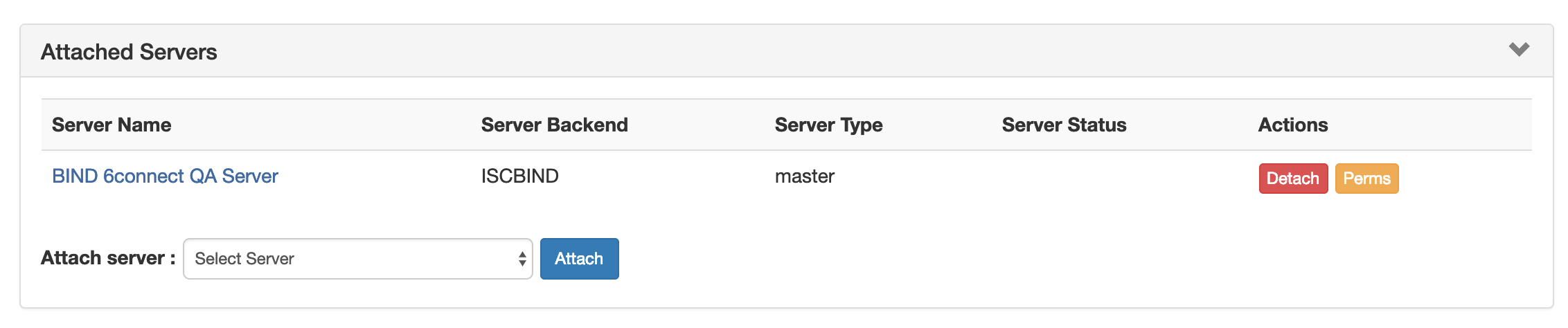
The Attached Servers module displays information on servers attached to the DNS group that 23) Attached Servers: Sets the server that zone and group pushes will be sent to. Click on the header title or expand arrow ( > ) to expand or collapse the module.
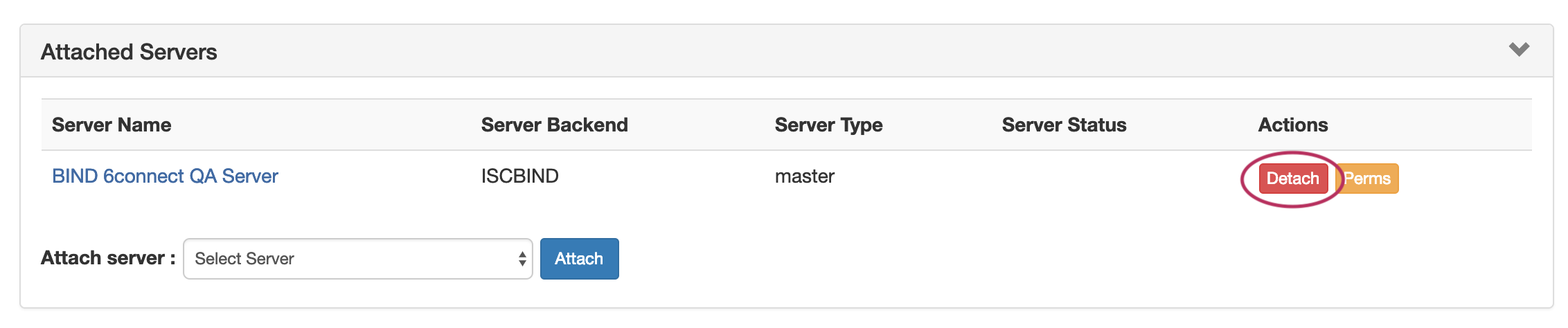
- Attached Servers List: Displays the Server Name, Server Backend, Server Type, Server Status, and available actions. Click on the Server Name link to view details
- Actions: Buttons under the Actions column indicate available actions for the server:
- Detach: Detaches the server from the DHCP group.
- Perms: View or edit permissions for the attached server.
- Attach Sever: Admins and users with server/group parent permissions may view, attach, or detach a server from the group. Select an available server from the dropdown and click "Attach" to attach to the DNS group.
Group Default Parameters
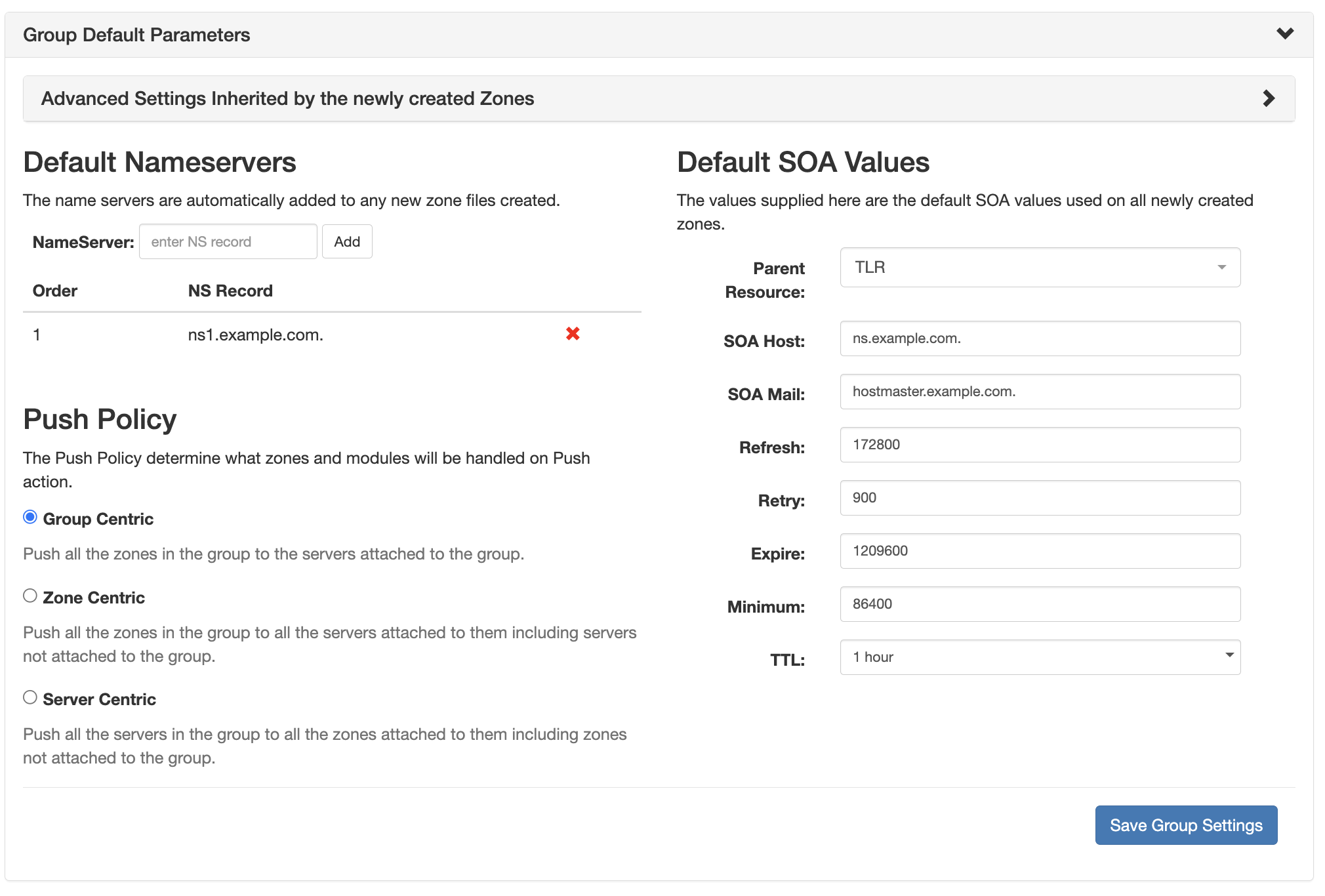
The 24) Group Default Parameters : Click on the header title or > to expand or collapse. Edit lists default group settings including nameservers, SOA values, and Push Policy.
25) Applied ACLs: Click on the header title or > to expand or collapse. Add or detach ACLs to the group.
Further Advanced Settings options are available if expanded.
Applied ACLs
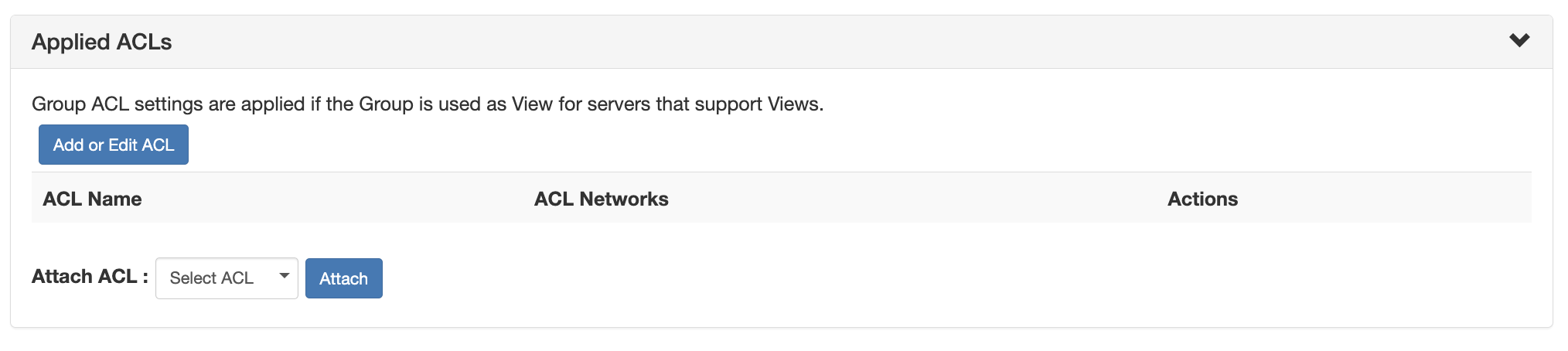
Group ACL settings may be set if the attached server for the group supports Views.
Catalog Zone Settings
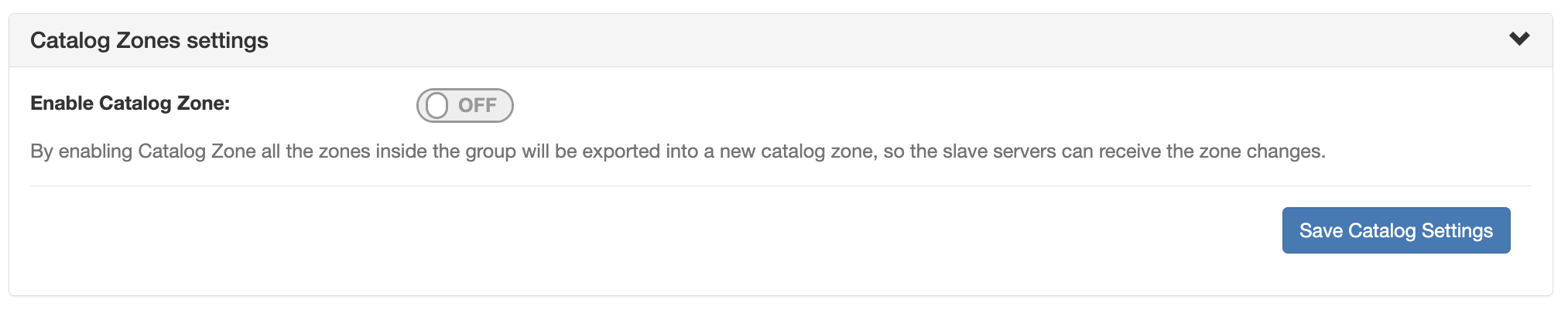
Catalog Zone settings provides the option 26) Catalog Zone Settings: Click on the header title or > to expand or collapse. Enable / Disable Catalog Zones. Enabling Catalog Zone exports all zones inside the Group group into a new catalog zone, so that slave servers can receive zone changes.
27)
Scheduled Tasks

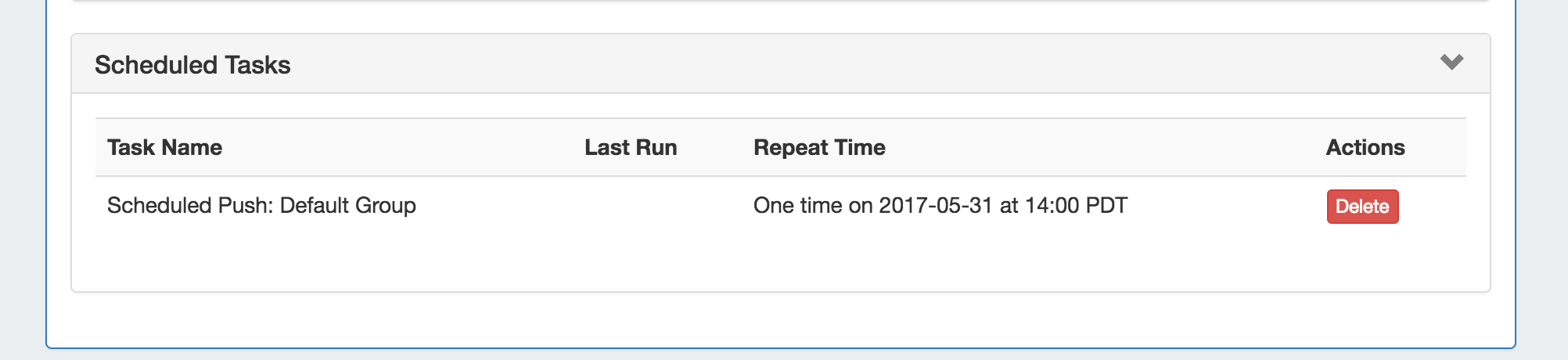
If : If a scheduled push has been set up for the group, the task information will show in a "Scheduled Tasks" module. Click on the header title or > to expand or collapse. Review or , where you can review or delete scheduled group pushes.
Working with DNS Groups
DNS Groups groups allow for organizing multiple zones together and linking those zones with one or more servers. Default nameservers, SOA values, and ACL's are set at the Group group level, so different Groups groups may have their own default values. Zones may be pushed individually, as a Groupgroup, or at the server level.
ProVision automatically designates a Default Group for zones to be imported or added to, as well as a "templates" group for holding pre-DNSv3 templates or to hold new zones created as templates. Creating additional Groups groups is completely optional.
Add a Group
DNSv3 automatically contains two Groups groups - one Default Group to contain existing or imported zones, and a Templates Group, containing zones mimicking DNS Templatestemplates. Additional Groups groups may be added or removed at any time, and zones may be freely moved or duplicated between different groups as needed.
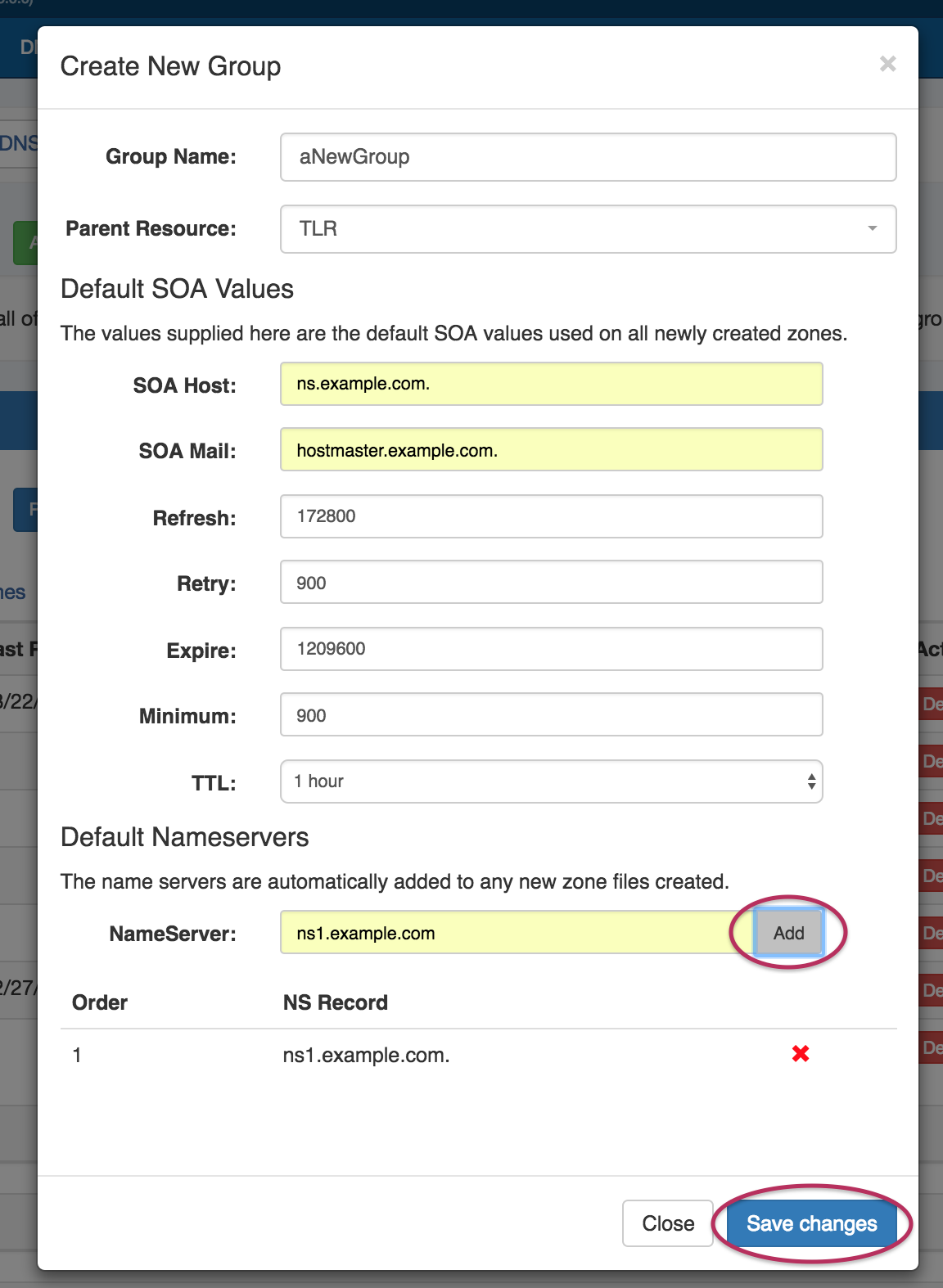
To create a new Group, from the DNS Tab, select the DNS Groups sub menu. Then, click the "Add Group" button next to "DNS Groups List"at the top of the page.


This will open the "Create New Group" dialog.
...
| Expand | ||
|---|---|---|
| ||
Create a GroupIn the "Create New Group" dialog, enter the desired Group Namegroup name, select a parent resource, enter the default SOA values, and add a default Nameserver (type the NS, then click "Add").
Click the "Save Changes" button when complete. The The new group will be added to the DNS Groups List. Navigating a GroupOpen the Group container for the new Group by clicking on the expansion arrow at the top right corner of the header. Information for Attached Servers, Group Default Parameters, Applied ACLs, and Catalog Zones settings may also be viewed and edited by clicking on the expansion arrows for each section.
|
Edit a Group
Edit a Group Name
Edit the name for a Group group by clicking inside the Groupgroup's Namename. A highlight box will appear around the name, and a cursor inside the box.
...
Click "Confirm" to save your changes, or "Close" to exit without saving.
Edit Attached Servers
Users may attach or detach servers from a group if they have either of the following permission types:
- TLR Admin permissions
- Full permissions on both the DNS Serverserver(s) and the Parent Resource parent resource set for the DNS Groupgroup
If either condition is met, the user may view and attach/detach the applicable server(s) to a Groupgroup.
| Expand | ||
|---|---|---|
| ||
To attach a server, expand the "Attached Server" module, and click on the Attach Server list.
Select the desired server, then click "Attach".
The server is now attached to the group, and future zone and group pushes will be sent to the attached server.
From here, users have the option to Detach detach the server if desired, by clicking the "Detach" button. Admin users may edit pemissions for permissions for the server using the "Perms" button, if desired (see: DNS Tab DNSv3 DNSv3 Permissions for additional information).
|





Edit a Group's Default Parameter Values
Under the desired Groupgroup, expand the "Group Default Parameters" module by clicking on the expansion arrow.
...
| Note | ||
|---|---|---|
| ||
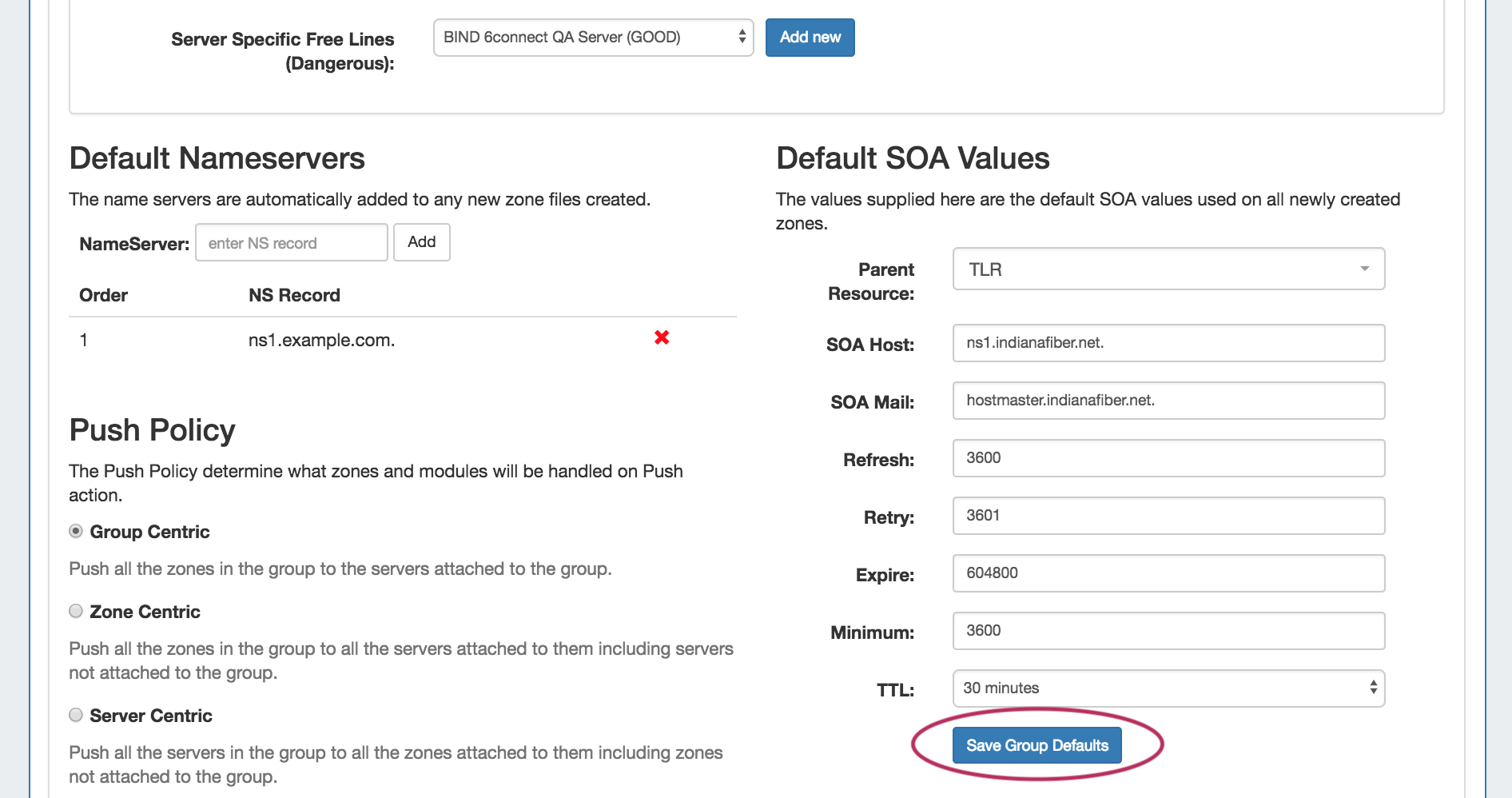
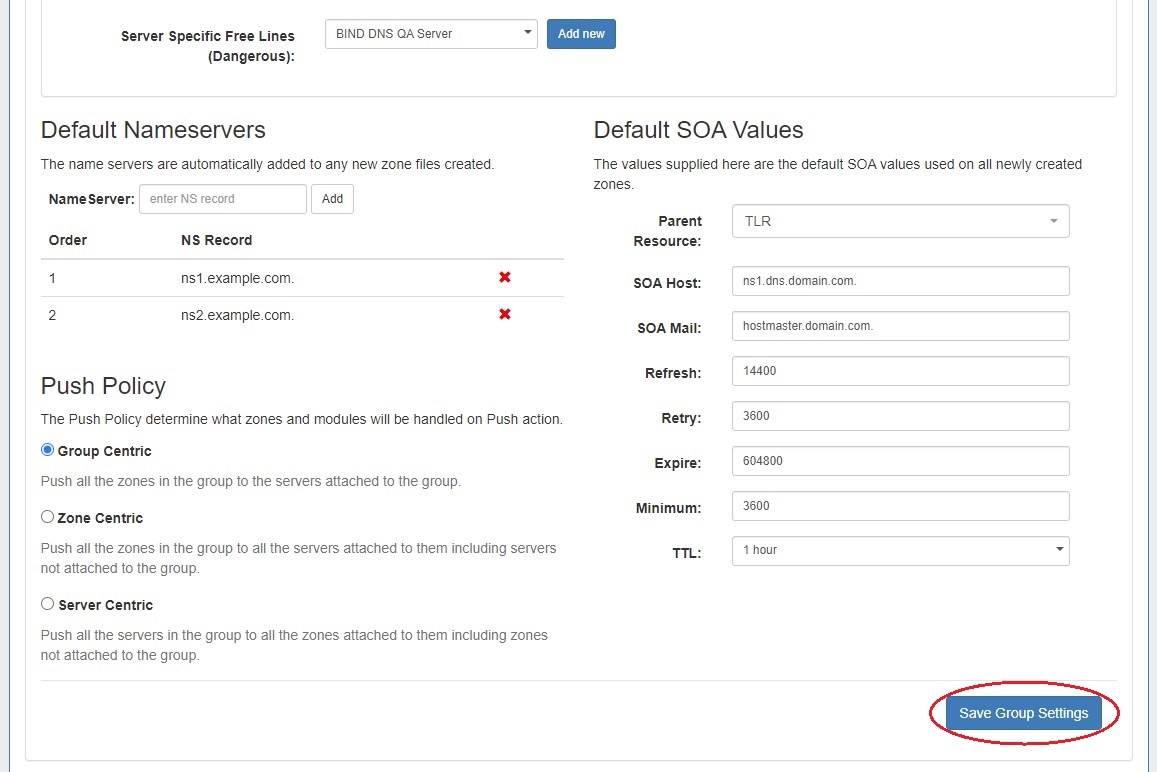
Important - to ensure that your changes are saved while working in Group Default Parameter, click the "Save Group DefaultsSettings" button under the Default SOA Values section - this save button will save any changes made to Advanced Settings, Default Nameservers, or Default SOA Settings. Push Policy changes can be saved by clicking "Save Push Policy". |
Edit Group Advanced Settings
Open the "Advanced Settings Inherited by the Zones" module by going to any DNS Group group and opening the "Group Default Parameters".
...
| Expand | |||||
|---|---|---|---|---|---|
| |||||
Once expanded, settings may be entered for DNSSEC, Dynamic Updates, Master-Slave Handling, Lists, and free lines. 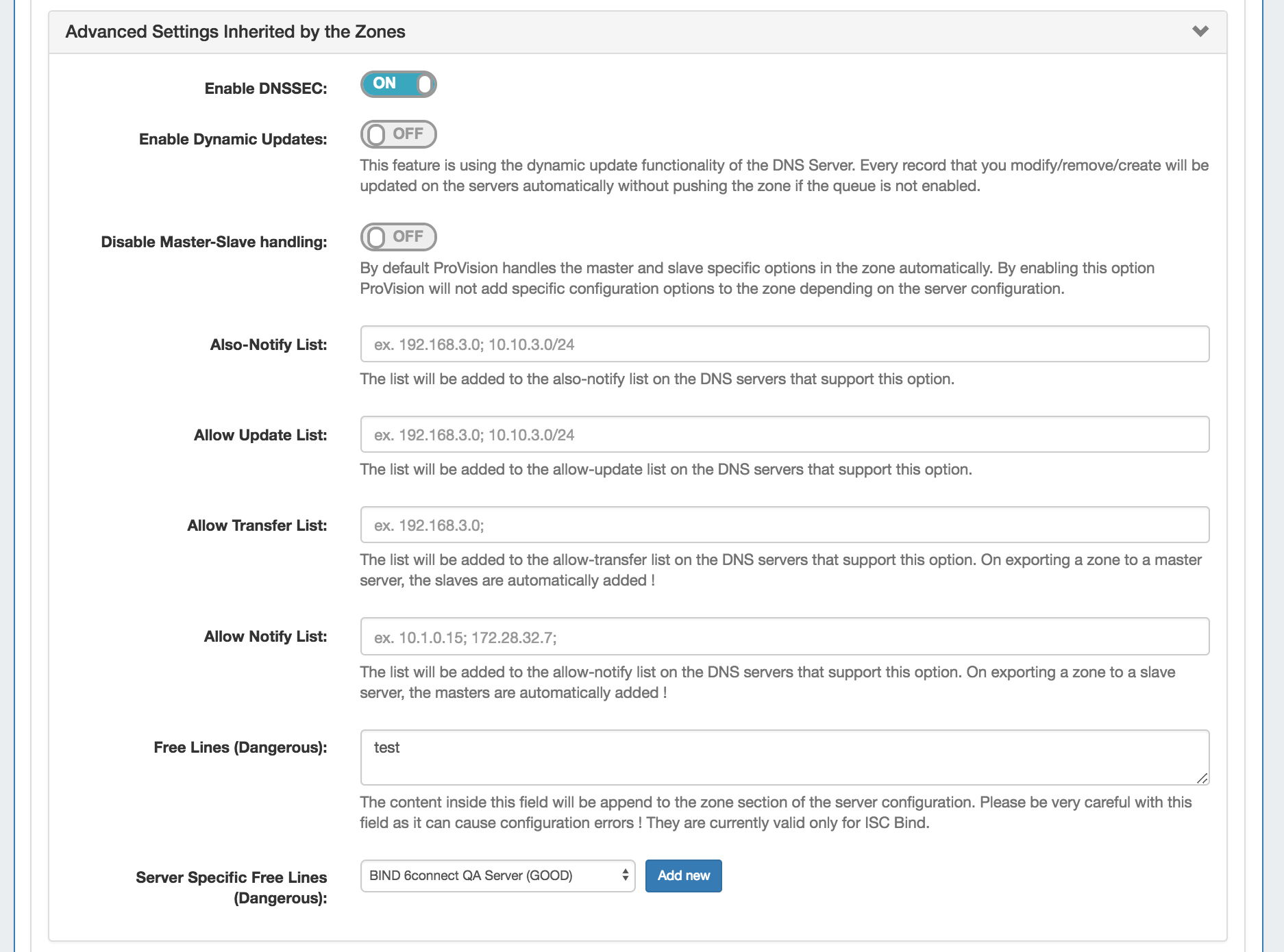
|
Edit Nameservers
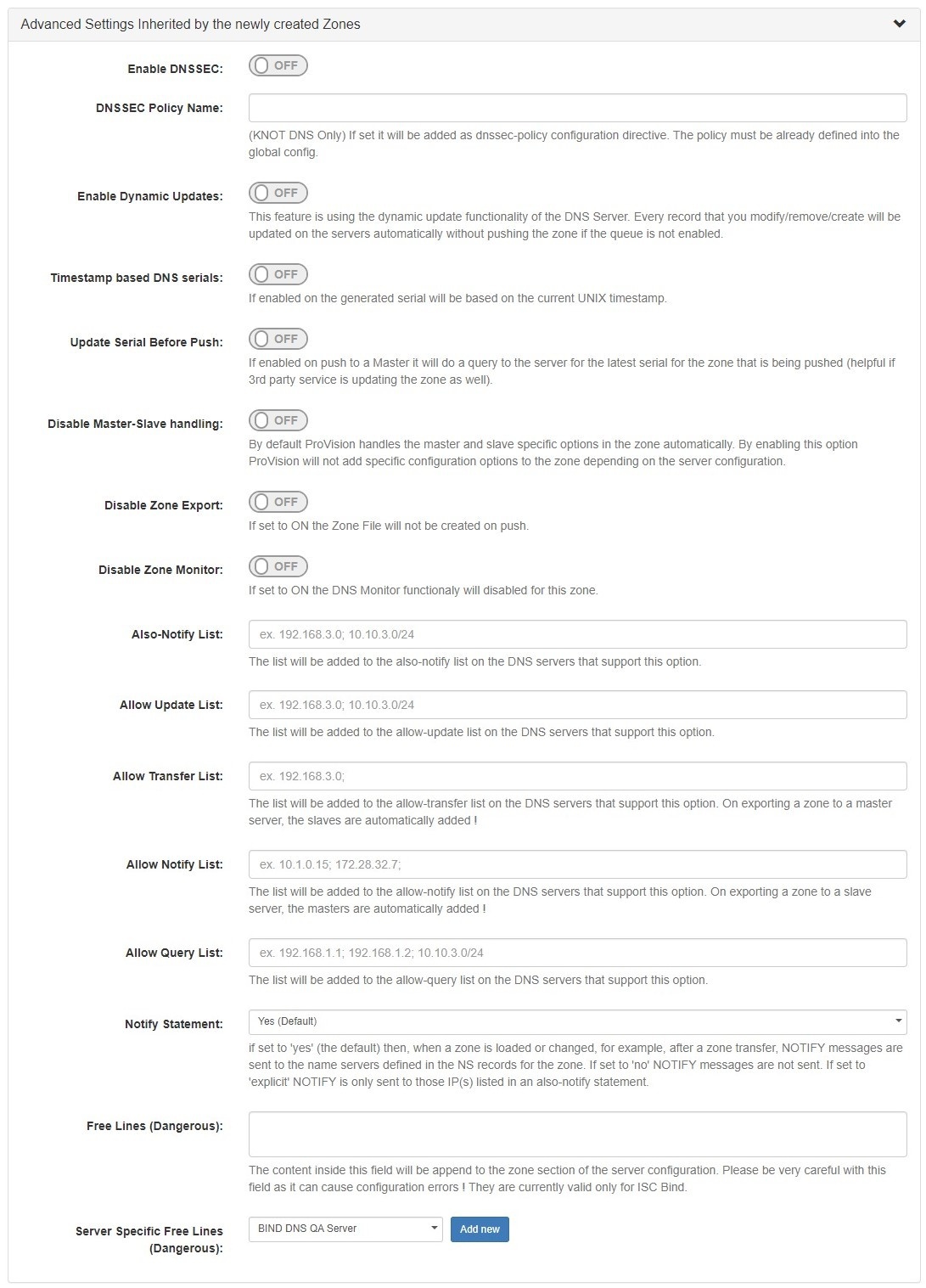
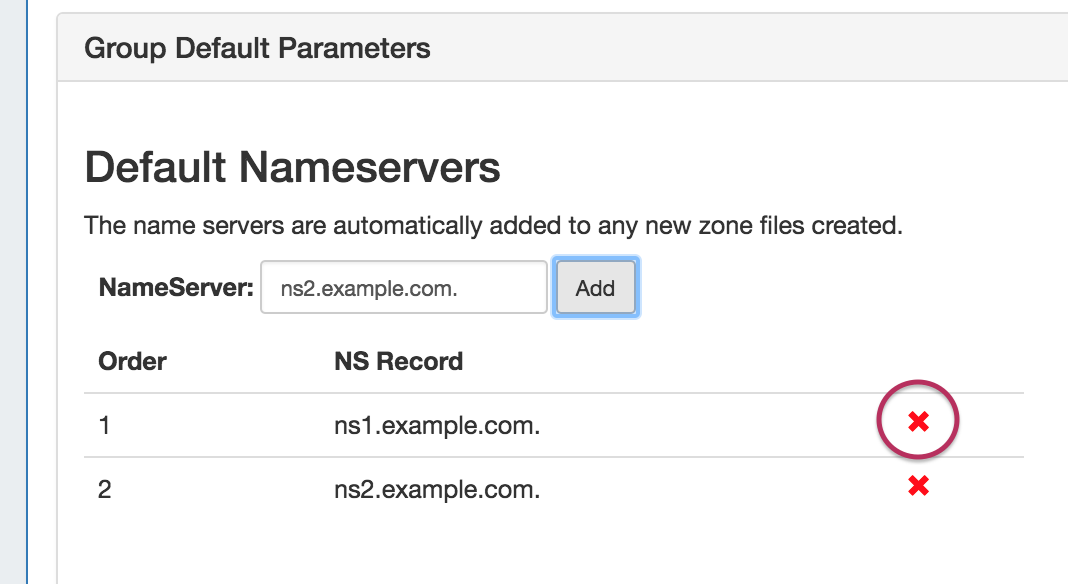
Default Nameservers are automatically added to any newly created zone files.
...
| Expand | |||||
|---|---|---|---|---|---|
| |||||
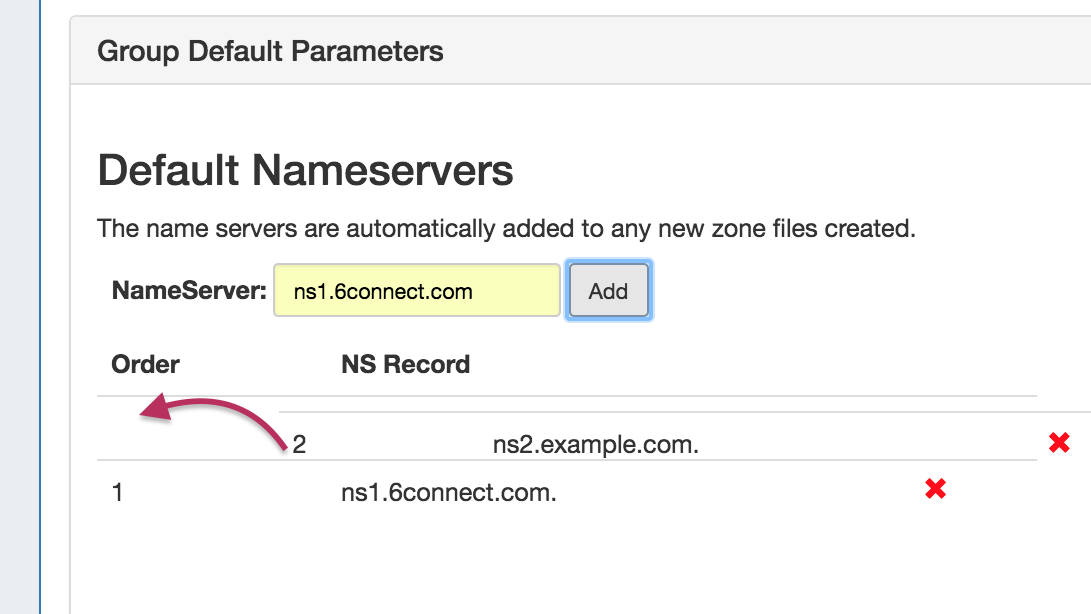
Change a Nameserver by typing the new NS record into the Nameserver box, then click "Add".
Delete the previous Nameserver by clicking on the red "X" to the right of the NS Recordrecord.
Change the order of multiple Nameservers by left-clicking (holding the mouse button down) over the NS Record record to move, dragging to its desired placement, then releasing the mouse button. The NS record will drop into its new location, with the order updated.
|
Edit Push Policy
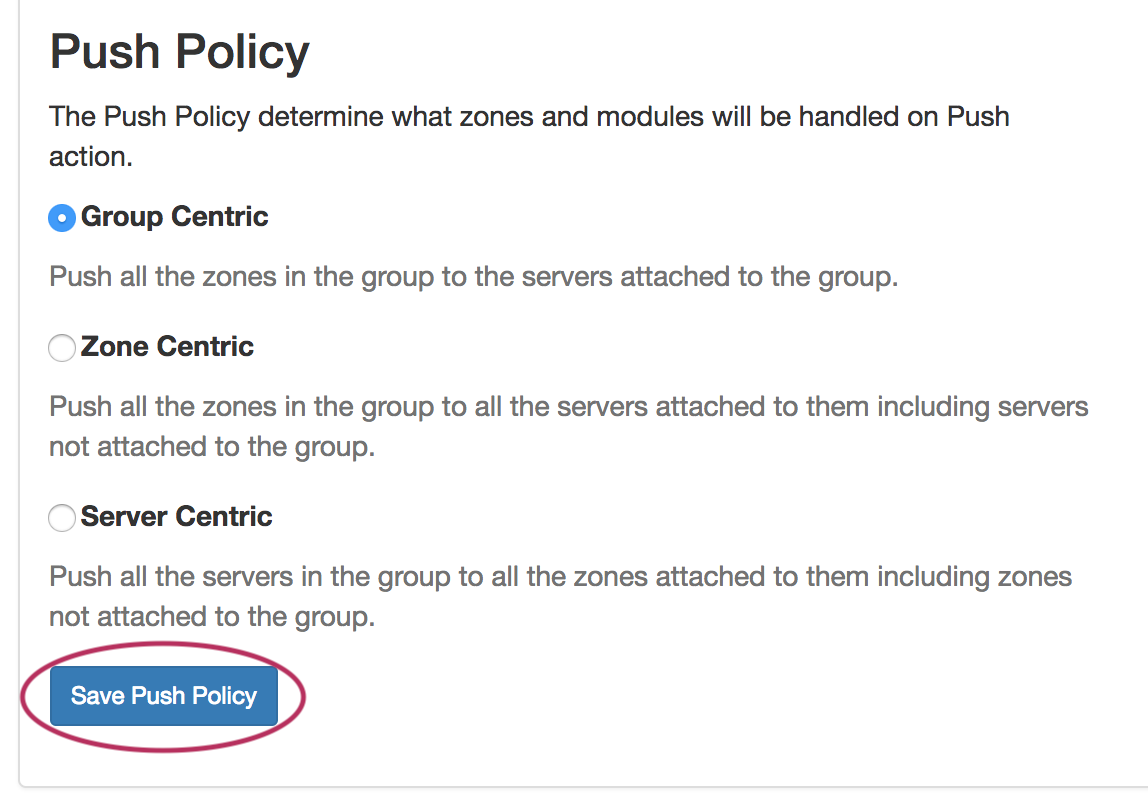
Edit the push policy by selecting the radio next to the desired push behavior ("Group Centric", "Zone Centric", or "Server Centric") and click "Save Push Policy".
Edit SOA Values
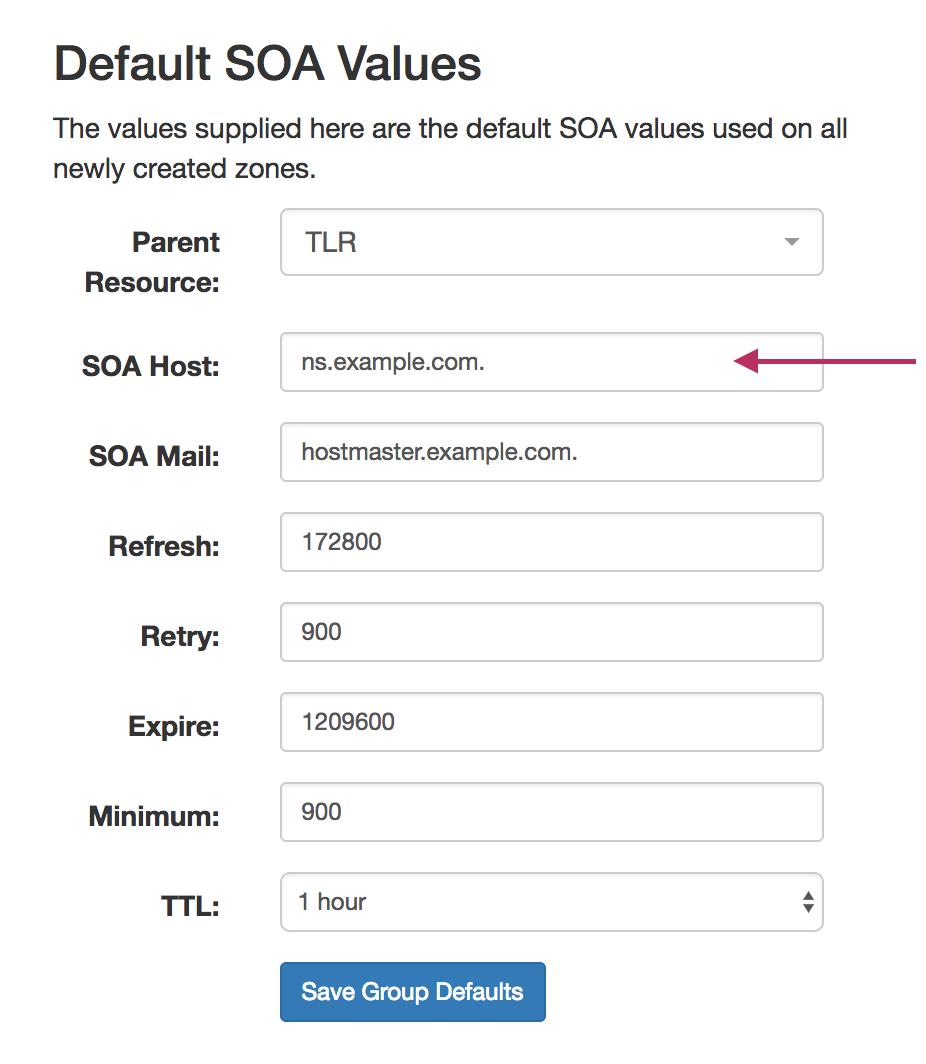
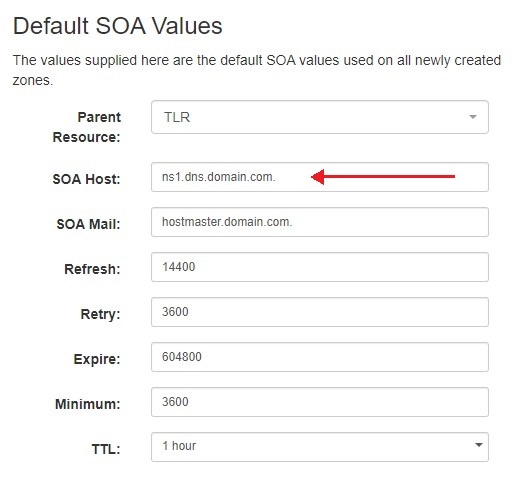
To edit the Default SOA values, simply click inside the value to be changed and type or select your new value. Be sure to also verify the desired Parent Resource parent resource for the Groupgroup, as the resource selected determines the Groupgroup's permissions.
Save Changes
Save all Nameserver, Advanced Settings, and SOA value changes by clicking on the "Save Group Defaults" button at the bottom of the section.
Closing without saving will cause all changes to be lost.
Add Zones to a Group
To add a new zone to a Groupgroup, click the "Add Zone" button inside the desired Groupgroup.


Fill in the zone name, select a parent resource (by default, the Group group is selected), select a populate type, and fill in any optional fields.
...
When complete, hit the "Save Changes" button.
Pushing a Group
Before pushing a group for the first time, verify the settings in the following areas are correct:
- Under "Attached Servers", verify that the correct server is attached to the DNS Groupgroup.
- Under "Group Default Parameters" verify SOA Settings, Nameservers, and the Push Policy are set.
Manual Group Push
After verifying the attached server and group settings, manually push the Group group by clicking the "Push Group" button under the desired Group. group.

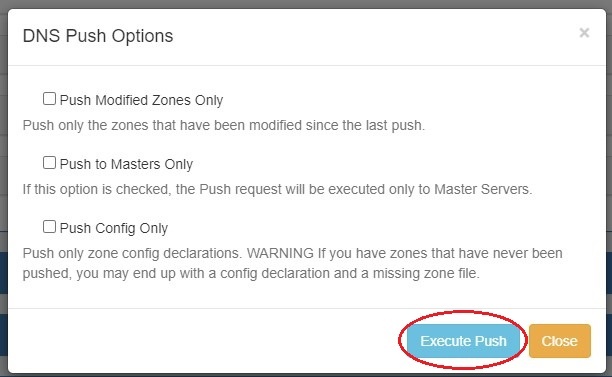
Users can customize a push by choosing an option from the push options modal and clicking "Execute Push". To push normally, click "Execute Push" without selecting any options.

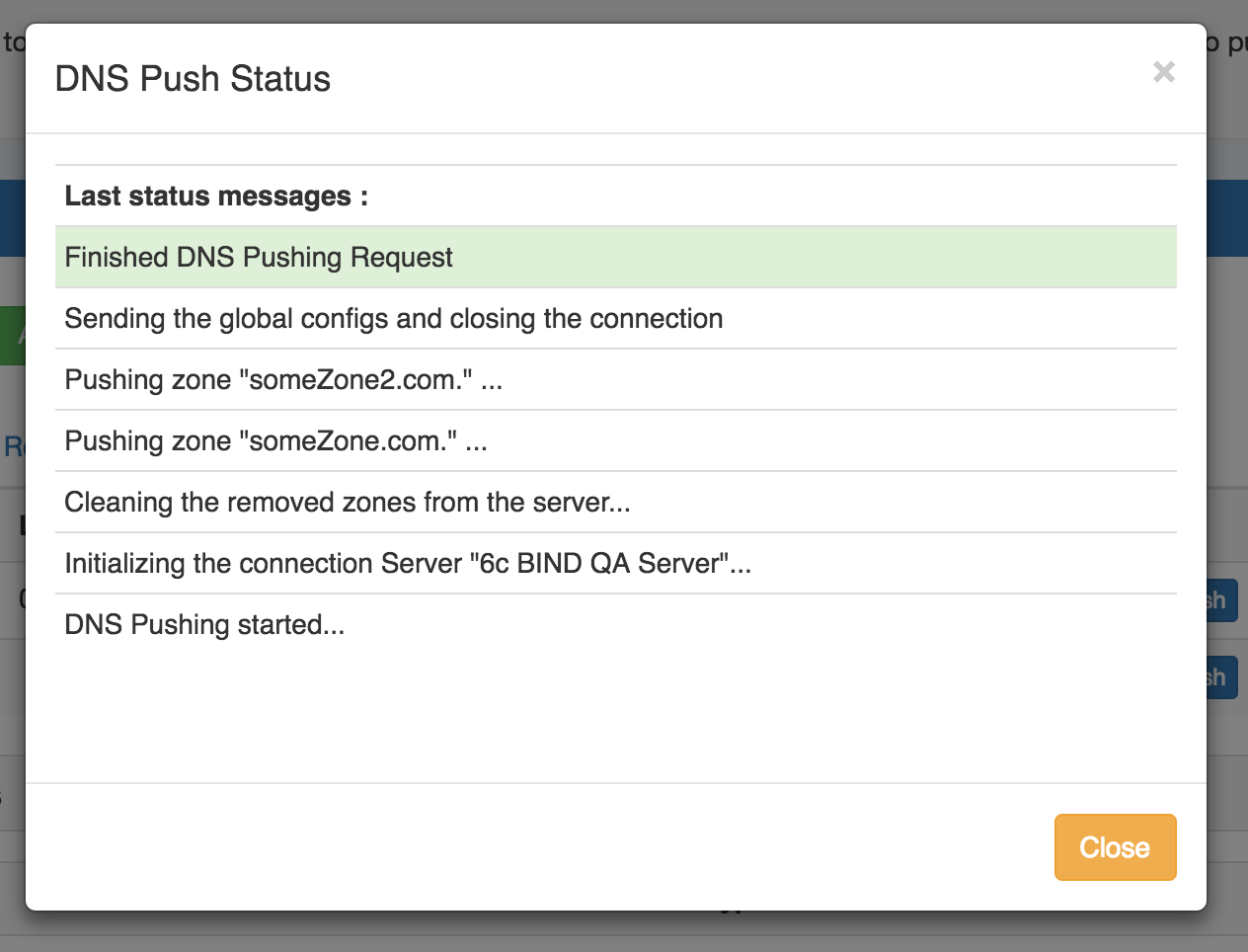
A DNS Push Status window appears, showing each zone in the Group group as it is pushed to the attached server. If successful, a green "Finished DNS Pushing Request" will appear as the final message. If errors occur, an error message will show with details on the issue. When complete, hit the "Close" button.
Scheduled Group Push
Scheduled pushes may be set up through the "Schedule Push" button for the Groupgroup.


| Expand | ||
|---|---|---|
| ||
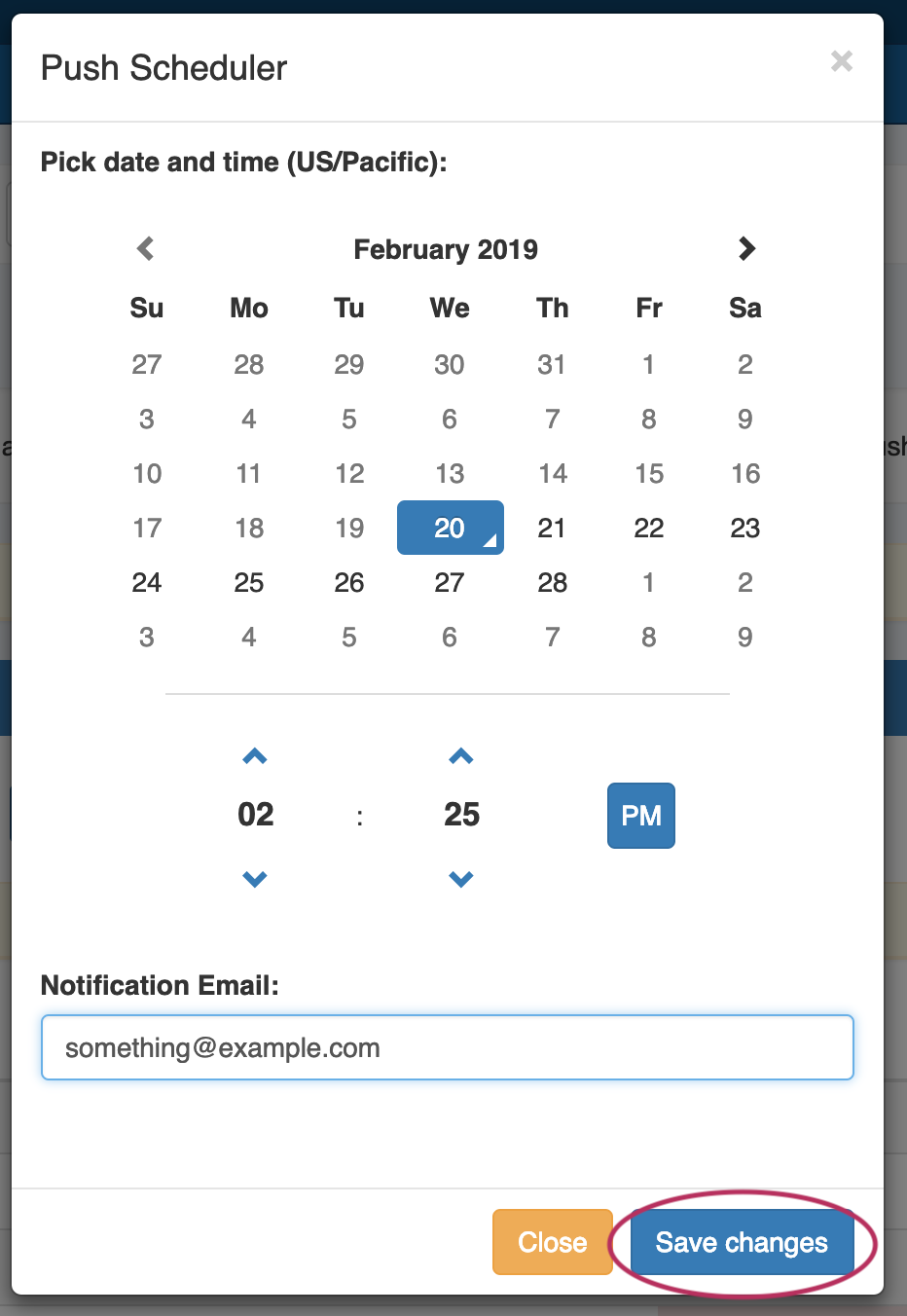
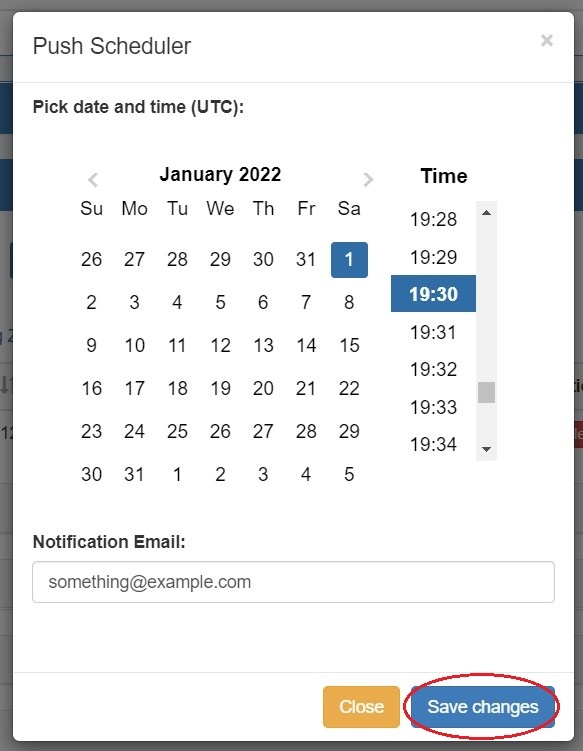
Click "Schedule Push" for the Groupgroup, then select a date, time (12 hour, with AM / PM toggle24 hour), add a notification email address, and click "Save changes".
The Scheduled scheduled task will be shown in both the Group group details (under "Scheduled Tasks") and the Admin Scheduler task list.
The task may be deleted prior to running by clicking the "delete" button, but will automatically be removed once completed. |
Delete a Group
Delete a non-Default Group by clicking on the "X" to the left of the Groupgroup's name in the DNS Groups List.


A confirmation message will appear, click "Confirm" to save your changes, or "Close" to exit without saving.
...
The Default Group may not be deleted.
Export a Group
All zones under a DNS Group group may be exported to a .zip file by clicking the "Export Zones" button at the top of the Group group module.
The exported .zip file may be used with the BIND DNS Zone Upload / Import tool.

Move a Group
All zones under a DNS group may be moved to another group by clicking the "Move Zones" button at the top of the group module.

Using the Templates Group / Cloning Zones to a Group
By default, a "templates" group is included in DNSv3.
Any pre-DNSv3 DNS Templates will be included in this group, as well as any newly created zones to be used as template zones.
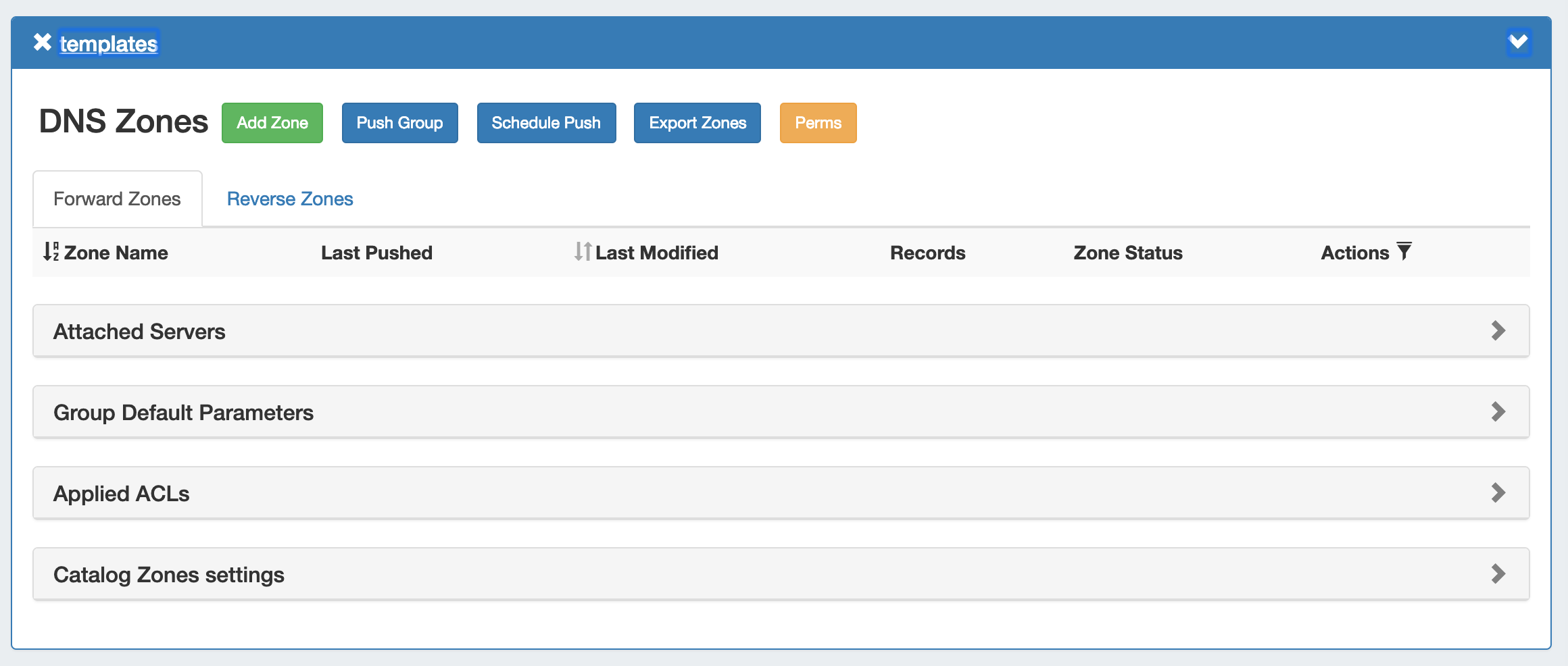
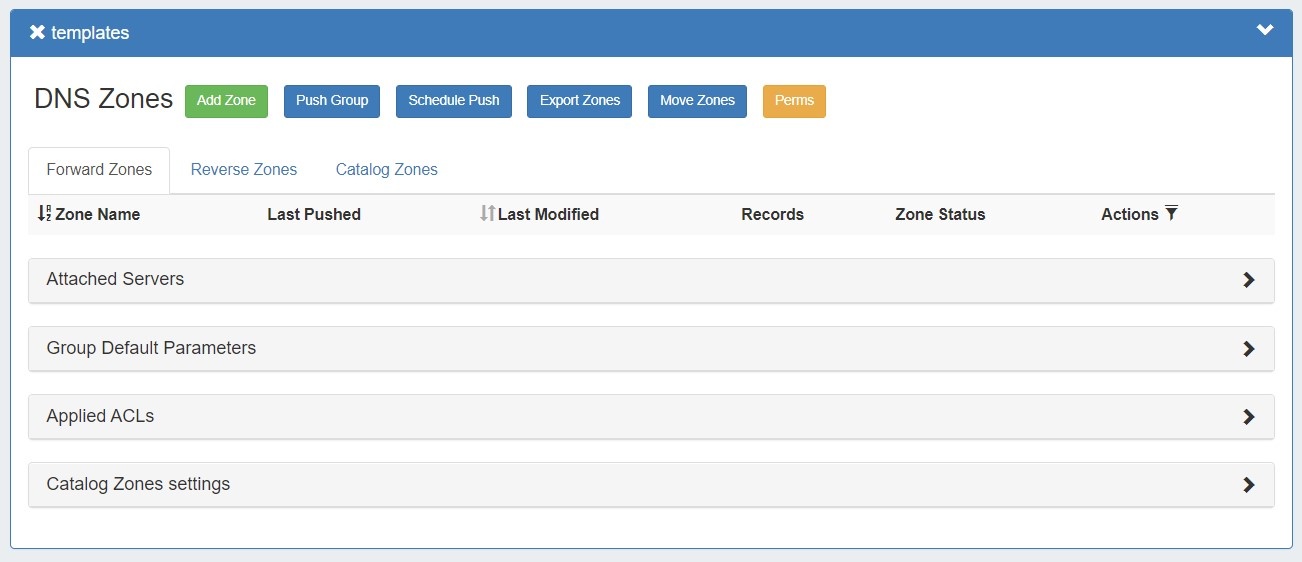
The template group functions the same as any other DNS Group, but gives a holding place for zones designed as templates separate from other zones.
| Expand | ||
|---|---|---|
| ||
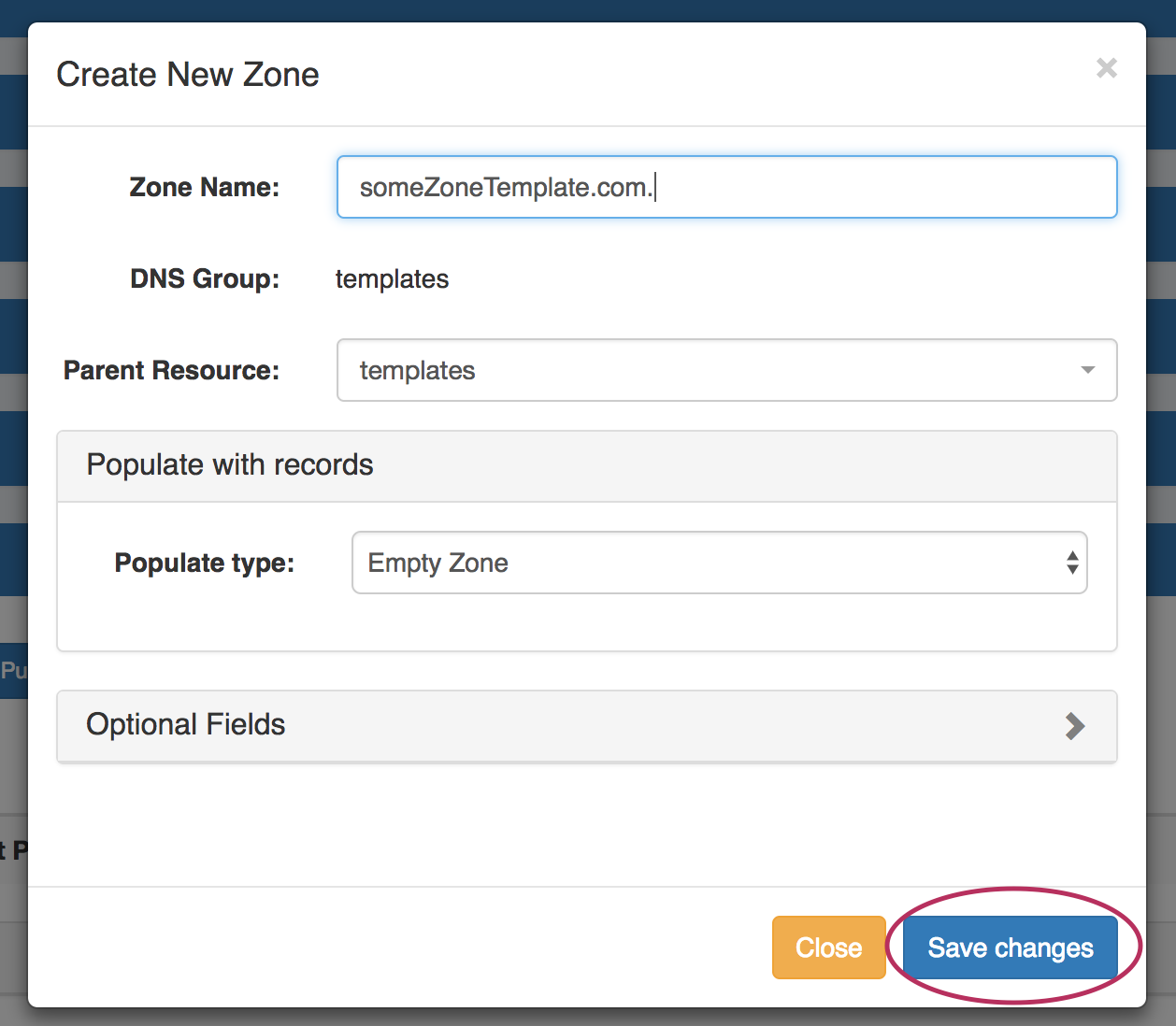
Create your template zoneAdd a template zone by clicking the "Add Zone" button, giving the zone a descriptive name to clearly identify as a template, select the populate type, and fill in any optional data. ( see Working with DNS Zones - Add a Zone.)
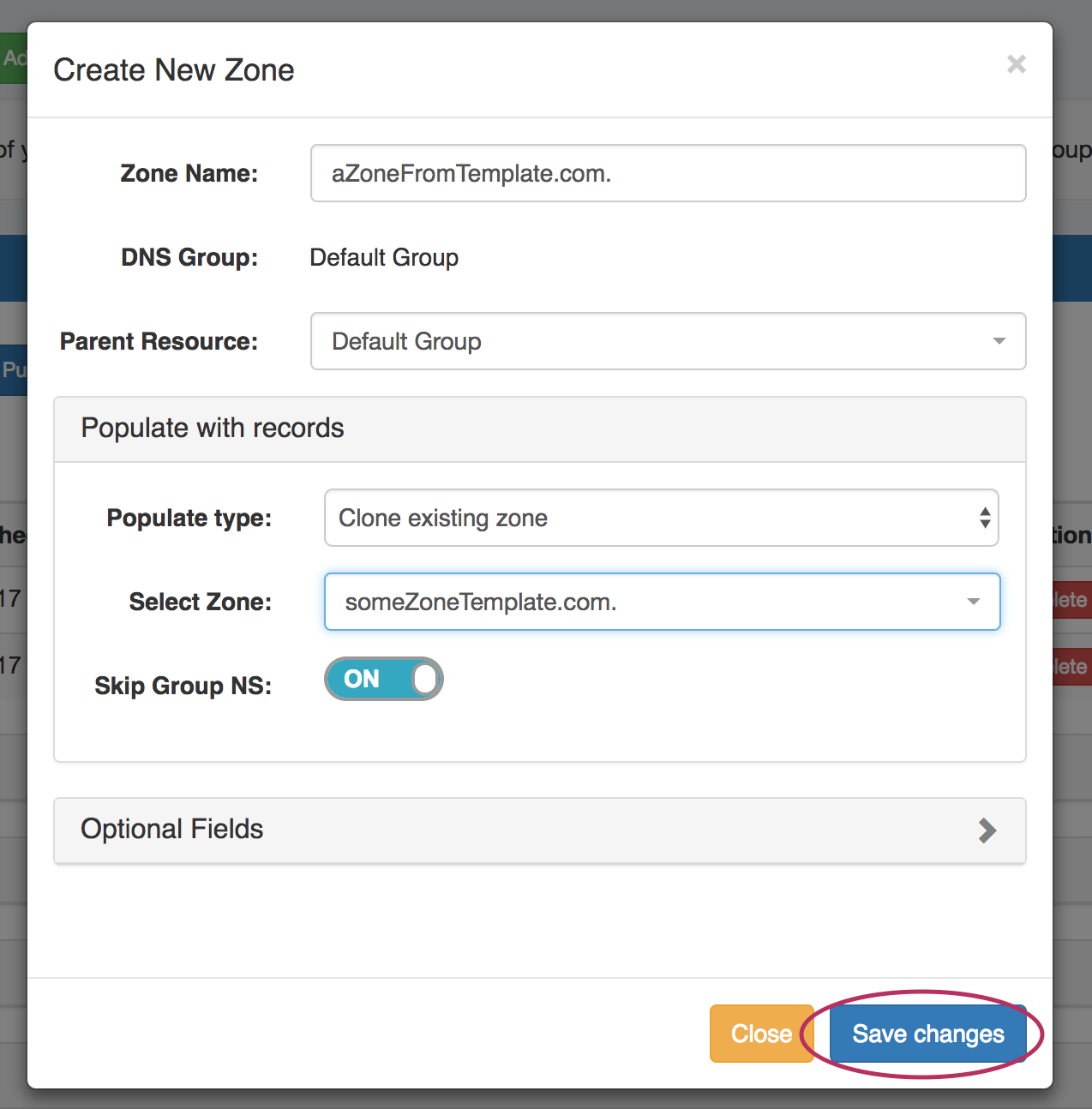
Once the zone has been created, it will show in the templates group zone list, and is now selectable as a base for the "clone existing zone" option when creating a new zone. Clone Template to a Different GroupGo to a different group, and click "Add Zone". Enter in the new zone name and parent. Under "Populate Type", select "Clone existing zone" and select /search for the template zone you created.
Edit the optional fields as needed, and click "Save changes". |
...