LIR Setup - RIPE
Before You Begin: Create RIPE API Database Key
RIPE Integration Authentication
All ProVision RIPE LIR connectors must be created (or recreated) using RIPE API key credentials.
Deprecation of RIPE MD5 Hashed Passwords:
RIPE MD5 hashed passwords (used in ProVision v8.3.0 and earlier) are deprecated and have been removed as of January 2026, and replaced with API Key based authentication.
Users must generate a RIPE API key associated with their NCC account as described at https://docs.db.ripe.net/Authorisation/Using-the-Authorisation-Methods#api-keys:
To create an API key, login to Webupdates using RIPE NCC Access and choose API keys from the left-hand menu. Then click Create an API Key. When the key is created you will see a popup. You must copy the API key details as they will only be shown once. Store the copied credential securely.
Before using an API key, you must add your RIPE NCC Access account to a maintainer using an auth: SSO attribute.
Create a RIPE API Key:
RIPE API Key credentials are needed to create RIPE LIRs in ProVision.
If you do not already have a RIPE API Database Key, create one by following the instructions provided by RIPE under Create a New Database Key:
Before authenticating with an API key, your RIPE NCC Access account must already be associated with the object mntner using an "auth:" SSO attribute.
To start using API keys, go to the Web query page, login to RIPE NCC Access, and go to the API keys page on the left-hand menu. https://apps.db.ripe.net/db-web-ui/api-keys
Create a New Database Key
On the API keys page, click on "Create a new Database key".
- Enter a key name (required) : a short description of how the key will be used.
- Enter an expiration date (required) : when does the API key stop working. Keys are time-limited for security reasons and are valid up to a year in the future.
- Enter a maintainer (optional) : if you have added your RIPE NCC Access account to more than one maintainer, you can restrict the API key to only work with one specified maintainer.
Then click on "Create a key".
When the key is created you'll see a popup.
The API key is composed of two parts. You can either use it combined in a single HTTP Authorization header, or separately as a username and password using your HTTP client.
Make sure to copy down either the combined header value or the username and password. The password will only be shown to you once. The username will be used subsequently as the key id.
ProVision users should copy the "Username" and "Password" generated for the API Database Key, and save them in a secure location.
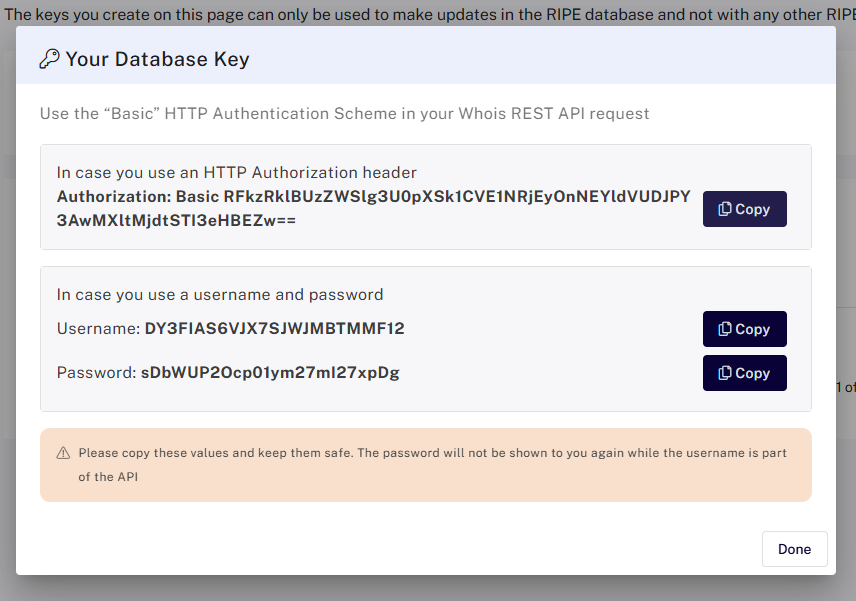
The RIPE API Username and Password are required when creating or editing a RIPE LIR.
Step 1: Create RIPE LIR and Add Maintainer Object Data
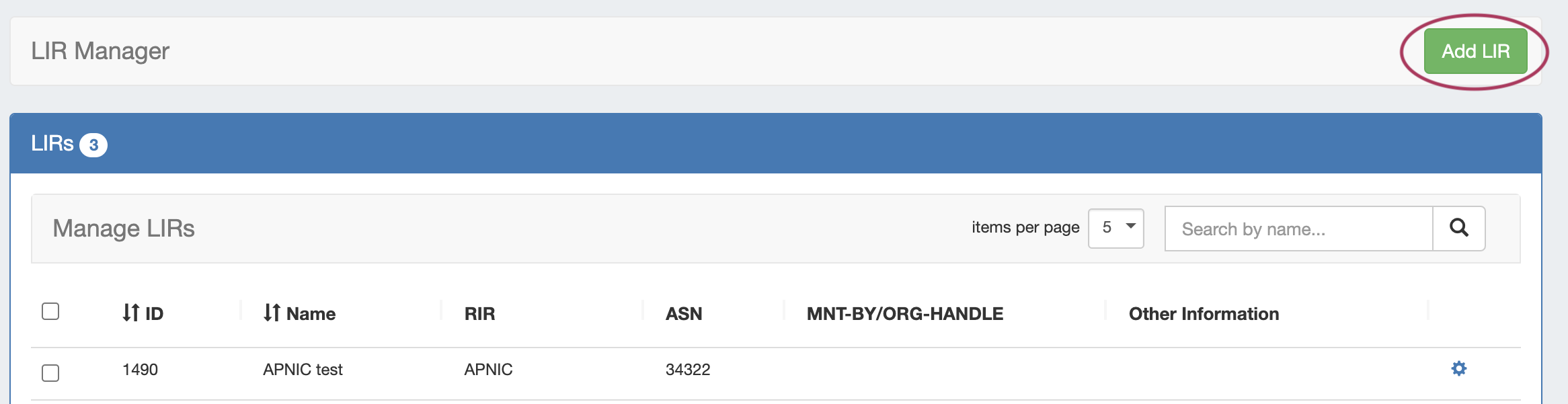
Add a New RIPE LIR by clicking "Add LIR" at the top right of the LIR Manager page.
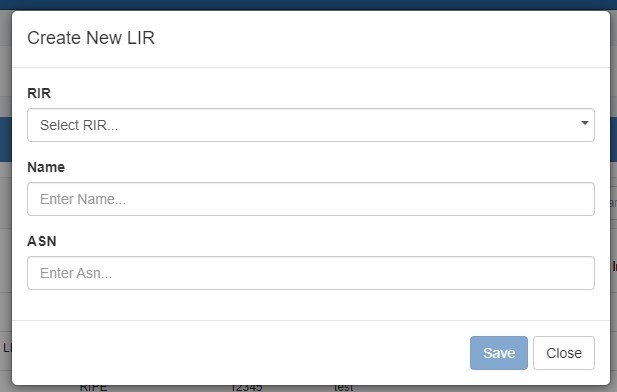
The "Create New LIR" screen opens. Select "RIPE" for the RIR, and enter the LIR Name and ASN.
Then, add the requisite Maintainer Object related information:
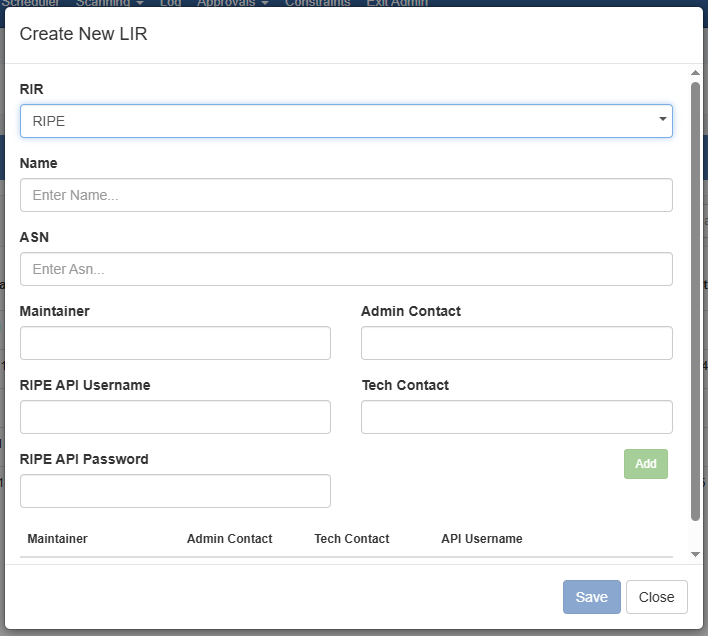
Enter the Name, ASN, Maintainer, RIPE API Username/Password, and Contact information. Additional Maintainers may be added by selecting the "Add Maintainer" button.
Be sure to click the "Save" button when done to save your changes.
Remember to SAVE!
Multiple Maintainer Object Support
Note that we support multiple maintainer objects per LIR entry. Simply complete the maintainer fields and click "Add" after each addition. A list will display at the bottom of the Add LIR dialog box.
Step 2: Assign an IP block to a Resource
Navigate to either IPAM Manage or the IPAM Gadget, and assign a block under the RIPE RIR. See Working with IP Blocks for additional detail.
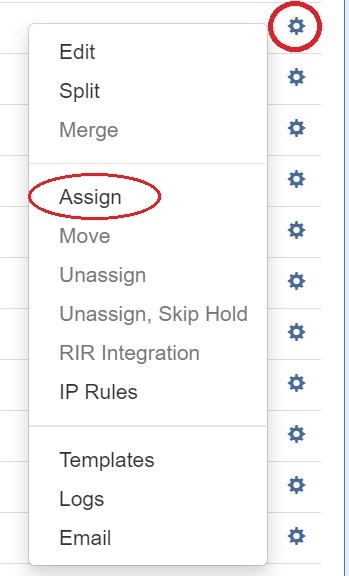
Step 3: Update RPSL information
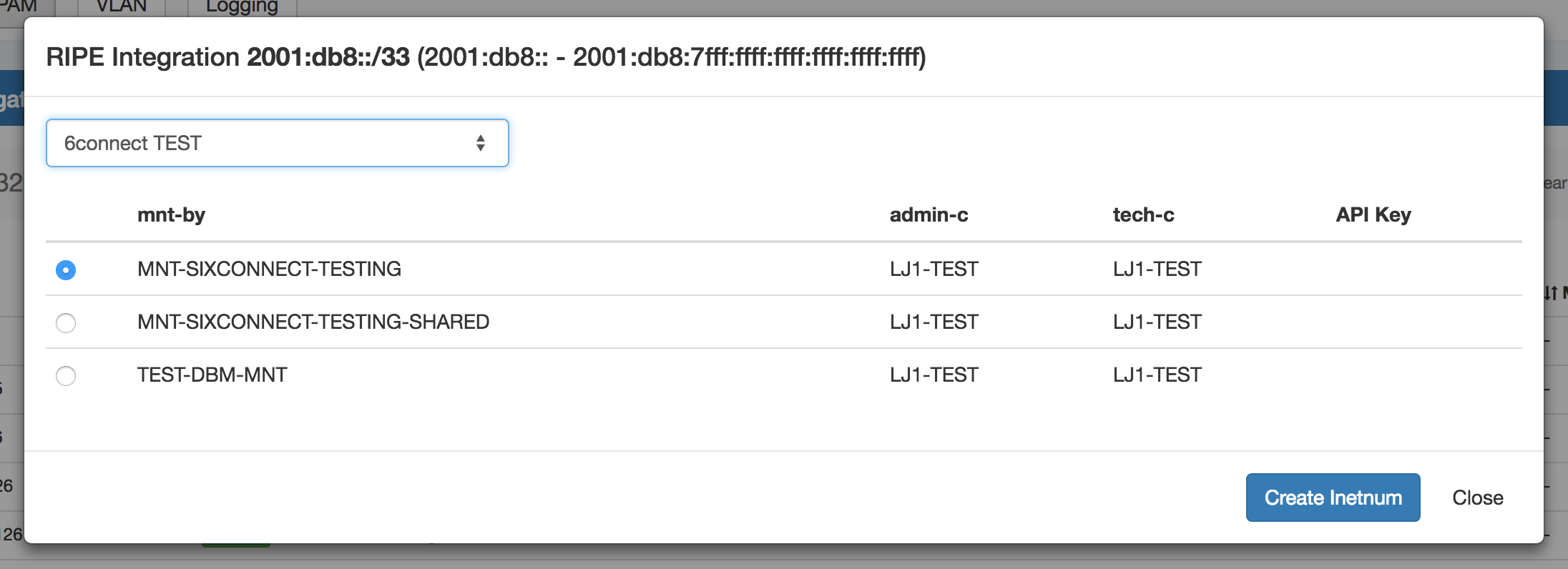
Select "RIR Integration" from the Action Menu in IPAM Manage.
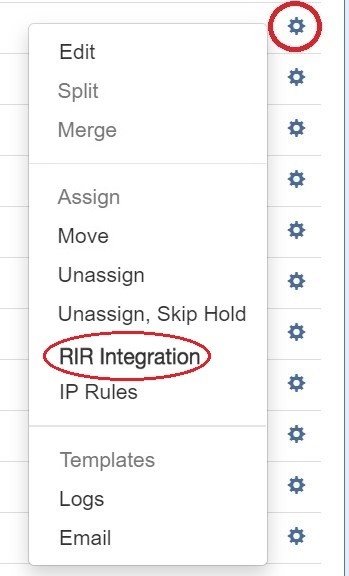
Identify which LIR data you want to use for the netnum update, and select either "Create Inetnum" or "Cancel" to exit.